
 Voice Feedback
 To customize or edit your Voice Feedback Drawer Go to Voice Library > Settings. After that you will see a beautiful dashboard which has two section. Click Settings to edit your drawer.
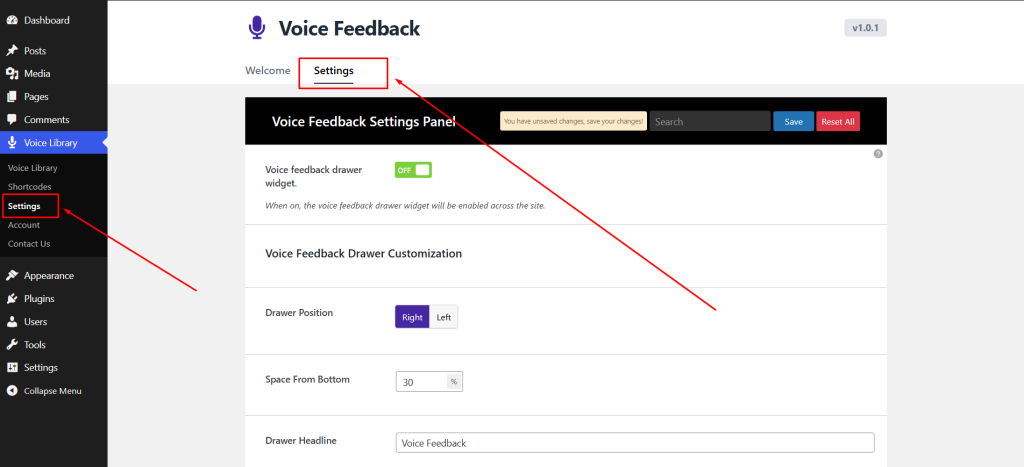
This section allows you to control how the voice feedback drawer feature appears globally on your website.
- Voice Feedback Drawer Widget: Show or Hide the Global Drawer.
- Drawer Position: Set drawer position left or right.
- Space From Bottom: You can set drawer exect positon in the website.
- Drawer Headline: Change drawer headline text.
- Start Recording Button Text: Edit start recording button text on your own.
- Drawer Background Color: Change drawer background color.
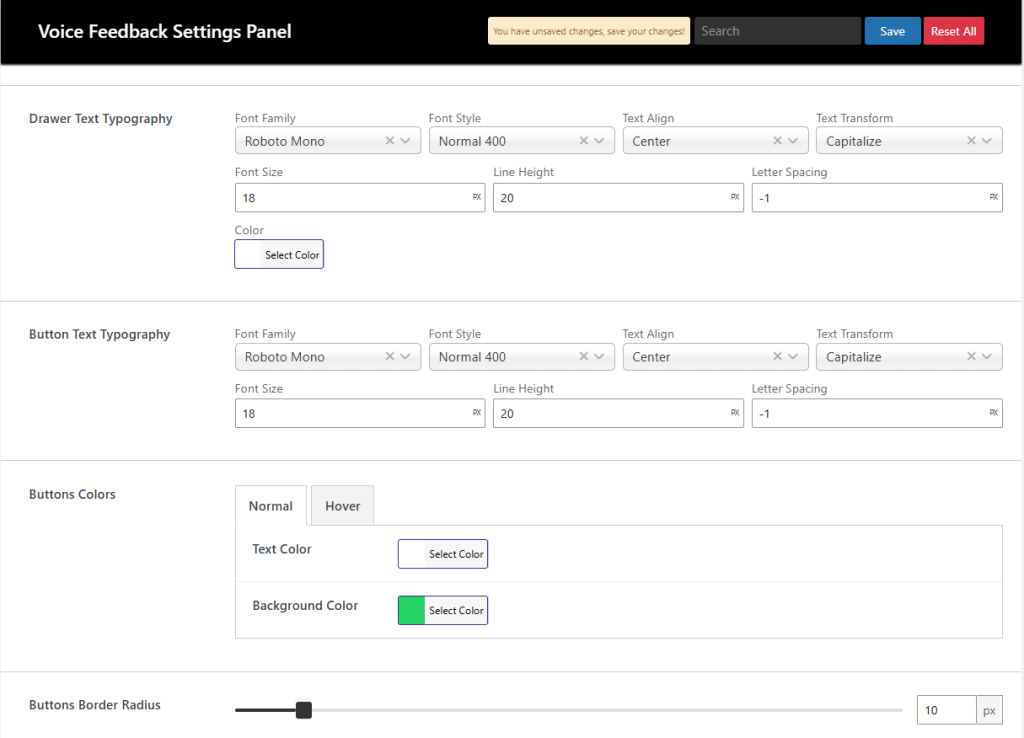
- Drawer Headline Typography: The typography of the drawer headline text.
- Button Text Typography: This typography will all of the button of like Start Record, Play Record, Send, Clear, Re-record buttons.
- Button Colors: Set button text color, background color for normal and hover.
- Button Border Radius: Give radius of Start Record, Play Record, Send, Clear, Re-record buttons.
 Save 90%