
 StreamCast Radio Player
 Minimal
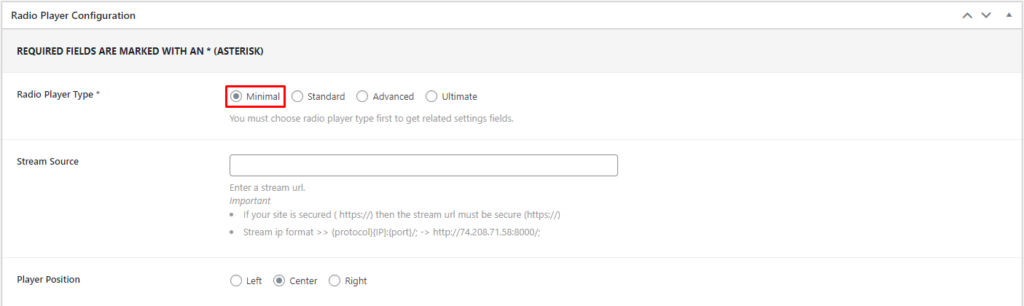
After adding Radio Player. There are 4 Radio Player Types: Minimal, Standard, Advanced, and Ultimate. Select Minimal player type.
Enter Stream Source and set Player Position from Minimal player type.
Configure- Standard
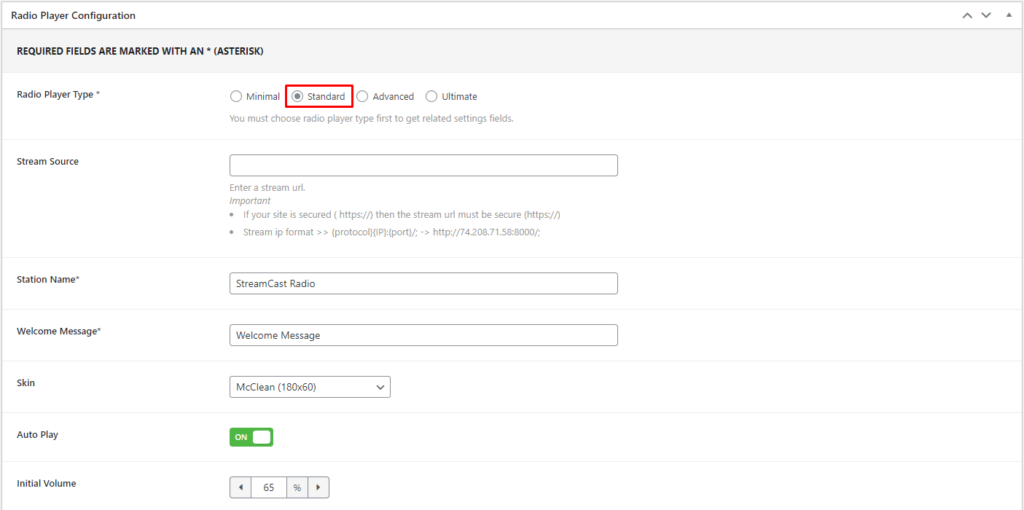
After adding Radio Player. There are 4 Radio Player Types: Minimal, Standard, Advanced, and Ultimate. Select Standard player type.
Enter Stream Source, Station Name, and Welcome Message. Also set Skin, Auto Play, and Initial Volume from here.
Configure- Advanced
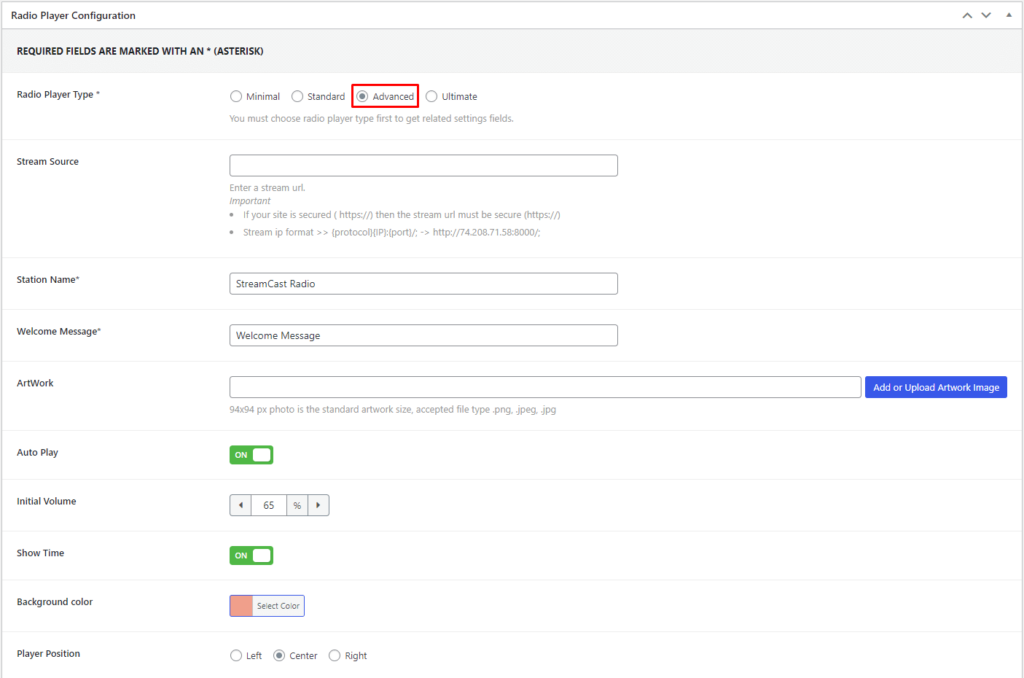
After adding Radio Player. There are 4 Radio Player Types: Minimal, Standard, Advanced, and Ultimate. Select Advanced player type.
Add Stream Source, Station Name, Welcome Message, and ArtWork. Also set Auto Play, Initial Volume, Show Time, Background Color, and Player Position.
Configure- Ultimate
After adding Radio Player. There are 4 Radio Player Types: Minimal, Standard, Advanced, and Ultimate. Select Ultimate player type.

Stream Provider: SHOUT Cast
For the SHOUT Cast provider, enter the stream URL and Port.

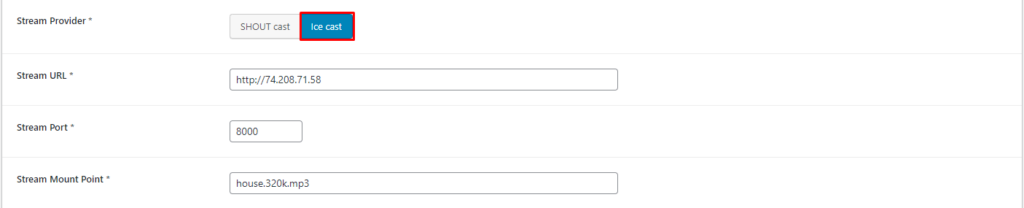
Stream Provider: Ice Cast
Enter the stream URL, Port, and Mount Point for the Ice Cast provider.
Player Settings
Enter Station Name, set Width, Poster Image, and Background Image for Radio Player.

Player Colors: Theme
Set a theme for the Player, there are 3 default themes: Dodger Blue, Bittersweet, and Light Sea Green. You can set Custom Color also.

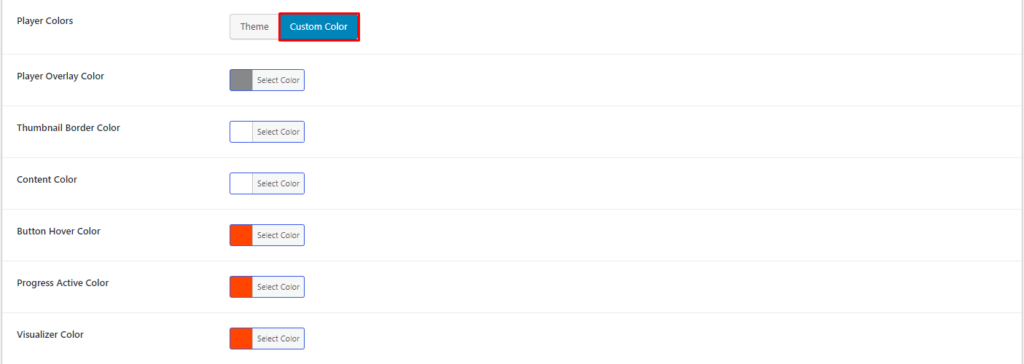
Player Colors: Custom Color
For custom color, set Overlay Color, Thumbnail Border Color, Content Color, Button Hover Color, Progress Active Color, and Visualizer Color.
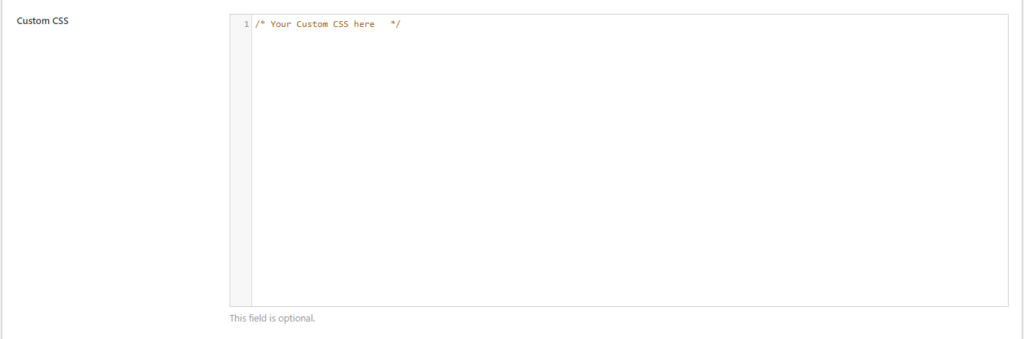
Configure- Custom CSS
At the bottom of the configuration, you will see a field for Custom CSS. You can add custom CSS here.
 Save 90%