
 Social Feed Block
 Create Access Token
First, you must create an access token to display your Instagram feed on your page.
Create Account & App:
Make sure you have a Facebook developer account. If you don’t have a developer account please create a new one.
Also, you have to create an app from the developer account
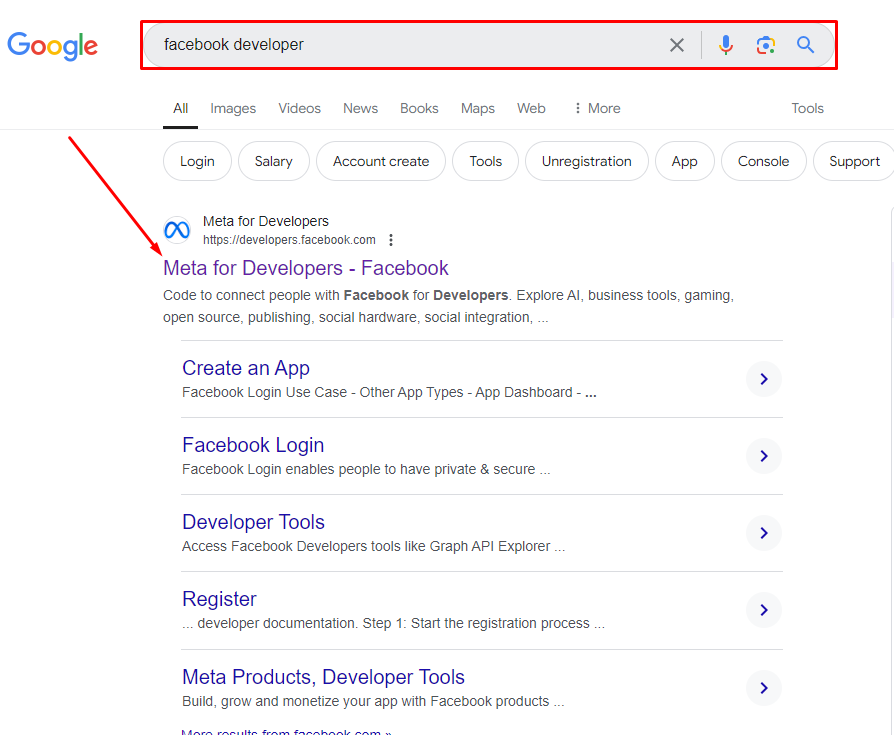
I will go to the search bar and search for ‘Facebook Developer.’ I will click on the first link that appears in the results below.
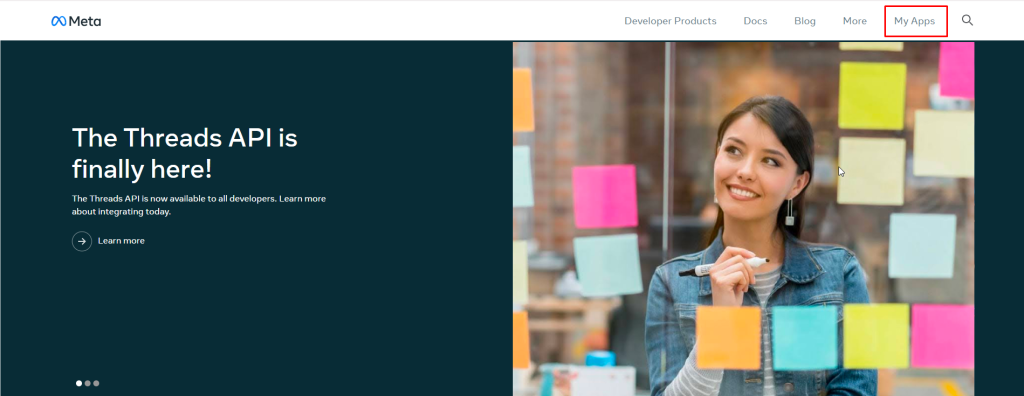
Menu Bar: If the link opens, we will get the menu bar. From there, we will click on ‘My Apps’.
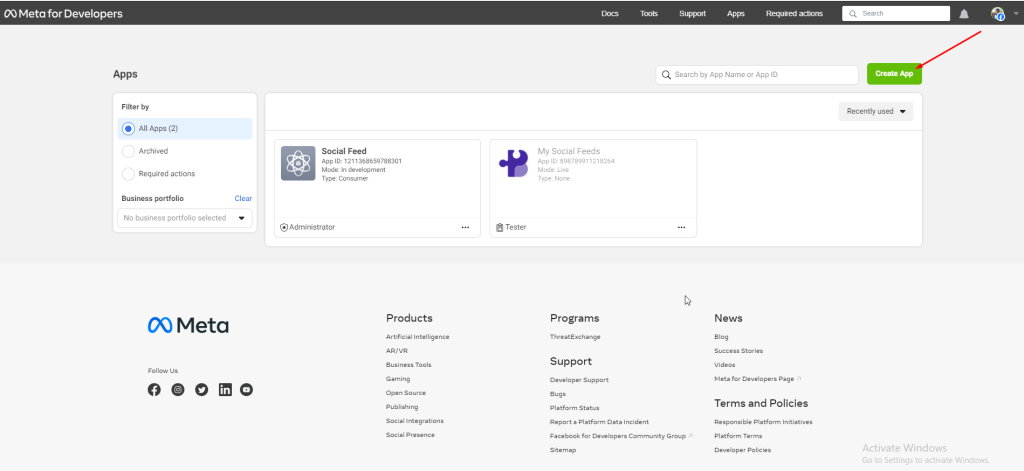
Create App: Get the list of all apps. I will create a new app by clicking the ‘Create App’ button.
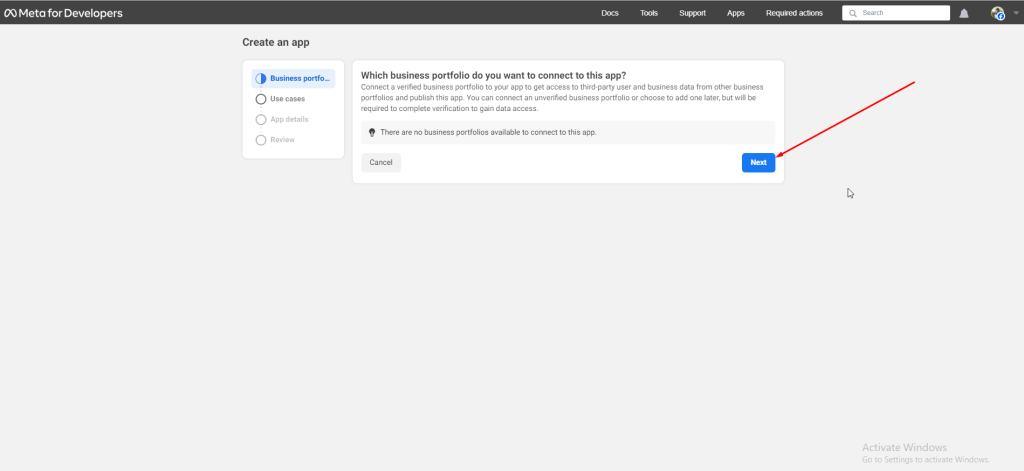
Business Portfolio: I will click the ‘Next’ button.
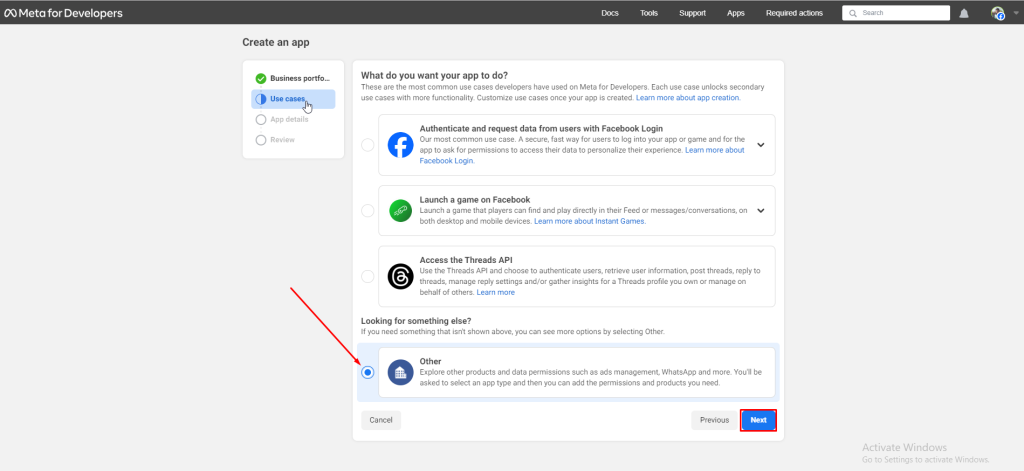
Use cases: Click ‘Other’ and then ‘Next’.
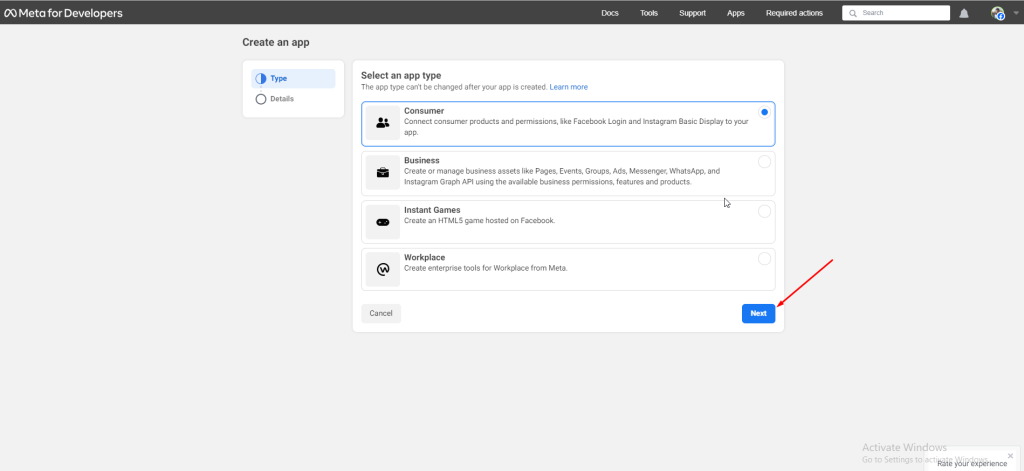
Select app type: Click Consumer and then ‘Next’
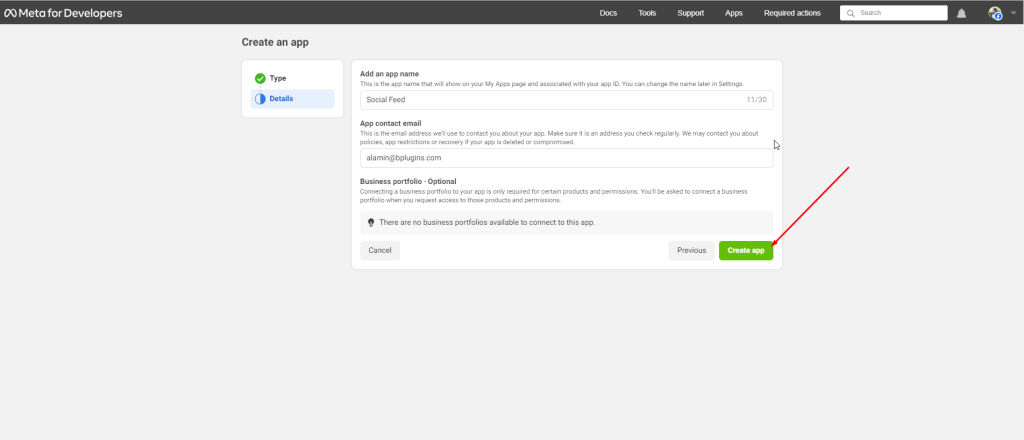
App Details: Input the app name and email, then select ‘Create’.
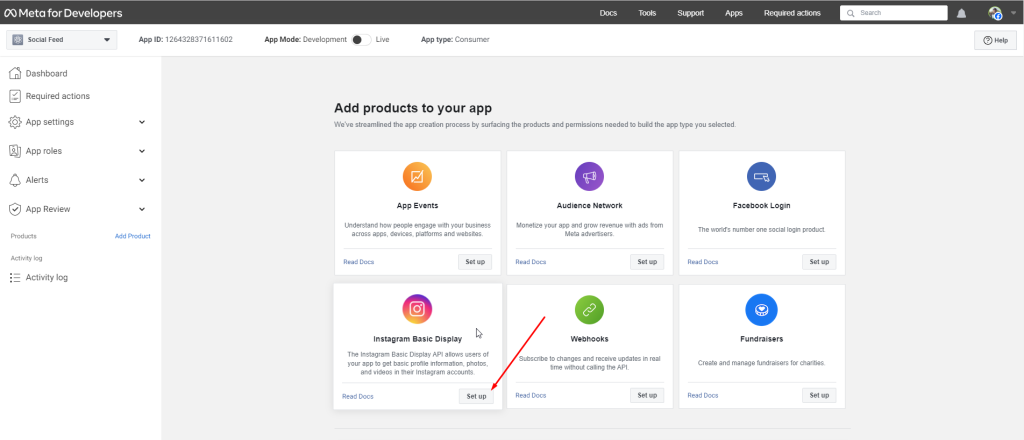
Instagram Basic Display: I will add the Instagram Basic Display product to our app. Click the ‘Set Up’ button.
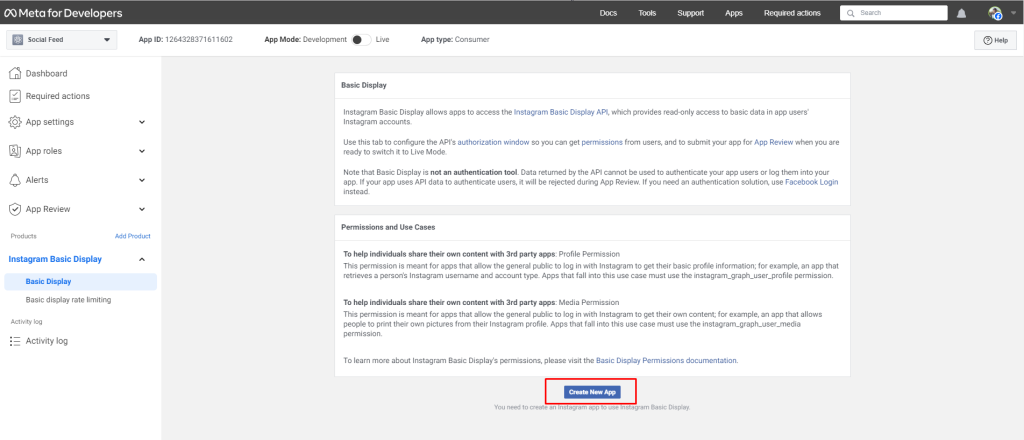
Create a new app: Create a new app by clicking the ‘Create New App’ button.
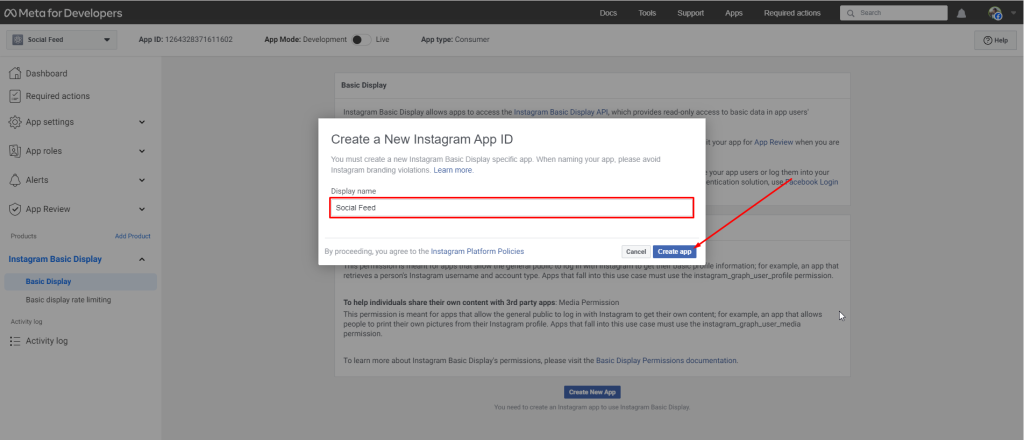
Display Name: Enter a display name for the app and click ‘Create App’.
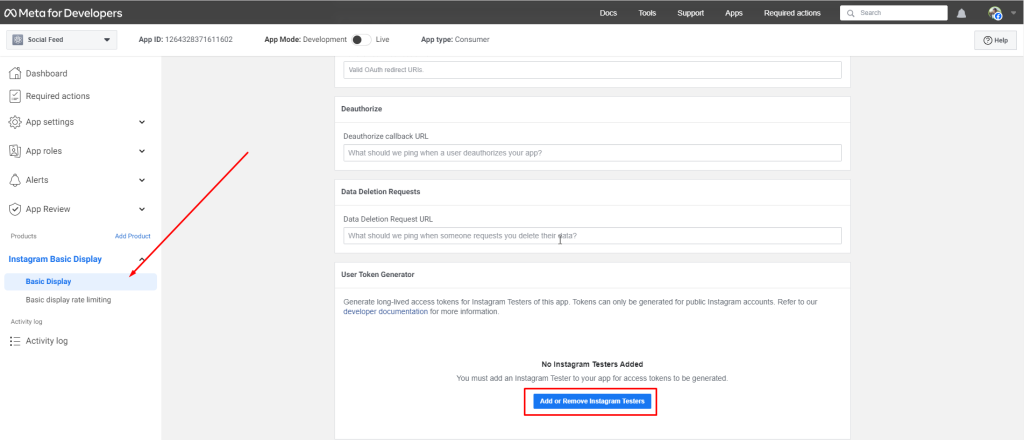
Add or Remove Instagram Testers: Navigate to the menu, select ‘Instagram Basic Display,’ then click ‘Basic Display,’ and finally hit the ‘Add or Remove Instagram Testers’ button.
Add People: Click the ‘Add People’ button to add people.
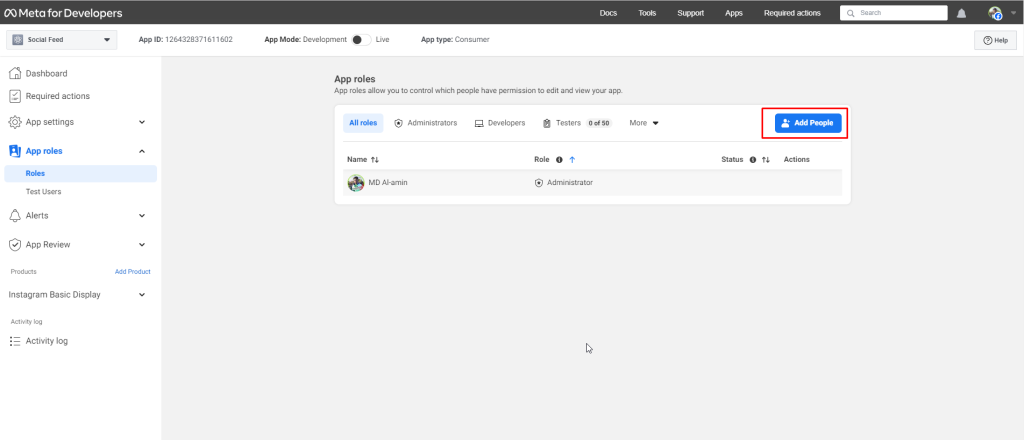
Instagram Username added: Click “Instagram Tester,” then enter a valid Instagram username and click “Add”
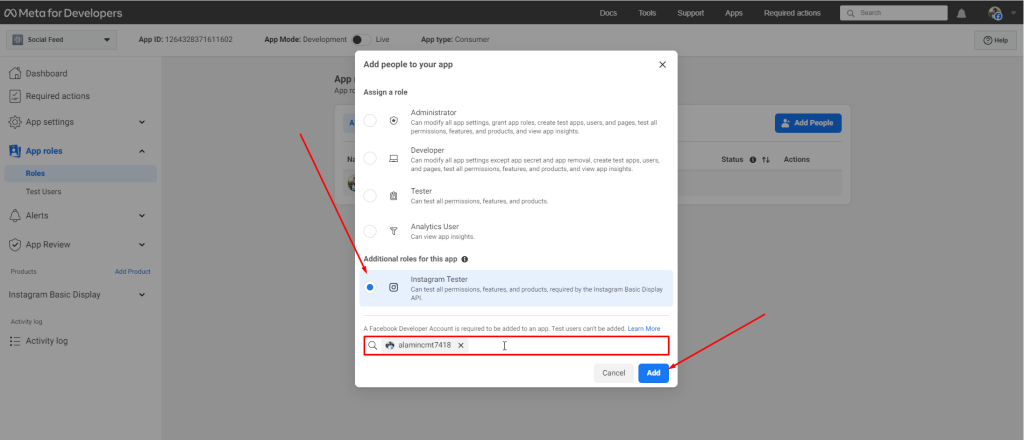
Account Pending: The Instagram account has been successfully added, but the account is pending. We need to approve the app from the Instagram account.
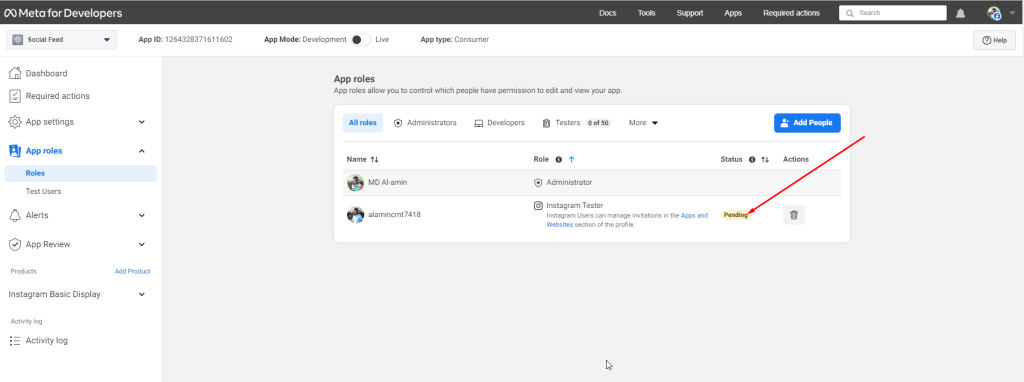
Now Goto Your Instagram Profile
More -> Settings: Log in to the Instagram account and click “More” under the profile to open a popup. From there, select “Settings.”
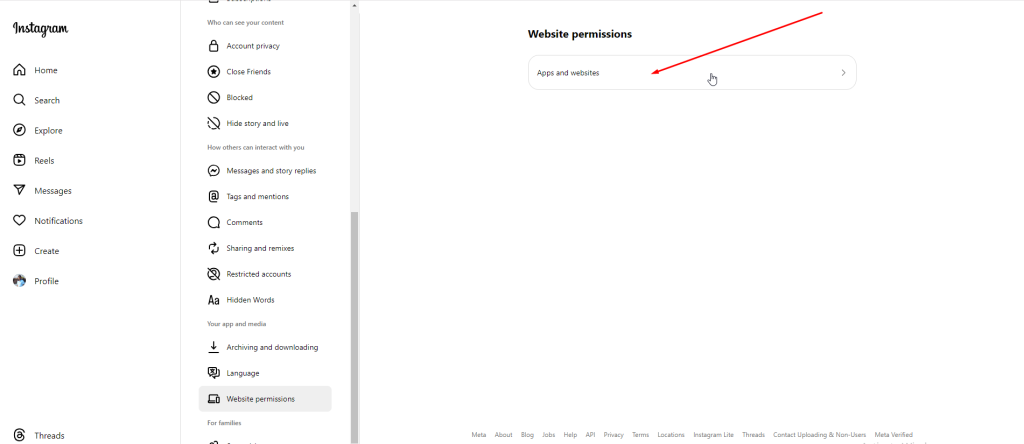
Website permission -> Apps and Websites: Scroll down and click the “Website Permissions” button, then click “Apps and Websites”.
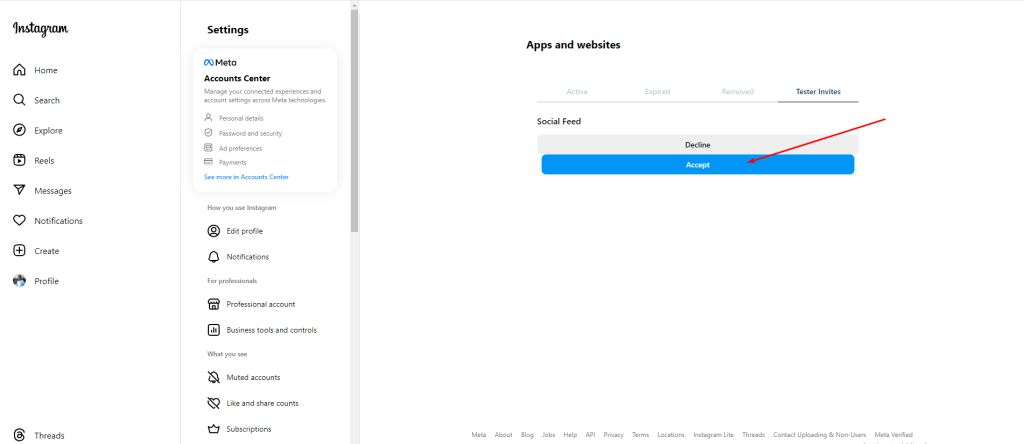
Tester-accept: Upon selecting “Tester Invites” in the tab bar, I will then proceed to click the “Accept” button.
Now Goto Your Facebook Developer Account
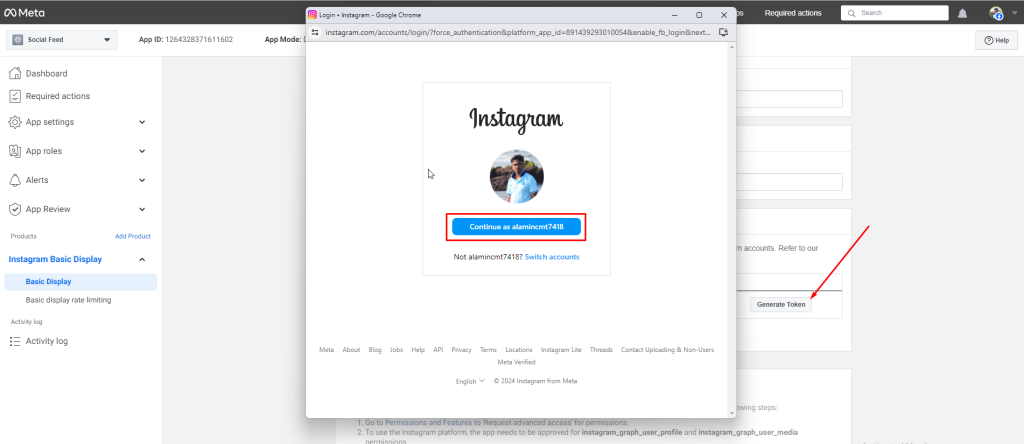
Navigate to the Facebook Developer account, select “Instagram Basic Display” from the menu, go to “Basic Display,” scroll down, and click “Generate Token” in the “Generate User Token” section. Click “Continue as [UserName]” in the popup that appears.
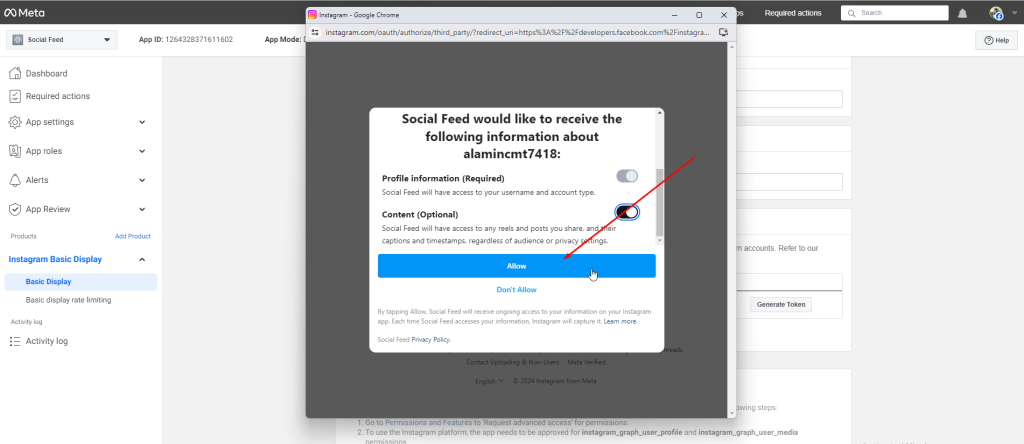
Allow: Click the “Allow” button.
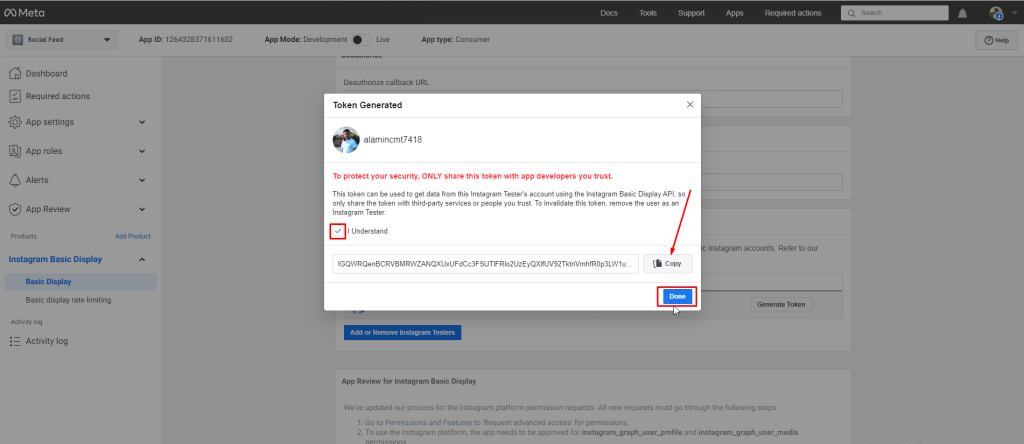
Copy Access Token: Check the “I Understand” checkbox, copy the access token, and click “Done”
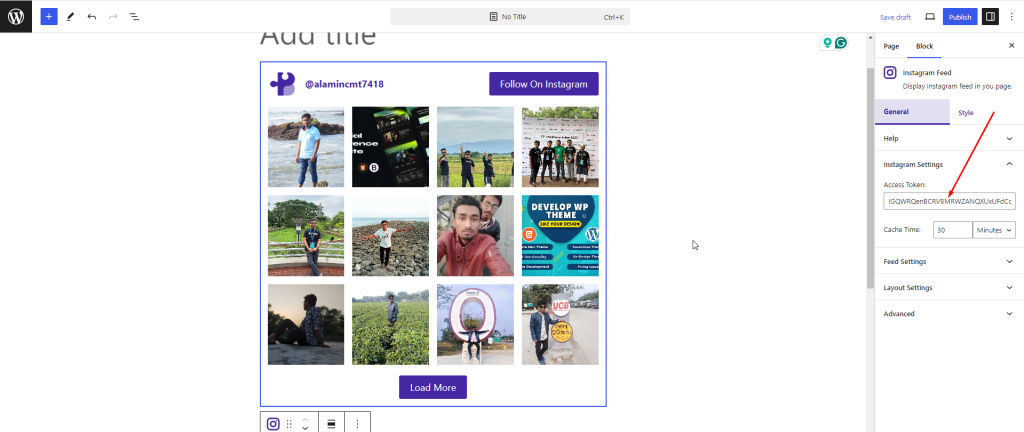
Paste Access Token: Please paste your access token
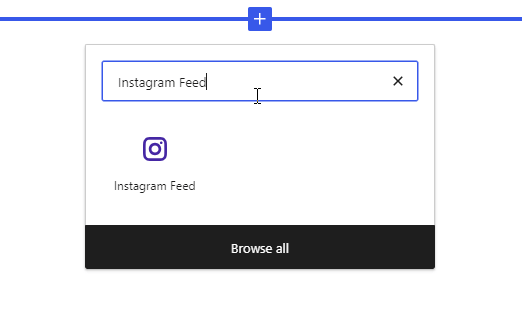
Add Social Feed Block:
In your Gutenberg editor, find the Instagram Feed block and insert, just like others block.
Settings/Options:
Sidebar Settings
Select the block, you will see the settings option in the right sidebar. There are the settings.
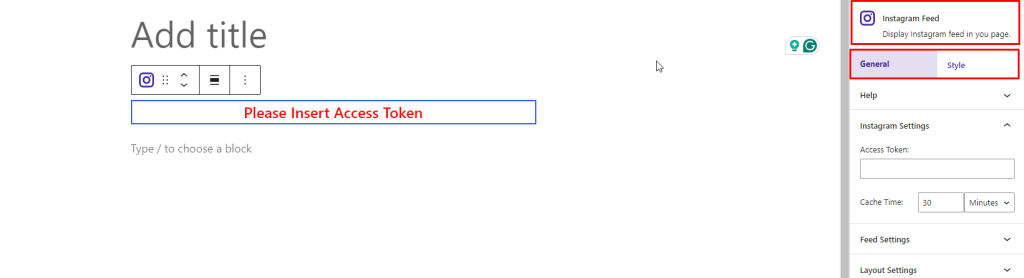
Instagram Settings:
You have to enter the access token that you have generated.
Also you can set the time for cache the data.

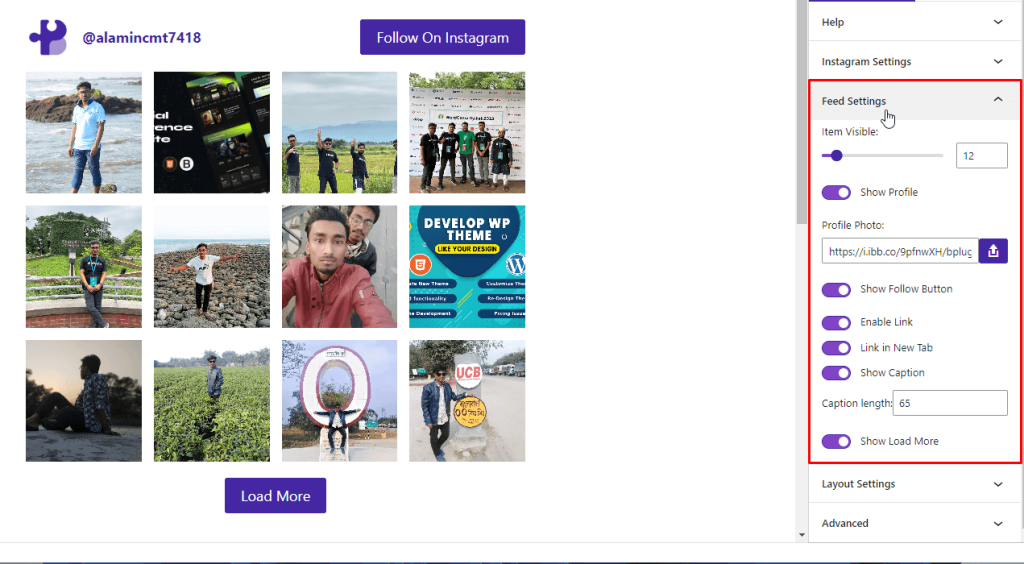
Feed Settings:
Here you can set the number of item visible.
And also can show/hide profile, upload profile image, show/hide follow button, enable/disable link, set link opening tab, show/hide caption and load more
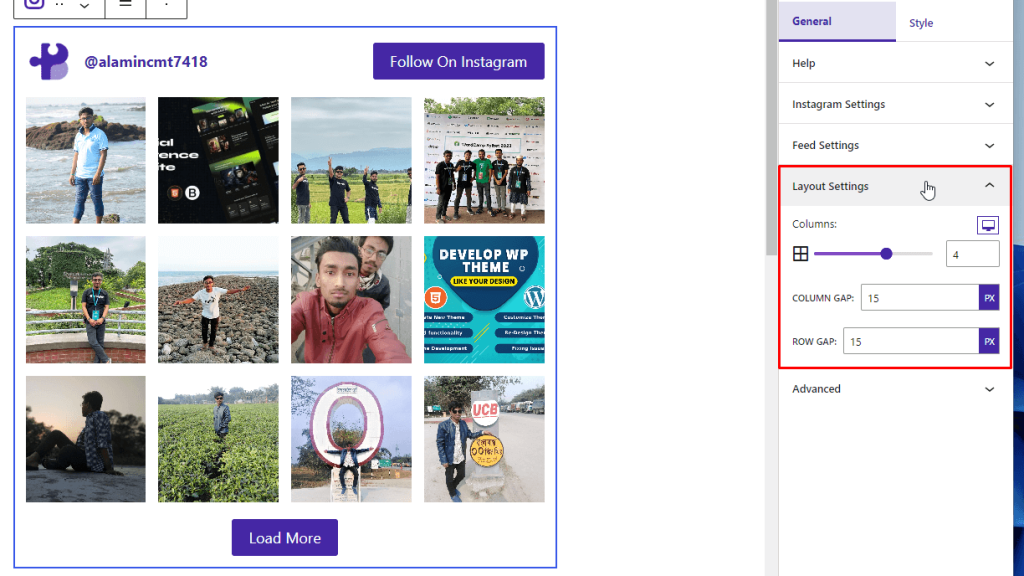
Layout Settings:
In Layout settings, you can set the column number for difference devices. Define gap between column and row.
Feed Style:
Switch to Style Tab and you can see the Feed Style Options.
You can change the background, padding and border of the Feed.
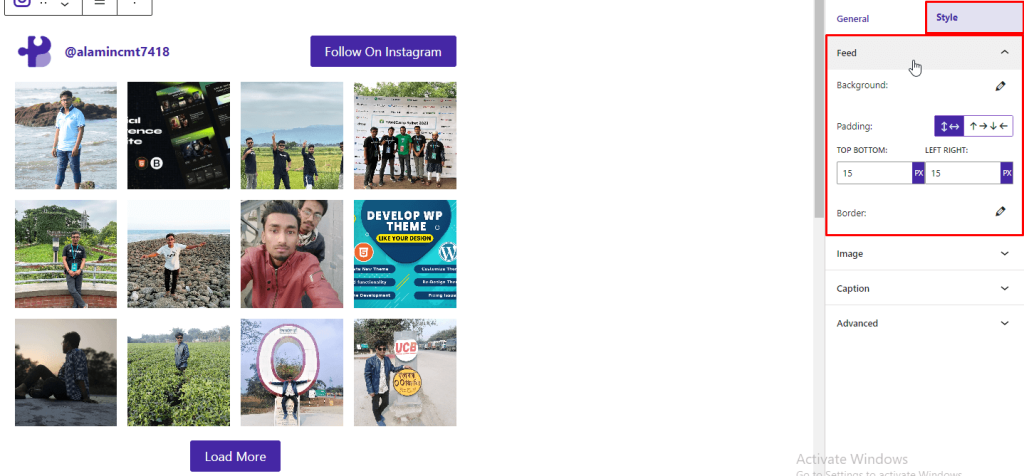
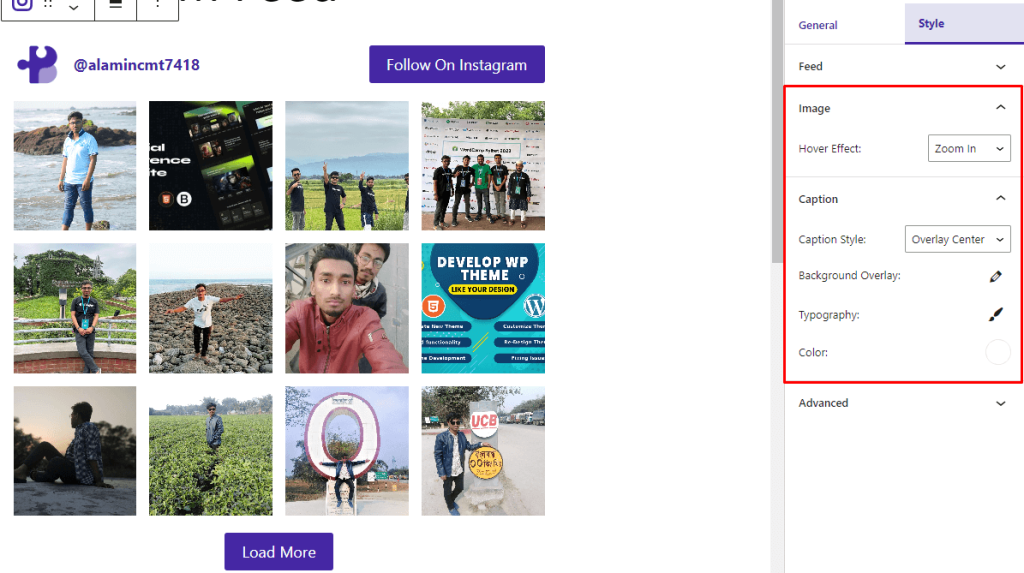
Image & Caption Style:
In Image style you can change different effect in hover.
And in Caption style you can change style/type, background overlay, typography and color of caption.
 Save 90%