
 Html5 Audio Player
 Standard- Configure
When you create an audio from Html5 Audio Player > Add Audio Player, you will see the standard player type is selected by default.
From here, you can change various options for the audio such as sources, options, layout(width, alignment), player skin and many more. Lets talk one by one
Sources
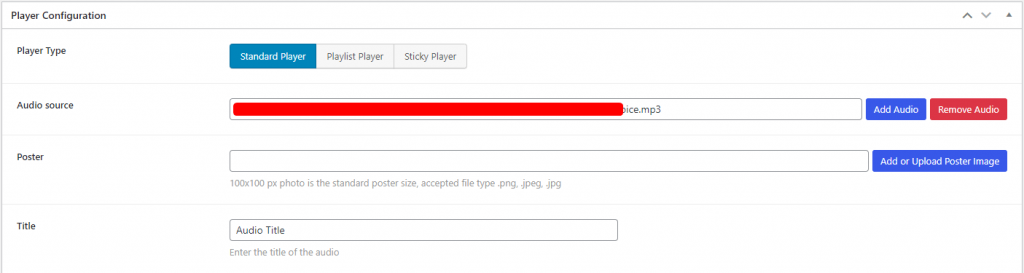
By these settings you can upload/change the audio file and audio posters, also you can set the audio title.
Options
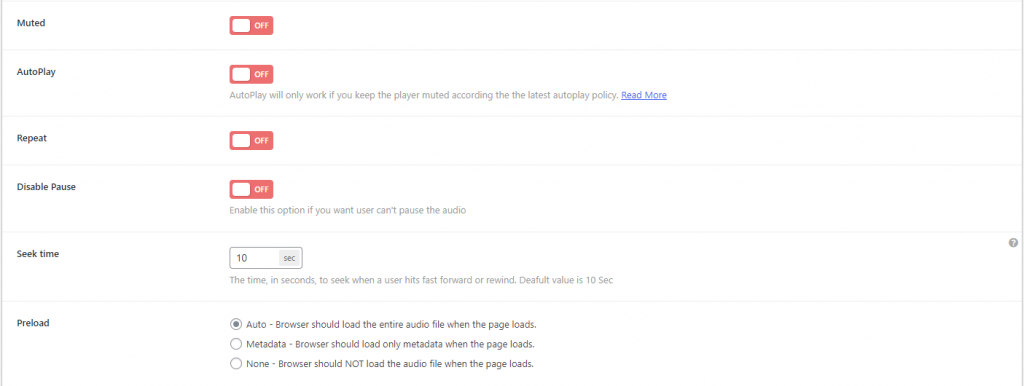
There are lots of options for the audio
- Muted: Turn on if you want the video output should be muted.
- Auto Play: Turn on if you want video will start playing as soon as it is ready. autoplay policy
- Repeat: Two options are available. Once or Loop. You can choose according to your needs.
- Disable Pause: Enable this option if you want user can’t pause the audio.
- Seek Time: The time, in seconds, to seek when a user hits fast forward or rewind. The default value is 10 sec.
- Preload: Specify how the video file should be loaded when the page loads.
Layout
For the layout, you can change the width, alignment, and border radius from here.
- Player Width: Set the player width. Height will be calculated base on the value. Left 100% for Responsive player.
- Alignment: To set the player in left, center or right.
- Border radius: Defines the radius of the Player’s corners.

Player Skin
In standard player type, there are 4 different player skin: Default, Fusion, Stamp and Wave
Default
In default skin, you can show/hide the controls buttons. Such as Restart, Rewind, Play, Fast Forwards, Progressbar, Duration, Current Time, Mute Button, Volume Control, Setting Button, Download Button

Here’s a preview,

Fusion
In this skin, you can show/hide the download button.

Here’s a preview,
Stamp
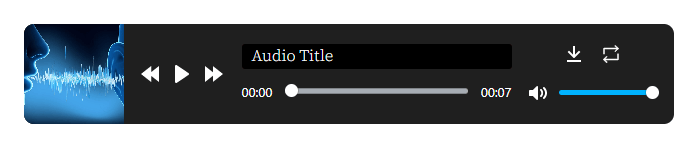
For the stamp skin, you can set the text and control color.

Here’s a preview,
Wave
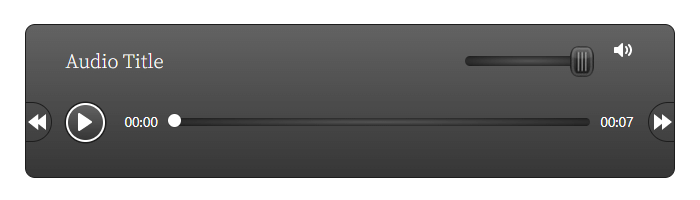
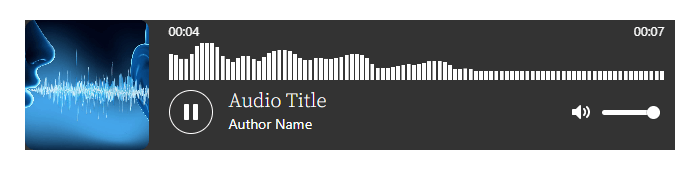
In wave skin, you can set the author name, text and control, and background color.
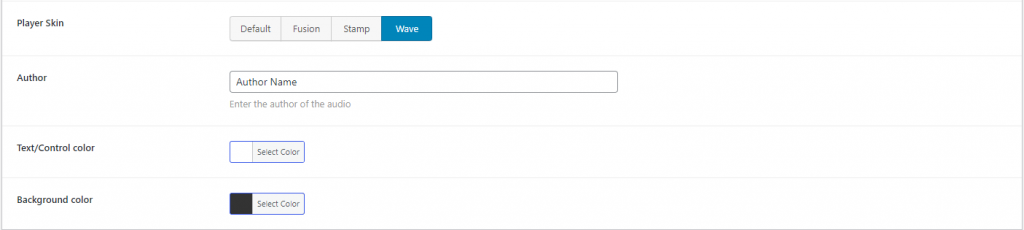
Here’s a preview,
ShortCode Playlist- Configure
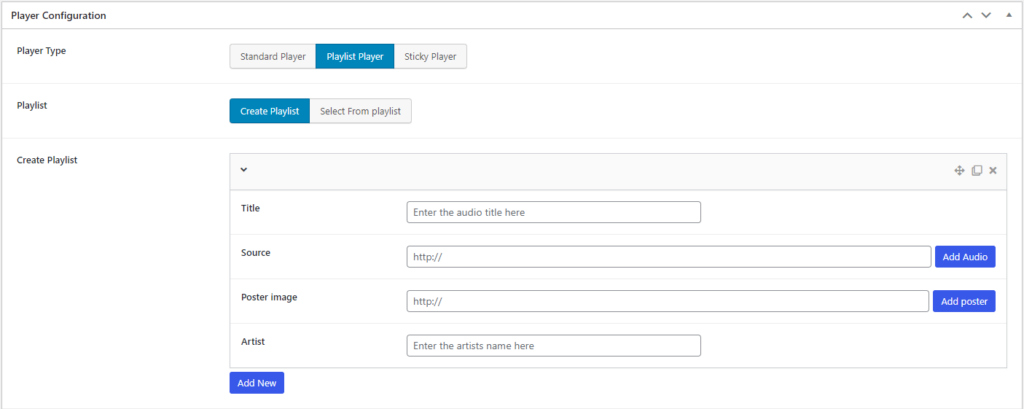
At first, switch the player type to Playlist Player, then you can add or configure the playlist. You can create or select a playlist for the source, configure the playlist, and set different skin.

Create Playlist
By default the Create Playlist option is selected, just you have to click on Add New to add audio details. Enter all details about the audio (title, file, poster ,and artist). You can add more audio files to the playlist.
Select From Playlist
You can use pre-created playlist. To do that Click on Select from playlist, and select the audio.

Options
Set Initial volume, enable/disable Use forward/rewind button to change audio and show/hide Download by the options.

Layout
In layout, you can change player width and alignment.

Player Skin
In playlist player type, there are 2 different player skin: Narrow and Extensive
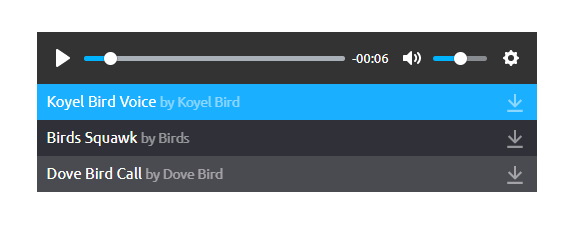
Narrow
In narrow skin, you can show/hide the control buttons. Such as Restart, Rewind, Play, Fast Forwards, Progressbar, Duration, Current Time, Mute Button, Volume Control, Setting Button,
Also, you can change the player theme, such as Light, Dark and Custom.
For a custom themes you can change brand color, background, item text color, item hover background, item hover text color, odd item background, even item background and border radius.
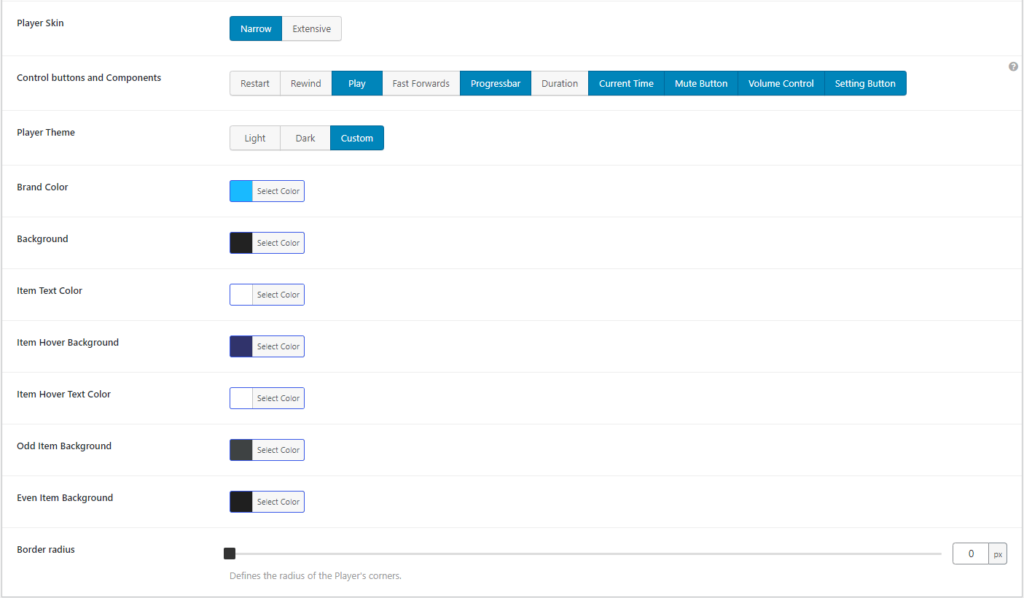
Here’s a preview
Extensive
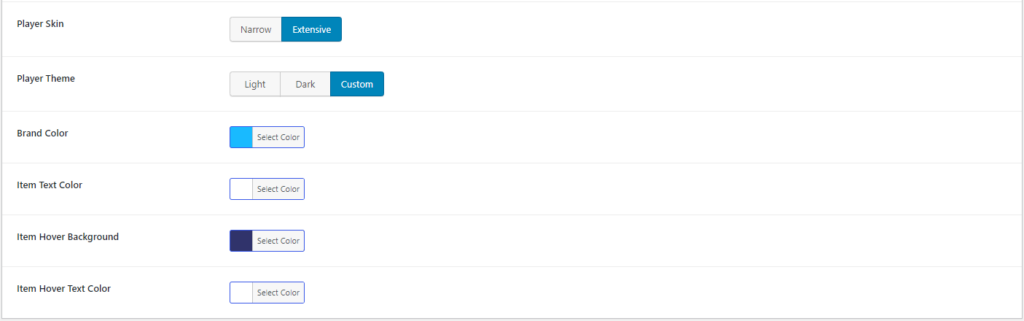
For the extensive, you have to only change the player theme, such as .
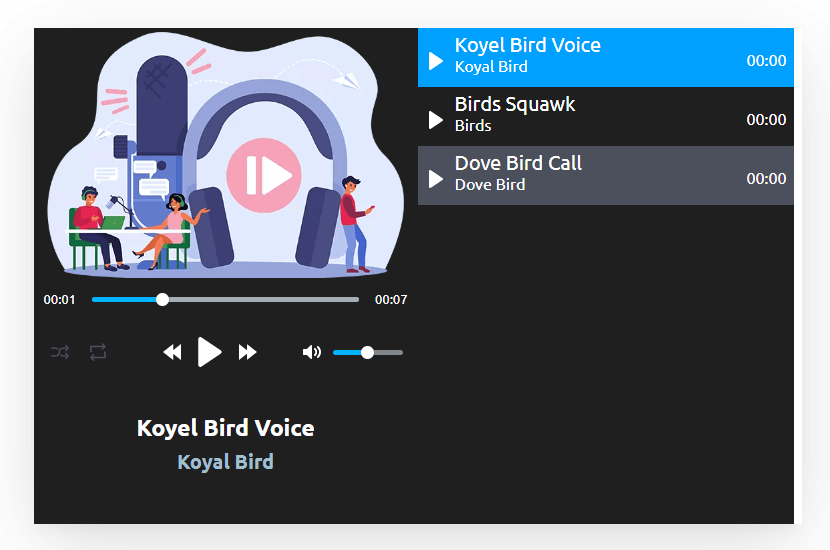
You can also change the theme(Light, Dark ,and Custom) in extensive skin like narrow.
For a custom theme you can change brand color, item text color, item hover background, item hover text color.
Here’s a preview,
ShortCode Sticky- Configure
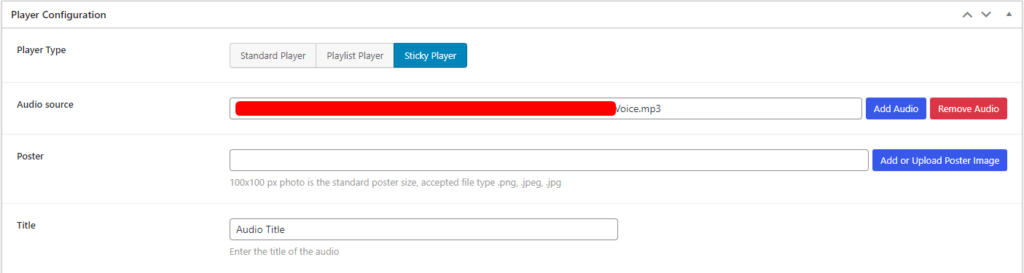
At first, switch the player type to Sticky Player. You can change various options for the audio such as sources, options, alignment,and player skin. Let’s talk one by one
Sources
By these settings you can upload/change the audio file and audio posters, also you can set the audio title.
Options
Enable/disable repeat, set Initial volume and show/hide Download Button by the options.

Alignment
From here you can change the alignment of the player.

Player Skin
In playlist player type, there are 2 different player skin: Simple and Fusion
Simple
In simple skin, you can change the background.

Here’s a preview,

Fusion

Here’s a preview,

 Save 90%