
 Document Viewer
 When creating a Document Viewer post, you will see the configuration area under the shortcode area. From there you can configure the Document Viewer.
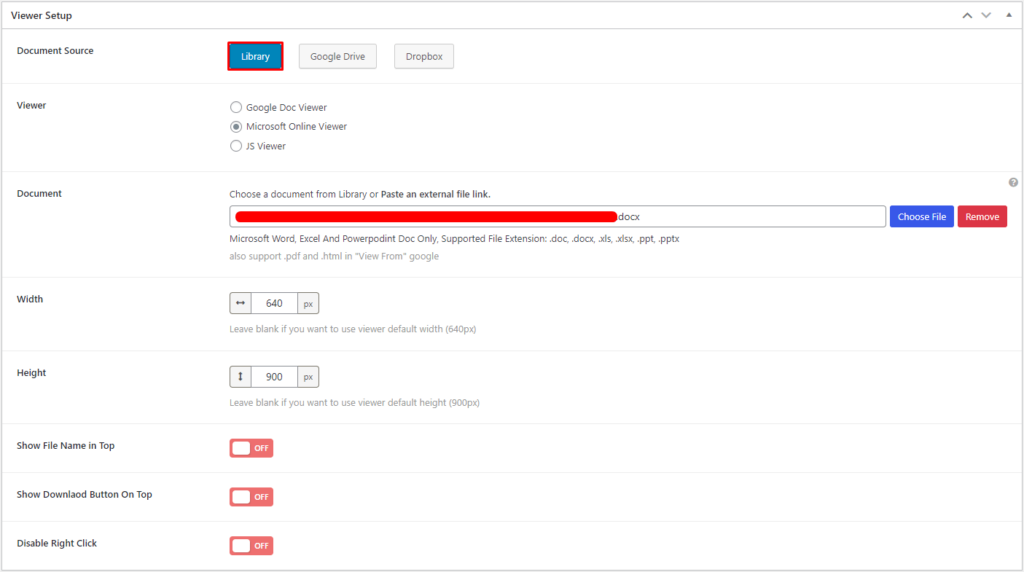
Sources
For the sources, upload a document file, or you can select a file from Google Drive or Dropbox. To use Google Drive or Dropbox, insert the keys in Settings.
Viewer
Select a Viewer.
- Google Doc Viewer (Word, Excel, Powerpoint, and PDF).
- Microsoft Online Viewer (Word, Excel, and Powerpoint).
- JS Viewer (PDF).
Options
Change the various options of the Document.
- Set the Width and Height.
- Show/hide the File Name on Top, Download Button on Top.
- Enable/disable Right Click.
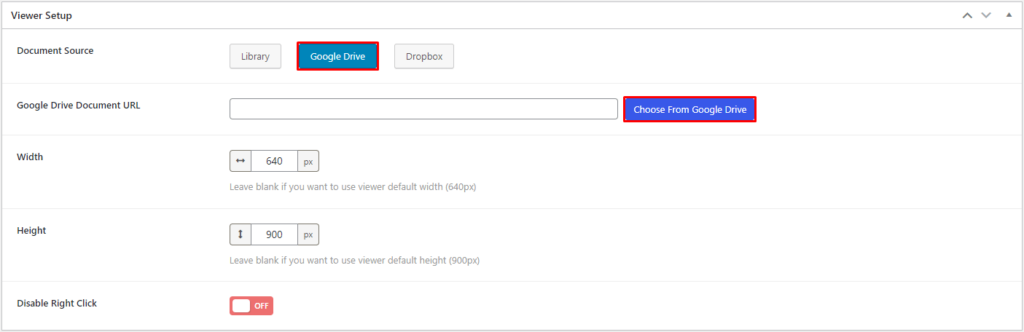
Configure- Google Drive Source
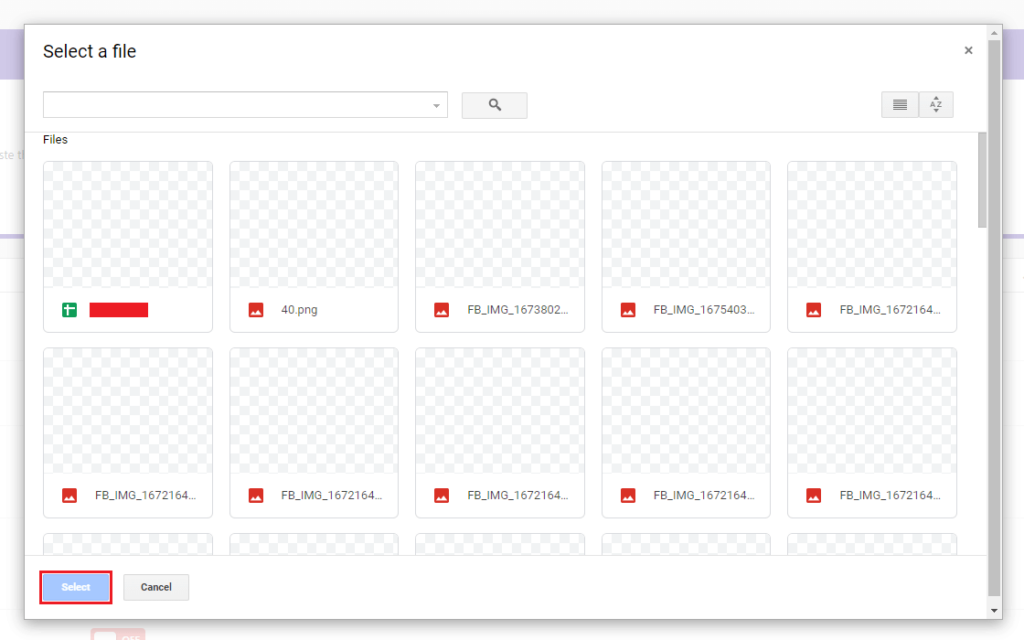
To view the Google Drive file, select Googe Drive from Document Source. Then click on Choose From Google Drive button. It will show a popup with your Google Drive files.
Options: Set the Width and Height. Also, enable/disable Right Click.
Select a document file from here, and save the post. On preview, you will see the Document Viewer is showing the selected file from your Google Drive.
Configure- Dropbox Source
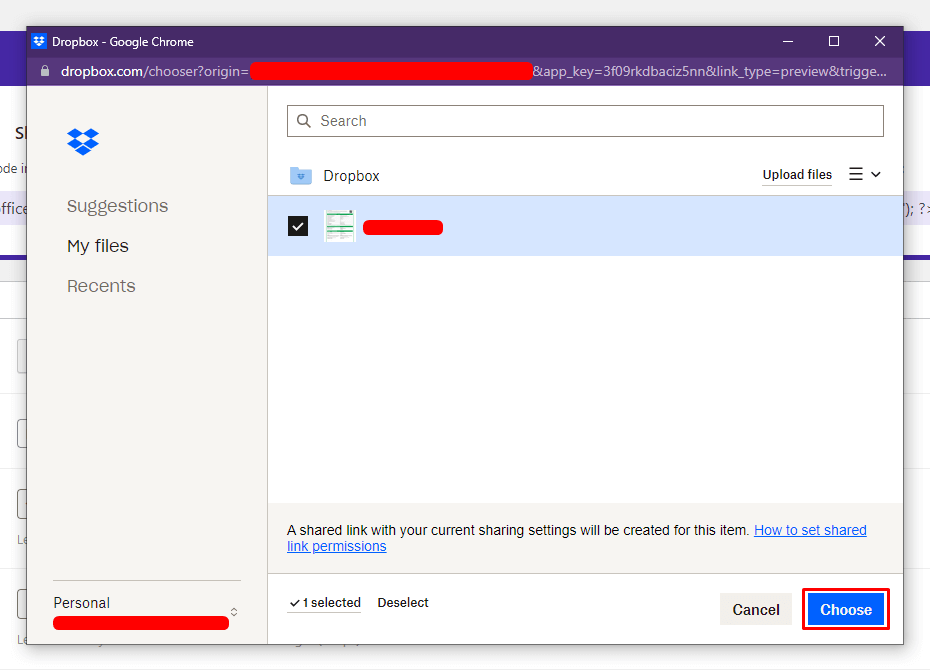
To view the Dropbox file, select Dropbox from Document Source. Then click on Choose from Dropbox button. It will show a popup with your Dropbox files.
Options: Set the Width and Height. Also, enable/disable Right Click.
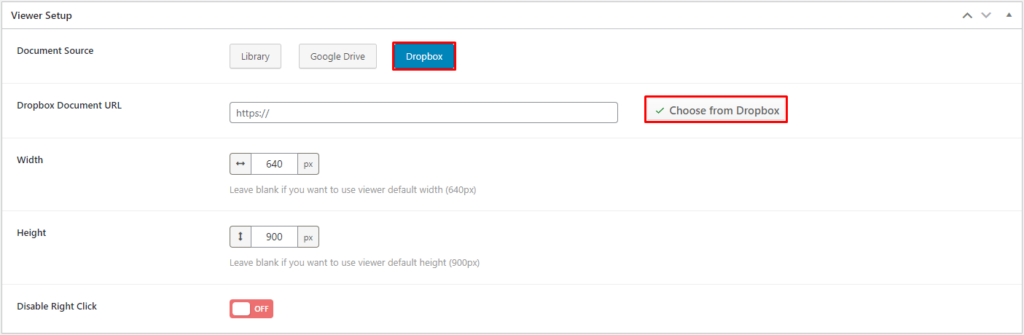
Select a document file from here, and save the post. On preview, you will see the Document Viewer is showing the selected file from your Dropbox.
 Save 90%