
 Business Reviews
 As we mentioned in the Display Business Reviews article, the plugin needs the Google Place API key and Google Place ID to display the Google Place reviews. In this article, we will discuss how to get those.
Place API key
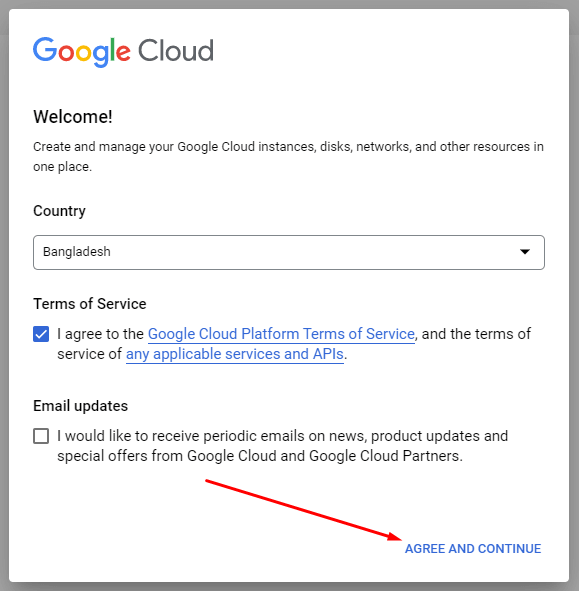
Go to your Google Console dashboard. If you the new user agree with Google terms:
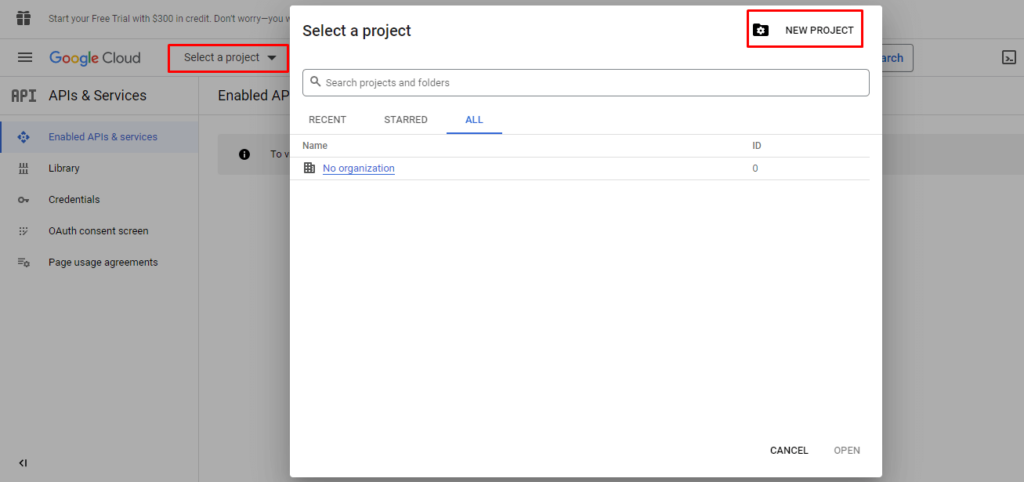
Select your existing project or create a new one:
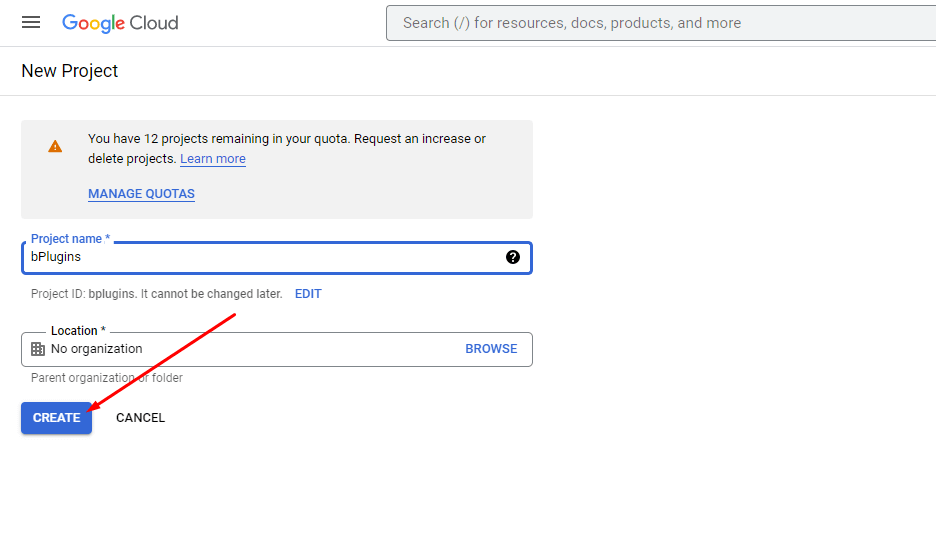
Wait for the creation and then click ENABLE APIS AND SERVICES:
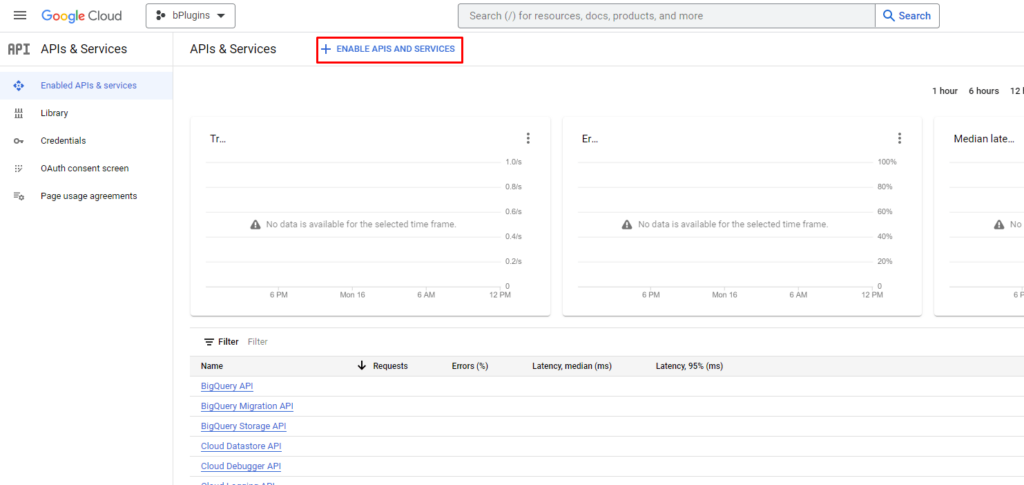
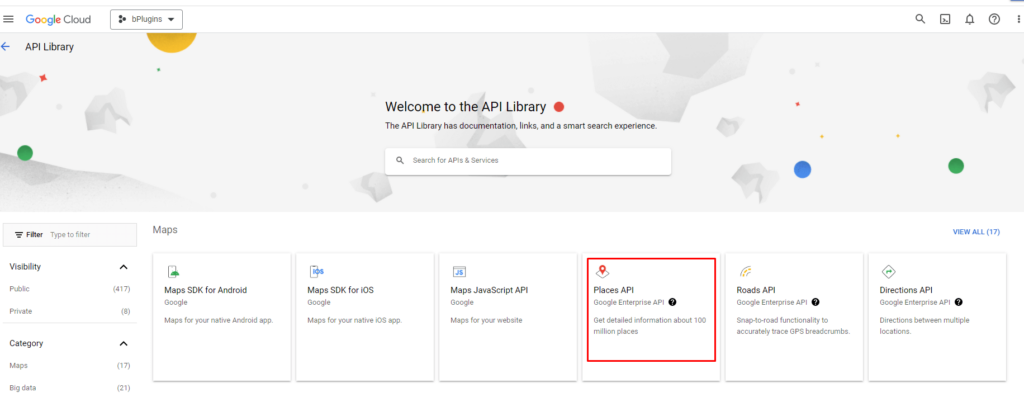
Type Places API in the search area, select the first result Places API and click on the ENABLE button.
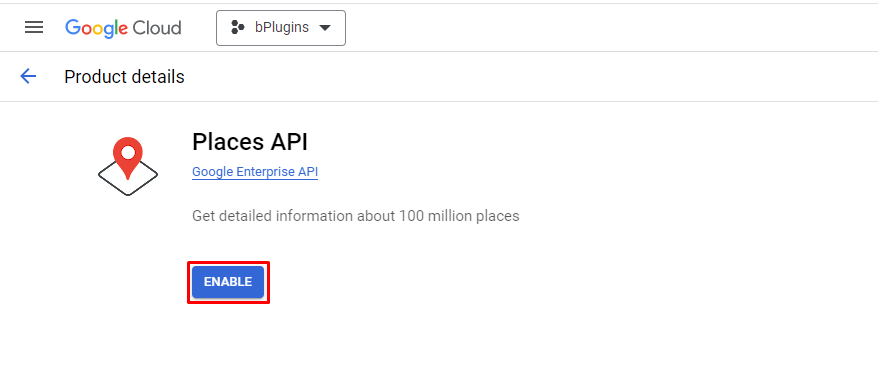
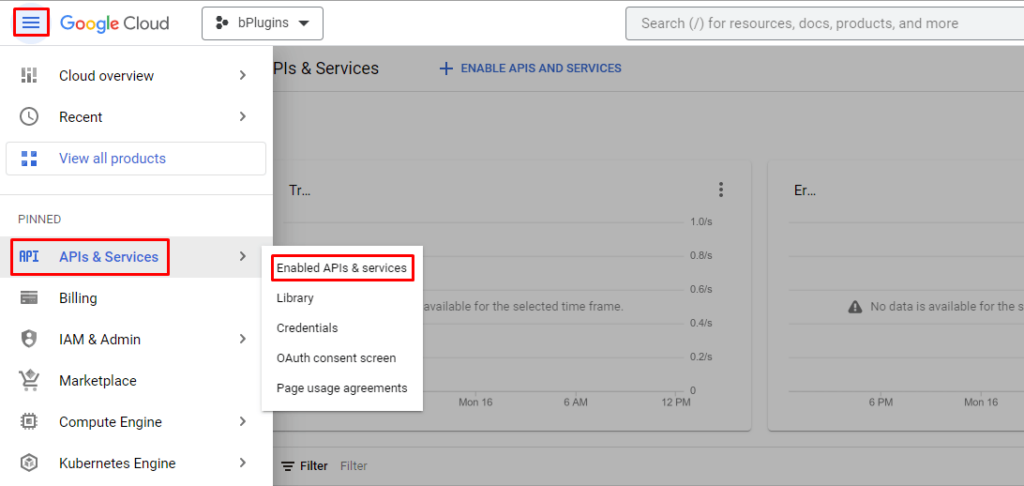
After enabling the Places API, click on the Navigation menu, select APIs & Services, and Credentials.
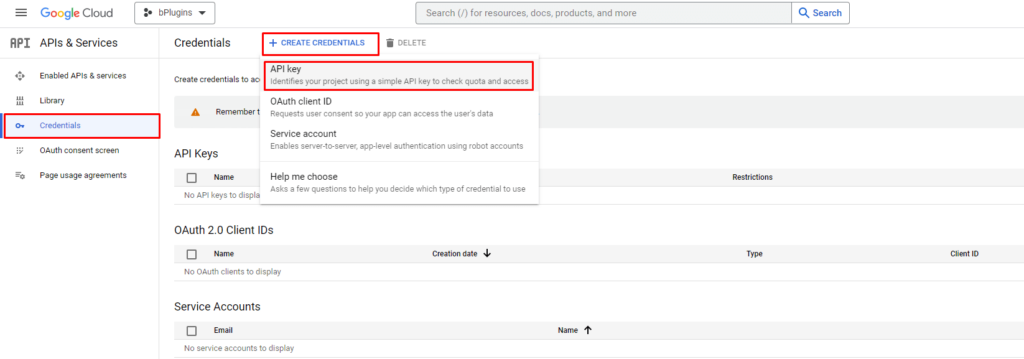
On the Credentials page click + CREATE CREDENTIALS, and select API key.
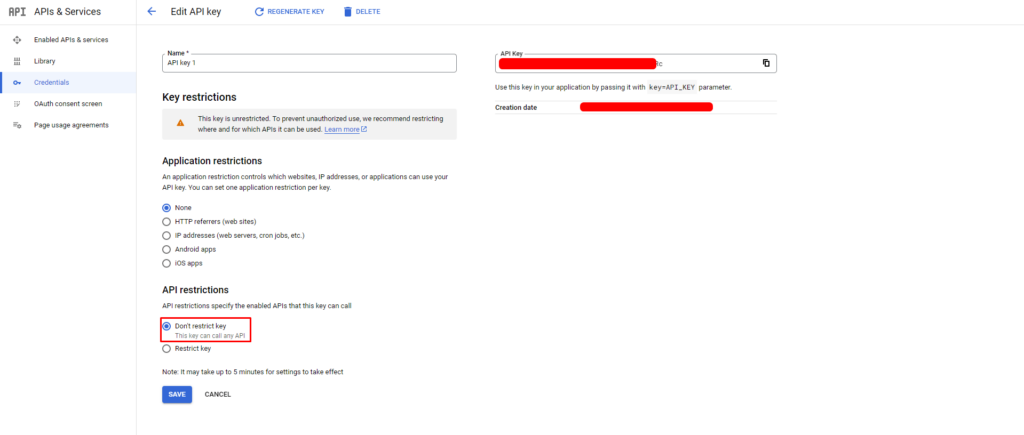
After creating of API key you need to copy & paste it to the plugin’s settings (please do not restrict the key, the plugin can’t work with a restricted API key, it’s a limitation of Google):
Now, you need to enable Google Billing. It’s a mandatory step to use the API key. Don’t worry, Google is currently giving $200 free credit a month and it should be enough to use the plugin for connecting several Google places without additional fees except for this free $200 credit. Go to https://console.cloud.google.com/project/_/billing/enable, select your recent created project, and click ‘CREATE BILLING ACCOUNT‘:
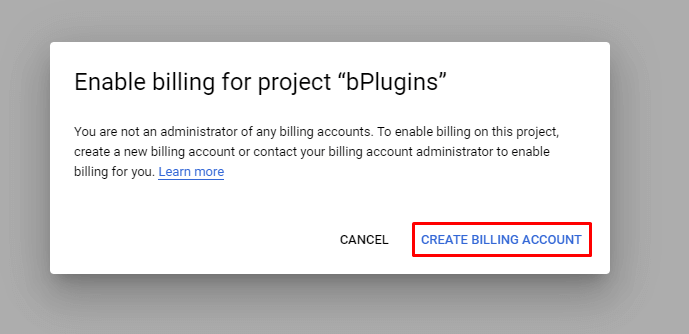
Agree with Google terms, fill your contact information, and start using your Google API key with the plugin.
Place ID
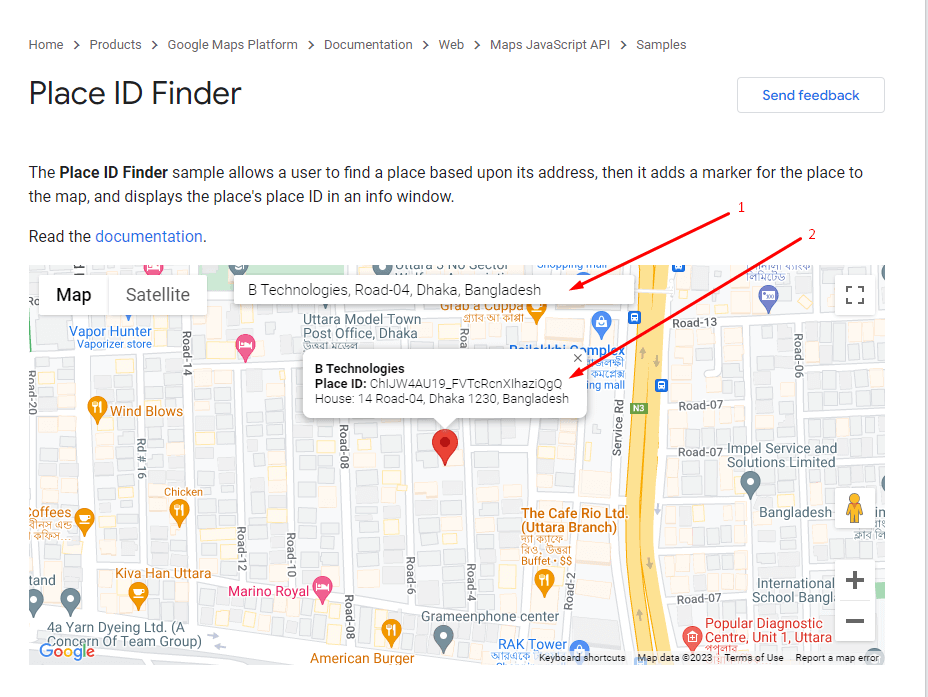
First, go to your Google Place ID Finder.
Search your location in the search box and select your place.
You will see Place ID. Store the ID.
Authorization- Yelp
As we mentioned in the Display Business Reviews article, the plugin needs the Yelp API key and Yelp Business URL to display the Yelp Business reviews. In this article, we will discuss how to get those.
API Key
If you do not have a free Yelp account (not a business), please Sign Up here.
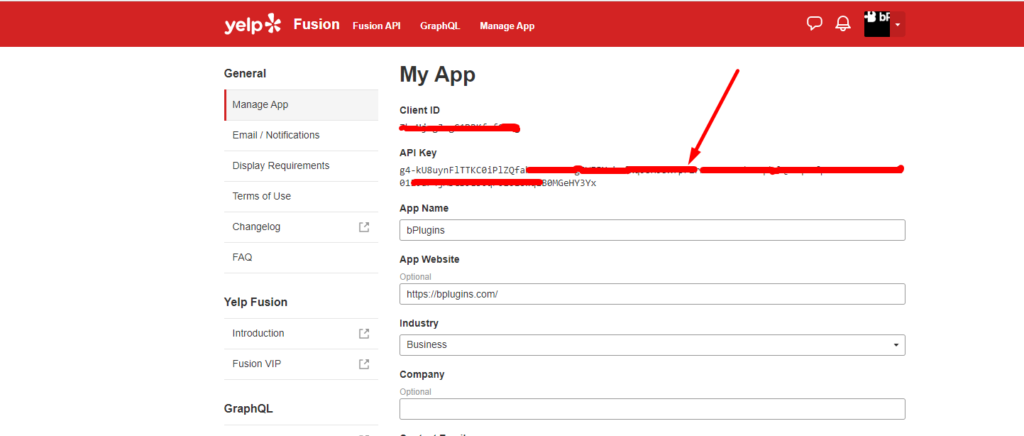
Under the free Yelp account, go to the Yelp Developers page and create a new app.
Store API Key.
Business URL
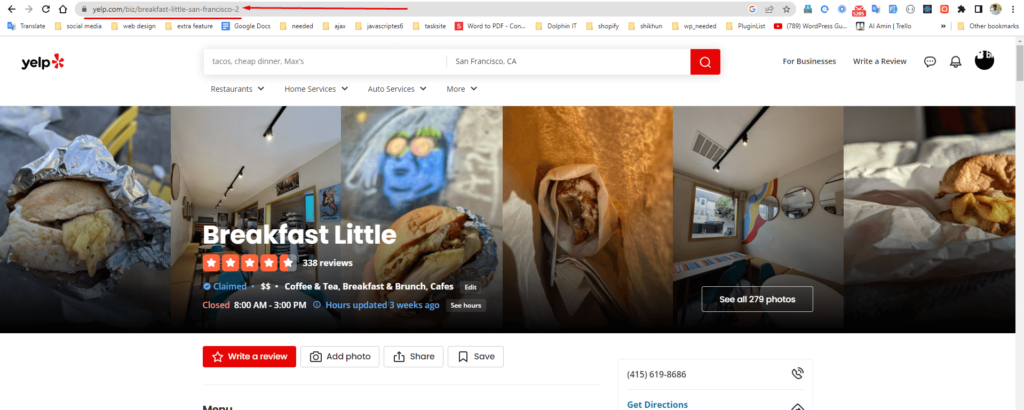
From the browser go to your business page.
Store the Business URL from the address bar.
Authorization- Facebook
As we mentioned in the Display Business Reviews article, the plugin needs Facebook Page Authorization to display the Facebook Page reviews. In this article, we will discuss how to get those.
Page Authorization
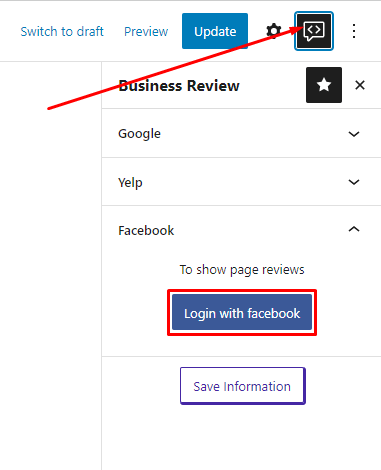
Go to your Editor Page, and click on the Business Review settings from the header settings. then click on Login with Facebook button.
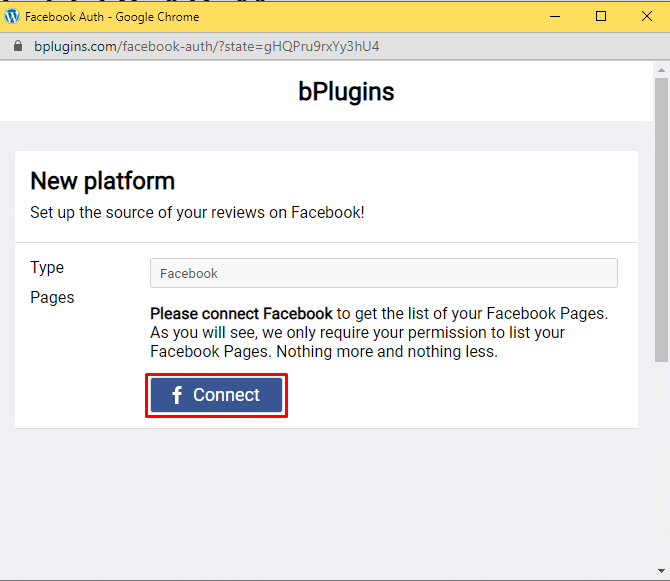
Click Connect.
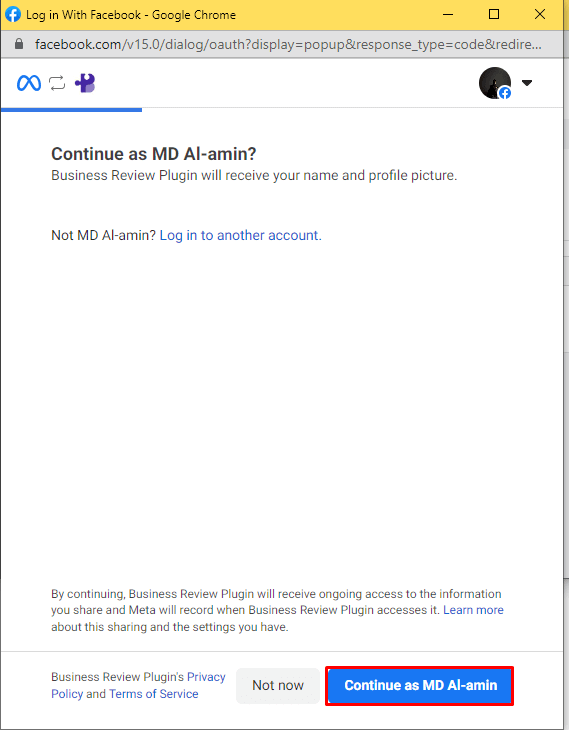
Next, click the Continue button.
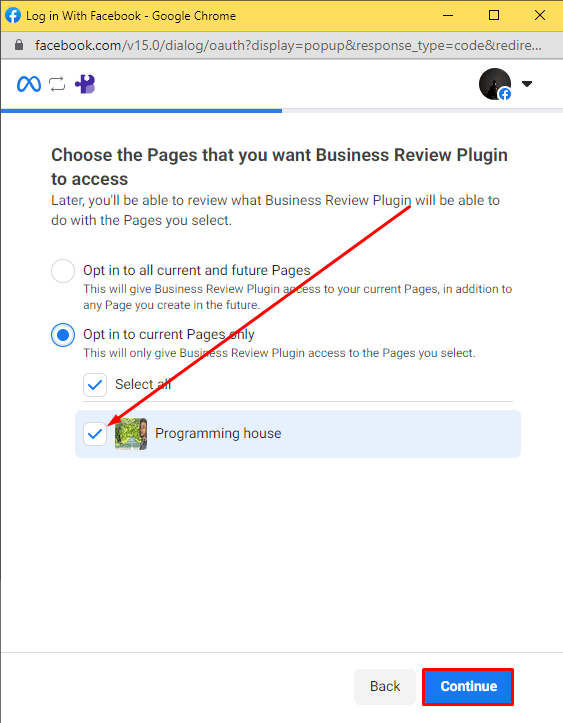
Select your Facebook page and click the Continue button.
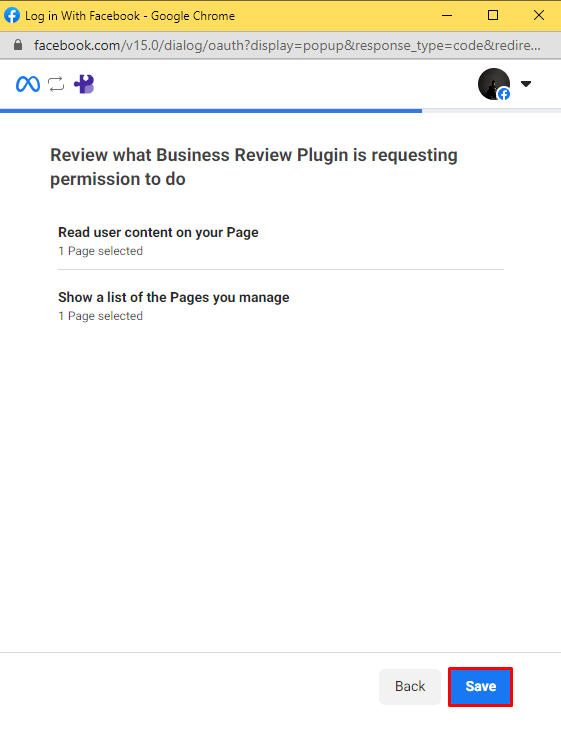
Click Save .
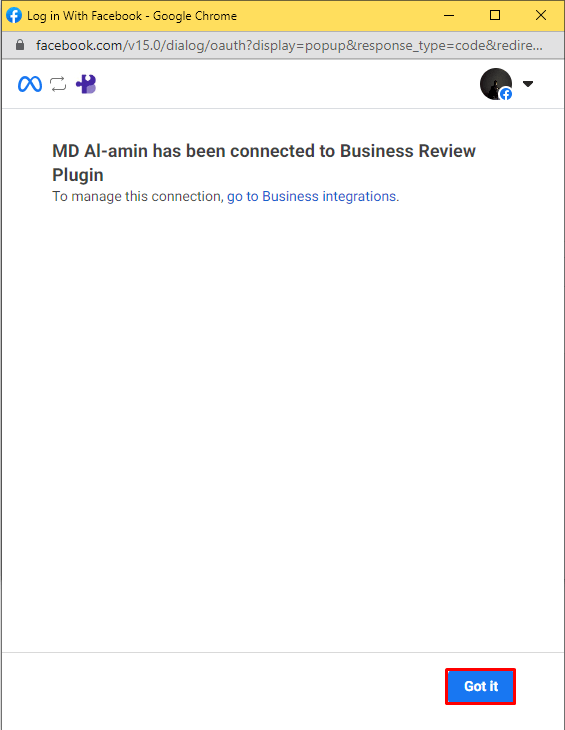
Click, the Go It.
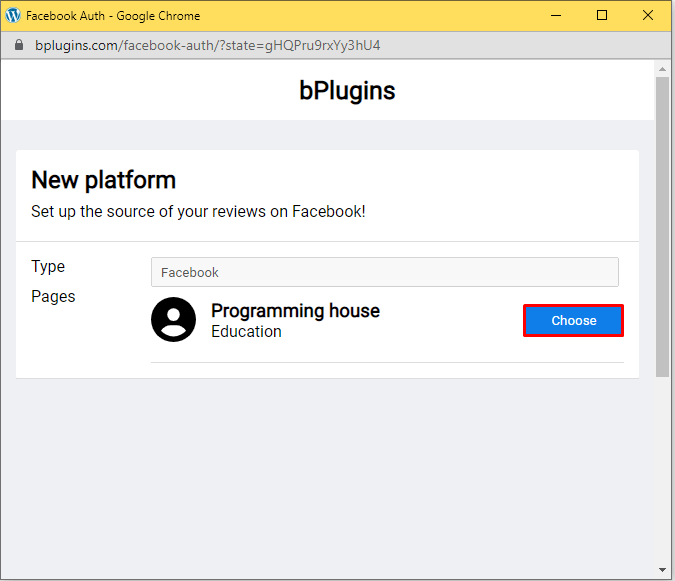
Click on the Choose button.
 Save 90%