

Building an engaging website often involves integrating multimedia elements, such as videos, to capture and retain visitors’ attention.
If you’re using WordPress and want your videos to play automatically upon page load, a WordPress Video Player plugin is an excellent choice to achieve this. You can use codes as well.
In this guide, we’ll walk you through the steps on how to make a video play automatically in WordPres using a Video Player plugin along with custom codes.
Lets begin-
Do People Prefer Watching Videos On Autoplay?
Whether people prefer watching videos on autoplay varies greatly depending on individual preferences and context.
Here are some considerations:
Pros of Autoplay:
- Increased Engagement: Autoplay can capture attention immediately, increasing the chances of users engaging with the content.
- Higher View Counts: Videos that autoplay are more likely to be viewed, boosting overall view counts.
- Convenience: Users don’t need to click play, making the viewing experience more seamless and convenient.
- Effective for Ads: For advertisers, autoplay videos can be more effective in delivering messages to a wider audience.
- Immediate Information: Autoplay videos can quickly provide users with essential information or entertainment without requiring extra effort.
Cons of Autoplay:
- Data Usage: For users with limited data plans, autoplay can consume more data than intended, leading to higher costs.
- Distraction: Autoplay can be distracting, especially if users are multitasking or if the next video is not relevant to their interests.
- Lack of Control: Some users prefer to have control over their viewing experience, choosing what to watch next rather than having the platform decide for them.
- Annoyance: If the autoplayed content is not of interest, it can be annoying and lead to a negative user experience.
How to Make a Video Play Automatically in WordPress: Using Code and WordPress Plugin
There are two ways you can enable the autoplay option in a WordPress site. Either you can use custom code or you can use a WordPress video player plugin. We will show you both.
We will first show you how to make a video play automatically in WordPress using the HTML tab.
- Go to the youtube video page and choose a video.
- Click the “Share” button below the video.
- Click on the embed tab and copy the code. It may look something like this-
- Use the HTML tab to pass the code on your post/page editor.
- Add the following data to the end of the src link “?autoplay=1”.
The result is something like this:
This will enable video to play automatically on your WordPress site.
But if you are not comfortable with using Custom codes to do this, then we suggest you use a plugin like Super Video Player.
The Super Video Player plugin is a powerful and user-friendly WordPress plugin designed to enhance your website’s multimedia experience. It supports multiple video formats, including MP4, WebM, and Ogg, ensuring compatibility across various browsers and devices.
The plugin offers customization options for video playback, including autoplay, loop, and player controls.
Additionally, it integrates seamlessly with WordPress blocks, allowing easy embedding and customization of videos directly within the block editor. Ideal for both beginners and advanced users, Super Video Player improves video content delivery with a sleek, responsive design.
Now, lets see how to use this plugin to enable to video play automatically-
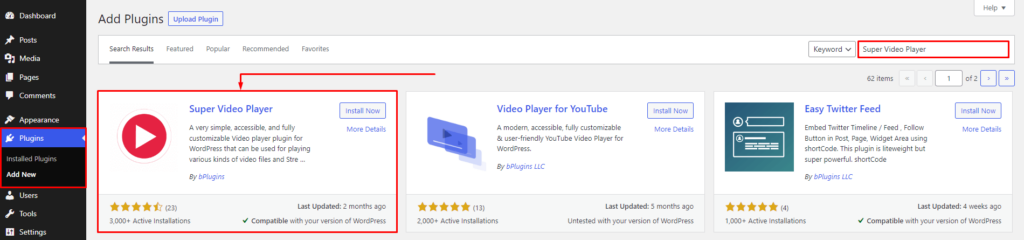
First you need to install the Super Video Player plugin. Login into your WordPress Admin area. Click on the left-side Plugin menu. Now, Go to the right side and search for the Plugin Super Video Player.
Click on to Install Now Button. Once the Plugin is installed, click on Activate Button.
Configure the Super Video Player Plugin to Enable AutoPlay on WordPress
When creating a Super Video Player post, you will see the configuration area under the shortcode area. From there you can configure the Super Video Player.
For the source enter Video file URL or upload a Video file. Also, you can add Custom Download URL by enabling it.
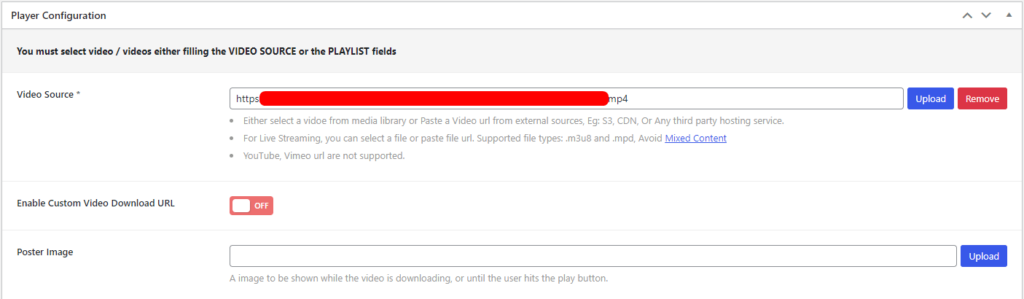
If you enable the Custom Download URL, an input field will appear to enter the URL of the video

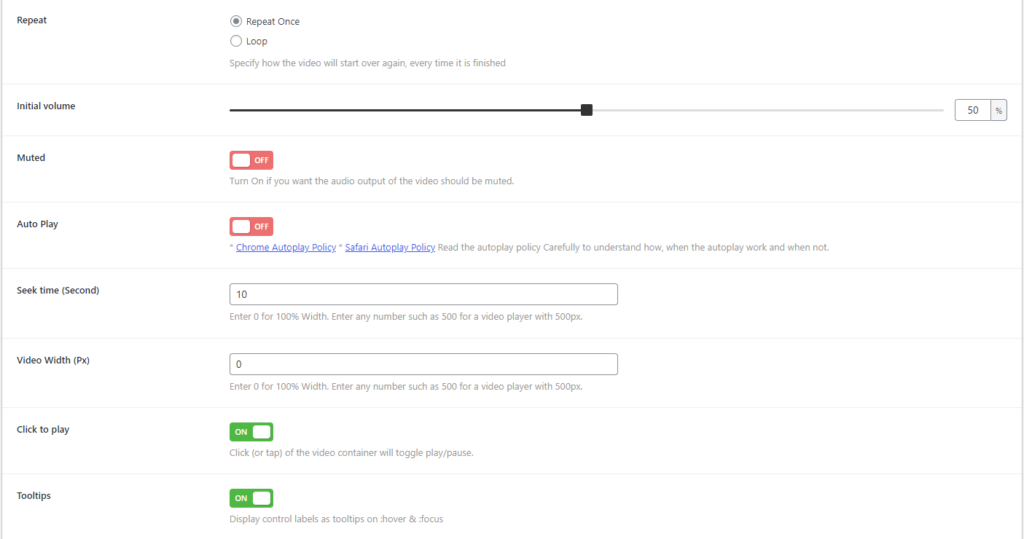
Set Repeat, Initial Volume, Seek Time, and Video Width in options. Also you can enable/disable Muted, Click to Play, and Tooltips.
From here you can set the Autoplay Option. You will find the option under the Muted option.
Don’t forget to save changes.
Now, your video will play automatically in your WordPress site.
Last Words Before You Go!
If you follow these simple steps, you can improve your WordPress site by automatically playing videos using the Super Video Player plugin and custom codes.
This feature not only boosts user engagement but also provides a dynamic and immersive experience for your visitors.
Whether you’re showcasing a product, sharing a tutorial, or telling a story, autoplay videos can effectively convey your message and keep your audience hooked from the moment they land on your page.

 Save 90%