
Are you looking to learn how to hide featured images in WordPress posts? You are in the right place.
If you want to declutter your WordPress posts and remove the featured image, you’re in the right place. Featured images can sometimes distract from the main content or may not fit well with the design of a specific post.
Fortunately, with the Advanced Post Block plugin, hiding the featured image in a WordPress post is a straightforward process.
This guide will walk you through the steps to seamlessly remove the featured image without affecting the overall aesthetics and functionality of your site.
Let’s start-
Introducing Advanced Post Block Plugin to Display Posts Beautifully
The Advanced Post Block Plugin is a versatile and powerful tool designed for WordPress users to create and manage sophisticated post blocks with ease. This plugin offers a range of customizable options and features that enable users to display their content in visually appealing and highly functional layouts.
Whether you’re running a blog, an online magazine, or a portfolio site, the Advanced Post Block Plugin helps you showcase your posts in a way that enhances user experience and engagement.
Features of the Advanced Post Block Plugin
- Customizable Layouts: Choose from a variety of pre-designed layouts or create your own custom design to perfectly match your website’s aesthetic and functional needs.
- Advanced Filtering and Sorting: Enable users to filter and sort posts by categories, tags, dates, and more, providing a personalized and streamlined browsing experience.
- Responsive Design: Ensure your post blocks look great on all devices with fully responsive and mobile-friendly design options.
- Dynamic Content Loading: Implement AJAX-based content loading to allow for smooth and seamless user interaction without the need for page reloads.
- SEO Optimization: Optimize your post blocks for search engines with built-in SEO features that help improve your site’s visibility and ranking.
- Customizable Post Metadata: Display essential post information such as author, date, categories, and comments in a customizable and attractive manner.
- Integration with Popular Page Builders: Easily integrate with popular page builders like Elementor, WPBakery, and Gutenberg, allowing for a more flexible and user-friendly editing experience.
- Advanced Styling Options: Utilize a wide range of styling options, including typography, colors, and spacing, to ensure your post blocks align perfectly with your site’s branding.
These features make the Advanced Post Block Plugin an essential tool for WordPress users looking to enhance their content presentation and improve overall site functionality.
How to Hide Featured Image in WordPress Post Using Advanced Post Block Plugin
Now we are going to show you how to hide featured images from WordPress post using the Advanced Post block plugin.
Let’s start-
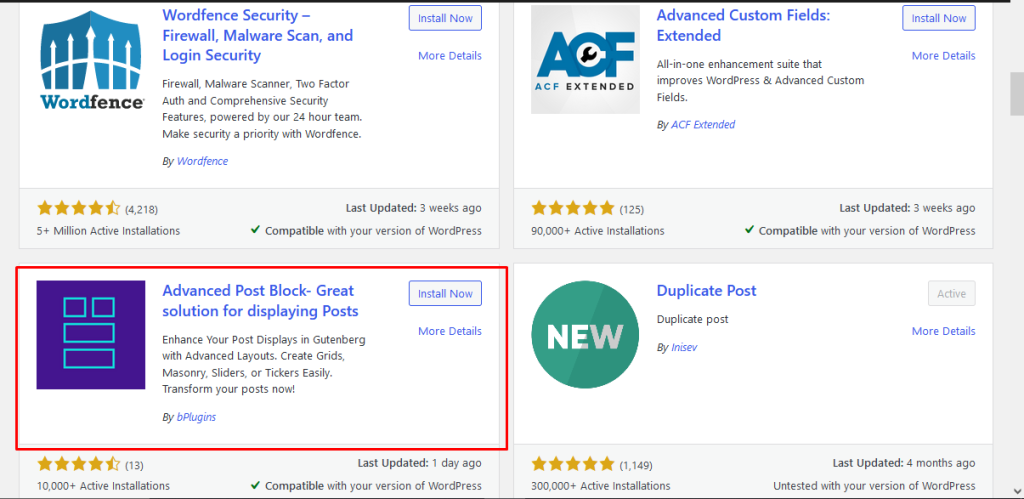
First, you need to install the Advanced Post block plugin. From the WordPress dashboard, go to Plugins–> Add New. Type Advanced Block Plugin in the search box.
Click on the Install Now button. Once the plugin is installed, click on the Activate button.
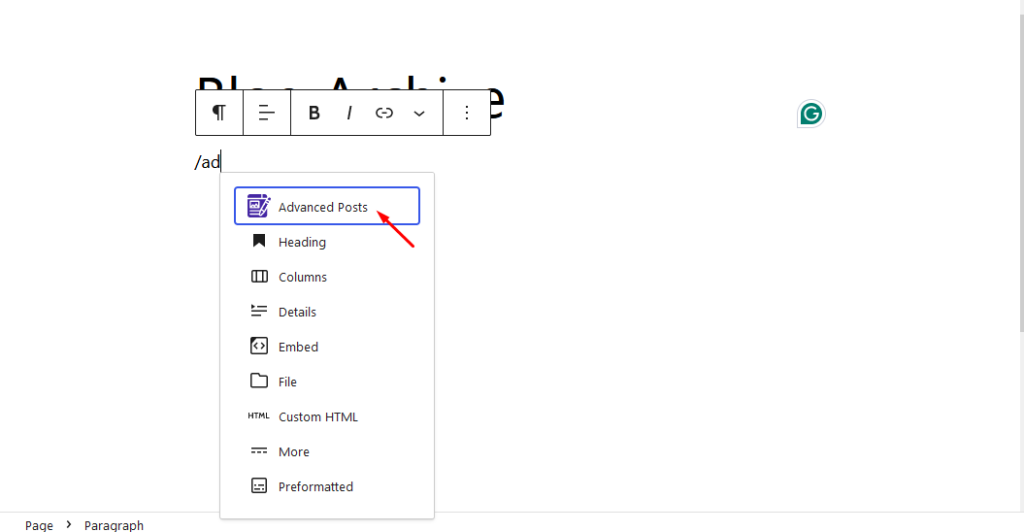
Add a blank page from Pages–> Add New. Give a title to your page and click on the “+” button. FInd the Advanced Posts block and click on it.
Choose the block and you will see all your posts in the page.
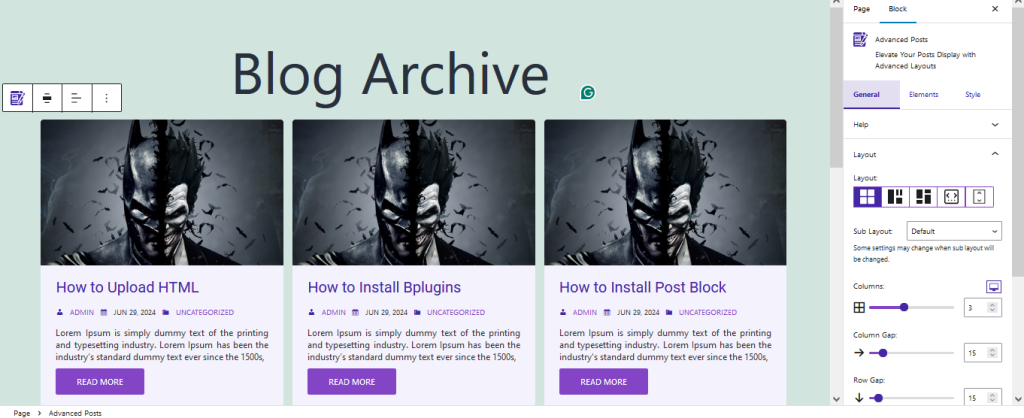
As you can see there are feature images in the posts. If you want to hide the feature image then go to the Elements tab on the right-hand side and choose Feature image option.
Note: These options are only available in the Advanced Block Plugin’s Pro version.
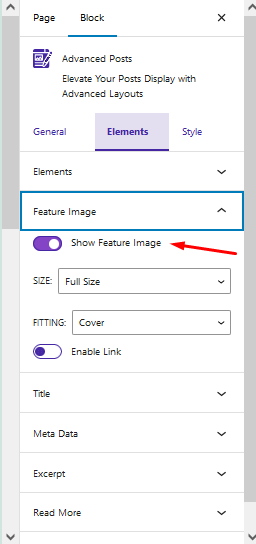
Just disable the Show Feature Image option and the feature image will be hidden from the WordPress posts.
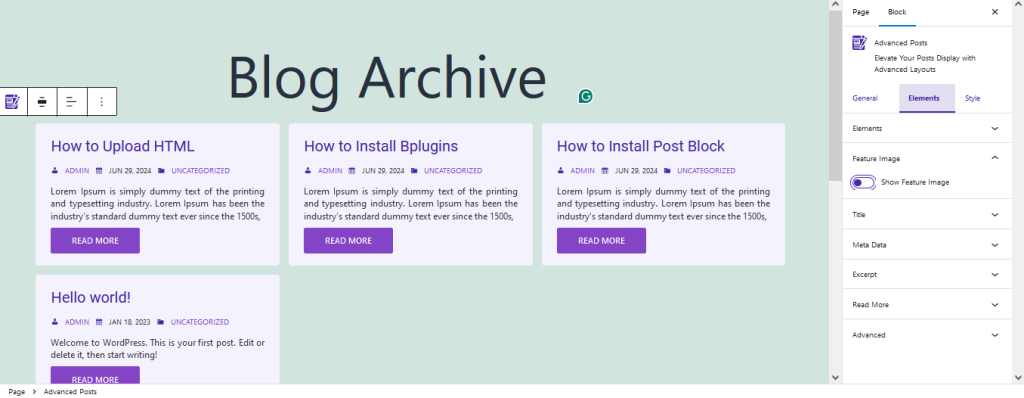
This is how you can hide featured image from WordPress posts.
Bonus 1: How to Hide Author Name from the WordPress Posts
If you want to hide the author name from the WordPress posts, then just go to the Metadata section from the Elements Tab, and disable the Show Author option-
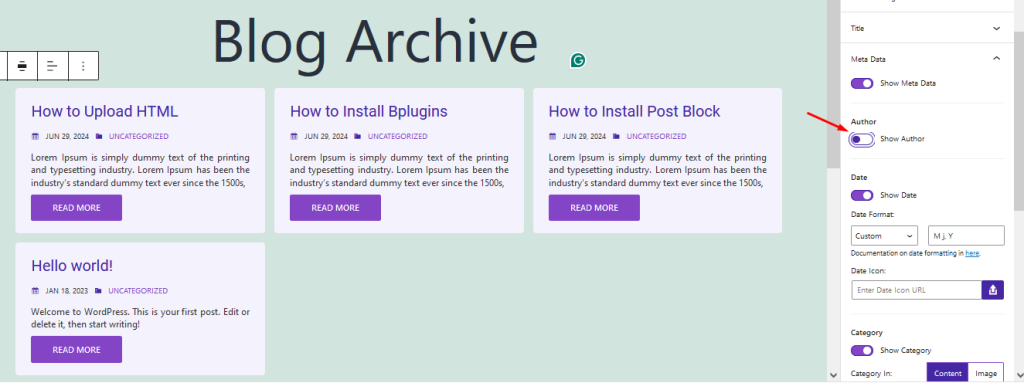
This is how you can hide the author name from the WordPress posts.
Bonus 2: How to Hide Date from WordPress Posts
You can also hide the date from the WordPress posts as well. From the Elements Tab, disable the Show Date option-
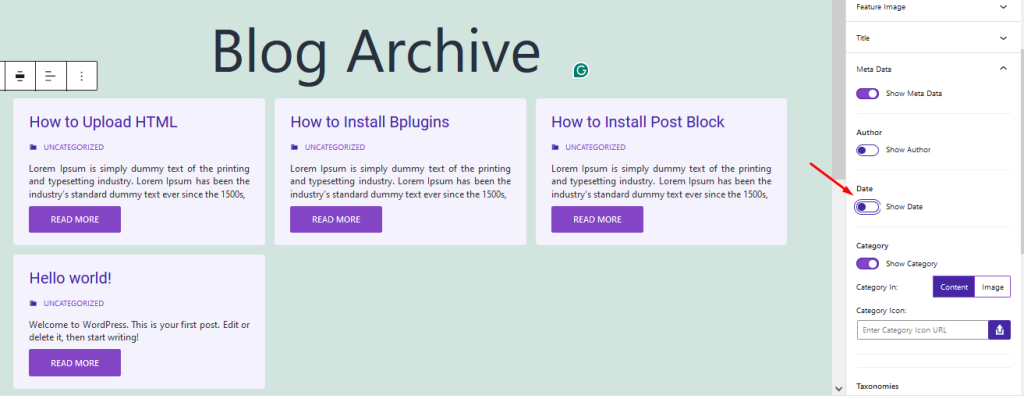
This is how you can hide the date from WordPress posts.
You can also change the layout, add different styles, and customize how the posts will look. There are more customization options in the Pro version, you can read this guide to find the premium options for the Advanced Post Block Plugin.
Last Words on How to Hide Featured Image in WordPress Post
If you hide the feature image in your WordPress posts can significantly enhance the visual appeal and focus of your content.
If you use the Advanced Post block plugin, you can easily achieve this without delving into complex coding or risking your site’s design integrity. Follow the steps outlined in this guide, and you’ll have a cleaner, more tailored look for your WordPress posts in no time.

 Save 90%