
Modern websites rely on visuals to keep visitors engaged, but heavy GIFs and video files often slow pages down. That’s where WordPress Lottie animation plugins come in. Lottie uses lightweight, JSON-based animations that are vector-based, resolution-independent, and fully scalable. This makes them ideal for responsive websites of any size.
Unlike GIFs or traditional videos, Lottie animations load quickly, use fewer resources, and stay crisp on every device. You can use them for animated icons, hero sections, loading spinners, scroll-based storytelling, or small micro-interactions—all without hurting site speed.
Another advantage is flexibility. Lottie animations in WordPress can be customized to play on scroll, hover, or click, giving designers full control over how users interact with content.
Since they work across most modern browsers and integrate seamlessly with popular WordPress plugins and page builders, Lottie has become one of the top choices for adding smooth, interactive animations to websites.
In this guide, we’ll explore the best WordPress Lottie plugins, practical use cases, best practices for optimization, and troubleshooting tips so you can start using Lottie animations on your WordPress site with confidence.
3 Top WordPress Lottie Animation Plugins
Adding Lottie animations to WordPress is simple with the right plugin. Whether you prefer a dedicated Lottie player, a massive animation library, or Elementor integration, there’s a solution that fits your workflow.
Below are some of the best WordPress Lottie plugins to help you bring smooth, lightweight animations to your website.
Lottie Player
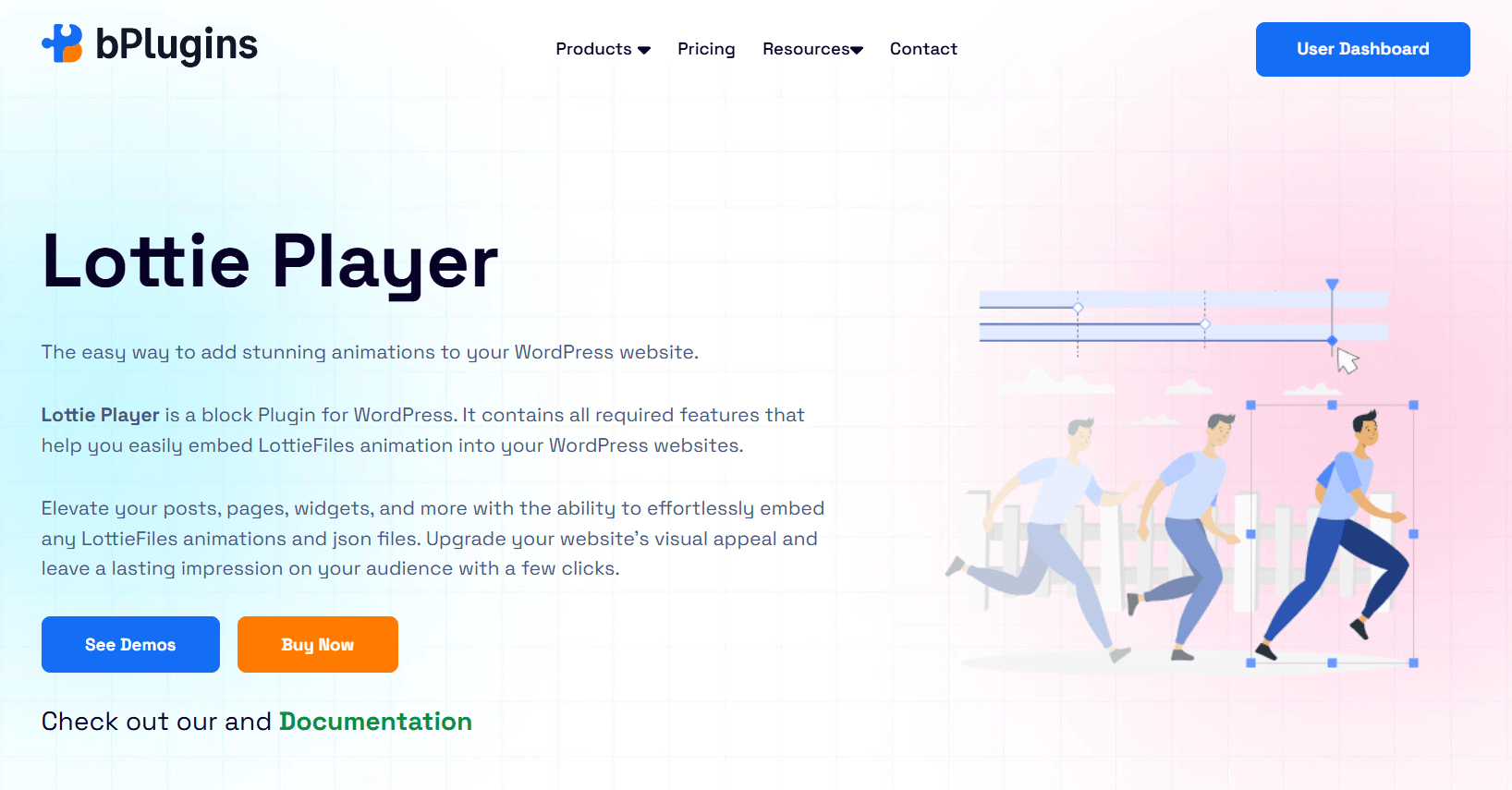
Lottie Player lets you embed Lottie animations, including .json and .lottie files, directly into WordPress posts, pages, widgets, and more. It offers extensive customization so you can display animations exactly how you want. With support for autoplay, looping, links, alignment, and advanced interactivity, this plugin integrates seamlessly with modern WordPress designs.
Key Features
- File support for both .json and .lottie files
- Interactive controls (play, pause, seek)
- Autoplay and loop options
- Adjustable icons, tracker, and thumb colors
- Direct file upload support
- Hover-based animation triggers
- Multiple playback modes and directions
- Control over repetition count, speed, and intervals
- Advanced interactivity with scroll, cursor, or clicks
Ideal For
- Websites looking to add interactive animations
- Designers who want full playback and styling control
- Blogs, portfolios, and business sites that need micro-interactions
- WordPress users who want animations without slowing site speed
LottieFiles
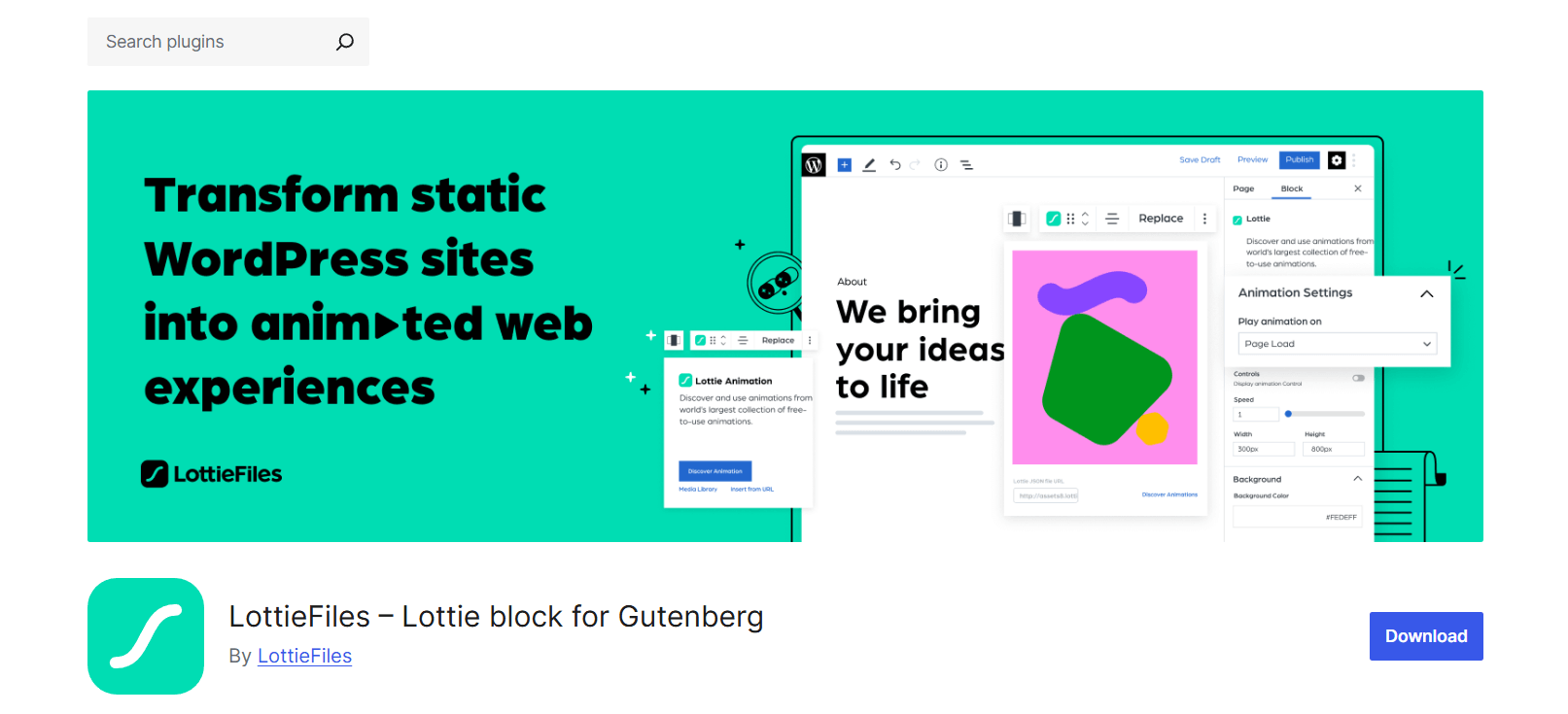
LottieFiles plugin for WordPress connects directly to the LottieFiles library, giving you access to over 50,000 free animations you can embed into posts, pages, or widgets. With its drag-and-drop interface, even beginners can add engaging visuals to their websites. It’s especially useful for explaining products, services, or features in a way that grabs attention.
Key Features
- Library of 50,000+ free Lottie animations
- Seamless Gutenberg block integration
- Access and manage animations from your LottieFiles account
- Drag-and-drop JSON file uploads
- Insert animations via external URL
- Save and reuse animations in the WordPress Media Library
- Customize background, speed, triggers, playback, and dimensions
- Collaboration features for shared team accounts
Ideal For
- Website owners who want quick, high-quality animations
- Bloggers, marketers, and businesses explaining products or services
- Teams managing multiple animations across projects
- Users seeking full Gutenberg compatibility
LottieFiles for Elementor
If you’re an Elementor user, LottieFiles JSON-Based Animation for Elementor is the go-to plugin. It lets you add interactive Lottie animations anywhere on your Elementor pages without writing code. You can set animations to trigger on scroll, hover, or click, making it great for storytelling and user engagement.
Key Features
- Support for JSON and Bodymovin animations
- Multiple triggers including scroll, hover, click, and mouse-over
- Autoplay and inline playback options
- Scroll-based animations for storytelling effects
- Hover and click interactions for engaging elements
- Full customization of speed, direction, and alignment within Elementor
Ideal For
- Elementor users wanting lightweight, responsive animations
- Websites focused on interactive storytelling or product showcases
- Designers who need scroll-based or trigger-based animations
- Businesses and bloggers adding engaging visuals without code
Also check out Best WordPress Interactive Social Feeds Plugins: Beyond Basic Embedding.
Best Practices for Using Lottie in WordPress
Using Lottie animations in WordPress can make your site more engaging and interactive, but following best practices will help keep them smooth and performance-friendly.
1. Optimize file size before uploading
Lottie files are small compared to GIFs or videos, but large JSON files can still slow your site. Use the LottieFiles optimizer or similar tools to compress animations before uploading. This keeps loading times fast and ensures a seamless experience for visitors.
2. Don’t overload pages with too many animations
Too many moving elements can overwhelm users and drag down performance. Instead, use Lottie strategically in places like hero sections, key icons, or micro-interactions where they add the most value.
3. Ensure accessibility
Always include descriptive alt text and place animations meaningfully within your content. This makes your site more accessible to screen readers and helps maintain good usability.
4. Test on mobile and slow connections
Check how your animations perform on smartphones, tablets, and slower networks. Lottie should run smoothly across devices, but testing ensures you don’t accidentally hurt the user experience for visitors on weaker connections.
Check also Video Player Security in WordPress: Protecting Your Content from Theft.
Use Cases of Lottie Animations in WordPress
One of the strengths of Lottie animation WordPress plugins is versatility. You can use them in many creative ways to make your website more interactive:
- Animated icons – Add subtle motion to menus, buttons, and feature highlights.
- Hero section animations – Make landing pages stand out with eye-catching effects.
- Scroll-based storytelling – Trigger animations as visitors scroll through content.
- Loading spinners – Replace plain loaders with engaging Lottie animations.
- Micro-interactions – Animate form submissions, hover effects, or buttons for better feedback.
By using Lottie animations in these areas, you can improve both design and user engagement while keeping your site fast.
Learn more 10 Unique Content Types You Can Embed in WordPress Besides Videos.
Common Issues & Troubleshooting
Even though Lottie animations are lightweight and efficient, issues can sometimes appear. Here are the most common problems and fixes:
- Animation not loading – Check that your JSON file is valid and supported by your chosen plugin or page builder.
- Browser compatibility – Older browsers may not fully support Lottie. Provide fallback images or simpler animations if needed.
- Performance issues on heavy pages – Too many animations can slow things down. Keep the number of Lottie elements per page limited and optimize file sizes.
- Conflicts with caching or minification plugins – Some optimization tools interfere with playback. Try disabling these features temporarily or exclude Lottie scripts from caching.
Read WordPress Media Issues: Fix, Prevent & Speed Up Your Site.
FAQs on Lottie Animations in WordPress
Can I use Lottie without a plugin in WordPress?
Yes. You can embed Lottie animations manually with the <lottie-player> tag or custom HTML. However, plugins make things much easier by adding features like triggers, controls, and responsive settings.
Do Lottie animations affect SEO or site speed?
When optimized, Lottie animations have very little impact on speed and won’t harm SEO. Using compressed JSON files keeps pages loading fast while maintaining smooth visuals.
Are Lottie animations supported on all browsers?
Most modern browsers support Lottie animations. For older browsers, you may want to provide fallback images or simpler versions to ensure accessibility.
Is Lottie free to use commercially?
Many animations from LottieFiles are free for personal and commercial use, but always double-check the license before using them on client or business projects.
How do I convert After Effects animations to Lottie?
You can use the Bodymovin plugin for After Effects to export animations as JSON files. These files work seamlessly with WordPress Lottie plugins.
Conclusion
Using Lottie animations in WordPress is one of the easiest ways to add interactivity and polish to your website without slowing it down. Lottie files are lightweight, scalable, and customizable, making them perfect for animated icons, hero sections, scroll effects, loading spinners, and micro-interactions.
The best approach is to start small—add one or two animations, test performance across devices, and expand from there. Stick with reliable plugins like Lottie Player, LottieFiles, or LottieFiles for Elementor to get the best results. And don’t forget to optimize your JSON files for speed and accessibility.
By following these tips, you’ll be able to use WordPress Lottie plugins to create a smooth, professional, and engaging experience for your visitors.

 Save 90%