
In a content-rich website, the way documents are displayed directly impacts user experience, search visibility, and accessibility. Clean, readable document presentation keeps visitors engaged without the hassle of downloads or formatting issues.
When comparing PDF vs Document Viewer solutions, it is important to understand their differences. A PDF viewer is built for handling PDF files with consistent layouts and offline access. A document viewer or embedder goes further, allowing multiple formats such as Word, Excel, and PowerPoint to be displayed directly on a web page.
Each option has its own strengths and limitations. Some are better for SEO and responsiveness, while others prioritize simplicity or tighter control over documents.
In this post, we look at both approaches with two real-world plugins: PDF Poster, designed for embedding PDFs in WordPress, and Document Embedder, which supports a wider range of file types. The goal is to highlight key differences, practical use cases, and what to consider when choosing the right solution for your site.
Understanding Document Viewing Solutions
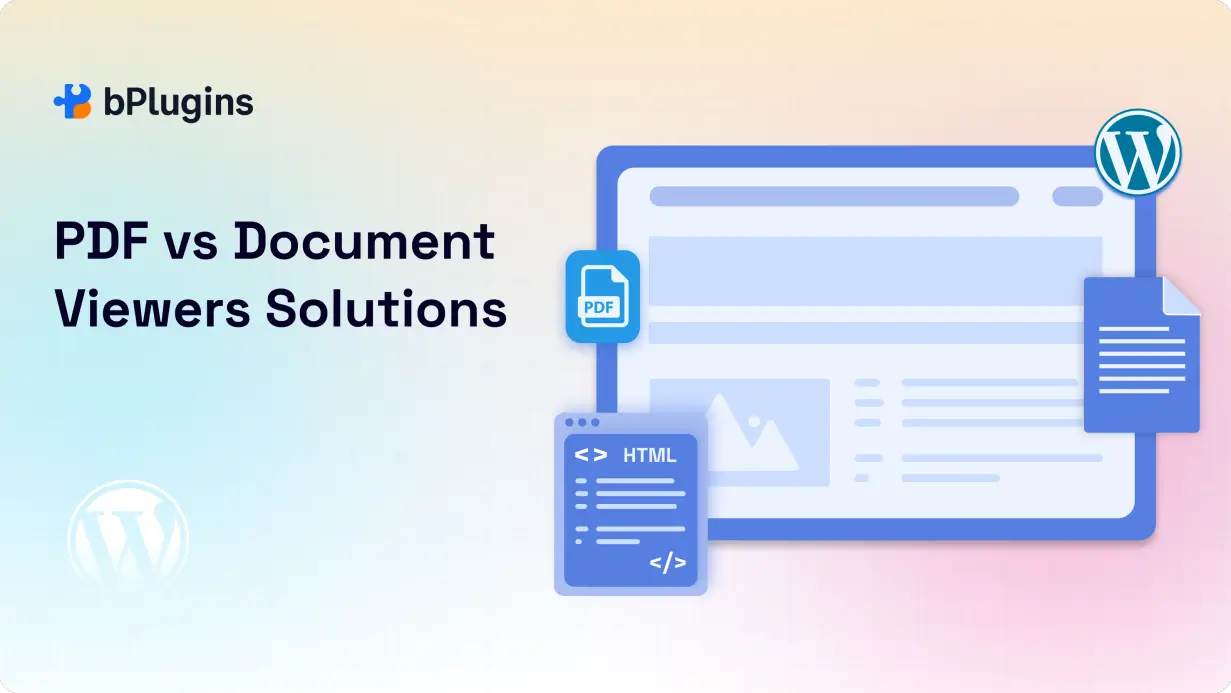
PDF Viewers
A PDF viewer lets people open PDF files directly in the browser. Most include basic tools like zoom, search, and download. PDF viewers are best when layout and formatting need to stay exactly the same, no matter the device.
Common use cases:
- Brochures, whitepapers, and marketing materials
- E-books or guides where layout consistency matters
- Forms and official reports with fixed formatting
Advantages:
- Portability: PDFs look the same on any screen or platform
- Consistent formatting: Fonts, images, and layout stay intact
- Offline access: Many browsers allow users to save the file and read it later
Disadvantages:
- Limited interactivity: PDFs are mostly static. Adding features like forms or videos takes extra work
- Accessibility issues: Without proper tagging, screen readers may struggle to read PDF content
HTML Document Viewers
An HTML document viewer shows files like Word documents, spreadsheets, and presentations inside a web page. These viewers often use tools like the Google Drive Viewer to support different file types.
Best for:
- Documents that need to be search-friendly
- Mobile-friendly layouts that adjust to screen size
- Content that includes images, links, or other interactive elements
Advantages:
- SEO-friendly: Search engines can crawl and index HTML content
- Responsive design: Works well on mobile and tablet screens
- Easy to style: Can be customized using CSS or JavaScript
Disadvantages:
- Needs internet access: Users must be online to view the content
- Formatting issues: Complex layouts might not display the same across all browsers
Learn also PDF Security in WordPress: Protecting Documents from Download.
SEO Implications: PDF vs Document Viewer
Google can index both PDFs and HTML pages. A well-optimized PDF can show up in search results, and links inside the file can even pass PageRank. But there are a few SEO differences to consider.
Embedding vs linking: Embedding keeps people on your site longer. Linking to a file can send them away after one click. More time on-site is a positive signal for search engines.
Metadata: PDFs have metadata fields like title and author that help with search visibility. HTML documents, however, work more naturally with meta tags and structured data.
Canonical tags: If both HTML and PDF versions of a document are available, add a canonical tag. This tells search engines which version to prioritize and helps avoid duplicate content problems.
Bottom line: HTML documents usually offer more SEO flexibility. But a well-structured PDF can still rank and drive traffic—especially when embedded instead of linked.
Feature Comparison: PDF vs Document Viewers
| Feature / Criteria | PDF Viewers | Document Viewers |
| Supported Formats | PDF only | Multiple formats – PDF, Word (DOC/DOCX), Excel (XLS/XLSX), PowerPoint (PPT/PPTX), others via Google Drive Viewer |
| Display Modes | Inline, full-screen | Inline, full-screen, lightbox/modal |
| Interaction Options | Download, print, zoom, page navigation | Download, zoom, navigation, print (varies by format), lightbox transitions |
| SEO Impact | Search engines index text in PDFs; metadata is important but limited compared to HTML | HTML-based embeds and multi-format indexing; better integration with page-level metadata |
| Best Use Cases | Blogs with downloadable PDFs, portfolios, official forms, static guides | Businesses, education sites, content hubs with diverse document types, reports and presentations |
Summary:
- PDF viewers excel when layout precision and portability are top priorities.
- Document embedders shine when you need to handle multiple formats, provide interactive viewing options, and optimize for SEO engagement.
PDF Poster Overview
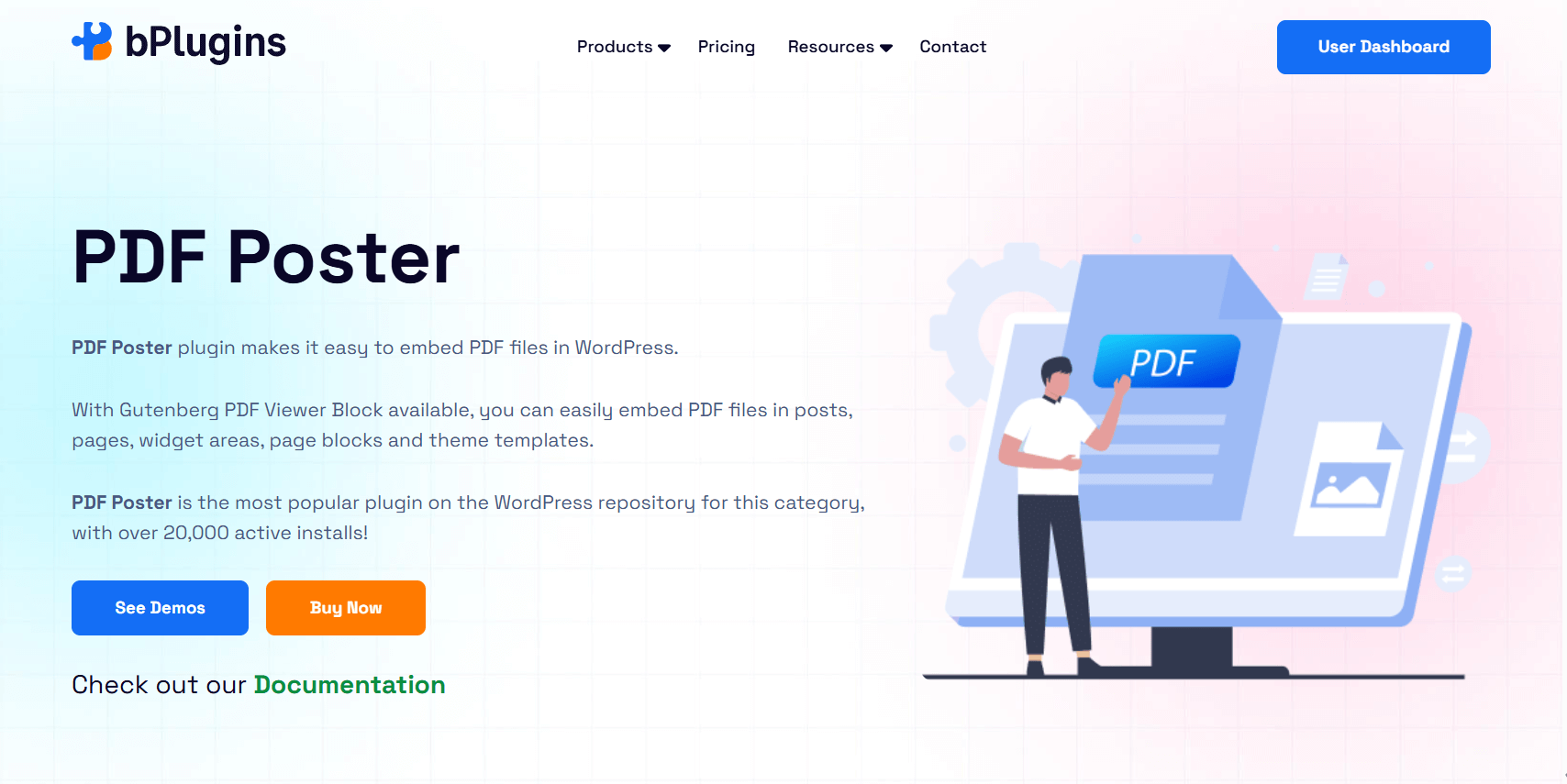
PDF Poster is a WordPress plugin made for one job—displaying PDF files cleanly and responsively inside your site. Over 20,000 websites use it and focuses fully on the PDF format to deliver a smooth viewing experience.
Free Features
- Fully responsive layout that works across all screen sizes
- Gutenberg block and shortcode support
- Print and download buttons
- Full-screen toggle for distraction-free reading
Pro Upgrades
- Content protection to prevent downloading or copying
- Raw viewer mode for faster performance with large files
- Thumbnail navigation for multi-page documents
- Jump-to-page feature for easy navigation
- Zoom controls for better readability
- Popup viewer for a more focused display
SEO and User Benefits
Embedding with PDF Poster helps keep users on your site while making the content accessible to search engines. It’s well suited for brochures, manuals, whitepapers, and other PDF assets where layout matters.
Document Embedder Overview
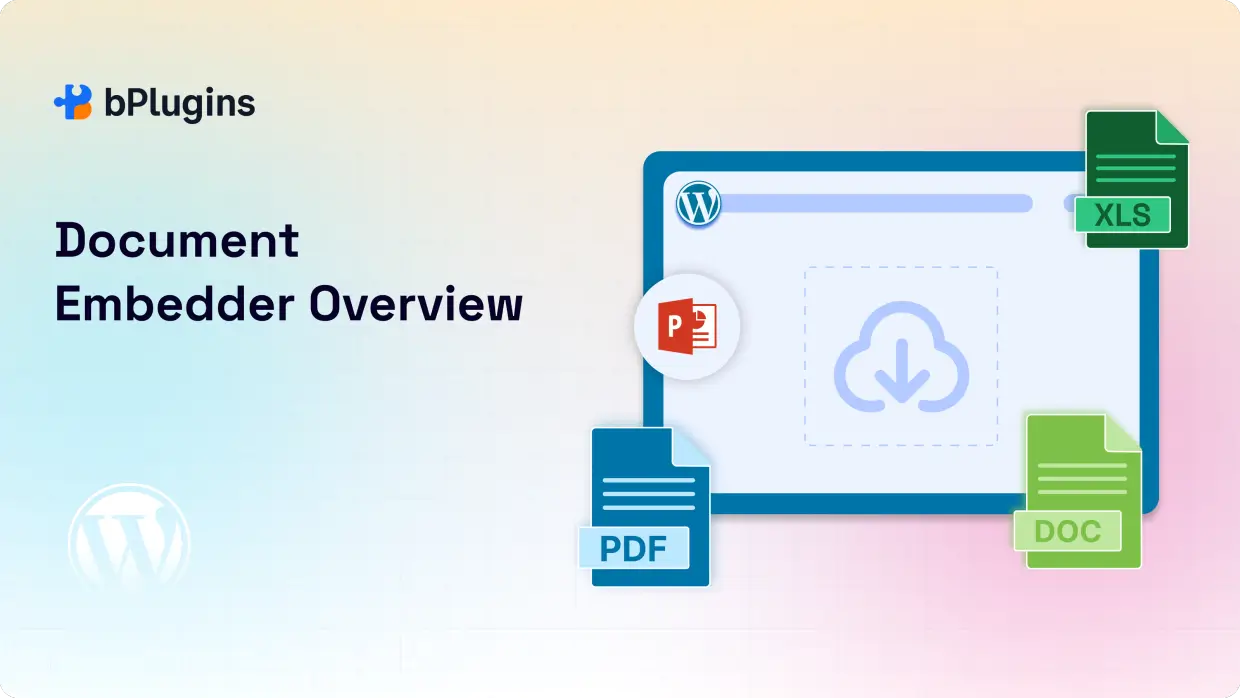
Document Embedder supports multiple file types—PDF, Word, Excel, PowerPoint, and more—using the Google Drive Viewer. It’s designed for sites that need to display a variety of document formats.
Free Features
- Responsive viewer that works on all devices
- Gutenberg block for quick embedding
- Filename display above the viewer for added context
- Download button for offline access
Pro Enhancements
- Lightbox modal to open documents in a popup
- Loading indicator for a smoother experience
- Integration with Google Drive and Dropbox
- Option to disable pop-out, keeping users on your site
Ideal Use Cases
Document Embedder works well for multi-format content like corporate reports, educational resources, and presentations. Viewers can read everything online without needing to download or open files in separate apps.
Plugin-Based Comparison: Why These Plugins Stand Out
Flexibility
PDF Poster is best when you’re focused only on PDF files. It gives you full control over layout and display.
Document Embedder is the better choice when you need to handle different file types on the same site.
Ease of Use
Both plugins include Gutenberg blocks and shortcodes, so you can embed files quickly. No technical skills needed.
User Retention
Inline document viewing helps keep people on your page. Whether it’s a report or a presentation, users don’t need to leave your site to view the file.
Customization and Control
Features like popup viewers, download restrictions, and thumbnail navigation let you shape the viewing experience around your content goals.
SEO Advantage
Embedding keeps users on your site and allows search engines to index the content. This can improve dwell time and help your pages rank better in search results.
Read: 5 Best PDF Plugins Compared: Features & Performance.
Making the Right Choice: A Simple Decision Guide
Choosing the right viewer depends on your content and how you want visitors to interact with it. Here’s how to decide:
If your content is PDF-only: Use PDF Poster. It’s focused, fast, and easy to set up. For long or complex files, the Pro version adds helpful features like jump-to-page, thumbnail navigation, and protection against copying.
If you work with multiple file types: Go with Document Embedder. It supports PDFs, Word documents, Excel files, and PowerPoint presentations. Great for businesses, schools, and libraries that publish different kinds of documents.
If user engagement is a priority: Pick a plugin that supports lightbox or popup views. These help keep the layout clean and avoid overwhelming the page with large files.
If SEO matters: Always embed your documents instead of linking to them. This helps with indexing, keeps visitors on your site longer, and improves behavioral signals like dwell time.
Best Practices for Embedding and SEO
Choosing the right plugin is just the first step. How you embed and optimize your documents has a big impact on usability and search performance.
Use descriptive filenames and document titles
A file named Q3_Financial_Report_2025.pdf is much more useful than report3.pdf. Include keywords in both the filename and the document’s internal title to help search engines and users understand what it’s about.
Provide an HTML fallback or alternative
Not all users—or bots—can access embedded documents. Whenever possible, offer a short HTML summary or link to a text-based version. This improves accessibility and helps with indexing.
Optimize for speed
Large files can slow down your pages, especially on mobile. Use lazy loading so the document only loads when it’s visible on screen. Some Pro plugins also include loading spinners to let users know the file is being fetched.
Ensure mobile responsiveness
Many users will view your site on a phone or tablet. Plugins like PDF Poster and Document Embedder offer responsive embeds, but it’s still a good idea to test your pages on different devices.
Use search-friendly PDFs
Avoid scanned PDFs made from images. Instead, use text-based PDFs so search engines can crawl the content. This makes your documents more discoverable.
Be careful with password protection
Password-protected files can’t be indexed by Google. If the content must be protected, consider showing a public summary or excerpt to help with SEO.
Case Examples
Educational Blog
A learning site uses PDF Poster to embed lecture notes, study guides, and practice materials. Because students can view the files directly on the page, they stay longer and engage more. The responsive layout works well on all devices, making it easy for students to read on phones or tablets.
Corporate Website
A consulting firm uses Document Embedder to display different file types, including reports, presentations, and spreadsheets. Visitors can view everything on the site without opening another app. Lightbox mode helps them stay on the page, and descriptive filenames improve search rankings.
FAQs on PDF and Document Viewing Solutions
1. What’s the difference between a PDF viewer and a PDF reader or editor?
A PDF viewer lets users open and read PDF files, usually in a browser. A reader or editor includes extra tools for highlighting, form-filling, or editing. For websites, viewers are preferred because they offer a clean, consistent display without editing features.
2. Why are PDFs more popular than Word or HTML documents?
PDFs keep their layout and design consistent across all devices. Unlike Word files, they don’t need special software to open. Unlike HTML, they preserve the exact look of the document. This makes them ideal for official reports, brochures, and contracts.
3. Are PDFs good for on-screen reading?
Yes—especially if they’re designed for digital viewing. Many PDF viewers support zooming, navigation, and search. Plugins like PDF Poster improve the experience with responsive layouts and better controls for mobile users.
4. Can PDFs pose security risks?
Some PDFs may contain scripts or hidden code. Most modern browsers and viewers block this by default. To stay safe, only use trusted sources, and enable protection features in your viewer plugin to block copying or downloads if needed.
5. What’s the best free PDF reader for privacy?
Privacy-focused options like Sumatra PDF and PDF.js don’t collect user data. For WordPress, lightweight plugins like PDF Poster provide document viewing without tracking users or sending data to third-party services.
6. How can I make embedded documents more SEO-friendly?
- Use clear, keyword-rich file names and document titles
- Avoid scanned images—use text-based content
- Embed documents instead of linking externally
- Offer a brief HTML summary or alternative version
- Avoid locking important documents behind passwords
Conclusion
Choosing the right document viewer affects more than just how your content looks. It also shapes user experience, impacts SEO, and supports accessibility.
Plugins like PDF Poster and Document Embedder give you flexible options for different content types and make it easier to keep visitors on your site.
There’s no single best tool for every case. The right choice depends on the kinds of documents you publish, how your audience interacts with them, and what your content goals are.
Once you’ve chosen a viewer, take time to optimize the settings for mobile responsiveness, fast loading, and better accessibility.
The result is a smoother experience for users and better performance in search.

 Save 90%