
Uploading large video or audio files to WordPress often leads to slow loading, high bandwidth usage, and frustrating buffering. These issues aren’t just inconvenient—they affect SEO, user experience, and overall site performance.
Pages with self-hosted videos or audio players put extra strain on servers. Standard hosting alone usually isn’t enough to handle smooth media playback, especially for visitors in different regions or on slower connections.
This is where a Content Delivery Network (CDN) becomes important.
A CDN for WordPress improves performance by serving media files from servers closer to your visitors. It reduces buffering, speeds up load times, and offloads traffic from your origin server.
This guide explains how CDNs work with WordPress, why they’re critical for media-heavy sites, and how they help optimize WordPress media player performance. Whether you manage a tutorial site, a podcast archive, or a streaming course platform, faster media delivery improves results across the board.
Let’s get started.
What is a CDN & Why It Matters for WordPress
A Content Delivery Network (CDN) is a network of servers distributed across different locations. Instead of loading media files from just one server, a CDN stores copies of those files on multiple servers—or “nodes”—closer to your site visitors.
On a typical WordPress setup, visitors download videos or audio directly from your web host. If that server is far away or under heavy load, media playback slows down. This leads to buffering, long load times, or playback errors.
Common issues on WordPress sites without a CDN include:
- Slow loading from shared or low-powered hosting
- Poor caching or no caching at all
- Server overload when many users try to access large media files
A CDN for WordPress solves these problems by caching media at the edge. When someone clicks play, the file is delivered from the nearest edge server, not your main hosting server. That means less travel time for the data and smoother playback.
For WordPress sites using video or audio content, a CDN offers:
- Faster load times
- Reduced buffering
- Better performance for mobile or slow connections
When combined with a well-optimized media player, a CDN becomes an essential tool to improve video playback speed and overall performance.
Media Players in WordPress: How Performance is Measured
WordPress supports a wide range of media players. Whether you’re showcasing tutorials, podcasts, or product demos, the player you use—and how it handles delivery—impacts performance.
Popular options include:
- HTML5 Video Player – lightweight and supports MP4, HLS, and direct links
- HTML5 Audio Player – ideal for podcasts, music, and voice clips
- MediaElement.js – the built-in WordPress player, known for broad compatibility
So, how do you measure performance?
Key metrics include:
- Startup time – how fast playback begins after clicking play
- Rebuffer rate – how often the video pauses to load more data
- Bitrate switching – how smoothly the player adjusts video quality based on the user’s internet speed
Players vary in how they load content. Some use shortcodes to embed directly from the media library. Others use Gutenberg blocks or external sources like CDNs. The more efficiently a player handles content, the better the user experience.
Pairing a WordPress video player plugin with a CDN helps files load faster, adapt to changing connection speeds, and reduce lag. This leads to smoother playback and keeps your audience engaged.
How CDNs Improve WordPress Media Player Performance
CDNs do more than just serve static assets—they play a major role in optimizing WordPress media player performance, especially for sites that use self-hosted video or audio.
Here’s how a CDN helps:
Edge Caching for Video Formats (MP4, HLS, DASH)
When a user clicks play, the CDN delivers the media from the nearest edge server. Whether you’re using standard MP4 or adaptive formats like HLS or DASH, this reduces latency and offloads stress from your main server.
Also read Video Formats for WordPress Explained: MP4, WebM, OGV Compatibility Guide.
Signed URLs to Prevent Hotlinking
Some CDNs offer signed URLs—secure, time-limited links that restrict who can access your files. This is useful if you’re protecting premium content or want to prevent unauthorized sharing.
Faster Initial Load and Buffer Fill
CDNs reduce Time to First Byte (TTFB), helping your player start playback quickly. By delivering the manifest and video chunks efficiently, they also improve buffer fill rates—reducing interruptions during playback.
Support for Adaptive Bitrate Streaming
Players like the HTML5 Video Player for WordPress support adaptive bitrate streaming. They adjust video quality in real time based on the viewer’s network speed, ensuring a smoother experience—even on unstable or mobile connections.
In short, combining a CDN with a performance-focused player boosts speed, reduces buffering, and improves media delivery across your WordPress site.
Best Practices for Integrating CDNs with WordPress
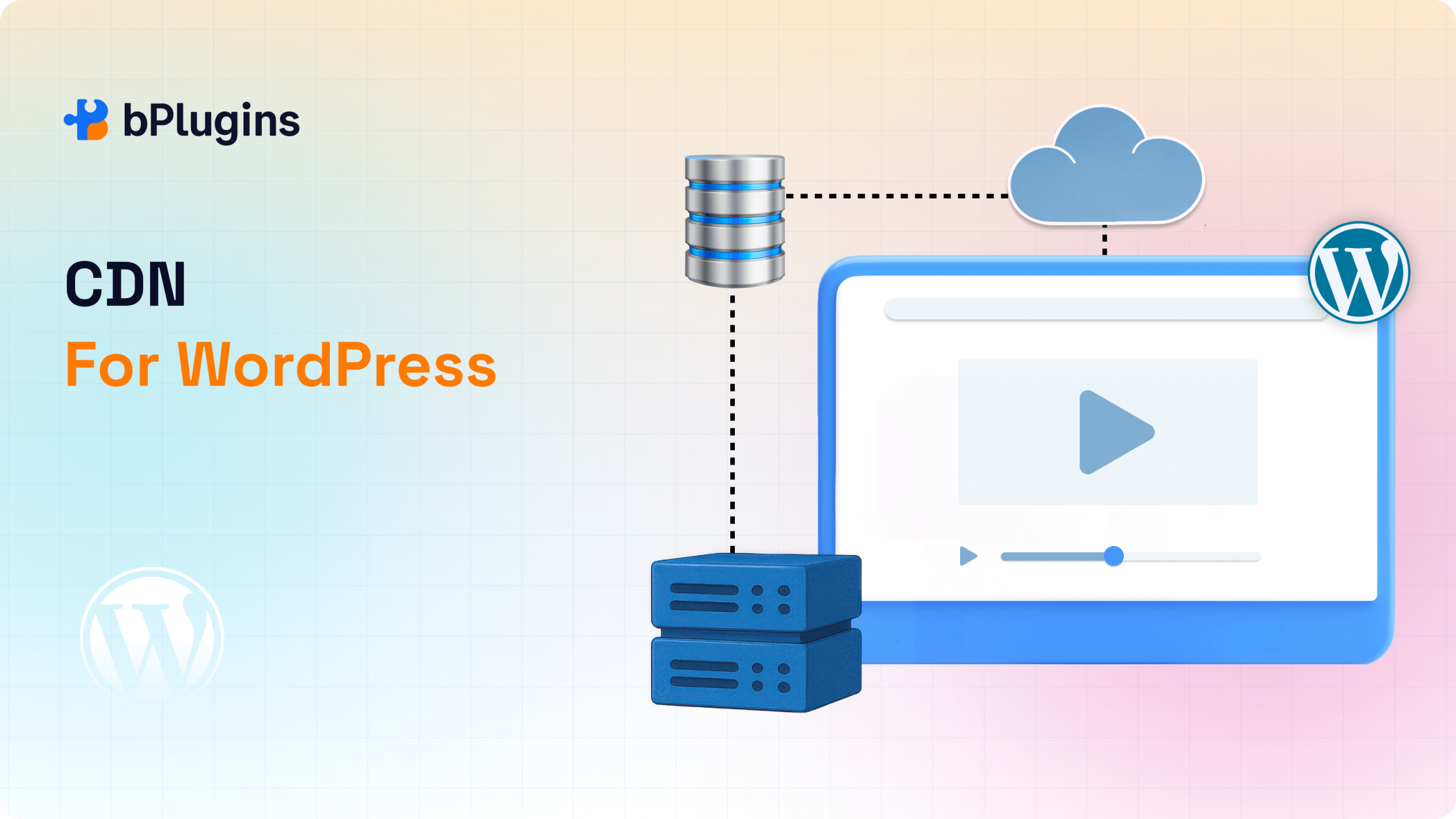
Integrating a CDN for WordPress doesn’t have to be complex. With the right tools and a few performance tweaks, your media playback can become much faster and more reliable.
Use a WordPress CDN Plugin to Handle URL Rewriting
Several plugins make it easy to connect your WordPress site to a CDN. They rewrite media file URLs automatically and help cache static assets. Common options include:
- Cloudflare – global reach, DDoS protection, and built-in optimization
- BunnyCDN – fast video delivery with efficient edge caching
- Jetpack – includes a free CDN for images and static files
- CDN Enabler – a lightweight plugin that rewrites URLs for CDN use
These tools simplify integration and reduce the load on your origin server.
Choose Media Player Plugins that Support CDN-delivered Files
Performance improves when your media player is built to work with external sources. WordPress plugins like:
- HTML5 Video Player – supports direct links to MP4 and HLS files
- HTML5 Audio Player – handles streamed or linked audio files
- PDF Poster and Document Embedder – useful for serving documents via CDN
These players support external file loading via block or shortcode, helping reduce delays and improve video buffering in WordPress.
Enable Compression and Modern Protocols
To reduce file size and speed up delivery:
- Turn on gzip or Brotli compression
- Use HTTP/3 for faster, more resilient connections
- Secure content with signed URLs or domain restrictions when needed
Optimize MP4 Files for Progressive Playback
If you’re hosting your own MP4 files, make sure the moov atom is placed at the beginning. This allows the video to start playing before the entire file is downloaded, improving load times and reducing buffering.
WordPress Media Hosting Options: Self-Hosted vs External with CDN
One of the key decisions when adding media to your site is where to host it. Should you upload files directly to WordPress, or use an external platform with CDN support?
Self-hosted Media (inside the WordPress media library)
Pros:
- Easy to manage within the WordPress dashboard
- No need for third-party services or extra subscriptions
- Works well for small audio clips or short videos
Cons:
- Larger files slow down your site
- Shared hosting often can’t handle high-volume requests
- Lacks adaptive streaming or advanced controls
- Can quickly use up bandwidth and storage limits
Self-hosting may be enough for lightweight media or low-traffic sites. But for long-form video or frequent streaming, it becomes a bottleneck.
External video hosting with CDN Support (Bunny Stream, Vimeo Pro)
Pros:
- Built for video delivery with CDN already integrated
- Supports adaptive streaming, analytics, and advanced playback
- Offloads processing from your WordPress server
- More reliable and scalable for global audiences
Cons:
- May involve subscription costs
- Less control over appearance and branding
- Privacy or usage terms may vary between platforms
Best suited for:
- Hosting full courses, webinars, or long-form video
- High-traffic or performance-sensitive sites
- Sites that require secure streaming via signed URLs or domain lock
Connecting external video hosts to WordPress
Most WordPress video players support embedding from third-party CDNs or platforms. For example:
- HTML5 Video Player supports MP4 or HLS URLs from any CDN
Simply upload your video, copy the CDN URL, and paste it into your shortcode or block. If needed, use signed URLs to protect the content.
This setup delivers better playback quality and minimizes the strain on your WordPress server.
Troubleshooting: Common CDN Issues in WordPress Media Delivery
Even with a solid setup, things can go wrong. If videos won’t load or media performance drops, these are the most common CDN-related issues on WordPress sites:
Video not Loading? Check for CORS, MIME, or Mixed Content Errors
- CORS (Cross-Origin Resource Sharing): Your CDN must allow your domain to access the file. Missing or incorrect CORS headers will block video playback.
- MIME-type mismatch: If the server sends an incorrect content type (e.g., text/html instead of video/mp4), the browser won’t play it.
- Mixed content warnings: Loading HTTP media on an HTTPS site causes security blocks. Always use HTTPS links from your CDN.
Signed URL Mismatch
When using signed URLs to protect media, small misconfigurations can cause silent failures. Check:
- Token or key setup in the CDN dashboard
- Expiration time of the URL
- Exact match between the signed URL and the actual file path
Even a single character out of place can prevent playback.
Delays in Cache Purging
If an updated media file is still showing the old version:
- Manually purge the file from your CDN dashboard
- Use a plugin that triggers purging automatically after uploads
- Adjust cache-control headers to prevent stale content issues
Buffering Despite Using a CDN?
The CDN may not be the problem. Look into:
- Long buffer lengths in your media player settings
- Large segment sizes for HLS or DASH
- Your origin server still serving manifests or playlist files
- Lack of adaptive bitrate streaming on slow connections
Testing with a different player or re-encoding the video can help isolate the issue.
Multi-CDN Strategy for Global WordPress Sites
If your site serves media to a global audience—or if uptime and delivery speed are critical—a multi-CDN setup can offer more control and better performance.
When to Consider Multiple CDNs
- You run an LMS, membership, or WooCommerce site with high media usage
- Your audience spans North America, Europe, Asia, or other regions
- You want to avoid vendor lock-in or downtime from CDN outages
- Performance varies significantly by region
Benefits of a Multi-CDN Approach
- Increases reliability by avoiding single points of failure
- Delivers media faster to global users by routing traffic regionally
- Balances load and reduces latency with smart traffic distribution
Tools and Services that Support Multi-CDN for WordPress
- BunnyCDN Multiregion: Allows region-specific delivery and fallback configurations
- Cloudflare Enterprise: Offers advanced routing and automatic failover
- KeyCDN: Flexible controls for caching, SSL, and delivery zones
Some WordPress media players also support dynamic source switching or fallback URLs, helping ensure availability if one CDN fails. Custom integrations or plugins can simplify setup and management.
Advanced: How Media Players Interact with CDNs
Beyond just serving files faster, CDNs directly affect how media players perform, especially those using adaptive streaming formats like HLS or DASH.
ABR Logic: Buffer-based vs Throughput
Adaptive Bitrate (ABR) logic helps media players adjust quality automatically. Two main strategies are:
- Buffer-based ABR: Low buffer = lower quality; high buffer = better quality
- Throughput-based ABR: Estimates available bandwidth and chooses the optimal stream
When the CDN delivers segments quickly from nearby edge servers, both methods result in smoother playback and fewer quality drops.
HLS & DASH Manifest Delivery over CDN
Players fetch manifest files (like .m3u8 for HLS or .mpd for DASH) before playback begins. If these are cached on the CDN and served with low latency, the player can:
- Start playback faster
- Download segments more efficiently
- Reduce rebuffering during stream changes
Live vs on-demand: CDN Caching Differences
- On-demand video (e.g., archived content or MP4s): CDNs cache aggressively, enabling fast delivery even during high traffic.
- Live streaming: Requires near real-time delivery. CDNs use chunked transfer and region-specific caching to stay up to date.
Low-latency modes for HLS or DASH can reduce delay, but they rely on precise manifest updates and quick chunk propagation across the CDN network.
Frequently Asked Questions on CDN for WordPress
What’s the best CDN for WordPress video delivery?
Popular choices include Bunny.net for affordable and high-performance video streaming, and Cloudflare, which offers a free tier with global CDN coverage and added security features. Other solid options include KeyCDN, Hostinger CDN, and Infinite Uploads.
Can I use Cloudflare with my WordPress video player?
Yes. You can route video files (MP4, HLS) through Cloudflare by updating your nameservers or using a plugin like CDN Enabler. Media players like HTML5 Video Player or Presto Player can play from CDN URLs directly.
Why is my WordPress video still buffering with a CDN?
Possible causes include:
- Large video segment sizes or long buffer thresholds
- Lack of adaptive bitrate support (e.g., no HLS or DASH)
- CDN not caching the manifest/index file quickly
- Poorly encoded or oversized media files
Check player settings, encoding presets, and whether your CDN is caching chunks effectively.
Do I need a CDN if I embed from YouTube or Vimeo?
No. Platforms like YouTube and Vimeo already deliver content via global CDNs. A separate CDN is only necessary if you’re self-hosting, branding URLs, or securing access.
What are the downsides of using a CDN with WordPress?
Potential drawbacks include:
- Extra setup or plugin conflicts
- Cache purging challenges during updates
- Privacy or GDPR considerations, depending on the CDN provider
How do I measure CDN impact on WordPress performance?
Use tools like Google PageSpeed Insights, GTmetrix, or Pingdom. Track metrics like:
- Time to First Byte (TTFB)
- Initial media load/start delay
- CDN cache hit ratios
These help quantify real-world performance improvements.
Who do I contact for CDN-related issues?
Start with your CDN provider’s support team. For WordPress-specific conflicts, check plugin documentation or community forums. Your hosting provider may also help resolve server-level issues.
Is there a free CDN available for WordPress?
Yes. Cloudflare’s free plan includes a global CDN, SSL, and basic protection—suitable for many small to mid-sized WordPress sites.
How should I prepare media for CDN delivery?
- Use MP4 (H.264/AAC) for broad compatibility
- Encode adaptive formats like HLS for smoother playback
- Enable gzip or Brotli compression
- Serve over HTTP/3
- Ensure the moov atom is placed at the start of MP4 files for faster streaming
Conclusion: Smarter Media Delivery with WordPress and CDN
A well-configured CDN setup can drastically improve how media loads and plays on your WordPress site—especially when audio, video, or large files are central to your content. But performance gains depend on more than just enabling a CDN.
Choose a CDN that matches your needs: Cloudflare for general performance and reach, Bunny.net for optimized video delivery, or others based on your budget and region. Pair this with a media player that supports direct CDN playback and advanced features like HLS, signed URLs, or adaptive bitrate streaming.
Refine your setup by:
- Tuning player settings and segment sizes
- Compressing media with gzip or Brotli
- Moving the moov atom to the start of MP4s
- Tracking key performance metrics regularly
Together, these strategies ensure smooth, fast, and secure media experiences for users—across devices, browsers, and regions. Whether you’re running a video course, podcast hub, or digital downloads store, integrating a CDN properly will make your site more scalable and user-friendly.

 Save 90%