
Podcasting is now a staple of content marketing. Independent creators and global brands use audio to build trust, share stories, and connect with listeners.
If you run a WordPress site, embedding your podcast in a post or page is more than a convenience, it is a smart strategy. Keeping listeners on‑site, instead of sending them to Spotify or Apple Podcasts, helps you:
- Improve SEO with transcripts that search engines can index,
- Give visitors one‑click playback,
- Keep full control of design, branding, and monetization, and
- Deeper engagement by pairing episodes with blog text, calls‑to‑action, or related links.
This guide shows you how to embed podcasts in WordPress. You will learn several methods, with a focus on the lightweight, customizable HTML5 Audio Player plugin that makes the job quick and reliable.
Best Methods to Embed a Podcast in WordPress
You have three practical ways to embed a podcast in WordPress. Pick the method that fits your needs for design control, playlist support, analytics, or speed of setup.
1. Native WordPress Audio Block
The built‑in Audio Block is the quickest option. Upload an .mp3 file or paste a URL, and WordPress inserts a simple player.
Pros
- No extra plugin
- Drag‑and‑drop ease
- Uses the native HTML5 <audio> element
- Ideal for one‑off episodes
Cons
- Few styling options
- No playlists or analytics
- Limited branding control
Use this when you just need a basic player with almost no setup time.
2. HTML5 <audio> Tag (Manual)
If you’re comfortable with code, add a Custom HTML block (or edit your theme) and insert raw HTML:
<audio controls>
  <source src="https://example.com/audio/episode1.mp3" type="audio/mpeg">
</audio>
Pros
- Full markup control
- No plugin dependency
- Works in all modern browsers
Cons
- Requires HTML/CSS skills
- Manual styling and responsiveness
- No playlist or admin interface
Choose this for a minimal, plugin‑free setup that you can style by hand.
3. Podcast Plugins (Most Flexible)
Plugins such as HTML5 Audio Player combine ease of use with advanced features. They offer blocks, shortcodes, and deep styling controls.
Pros
- Quick insert with blocks or shortcodes
- Custom colors, borders, and typography
- Playlist support for multiple episodes
- Mobile‑friendly and responsive
- Extras like autoplay, preload, and metadata
Cons
- Needs a plugin install
- Some options (analytics, playlists) may require Pro features
This route suits serious podcasters, marketers, or brands that need full control over how they present and manage audio content.
Which Method Should You Choose?
| Method | Ease of Use | Customization | Playlist Support | Best For |
| Native Audio Block | ⭐⭐⭐⭐ | ⭐⭐ | ❌ | Beginners, one-off episodes |
| HTML5 Tag | ⭐⭐ | ⭐⭐⭐⭐ | ❌ | Developers, lightweight sites |
| Plugin (HTML5 Audio Player) | ⭐⭐⭐⭐⭐ | ⭐⭐⭐⭐⭐ | ✅ | Podcasters, marketers, brands |
How to Embed Podcasts Using HTML5 Audio Player Plugin – Step-by-Step
In this section, you’ll learn how to embed a podcast episode on your WordPress site using the HTML5 Audio Player plugin.
Installation and Activation
Navigate to your WordPress dashboard. Go to Plugins → Add New and search for HTML5 Audio Player.
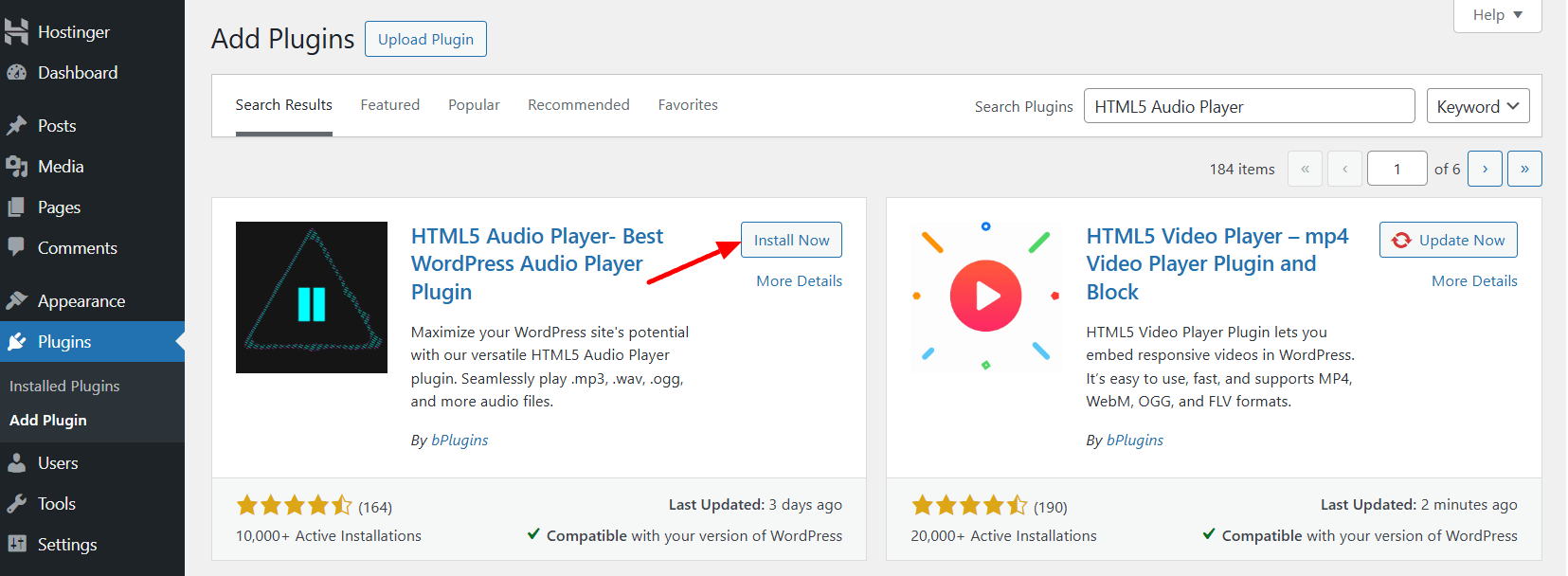
Now, install and activate the plugin.
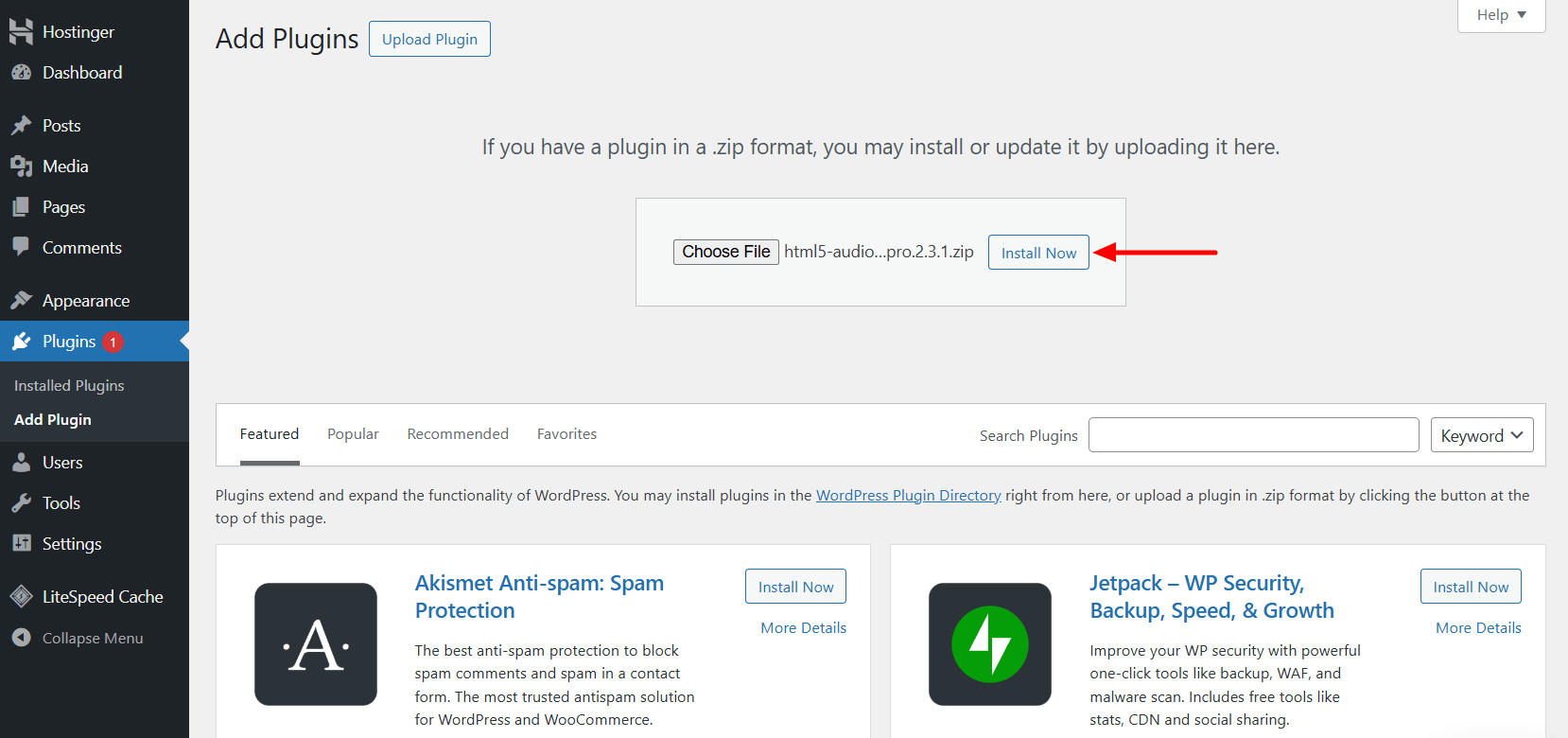
You can also install the plugin by uploading its ZIP file directly to your WordPress dashboard.
Since we’re using the HTML5 Audio Player Pro, you’ll need to activate your license. You can do this either from the Plugins page or by navigating to HTML5 Audio Player → Account.
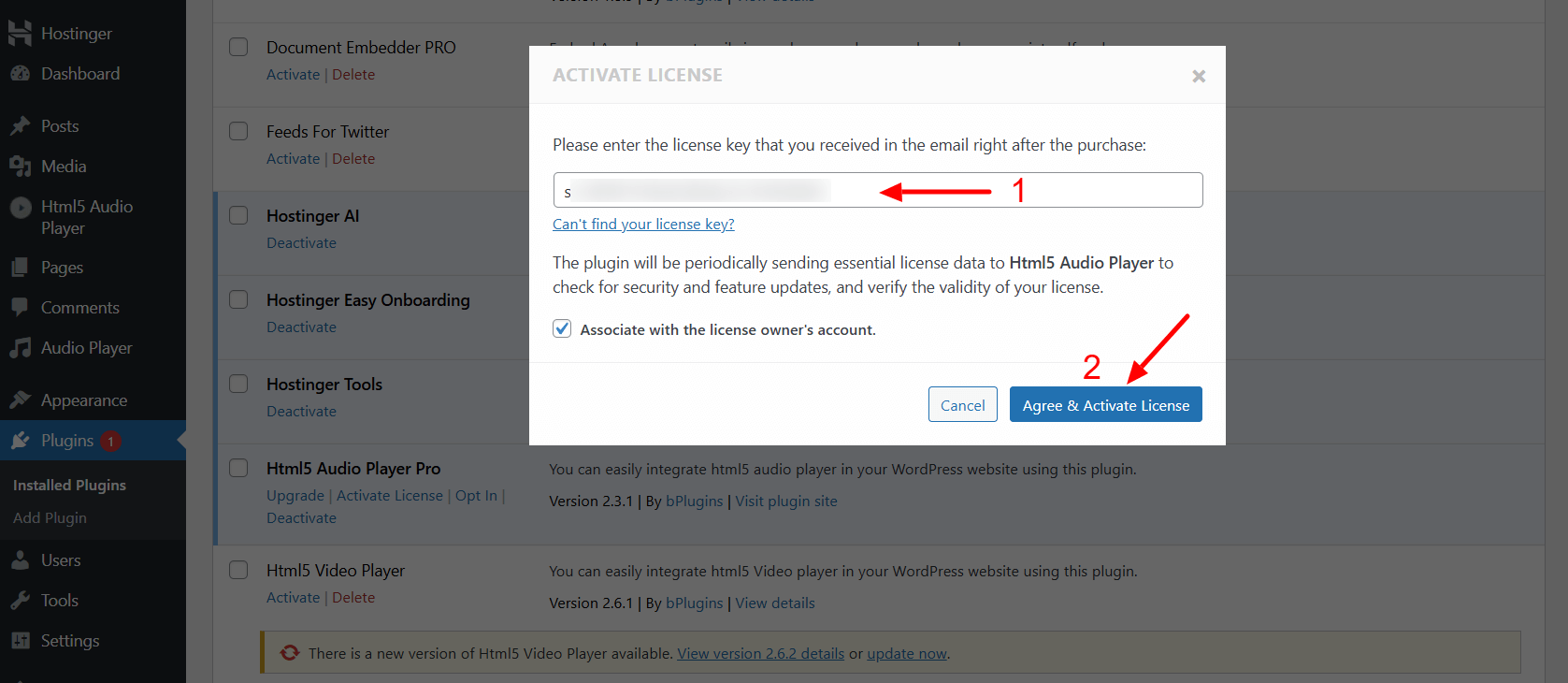
Enter your license key in the field provided, then click the “Agree & Activate License Key” button.
That’s it! The Pro features are now unlocked and ready to use.
Upload or Link to Your Podcast Episode
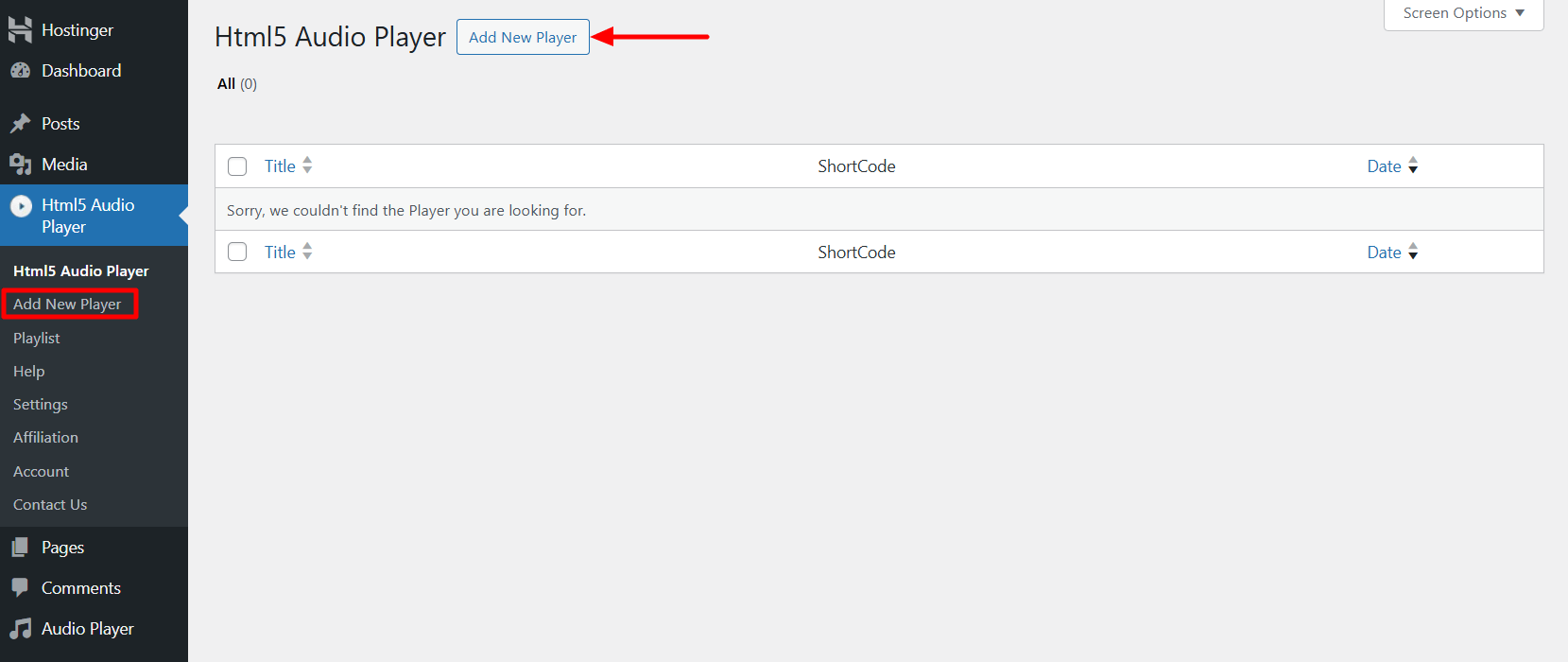
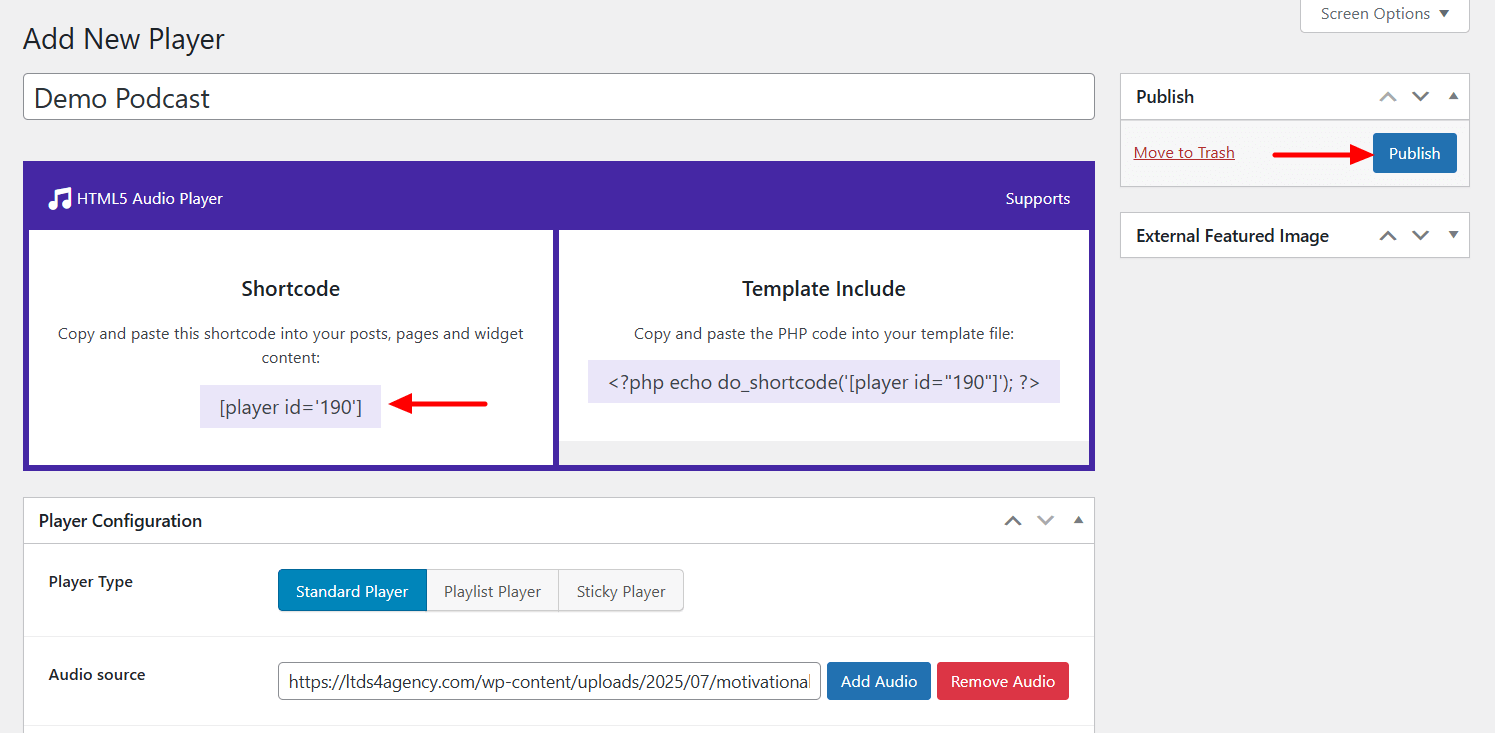
To create your first player, go to the HTML5 Audio Player section and click the “Add New Player” button, or use the “Add New Player” link from the sidebar menu.
Give your player a name or title—this could be the episode title or series name. Then select your Player Type.
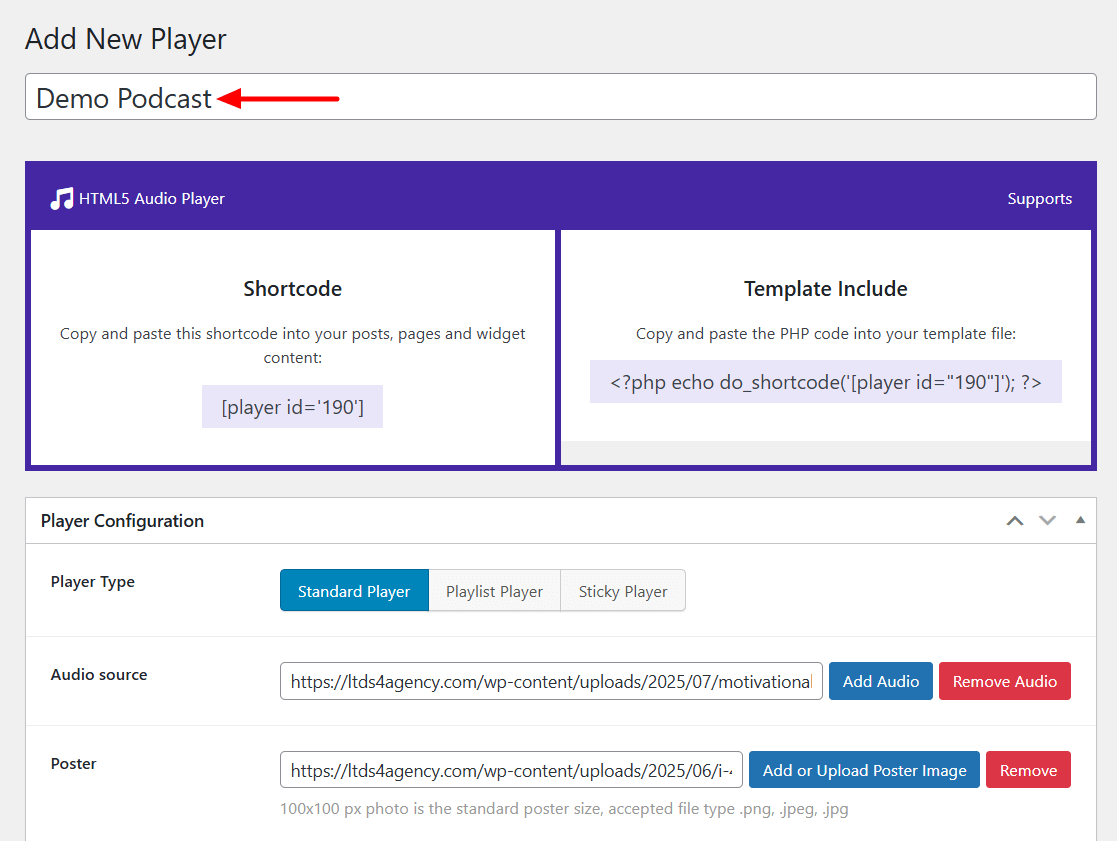
Next, add your podcast audio source. You can either:
- Upload the audio file directly, or
- Paste the URL of a hosted audio file (e.g., from your podcast host or cloud storage)
If you’d like to include a custom poster image for the episode, you can upload it here as well to give your player a more polished, branded look.
Configure Player Settings
When customizing the HTML5 Audio Player, you can adjust the player skin and color settings to match your website’s branding. Use the primary, background, and control colors to style the player interface.
If you enable autoplay, keep in mind that most browsers now restrict autoplay unless the player is muted by default. You can set the player width using percentages (like 100%) for responsive layouts.
The seek time determines how many seconds are skipped when users click forward or rewind—10 seconds is the default, but you can change it to suit your content length.
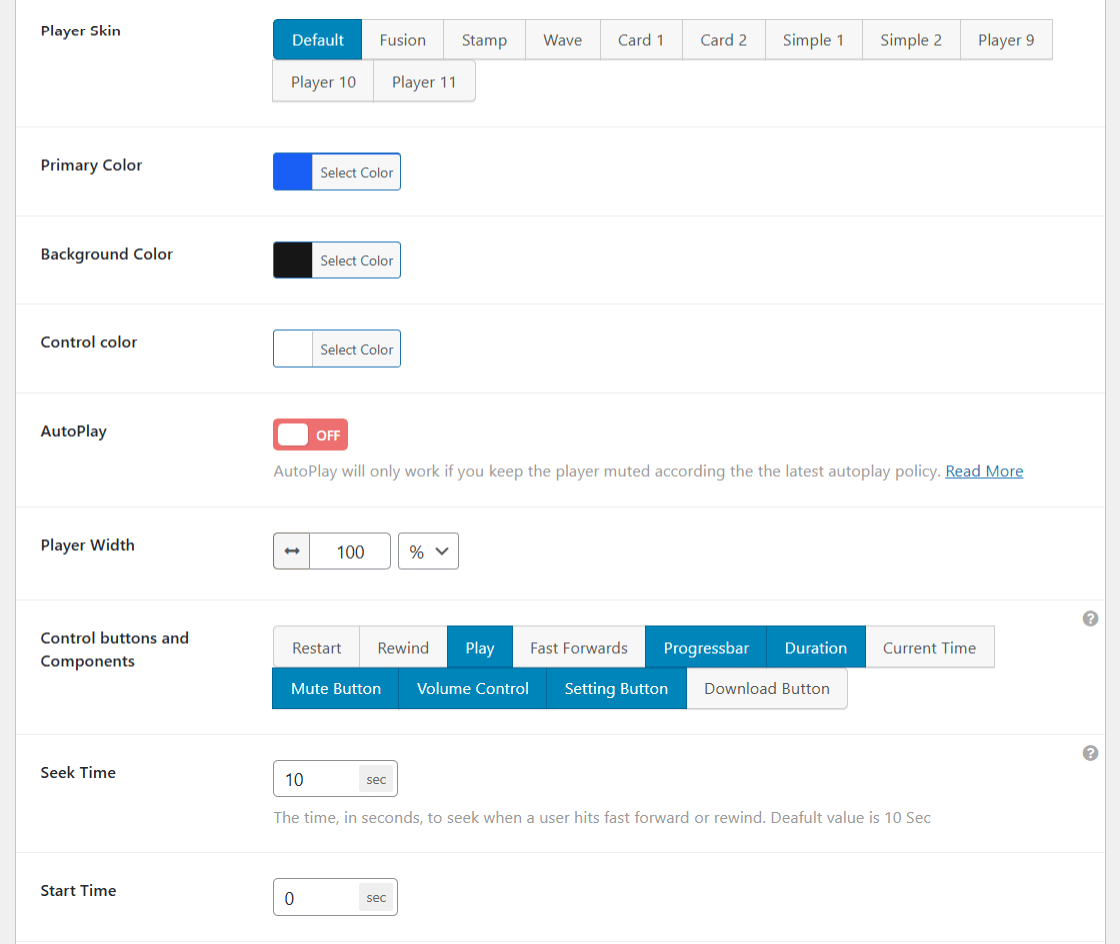
The start time lets you set a custom playback point, useful if you want the audio to begin after an intro or ad.
You can control how the audio file loads using the Preload option—choose Auto to load the full audio on page load, Metadata to load only basic info (like duration), or None to prevent loading until the user interacts with the player.
The Repeat option lets the audio play in a loop. Adjusting the Border Radius (default is 10) changes how rounded the player’s corners appear. Player Alignment helps position the player within your content layout.
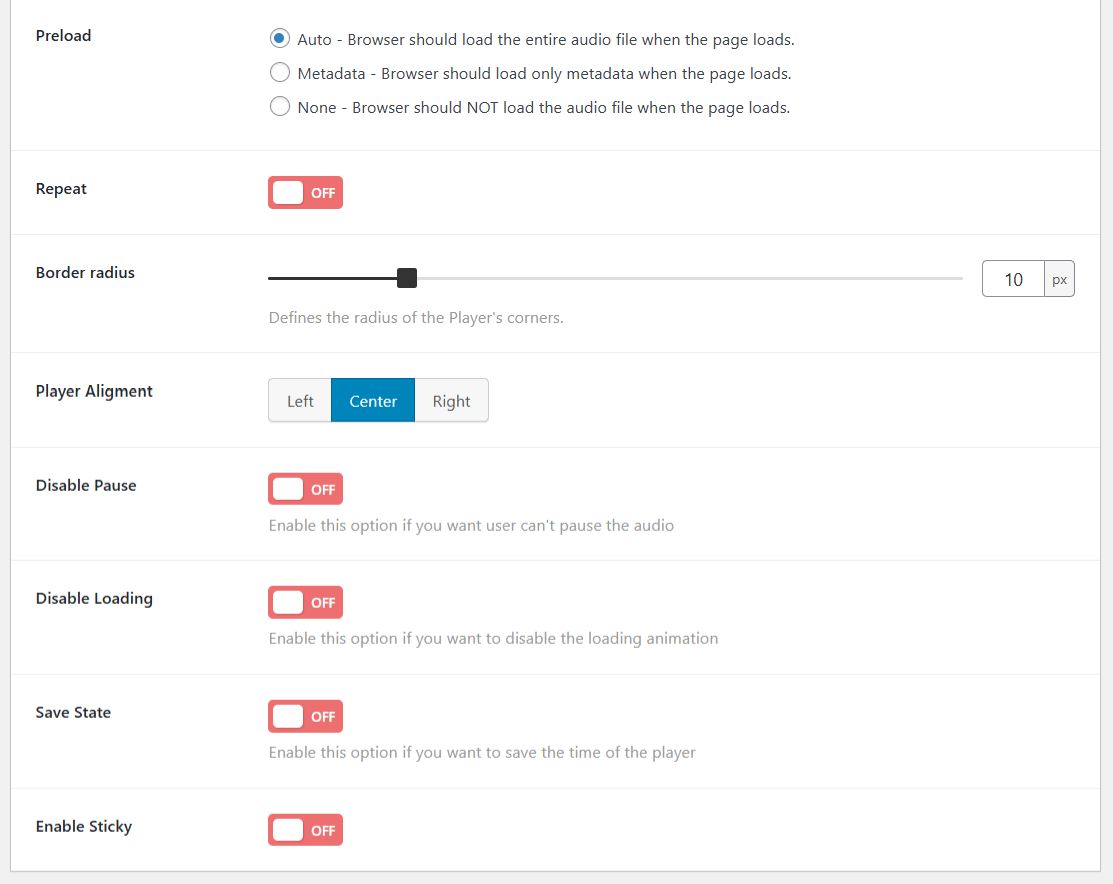
If you enable Disable Pause, users won’t be able to pause the audio once it starts. Disable Loading removes the loading animation from the player interface. Save State allows the player to remember where the listener left off and resume from the same spot later.
Finally, enabling Sticky keeps the player fixed (usually at the bottom of the screen), so users can continue listening as they scroll through your site.
Once you’ve finished configuring the player settings, click the Publish button. You can then copy the generated shortcode to easily embed the audio player into any post or page on your site.
Add the Player to Posts or Pages (shortcode or block)
You can add the audio player to any post or page using either the HTML5 Audio Player block or a shortcode, depending on your preferred editing method.
To use the shortcode, open a new or existing post or page in the editor, add a Shortcode block, and paste the generated shortcode there.
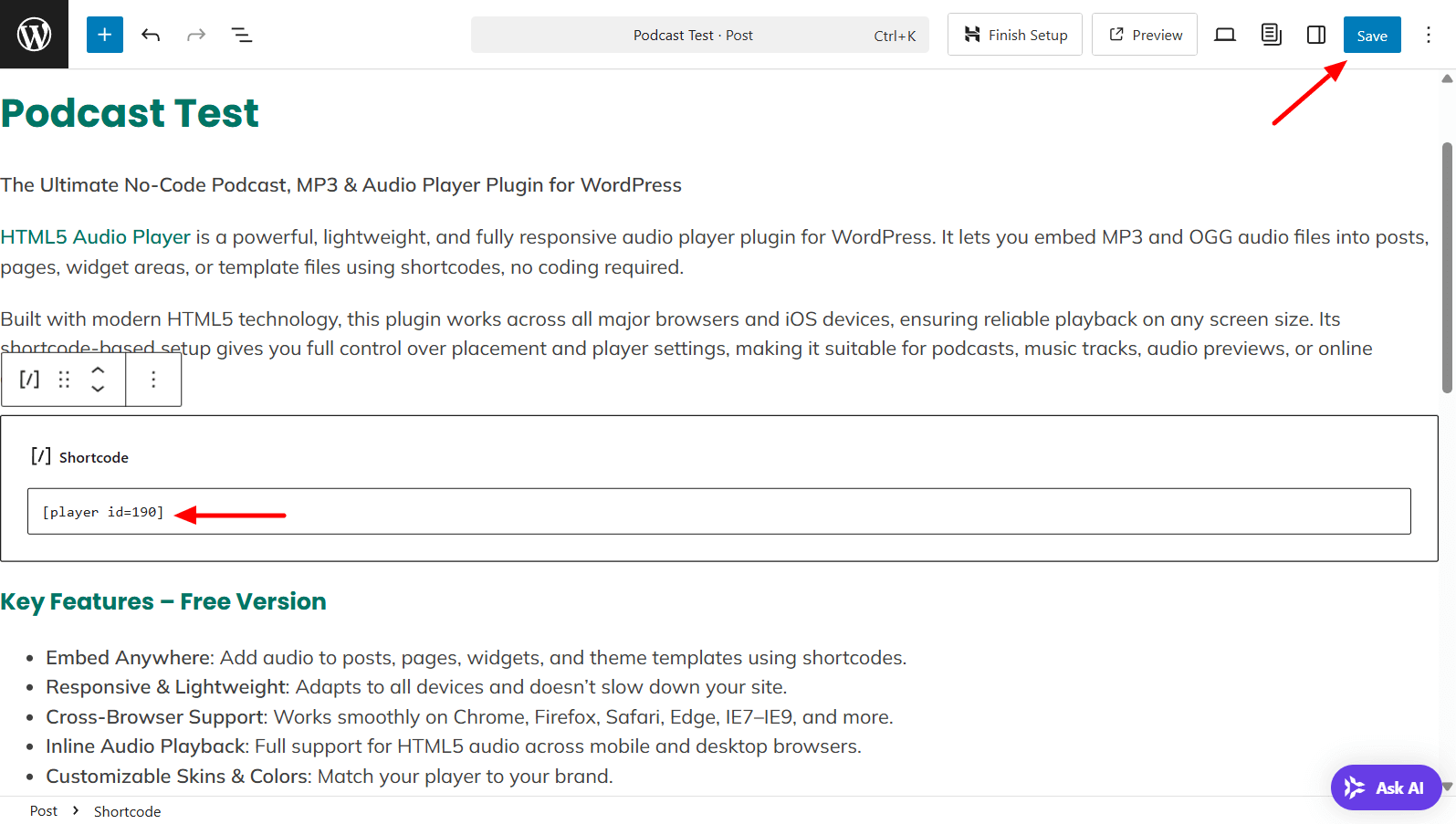
After adding the shortcode, click Publish or Update to save your changes.
If you prefer using the Gutenberg block, the plugin provides a dedicated HTML5 Audio Player block. Simply open the block inserter, search for “HTML5 Audio Player,” and place it where you want the player to appear.
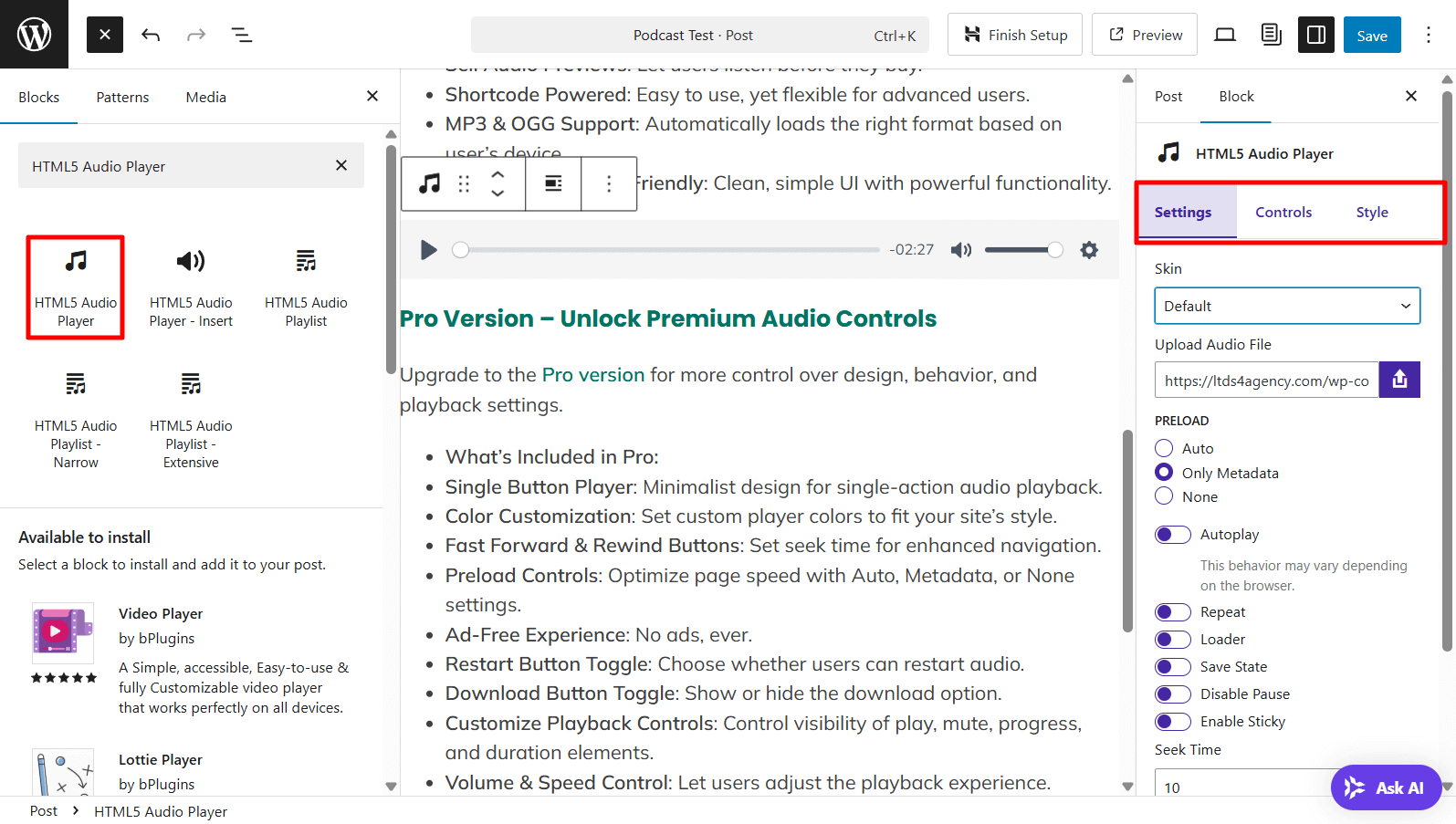
Once the block is added, you’ll see the audio player settings in the right-hand sidebar. You can configure the player directly from the editor using these options.
Since the settings here are the same as those covered earlier, we won’t repeat them in this section.
Tips for Better Podcast Embedding UX
Embedding a podcast isn’t just about adding an audio player—it’s about delivering a smooth, accessible experience that encourages listeners to stay and engage. Whether you’re using the Audio Player plugins, the tips below will help you present your podcast more effectively.
Use Playlists to Organize Multiple Episodes
Instead of inserting a separate player for each episode, use a playlist to group them into a single block. This keeps your layout clean and makes it easier for users to binge-listen. Playlists also help with organization—especially if you structure your show by season, topic, or guest.
They can increase session duration, which is good for SEO. With HTML5 Audio Player Pro, you can create dynamic playlists that include titles, durations, and optional poster images.
Add Show Notes or Transcripts Below the Player
Pairing your podcast with written content improves both accessibility and SEO. Some users prefer reading over listening, and search engines rely on text to understand your content.
Include show notes, summaries, guest details, and timestamps below the player. This gives visitors more context and encourages them to interact with other elements on your page.
For best results:
- Use clear subheadings for each section
- Add relevant internal or external links
- Consider using structured data (PodcastEpisode schema) to enhance search visibility
Lazy Load or Defer Audio Player Scripts
Audio players can affect your site’s performance if not optimized. To reduce load times:
- Enable lazy loading for audio files and images
- Use a light preview image or button that loads the player on interaction
- Defer non-critical scripts (especially if embedding multiple players)
The HTML5 Audio Player is lightweight by default, but deferring large files or third-party assets can help improve Core Web Vitals and overall speed.
Use Clear Labels for Accessibility
Make sure each player includes a descriptive title, especially for screen readers. Add ARIA labels where needed and make sure your layout supports keyboard navigation.
The plugin allows for custom labels, which improves accessibility and helps you meet WCAG guidelines.
Make Sure the Player Works on Mobile
Podcast listeners often use phones or tablets, so your player must be fully responsive. It should adjust to different screen sizes, maintain large, clickable controls, and avoid layout issues like overflowing content or fixed widths.
Test your embeds on both Android and iOS devices to ensure the experience is smooth.
Avoid Autoplay (Unless It’s Necessary)
Autoplay can be distracting and is blocked by many browsers unless the player is muted. It may also lead to higher bounce rates if visitors feel interrupted.
If you enable autoplay:
- Use muted playback with a clear option to unmute
- Only use autoplay on landing pages or promos—not in blog posts or article content
Show Episode Duration and Progress
Display the length of each episode so users know what to expect. Showing playback progress, time stamps, or play counts can improve trust and help visitors plan their listening time.
The plugin lets you customize playback controls, including duration, seek bar, and time display, using the settings panel or shortcode options.
Also check out the Best HTML5 Video Player Plugins for WordPress.
FAQs: Embed Podcasts in WordPress
1. Can I embed Spotify or Apple Podcasts using this plugin?
No, the HTML5 Audio Player is made for self-hosted audio files like .mp3, .ogg, and .wav. It doesn’t support direct embeds from platforms like Spotify or Apple Podcasts.
However, you can still link to your show on those platforms or embed Spotify using their iframe code separately.
2. What audio formats does HTML5 Audio Player support?
The plugin supports all major formats compatible with HTML5:
- .mp3 (best for universal support)
- .ogg (open-source and browser-friendly)
- .wav (high quality but larger file size)
For the best balance of quality and compatibility, use .mp3 files.
3. Will the player slow down my site?
No, it’s a lightweight plugin built for performance. It uses the native HTML5 <audio> element, which is fast and efficient.
To keep your site fast:
- Enable lazy loading
- Compress audio files before uploading
- Avoid autoplay unless necessary
These steps help improve loading speed and Core Web Vitals.
4. Can I customize the player to match my theme?
Yes. The plugin offers flexible customization:
- Change player colors, borders, and typography
- Adjust layout and padding
- Add custom CSS for advanced styling
You can easily match the player’s look to your site’s branding.
5. Do I need to host MP3 files on my server?
No. You can:
- Upload files to your WordPress Media Library, or
- Link to externally hosted files (Amazon S3, Dropbox, podcast hosts)
Using a CDN or external host can improve speed and reduce server load.
6. Is the HTML5 Audio Player mobile responsive?
Yes, it’s fully responsive and mobile-friendly. The player adjusts to screen sizes and works smoothly on phones and tablets.
7. How can I add multiple podcast episodes to a playlist?
Use the Pro version of the plugin to create playlists. Simply:
- Add episode titles and URLs
- Use the playlist shortcode or block
- Display all episodes in a single, clean player
This is perfect for showcasing series or grouped content.
8. Does it work with Gutenberg and the Classic Editor?
Yes, the plugin supports both:
- Gutenberg: Use the built-in block
- Classic Editor: Use shortcodes
It works with older WordPress setups too.
9. Can I track podcast listens with analytics tools?
While the plugin doesn’t have built-in analytics, you can still track listens by:
- Hosting files on platforms that support download tracking
- Using tools like Google Analytics (with event tracking)
- Embedding players on pages with visitor behavior tracking
For deeper stats, use a podcast host that provides listener analytics.
Conclusion
Embedding a podcast on your WordPress site boosts SEO, keeps visitors longer, and gives you full control over the listening experience. Hosting the audio on your own pages also creates more chances for readers to subscribe, explore products, or become loyal fans.
The HTML5 Audio Player plugin lets you present single episodes or an entire playlist in a clean, responsive player.
You now know the best ways to embed a podcast in WordPress. Add your player, invite listeners to press play, and let your voice shine, right on your own platform.

 Save 90%