

Adding Twitter (now X) content to your WordPress site is a great way to boost engagement, build trust, and keep your pages dynamic. Whether you’re a blogger sharing updates or a business showing live social activity, embedding a Twitter feed makes your site feel more interactive and connected.
But recent changes to Twitter’s API have made embedding more difficult. Many Twitter plugins now require API keys, load extra scripts, or slow down your site, hurting performance and user experience.
That’s where Easy Twitter Feed stands out. It’s a lightweight, easy-to-use plugin that lets you embed Twitter timelines, individual posts, videos, hashtags, and follow or tweet buttons.
In this guide, you’ll learn how to embed Twitter feed in WordPress using Easy Twitter Feed and keep your site fast, clean, and engaging.
How to Embed a Twitter Feed in WordPress Using Easy Twitter Feed
Install and activate
Navigate to your WordPress dashboard. Go to Plugins → Add New and search for Easy Twitter Feed.
Now, install and activate the plugin.
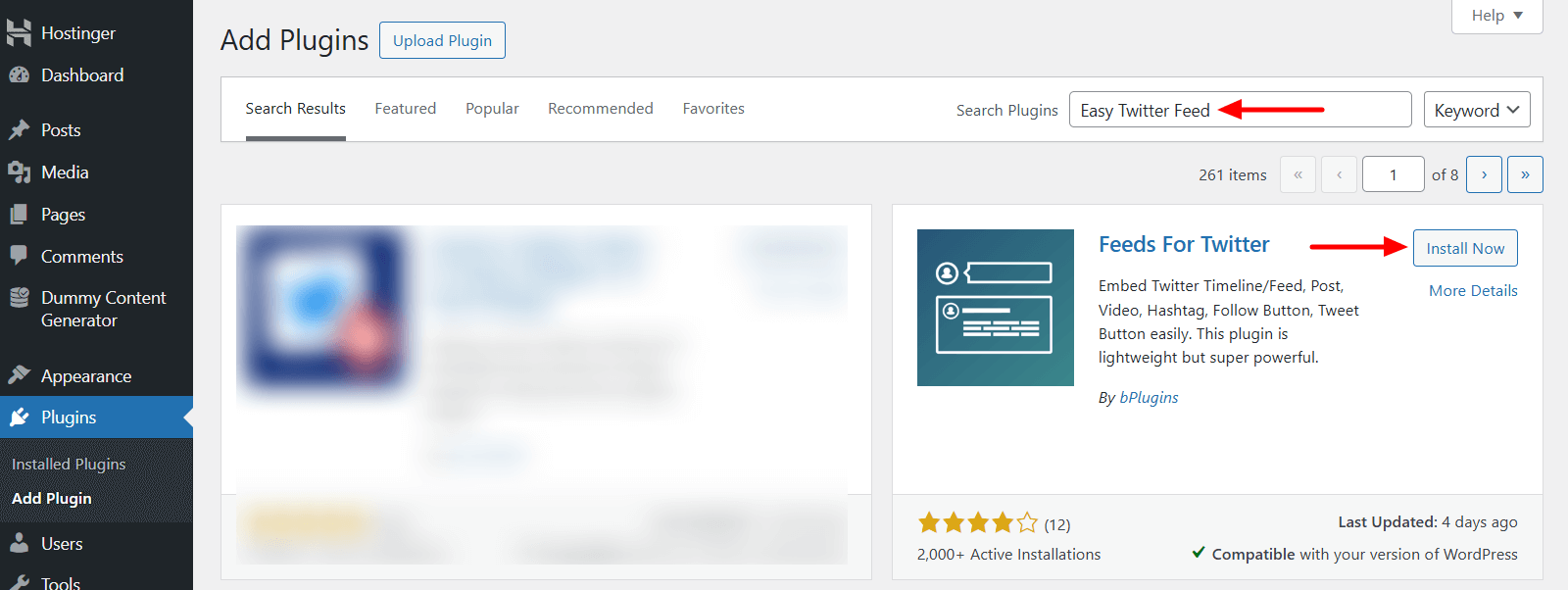
Note: If you’ve installed the pro version, you need the license key to activate the plugin.
Open the post or page in the editor panel. Click the “+” icon to open the block library and look for the Twitter Feed block under the Widgets area.
Add the block to the suitable area.
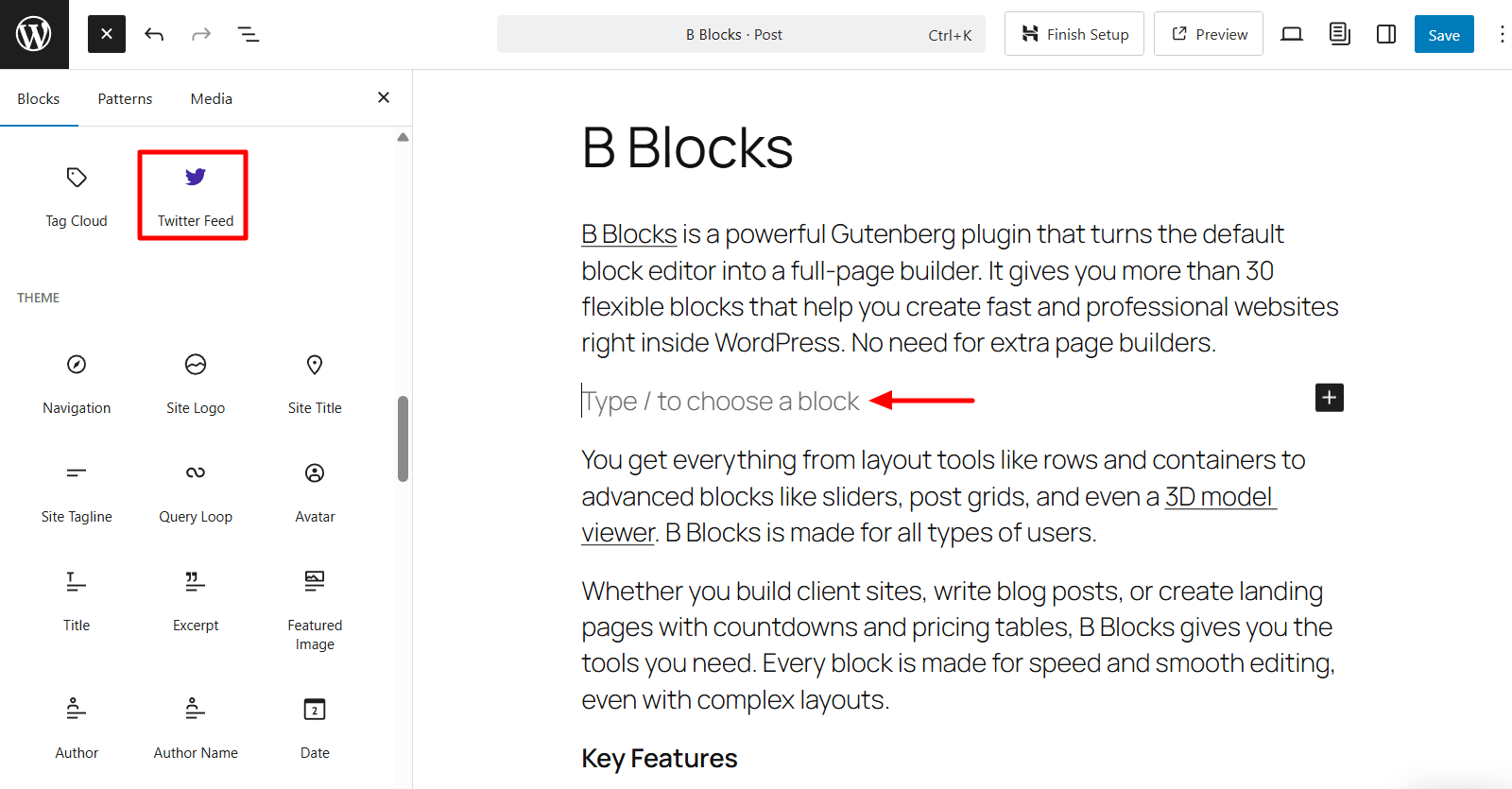
Once you add the Easy Twitter Feed block to your page or post, you’ll see different feed types to choose from:
- Timeline
- Follow Button
- Tweet Button
- Hashtag
- Video
- Post
Note: In the free version, only the Timeline and Follow Button are available.
For this tutorial, we’ll use the Follow Button as an example.
Choose Feed Type and Add Your Username
After selecting the block, choose your feed type (e.g., Follow Button).
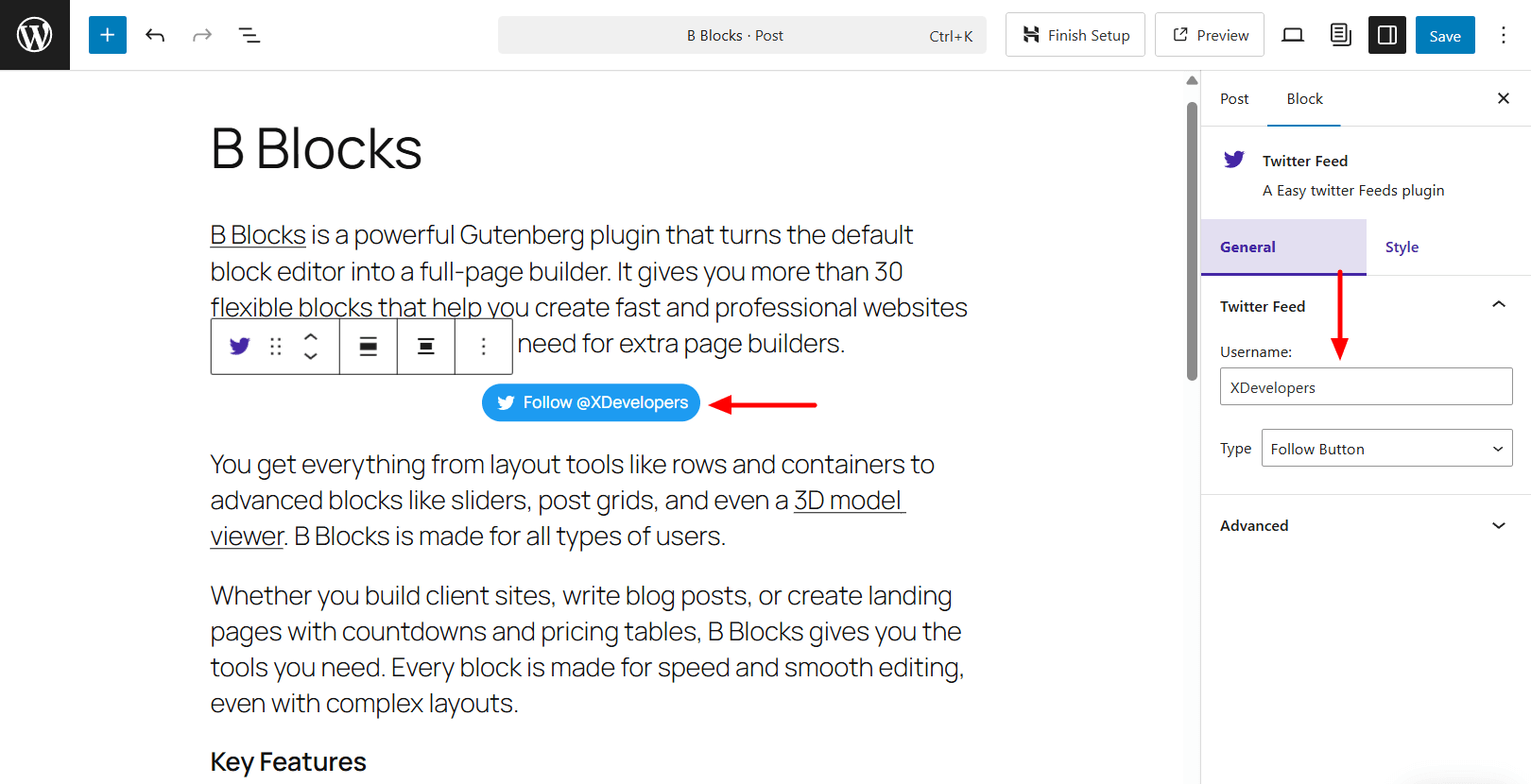
On the right sidebar, under General settings, enter your Twitter (X) username. You can also change the feed type here if needed.
Customize the Feed Design
Switch to the Styles tab to start customizing the appearance of your feed or button.
Feed Settings:
- Border: Turn the border on or off to match your site’s design.
- Shadow: Add a drop shadow to make the feed stand out or create depth.
Button Settings:
- Button Icon: Choose to show or hide the Twitter (X) icon.
- Icon Width & Height: Set the icon size (e.g., 20px × 20px).
- Typography: Customize the font, size, and weight of the button text.
- Colors: Match the button’s background and text colors with your brand.
- Padding: Adjust spacing around the icon and text for better balance and mobile usability.
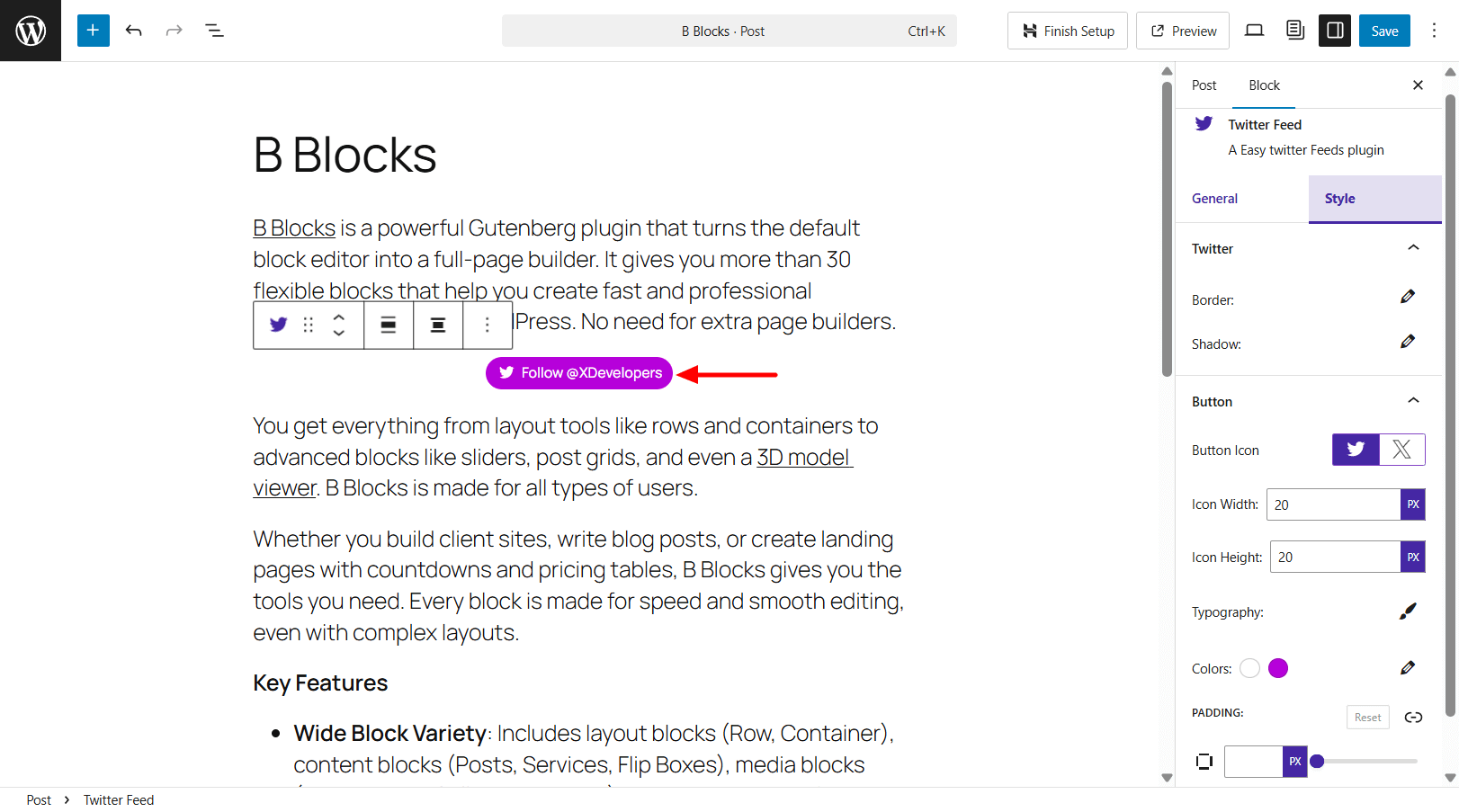
These settings help you create a feed or button that looks clean, modern, and aligned with your website’s branding.
Once you’re happy with the design, click the Publish button to make the feed live on your site.
Add Twitter Feed Using a Shortcode
You can also embed the Twitter feed using a shortcode.
From your WordPress dashboard, go to Easy Twitter > Add New Feed.
Set up your feed (same steps as above), then copy the generated shortcode.
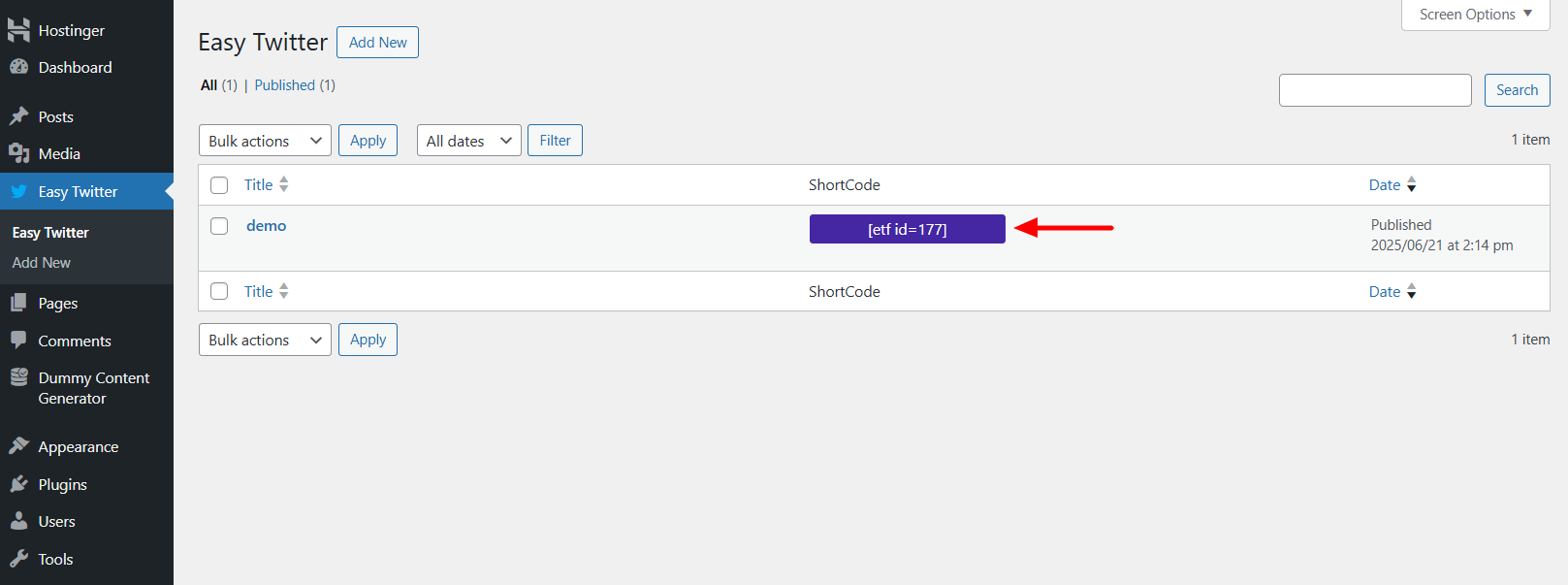
Go to the page or post where you want to display the feed. Add a Shortcode block, then paste the code.
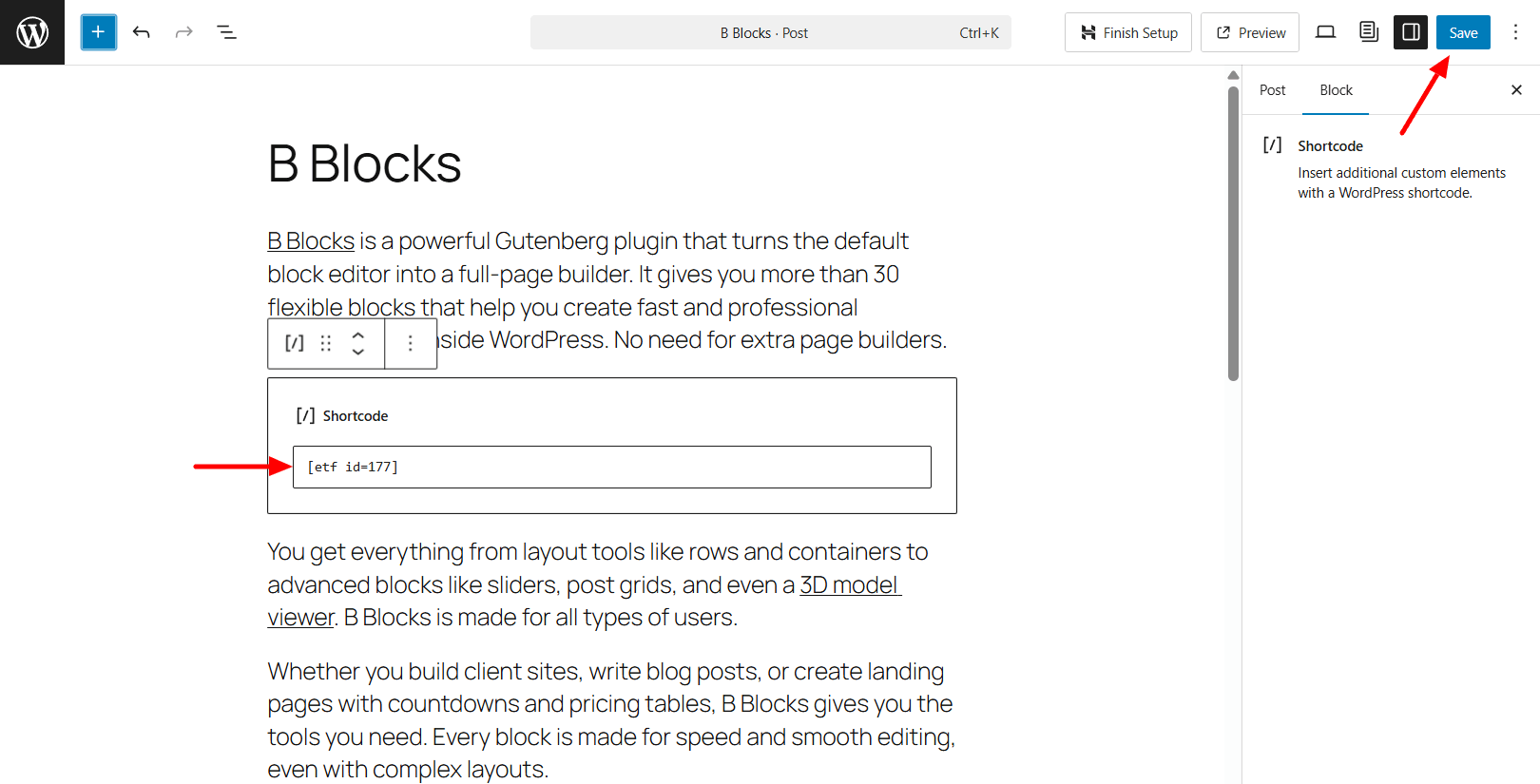
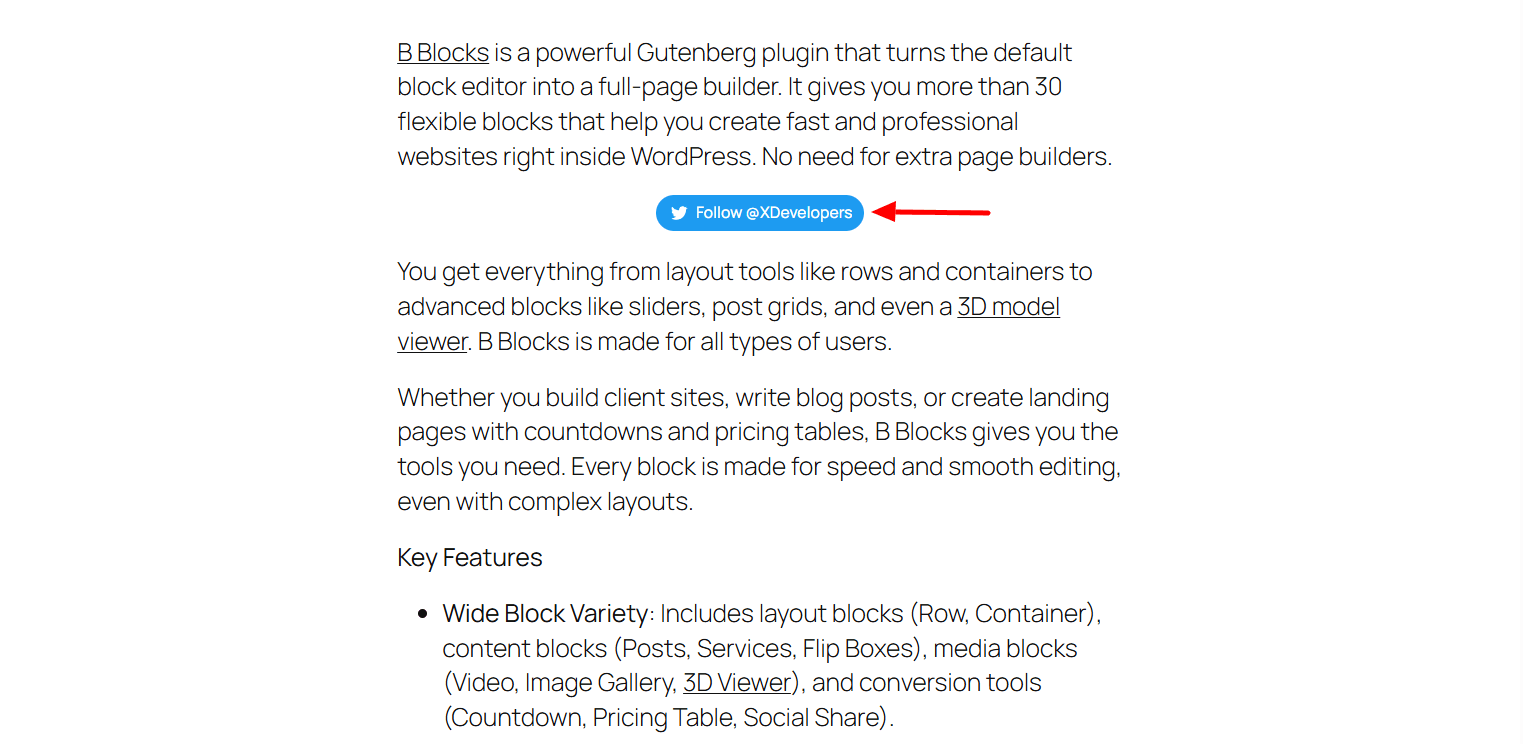
Click Publish or Update to save your changes. Now visit your site to see the embedded Twitter content in action.
Advanced Features and Customization
The free version of Easy Twitter Feed covers the basics, embedding timelines and follow buttons with ease. But if you want more control and a better user experience, the Pro version offers powerful features to help you get the most out of your Twitter integration.
Clean Display Options
With Pro, you can hide the timeline header and footer for a cleaner, more minimal look. This helps your feed blend seamlessly into your site’s design.
Localization Support
Reaching a global audience? You can translate your embedded Twitter feed into any language, making your content more accessible and relevant for international visitors.
Modern Button Styling
The Pro version lets you customize the Follow Button by adding the latest Twitter (X) icon. You can also adjust the button’s color, background, font size, and padding to match your site’s branding.
Shareable Tweet Button
Encourage engagement with a Tweet Button that includes pre-filled text. It’s perfect for promoting blog posts, events, products, or campaigns directly from your site.
More Embed Options
Pro gives you more ways to show Twitter content on your site:
- Specific Tweets: Highlight a single tweet from your account or others.
- Hashtag Feeds: Show tweets from a specific hashtag, with custom tweet text if needed.
- Twitter Videos: Embed video content directly from selected tweets.
Ideal Use Cases
The plugin is ideal for:
- Bloggers who want to showcase tweets or highlight threads.
- Businesses that want to display customer feedback or event hashtags.
- Social media marketers who need full control over layout, appearance, and performance.
Whether you’re focused on engagement, clean design, or localized content, Easy Twitter Feed Pro gives you the flexibility to bring Twitter into your WordPress site, without slowing it down or overcomplicating things.
Check out also best WordPress TikTok Feed plugins.
FAQs About Embedding Twitter Feeds in WordPress
1. How do I embed a Twitter feed in WordPress without using heavy scripts?
Yes, you can use a lightweight plugin like Easy Twitter Feed, which doesn’t rely on heavy JavaScript or API keys. Alternatively, you can manually embed Twitter content using Twitter’s official embed code inside a Custom HTML block.
2. What are the benefits of using a Twitter feed plugin instead of manual embeds?
Plugins offer easier setup, styling controls, shortcode and widget placement, mobile responsiveness, and more content types (e.g., timelines, hashtags, videos, buttons) without writing custom code.
3. What should I look for in a Twitter feed WordPress plugin?
Choose plugins that are lightweight, responsive, don’t require a Twitter API key, and allow easy styling and content control. Advanced features like localization, follow/tweet buttons, and multiple feed types are also valuable.
4. Does Easy Twitter Feed require a Twitter API key?
No, it works without requiring an API key. This makes setup faster and avoids complications introduced by Twitter’s API policy changes.
5. Can I embed individual tweets, videos, or hashtag feeds?
Yes, with Easy Twitter Feed Pro, you can embed specific tweets, videos from Twitter posts, and tweets filtered by hashtag.
6. How can I customize the appearance of my embedded Twitter feed?
You can modify feed width, height, theme (light/dark), scrolling behavior, and button styles. The Pro version adds control over font size, padding, icon styling, and more.
7. Can I add multiple Twitter feeds on the same WordPress site?
Yes. Most plugins, including Easy Twitter Feed, support displaying multiple feeds on different pages or sections using unique shortcodes or widgets.
8. How do I add Follow or Tweet buttons in WordPress?
Easy Twitter Feed lets you add both buttons via shortcodes or widgets. You can also customize the Tweet Button with prefilled text and the Follow Button with modern icon styling and colors.
9. Is Twitter feed content crawlable by search engines?
Yes, when the plugin uses server-side rendering or directly outputs HTML, the content is visible to search engines. Avoid iframe-based methods for SEO.
10. Will a Twitter plugin slow down my website?
Lightweight plugins like Easy Twitter Feed are optimized to avoid performance issues. They reduce unnecessary script loading and are built to keep your site fast and responsive.
Conclusion
Adding Twitter (X) content to your WordPress site is easy with the Easy Twitter Feed plugin. You can show timelines, individual tweets, videos, hashtags, and social buttons—without using heavy scripts or dealing with complicated setup.
Whether you’re a blogger or a business, this lightweight plugin helps you share live Twitter updates in a way that fits your site. It offers simple styling options, shortcodes, and widgets for easy placement.
Start with the free version to get the basics. Need more features? The Pro version lets you embed specific tweets, show hashtag feeds, add tweet buttons, and support multiple languages—all with just a few clicks.

 Save 90%