
Let’s be honest. WordPress’s built-in code editor is pretty basic. It’s missing useful features like syntax highlighting and error detection, which can slow you down and make coding less efficient.
That’s where dedicated code editor plugins come in.
They bring powerful tools like auto-completion, live previews, and smarter file management right into your dashboard, making coding smoother, faster, and a lot less frustrating.
In this article, we’ll take a look at some of the best code editor plugins for WordPress developers that can seriously boost your productivity and improve your workflow.
Best Code Editor Plugins for WordPress Developers
If you frequently edit code, manage files, or build custom features in WordPress, the right code editor plugin can streamline your workflow.
These top plugins turn your dashboard into a powerful development hub with tools like syntax highlighting, live previews, file management, and role-based access.
| Plugin | Core Strengths | Ideal For | Editor Features | File Management | Unique Features |
| Advance Custom HTML | Live preview, syntax highlighting, 40+ themes | Bloggers, educators, and developers sharing interactive code | Syntax highlight, live preview, draggable layout | No direct file access | Gutenberg block, code sharing, adjustable UI |
| WPIDE | Full wp-content access, tabbed editing, smart tools | Developers need in-dashboard file/code access | Syntax highlight, tabbed interface, code autocomplete | Edit, move, zip/unzip, upload/download, bulk ops | Dark mode, inline PHP docs, media previews |
| WP Editor | Clean UI, improved default editor with CodeMirror and FancyBox | Users wanting a better built-in code editor | Syntax highlight, full-screen, search, and line tools | Basic theme/plugin file access | AJAX file browser, FancyBox integration |
| Code Snippets | Add/run PHP snippets without | Developers managing custom code safely | Minimal editor, syntax check | No file access | Snippet toggling, import/export, run in admin/front-end/everywhere |
| WPCode | Centralized snippet manager, conditional logic, cloud sync | Agencies, beginners, and multi-site managers | Visual editor, smart validation | Insert into theme/hooks (not direct file editing) | Cloud snippet library, shortcode support, priority control |
| Theme Editor | Full file and folder control in themes/plugins, child theme tools | Developers customizing themes/plugins without FTP | CodeMirror: syntax, folding, shortcuts | Create/remove/upload/download files/folders, archive themes/plugins | Move files to child theme, image/screenshot manager, and user roles |
1. Advance Custom HTML
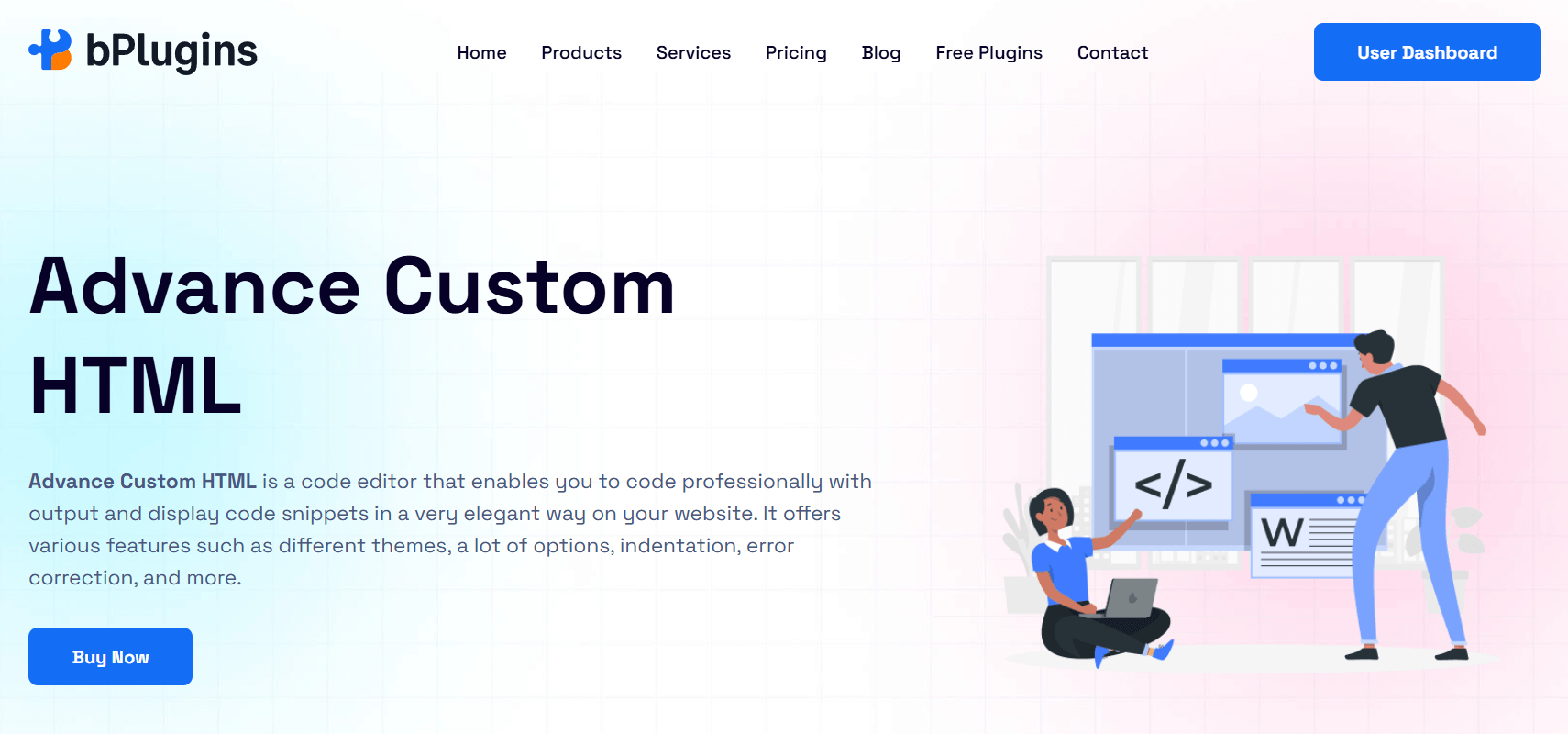
Advance Custom HTML is a versatile code editor plugin for WordPress. It allows you to embed and display any code snippets, including HTML, CSS, JavaScript, PHP, and Python, beautifully and interactively.
Designed for developers, bloggers, and educators, it features a live output preview, multiple editor themes, and full Gutenberg support for a seamless editing experience.
Key Features:
- Syntax highlighting for HTML, CSS, JS, PHP, Python, and more
- Live preview of HTML, CSS, and JS code snippets
- Gutenberg block support
- 40+ code themes for styling the editor
- Autocomplete and error detection
- Copy-to-clipboard button with customizable options
- Adjustable editor settings: font size, line numbers, tab size, wrapping, etc.
- Draggable preview panel for flexible layout
- Fully responsive and mobile-optimized interface
Ideal Use Cases:
- Writing and publishing development or programming tutorials (HTML/CSS/JS/others)
- Embedding code examples in technical blogs
- Sharing educational content for PHP or Python
- Creating interactive developer documentation
- Showcasing live code output in articles or product demos
Advance Custom HTML is a creator-friendly plugin that brings an interactive, live-preview code editor to your WordPress content.
It’s perfect for developers, bloggers, and educators who want to publish beautifully formatted, runnable code, without sacrificing ease of use or frontend control.
2. WPide
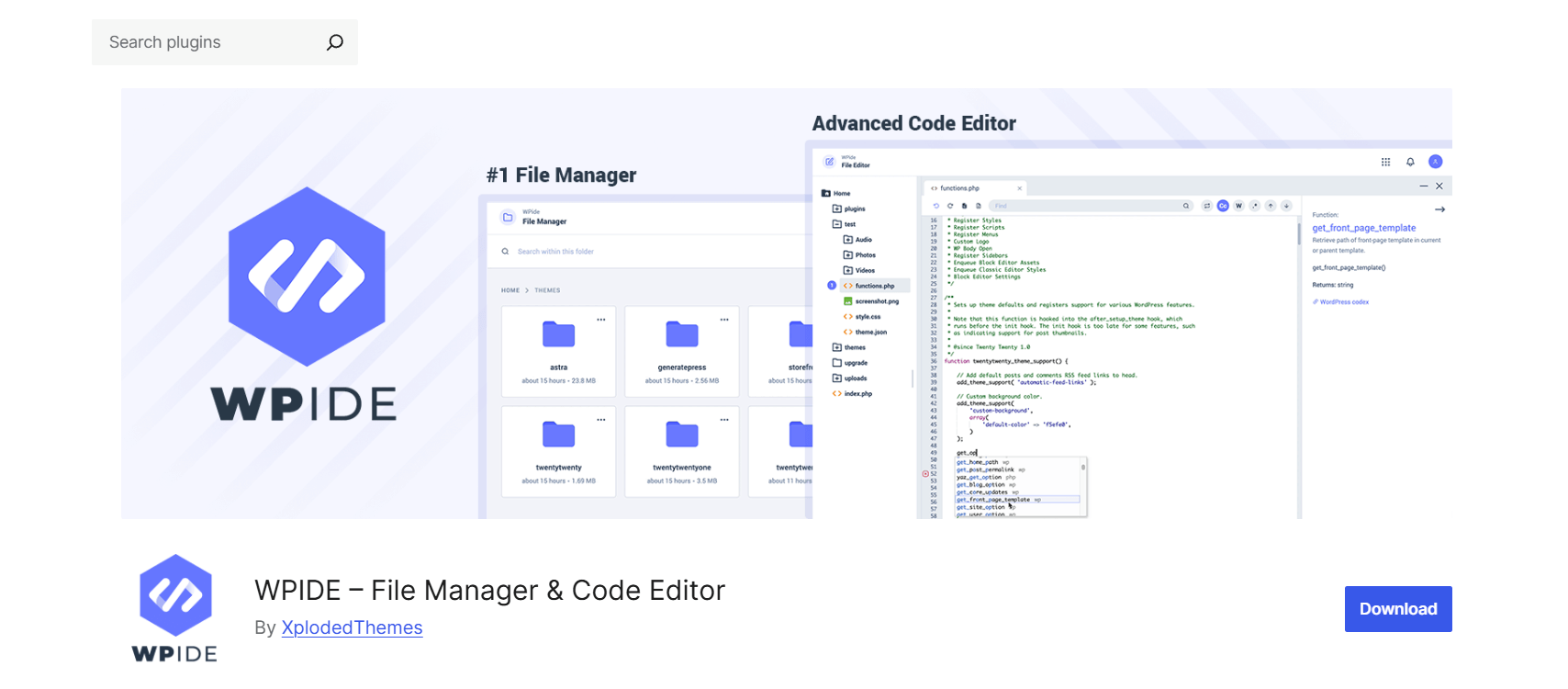
WPIDE is a powerful and modern code editor and file manager plugin for WordPress that gives developers direct access to all files inside the wp-content directory, without needing FTP or cPanel.
With its sleek interface, multi-tab editor, and smart file operations, WPIDE is built for developers who want full control over their site’s code in a secure environment.
Key Features:
- Syntax highlighting and smart indentation for PHP, HTML, CSS, and JavaScript
- WordPress and PHP auto-completion with inline function references
- Tabbed interface to edit multiple files at once
- Built-in file manager: copy, move, upload, download, delete, archive, and more
- Zip/unzip support and drag-and-drop batch uploads
- Find + Replace and keyboard shortcuts in the editor
- Optional dark mode and 6 editor themes for a better visual experience
- Deep file search, folder size calculation, and smart context menu
- Uses WordPress Filesystem API for safe and secure file handling
Ideal Use Cases:
- Developers editing theme or plugin code directly within WordPress
- Managing site files without relying on FTP or hosting control panels
- Writing or debugging PHP functions with code completion
- Updating custom code across multiple files with a tabbed interface
- Handling bulk file operations like upload, download, and compression
WPIDE is a developer-focused plugin that brings full-featured code and file management right inside the WordPress admin. It’s perfect for those who want speed, convenience, and security in one tool.
3. WP Editor
WP Editor upgrades WordPress’s default theme and plugin editor with a cleaner, faster, and more functional interface.
It integrates CodeMirror and FancyBox to bring advanced code editing capabilities like syntax highlighting, full-screen mode, and real-time file browsing, all from within the admin dashboard.
Key Features:
- Syntax highlighting via CodeMirror with 8 editor themes
- Full-screen editing support (ESC or F11 toggle)
- Line numbers, line wrapping, and active line highlighting
- Quick text search using keyboard shortcuts (Cmd/Ctrl + F)
- AJAX-powered file browser for faster navigation
- FancyBox integration for viewing images inside the editor
- Separate settings for each editor interface
- Customizable allowed file extensions
- Clean, responsive interface with improved speed and reliability
Ideal Use Cases:
- Developers who want a better alternative to the built-in WordPress editor
- Editing theme or plugin code directly in a structured, distraction-free layout
- Quickly locating and editing code with live search and line highlighting
- Managing code across multiple themes or plugins with ease
WP Editor is a practical tool for developers who want a smoother, more powerful version of the native WordPress code editor, ideal for those who regularly make code changes from the dashboard.
4. Code Snippets
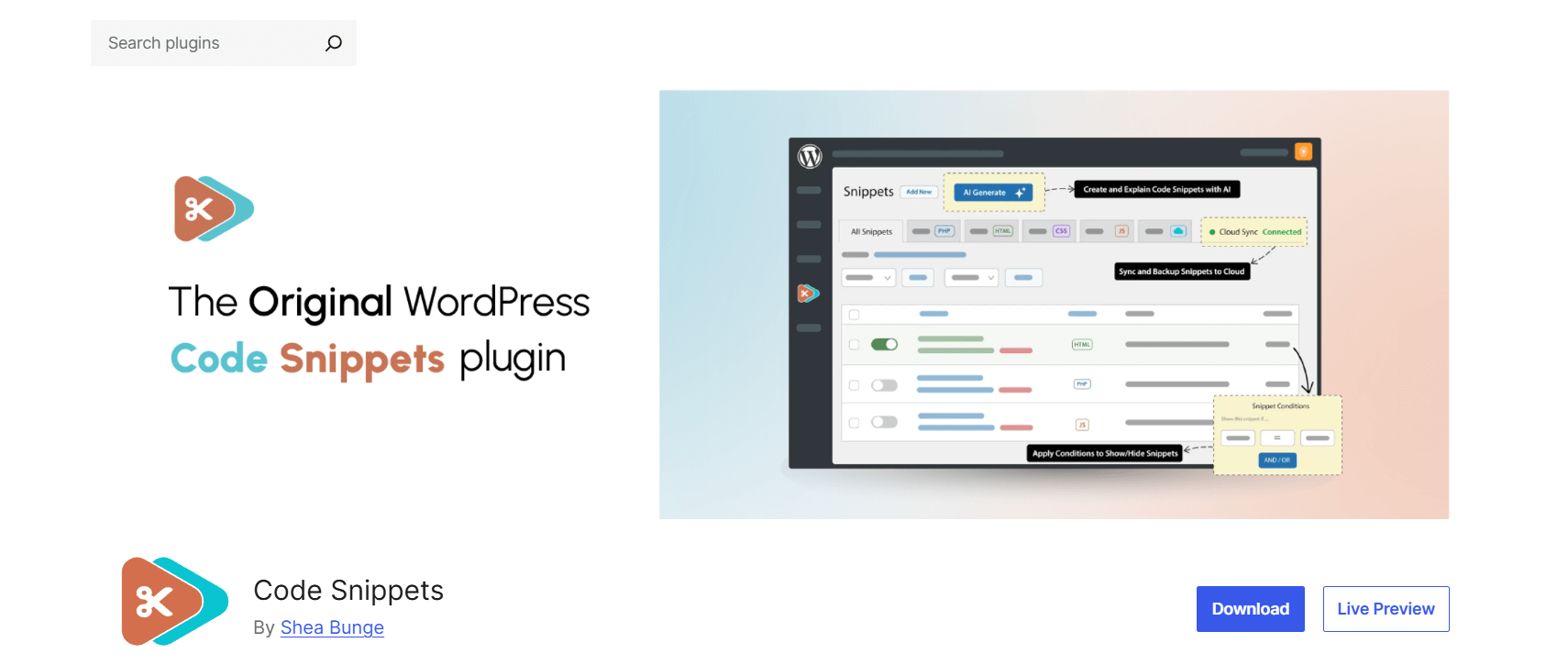
Code Snippets is a lightweight and user-friendly plugin that lets you add custom PHP code to your WordPress site without editing theme files or creating custom plugins.
With its clean graphical interface, managing snippets becomes as simple as turning features on or off—no more digging through functions.php.
Key Features:
- Add custom PHP snippets safely, outside of theme files
- Graphical interface for creating, editing, and managing snippets
- Enable/disable individual snippets like mini-plugins
- Import/export snippets for easy backup or migration
- Integrated access to the Code Snippets Cloud – browse and apply pre-made tweaks
- Clean, clutter-free design that avoids plugin bloat
- Supports running snippets only in admin, front-end, or everywhere
Ideal Use Cases:
- Developers who want to add small functions without touching the theme code
- Site owners looking to reduce dependency on multiple single-purpose plugins
- Agencies managing reusable snippets across multiple projects
- Creating site-specific functionality like custom shortcodes or admin tweaks
Code Snippets is a smart alternative to editing functions.php directly. It’s ideal for developers and power users who want a cleaner, safer, and more modular way to add custom code to WordPress.
5. WPCode
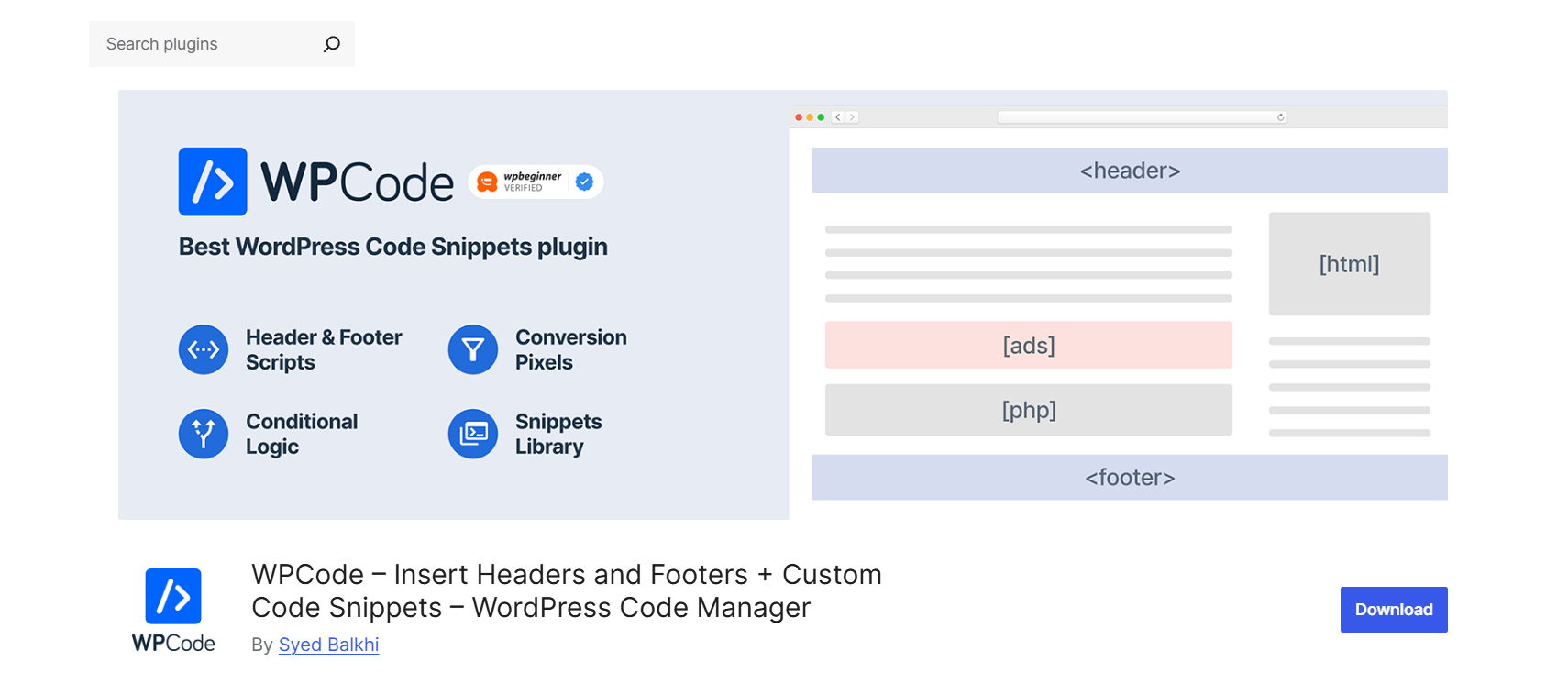
WPCode (formerly Insert Headers and Footers) is the most popular code snippets plugin for WordPress, trusted by over 2 million websites. It makes adding custom scripts and code snippets incredibly simple, with no need to touch your theme’s functions.php file.
Whether you’re inserting tracking codes or writing custom PHP functions, WPCode provides a safe, user-friendly way to manage site-wide scripts and snippets.
Key Features:
- Insert code in headers, footers, and other site areas without theme edits
- Conditional logic to control when and where snippets run
- Global or page-specific code insertion
- Auto-insert or manually embed snippets using shortcodes
- Snippet priority system to manage execution order
- Integration with Gutenberg, WooCommerce, and more
- Import/export snippets for easy management across sites
- Optional WPCode Cloud to store and reuse snippets across projects
Ideal Use Cases:
- Beginners needing to add Google Analytics, Facebook Pixel, or custom tracking codes
- Developers wanting a clean way to manage reusable PHP functions
- Agencies managing scripts across multiple client sites
- Site owners are replacing many single-purpose plugins with a single, lightweight tool
WPCode is the all-in-one solution for managing WordPress code snippets and site scripts, secure, scalable, and beginner-friendly.
Whether you’re adding one line or one hundred, it keeps your customizations clean and under control.
6. Theme Editor
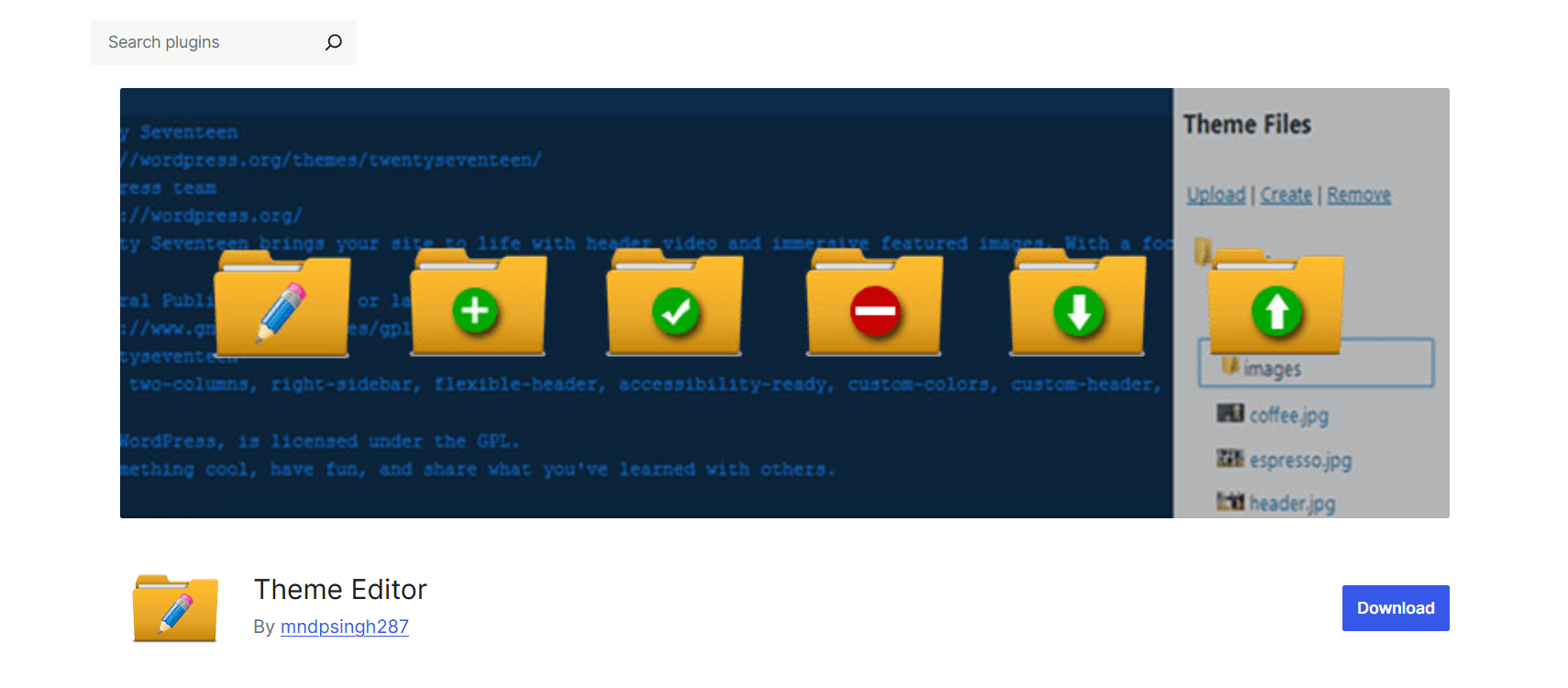
Theme Editor enhances the default WordPress theme and plugin file editor with advanced capabilities. It gives you full control over file management and customization right from the dashboard.
It’s ideal for developers who frequently modify themes or plugins and want an intuitive, feature-rich environment for making direct code changes.
Key Features:
- Edit PHP, HTML, CSS, and JavaScript directly in theme/plugin files
- Integrated CodeMirror editor with syntax highlighting, folding, and keyboard shortcuts
- Create, remove, upload, and download files or folders in themes and plugins
- Download complete themes or plugins as archives
- Move files from the parent theme to the child theme
- FancyBox integration for enhanced media previews
- Role-based access controls and admin email notifications for changes
- Query/Selector tools for efficient theme customization
- Theme preview functionality built-in
Ideal Use Cases:
- Developers who prefer a hands-on theme and plugin file editing
- WordPress users managing custom or child themes
- Site admins need role-specific access to editing capabilities
- Teams requiring direct, browser-based file management without FTP
Theme Editor turns your WordPress dashboard into a powerful IDE, greatly expanding what you can do without leaving your site or using external tools.
Explore: 6 Best WordPress Audio Player Plugins: Ultimate Comparison.
Tips for Safe Code Editing in WordPress
Working directly with code on your WordPress site gives you flexibility, but it also comes with risks. A small mistake can break your site or create security holes. These tips will help you make smart, safe changes without stress.
1. Backup Your Site Before Making Any Changes
Before editing any code, always create a full backup of your website. This includes your files and database. If something goes wrong, you can restore everything in minutes. Many hosting providers offer one-click backups or use popular plugins like UpdraftPlus.
2. Use a Child Theme for Customizations
Avoid editing your main theme directly. Instead, create a child theme. This lets you add custom code without affecting the parent theme. When your main theme gets updated, your changes stay intact.
3. Test Edits in a Staging Environment
Never test code changes on your live site. Use a staging site to preview your edits safely. Most managed WordPress hosts provide this feature.
It’s a copy of your site where you can try changes, run updates, or test new plugins without affecting your visitors.
4. Use Version Control (e.g., Git)
If you regularly update code, version control is a must. Tools like Git help you track changes, roll back errors, and collaborate with others. Even if you’re working solo, you’ll appreciate having a record of what changed and when.
5. Keep Your Custom Code Organized
If you’re adding custom functions, avoid scattering them in random places. Use a dedicated plugin or add them to your child theme’s functions.php file. This makes it easier to manage, debug, or move your code in the future.
6. Use a Reliable Code Editor Plugin
Use a trusted code editor plugin with features like syntax highlighting, auto-complete, and error detection. This reduces mistakes and helps you spot problems early.
7. Avoid Copy-Pasting Unverified Code
Grabbing code from forums or blogs is tempting, but always read and test it first. Poorly written code can create vulnerabilities, break your layout, or conflict with existing plugins.
8. Follow WordPress Coding Standards
Write clean, consistent code by following the WordPress coding standards. This improves readability, avoids conflicts, and makes your site easier to maintain in the long run.
Also check out: Best HTML5 Video Player Plugins for WordPress: Customize, Protect, and Play.
Conclusion
If you spend a lot of time editing code in WordPress, using a code editor plugin is a smart move. It gives you helpful features like syntax highlighting, error checking, and better file control, all within your dashboard.
These tools can save time, reduce mistakes, and make your development workflow much smoother.
Whether you’re writing a few lines of CSS or building custom themes, there’s a plugin to match your needs.
What’s your favorite code editor plugin? Share your thoughts and tips in the comments below!

 Save 90%