
 Pinterest Feed
 General
You will see that the General tab has been selected in your sidebar settings. if not, select the General tab. Then you will see the options.
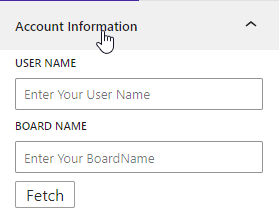
Account Information
- You can set the Pinterest account’s username and board name.
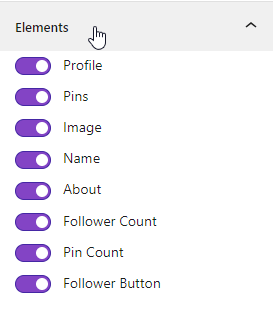
Elements
- Show or hide the Profile, Pins, Image, Name, About, Follower Count, Pin Count, and Follow Button.
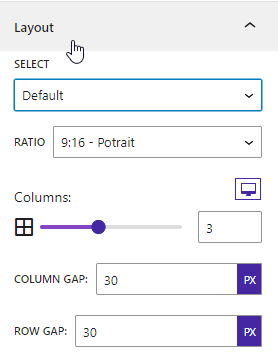
Layout
- Layout: There are four types of layouts – Default, Masonry, Carousel, and Justified.
- Ratio: There are five types of image ratios – landscape, square, horizontal, and portrait.
- Columns: You can set the number of columns based on the device.
- Column Gap: You can adjust the column gap.
- Row Gap: You can adjust the row gap.
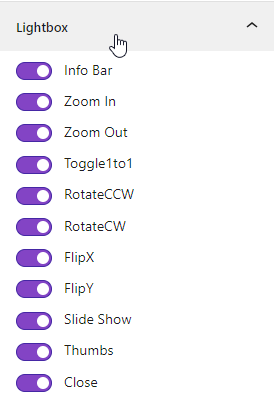
Lightbox
- Lightbox: Show or hide the Info Bar, Zoom In, Zoom Out, Toggle 1:1, Rotate CCW, Rotate CW, Flip X, Flip Y, Slideshow, Thumbnails, and Close button
Style
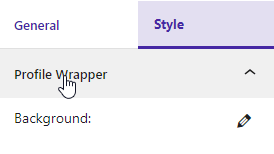
Profile Wrapper
- Profile Wrapper: Customize the profile wrapper background color.
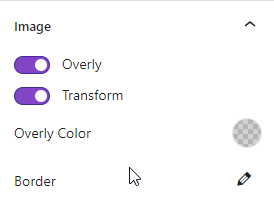
Image
- Image: You can set the image overlay, transform, overlay color, and border.
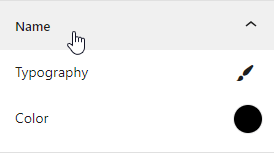
Name
- Name: You can change the typography and color of the name.
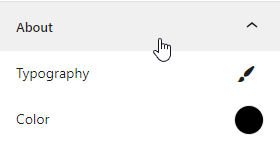
About
- About: You can change the typography and color of the about section.
Count
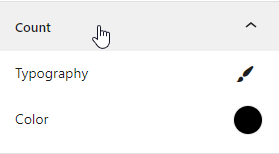
- Count: You can change the typography and color of the count
Button
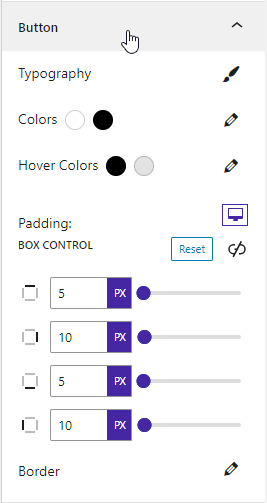
- Button: You can customize the button typography, colors, hover colors, padding, and border.
 Save 90%