
 Beautiful Gallery
 How to Install
Install By Upload Plugin
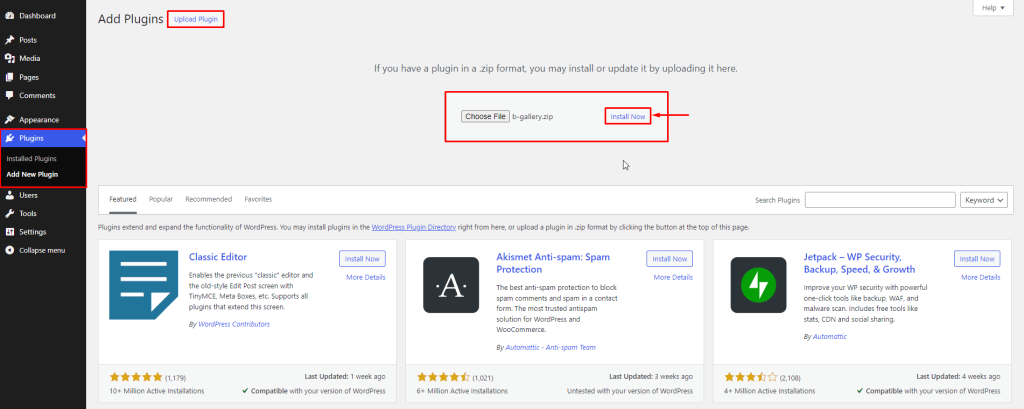
- Download the latest version of the B Gallery Plugin (.zip file)
- Login into your WordPress Admin area
- Click on the left side Plugin menu
- Now at top of the page, you can see the Add New button, click on that buttons
- Again at the top of the page, you can see the Upload Plugin button, click on that button for the next process
- Click on “Choose File“
- Now upload the Plugin zip file b-gallery.zip and click on the “Install Now” button
- Activate the Plugin
Install By Search Plugin
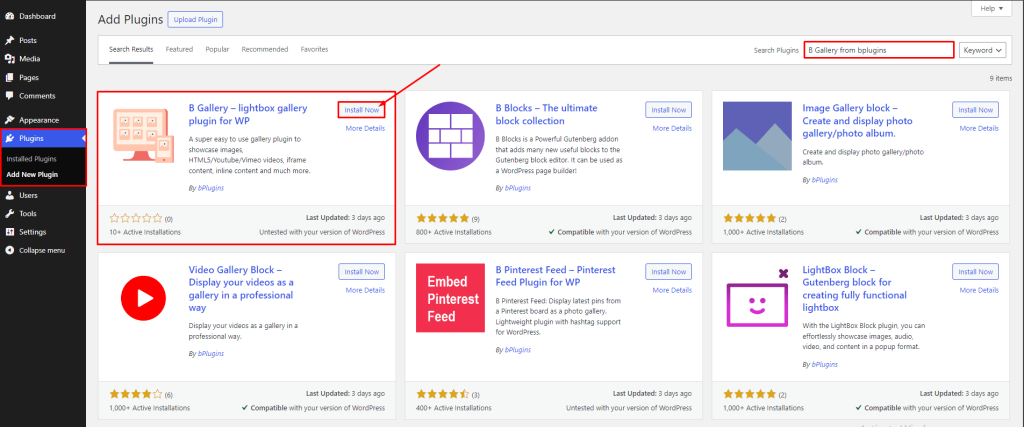
- Login into your WordPress Admin area
- Click on the left side Plugin menu
- Now, Go to the right side and search the Plugin “b Gallery from bplugins“
- Click to Install Now Button
- Once the Plugin is installed, click on Activate Button
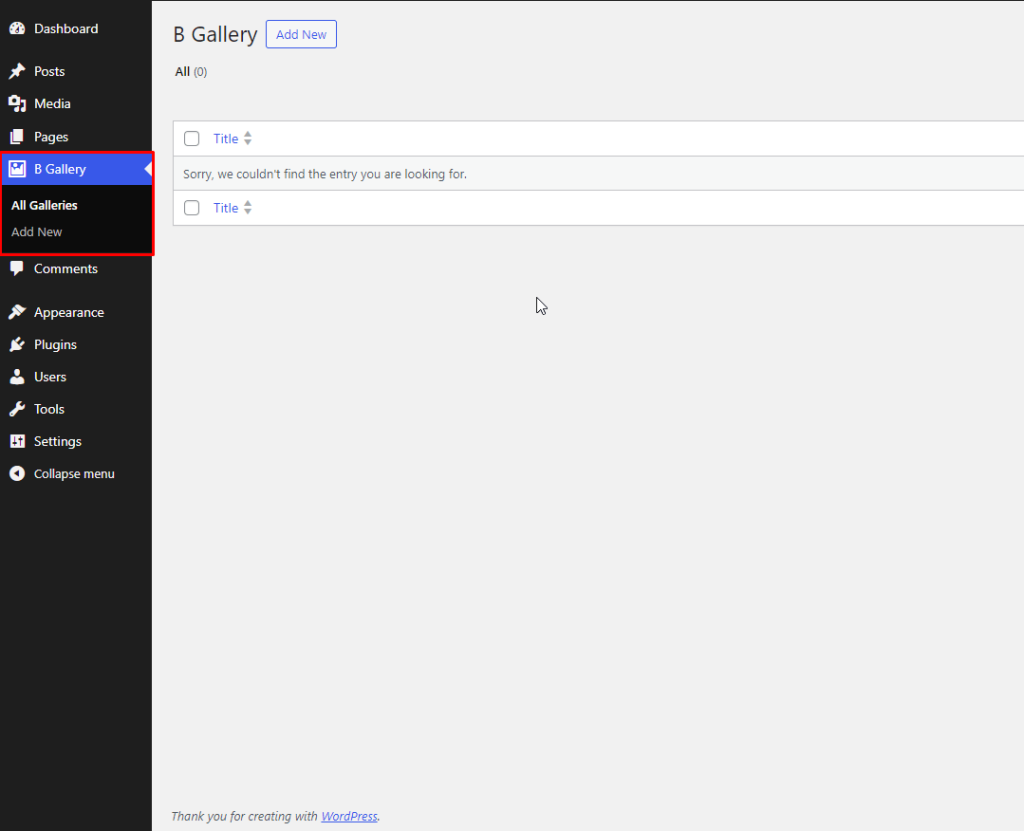
- Now, you can show in your Admin Panel, the new menu is added B Gallery
Install Plugin Using FTP
- Extract the above-selected zip file (b-gallery.zip). It will create a ‘b-gallery‘ folder with all Plugin files and folders inside it
- Using your FTP programs like Filezilla or cPanel, upload the non-zipped Plugin folder into the /wp-content/plugins/ folder on your server
- Go to the Dashboard » Plugins » Installed Plugins page and find ‘B Gallery‘ from the Plugin list
- Click on Activate Button to activate the B Gallery Plugin
Now, you can show in your Admin Panel, the new menu is added B Gallery.
Guides
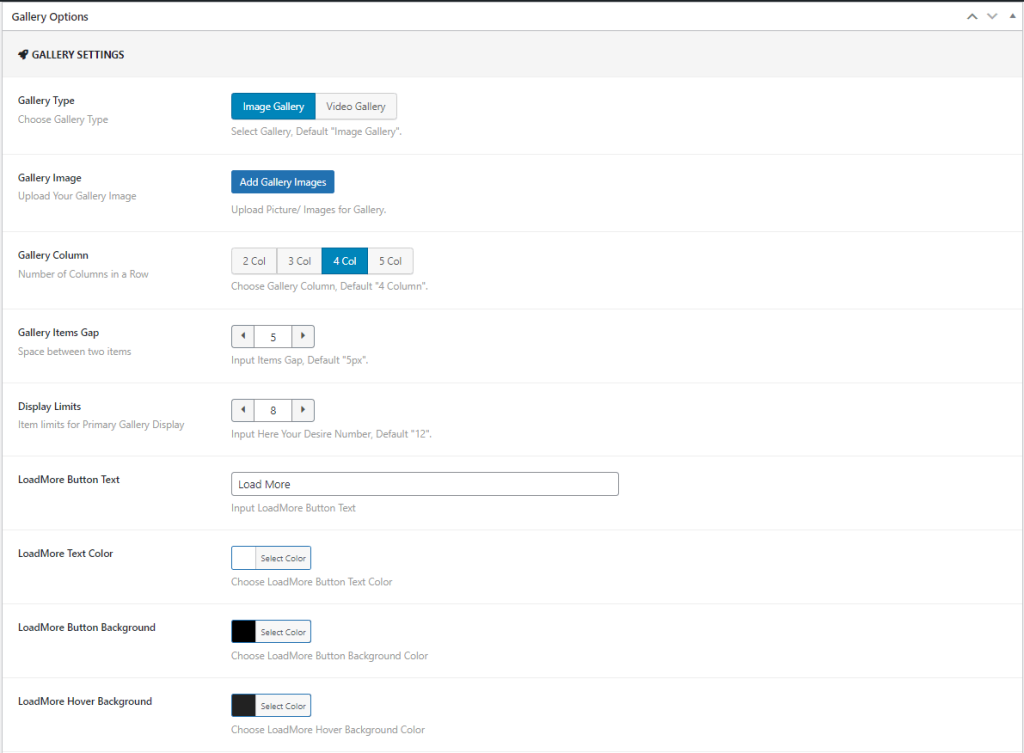
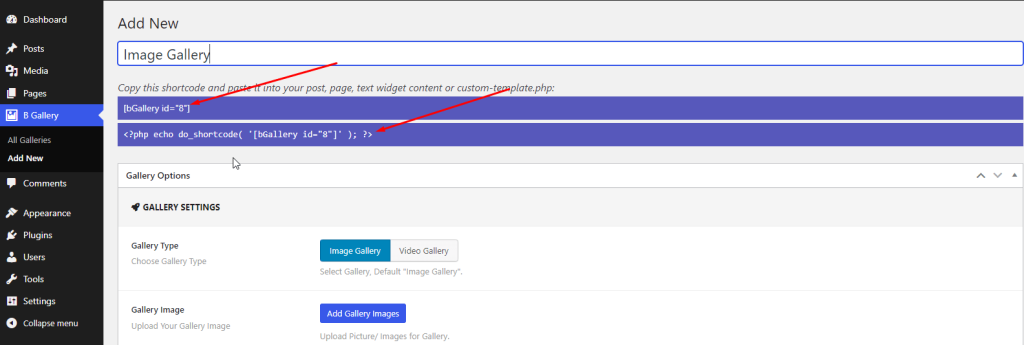
Click on the Add New button to see the options
Gallery Type: There are two types of galleries: Image ,Video
Gallery Images/Gallery videos: Will add the gallery based on its type.
Gallery Column: You can set the Gallery Column.
Gallery Items Gap: Set the gap between gallery items.
Display Limits: Define display limits.
Load More Button Text: Modify the ‘Load More’ button text.
Load More Button Text Color: Change the ‘Load More’ button text color.
Load More Button Background: Set the background color of the ‘Load More’ button.
Load More Button Background Hover: Adjust the ‘Load More’ button background color on hover.
ShortCode
- Short Code: Copy the shortcode and paste it into any editor
- Developer Code: This code is for developer use.
 Save 90%