
 Video Gallery for YouTube
 Table of Contents
Authentication
Go to the Google Cloud Console: Visit the Google Cloud Console and sign in with your Google account.
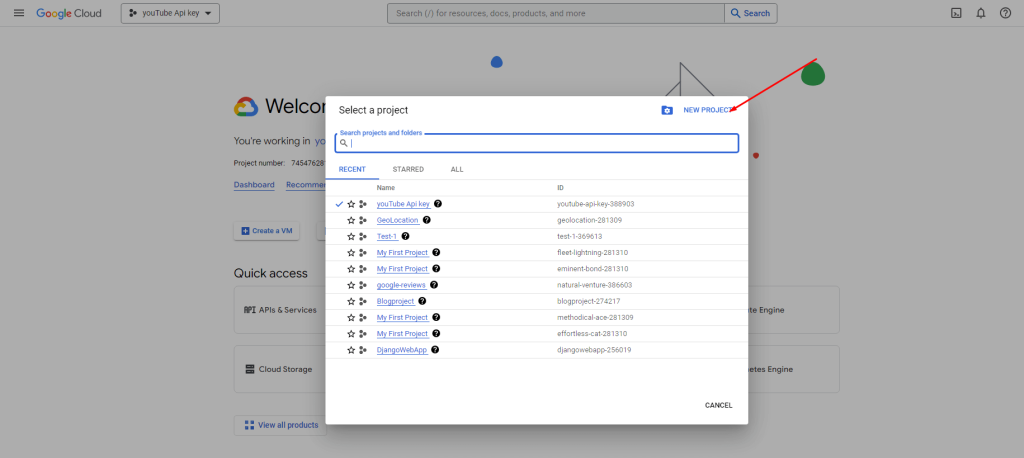
Create a New Project (if needed): If you don’t have a project already, create a new project by clicking on the project dropdown in the top left corner and selecting “New Project”.
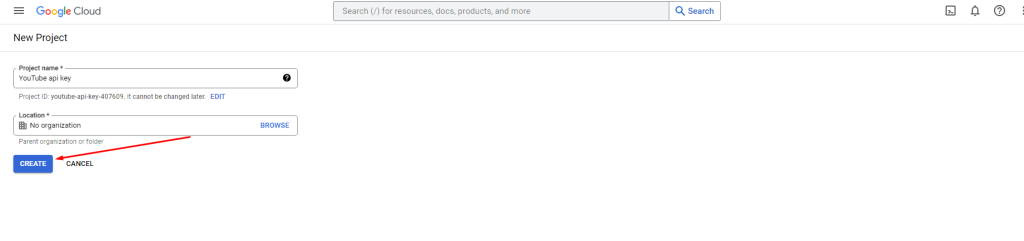
Give your project a name and click “Create.”
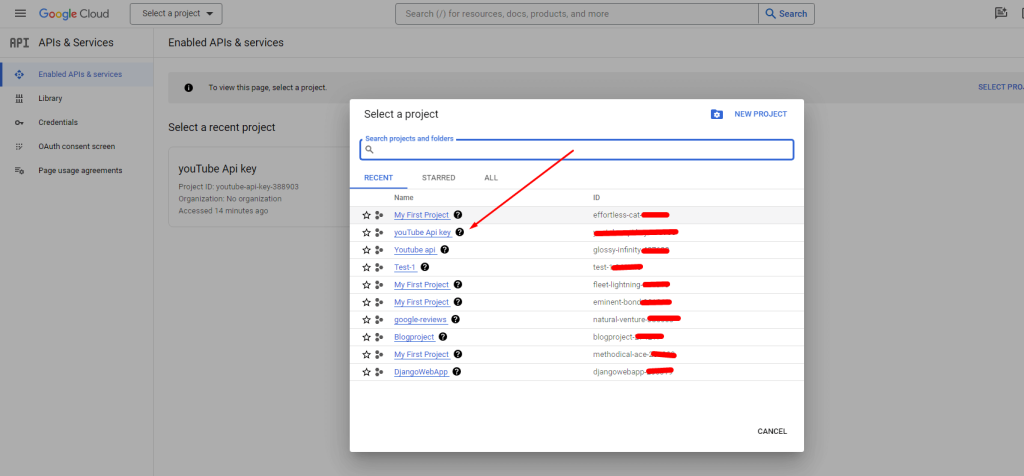
Select the Project: Ensure you’ve selected the project where you want to create the API key from the project dropdown.
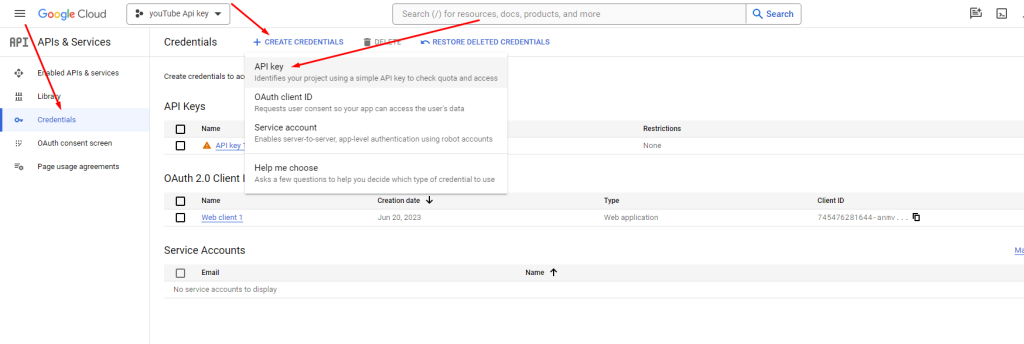
Navigate to APIs & Services > Credentials:
- On the left sidebar, click on “APIs & Services” and then select “Credentials.”
- Create Credentials > API Key: Click on the “Create credentials“
- Dropdown and choose “API key.”
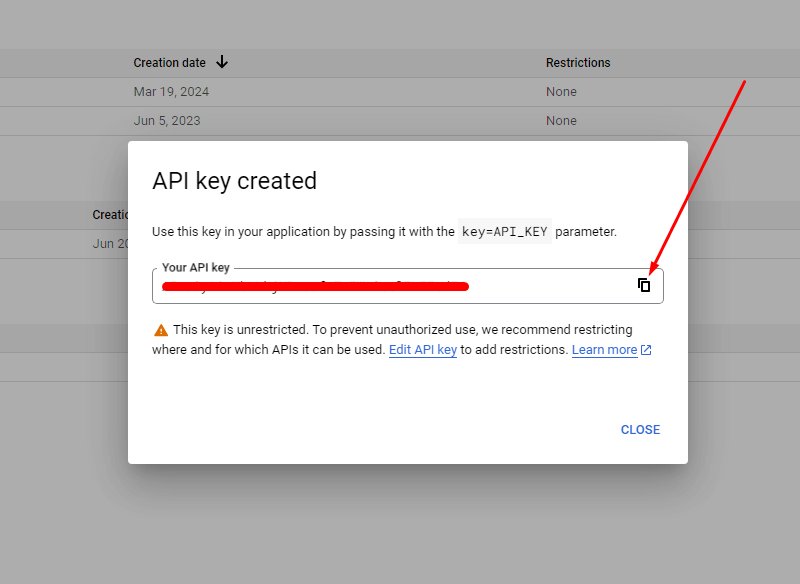
Copy Your API Key: Once created, Google will display your API key. Copy it to use in your application or plugin.
YouTube API
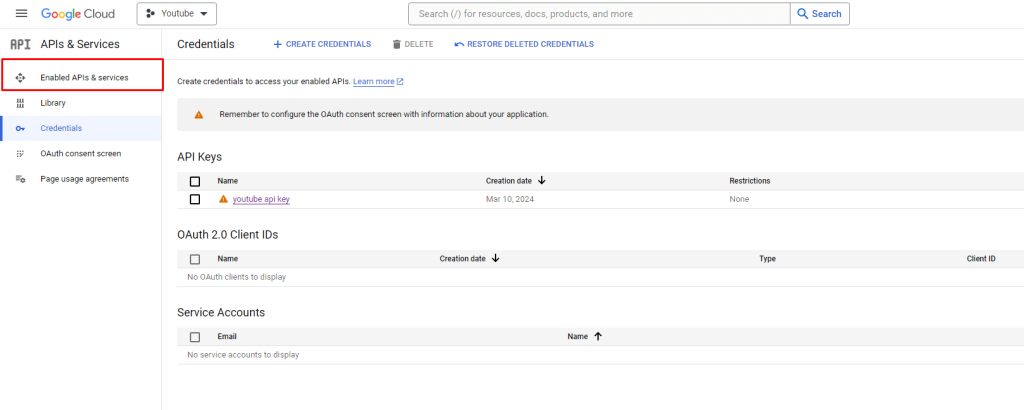
Click on “Enabled APIs & Services”
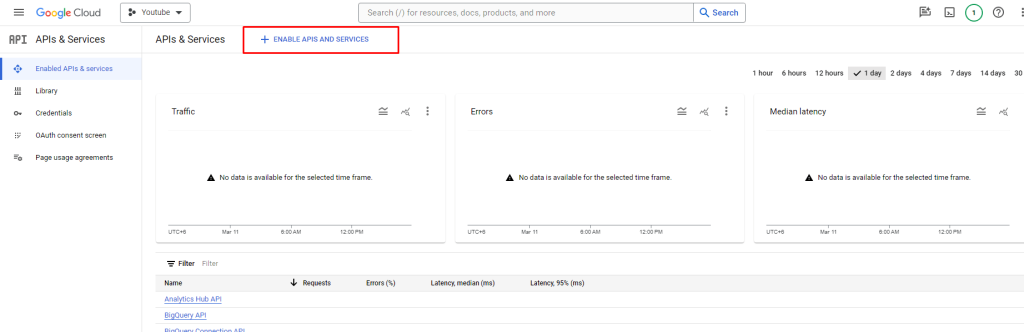
Then click on the “+ ENABLE APIS AND SERVICES” button.
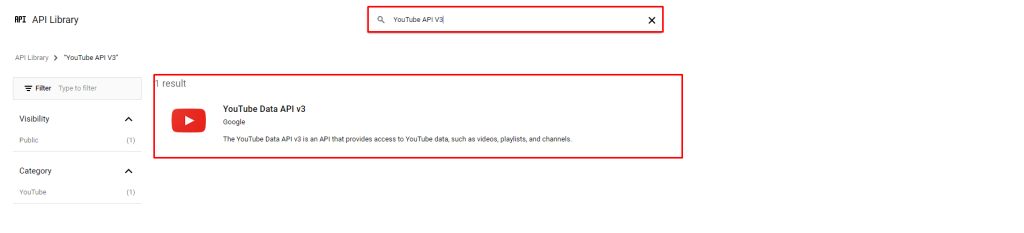
Search for YouTube API V3 and select the YouTube Data API v3.
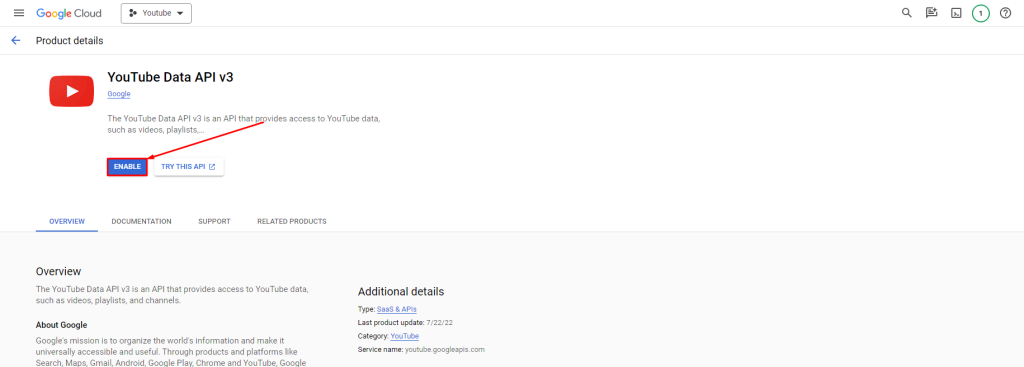
Finally, click to enable the YouTube Data API v3
Channel Id
Sign in to YouTube
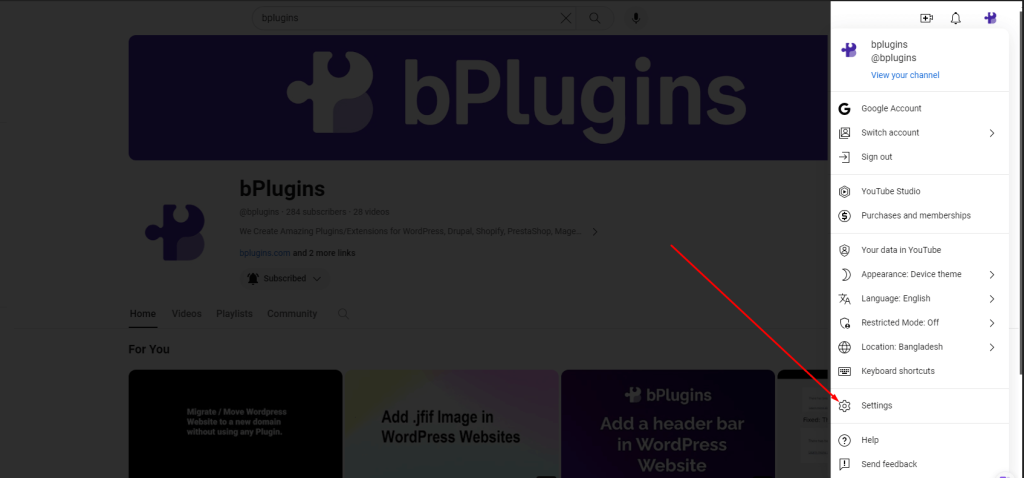
In the top right, click your profile picture and then Settings
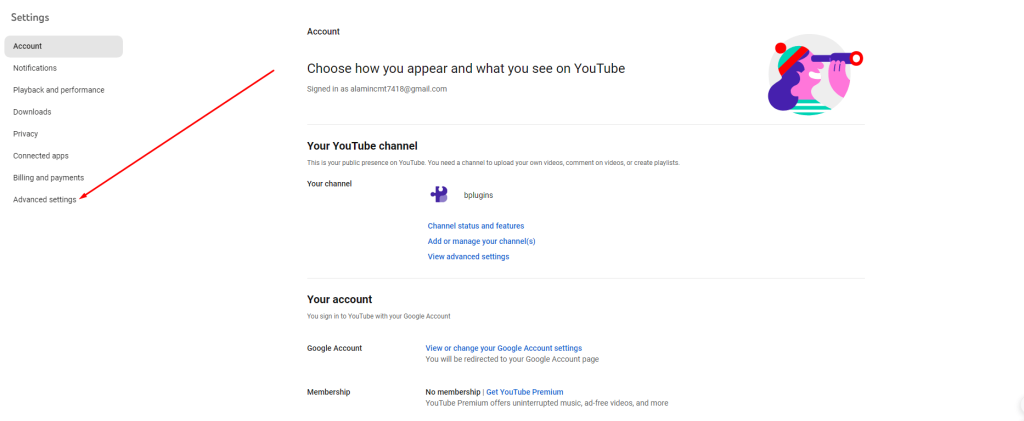
From the left menu, select Advanced Settings
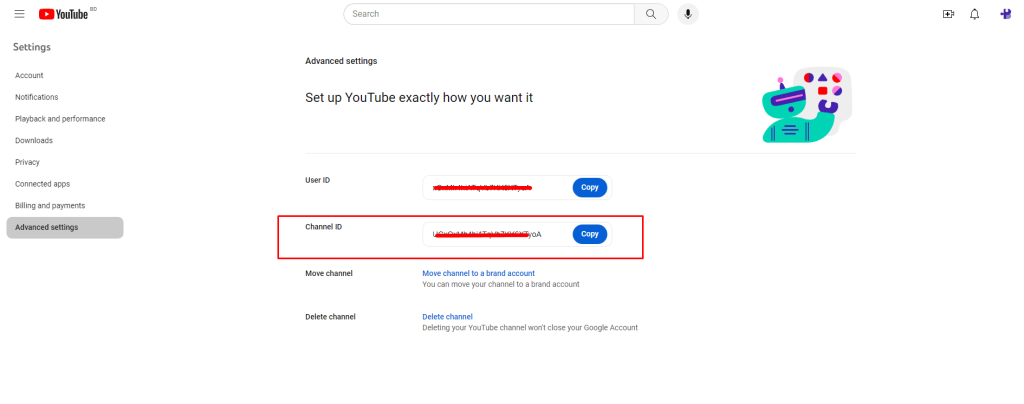
You’ll see your channel’s user and channel IDs
Playlist Id
Go to your target YouTube playlist on the browser
On the address bar, you will see something like this: https://www.youtube.com/watch?v=PcYaAw7gX7w&list=PLhpg_3n0OYC7B5oPL4qL_hqLy5LlJ79bV
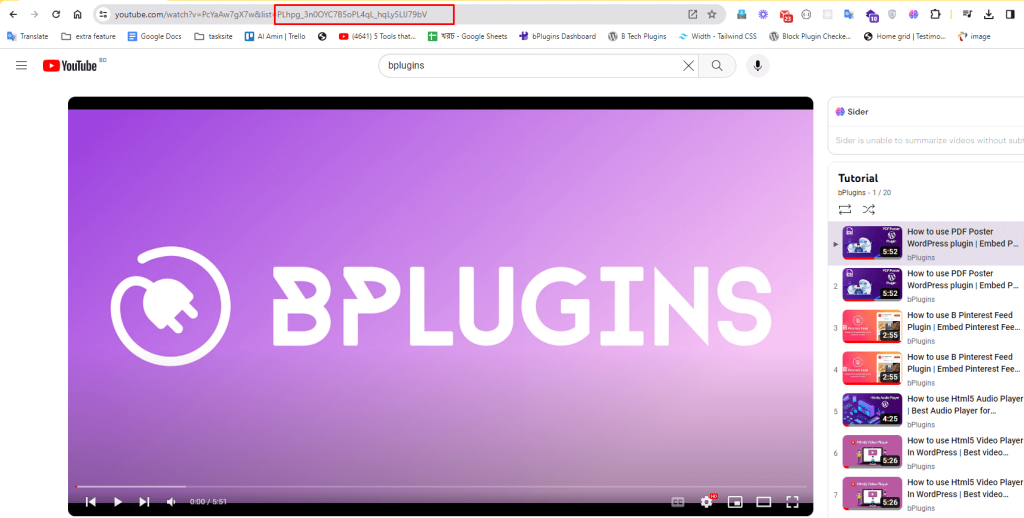
The playlist ID is the characters after “list=” so in the URL above, our playlist ID is PLhpg_3n0OYC7B5oPL4qL_hqLy5LlJ79bV
Copy the playlist ID
Go back to the plugin page and paste it into the “RESOURCE ID” field.
 Save 90%