
 Video Gallery for YouTube
 General
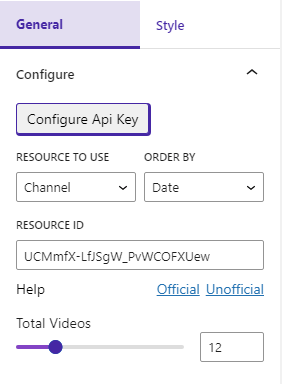
In your sidebar settings, you will see the General tab is selected. if not, select the General tab. Then you will see the options.
Configure
Select Configure, you will see a panel for Configure.
- Configure API Key: Click the button and find the option to paste your YouTube API key.
- Resource to Use: Choose between two types of resources: channel and playlist.
- Order By: Select from three options for ordering: Date, Title, and Rating.
- Resource ID: The resource to use depends on the resource ID.
- Total Videos: Specify the total number of videos to display.
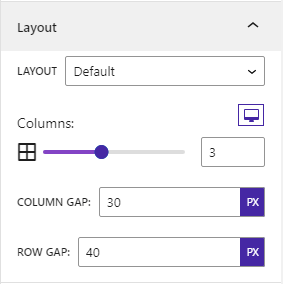
Layout
- Layout: In the layout settings, you can choose from three layouts: Default, Grid Details, and Playlists.
- Columns: Customize the number of columns for different devices to ensure responsiveness. Simply click on the device icon (desktop, tablet, or mobile) to select it and adjust the column count.
- Column Gap: Adjust the gap between columns.
- Row Gap: Adjust the gap between rows.
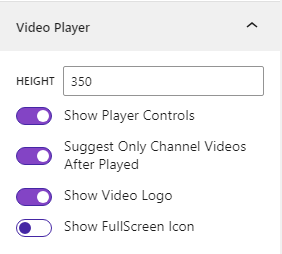
Video Player
- Height: Adjust the height of the video player.
- Player Controls: Toggle the visibility of video player controls.
- Only Channel Video: Show/hide only channel videos after the current video ends.
- Video Logo: Toggle the visibility of the video player logo.
- Fullscreen Icon: Show/hide the fullscreen icon.
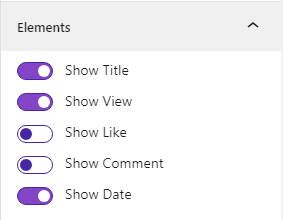
Elements
- Title: Show/hide video title.
- Views: Show/hide video views.
- Likes: Show/hide video likes.
- Comments: Show/hide video comments.
- Date: Show/hide video date.
Title
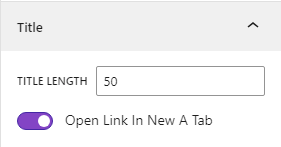
- You can adjust the text length of the title and enable/disable opening in a new tab
Style
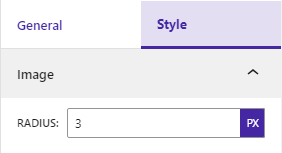
Image: You can set the radius of the image
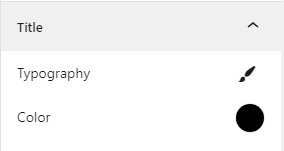
Title: You can customize the typography and color of the title.
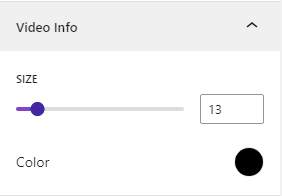
Video Info: You can customize the size and color.
 Save 90%