
 Super Video Player
 Table of Contents
- Super Video Player Features
- Free features
- Setting Panel
- Premium Features
- Video Playlist Management
- Adaptive Video Quality
- Controls Visibility
- Initial Video Volume
- Initial Video Seek Time
- Video Control Tooltips
- Custom Video Layout
- Default Playlist Layout
- Horizontal Playlist Layout
- Vertical Playlist Layout
- Grid Layout
- Video Title & Description
- Continuous Playback on Playlist
- Social Share Button On Player Block Setting
- All Features Available On Block Setting
- ShortCode Usage
- Display Video Player
This guide helps you understand and utilize all the Free and pro features of the plugin clearly and straightforwardly. Each option is explained with practical steps, allowing you to set up everything smoothly and achieve the best results from your plugin.
Super Video Player Features
This section covers all the essential features that come with the free version of the player. Each feature is explained clearly, allowing you to understand its purpose and how it enhances your video playback experience. It helps you get familiar with the core tools you’ll use the most.
Free features
You can control these features from both the plugin’s CodeStar settings panel and the block settings inside the Gutenberg editor.
Setting Panel
Go to your admin dashboard and click on the Super Video Player > Add new item
Write the new item title
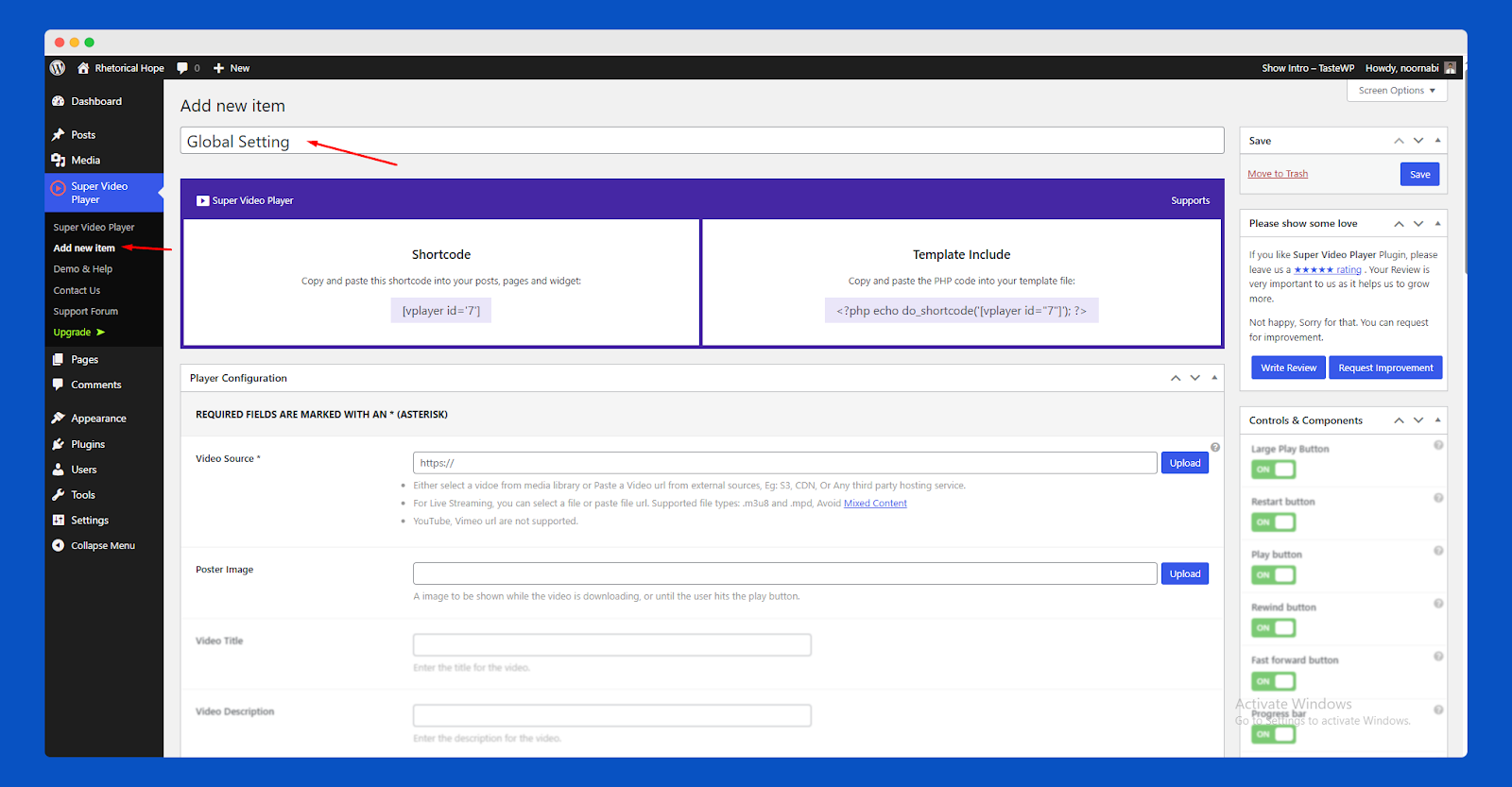
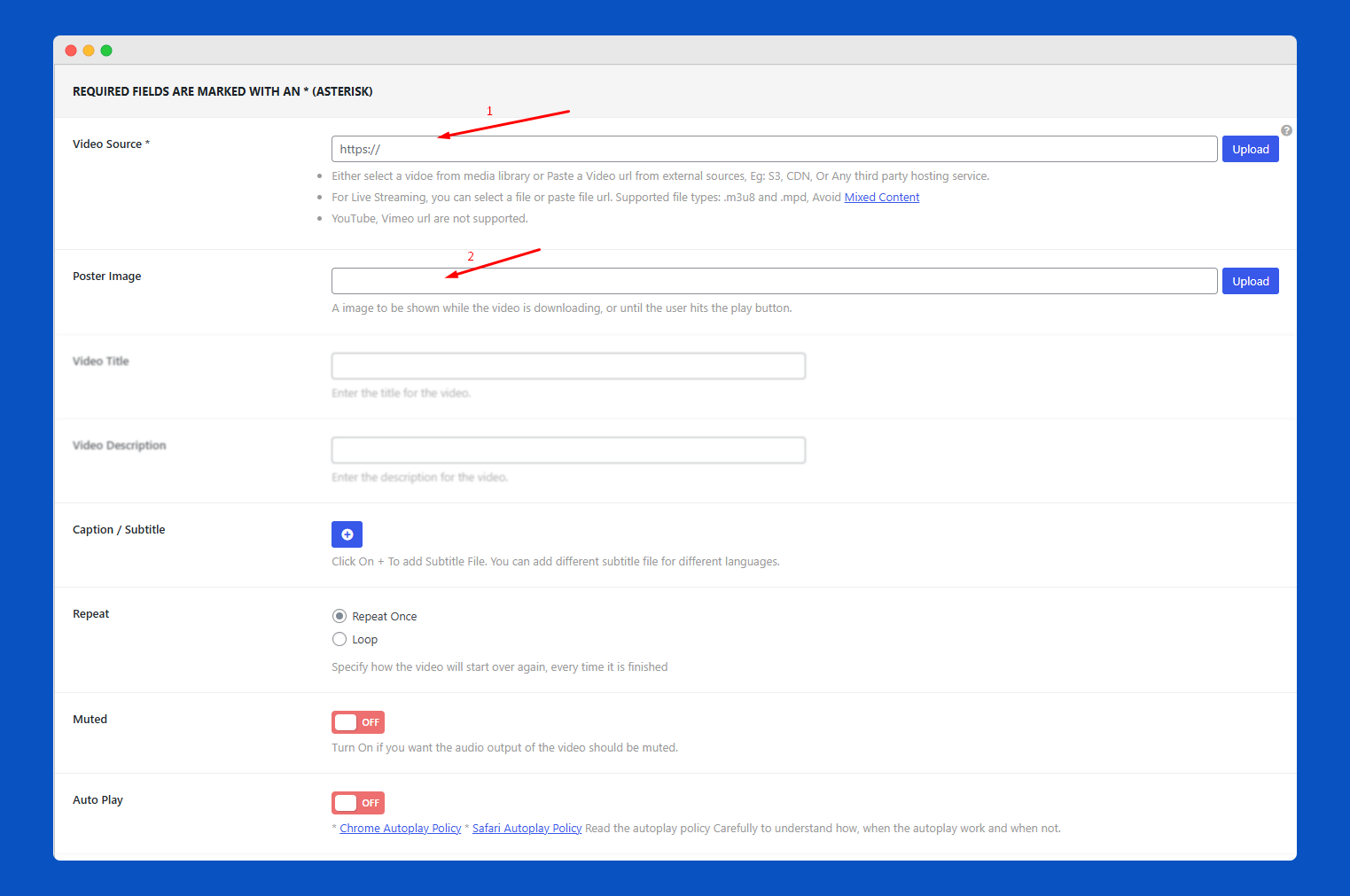
After that, you can see here video source and the poster image so that you can submit here video source and insert your poster images.
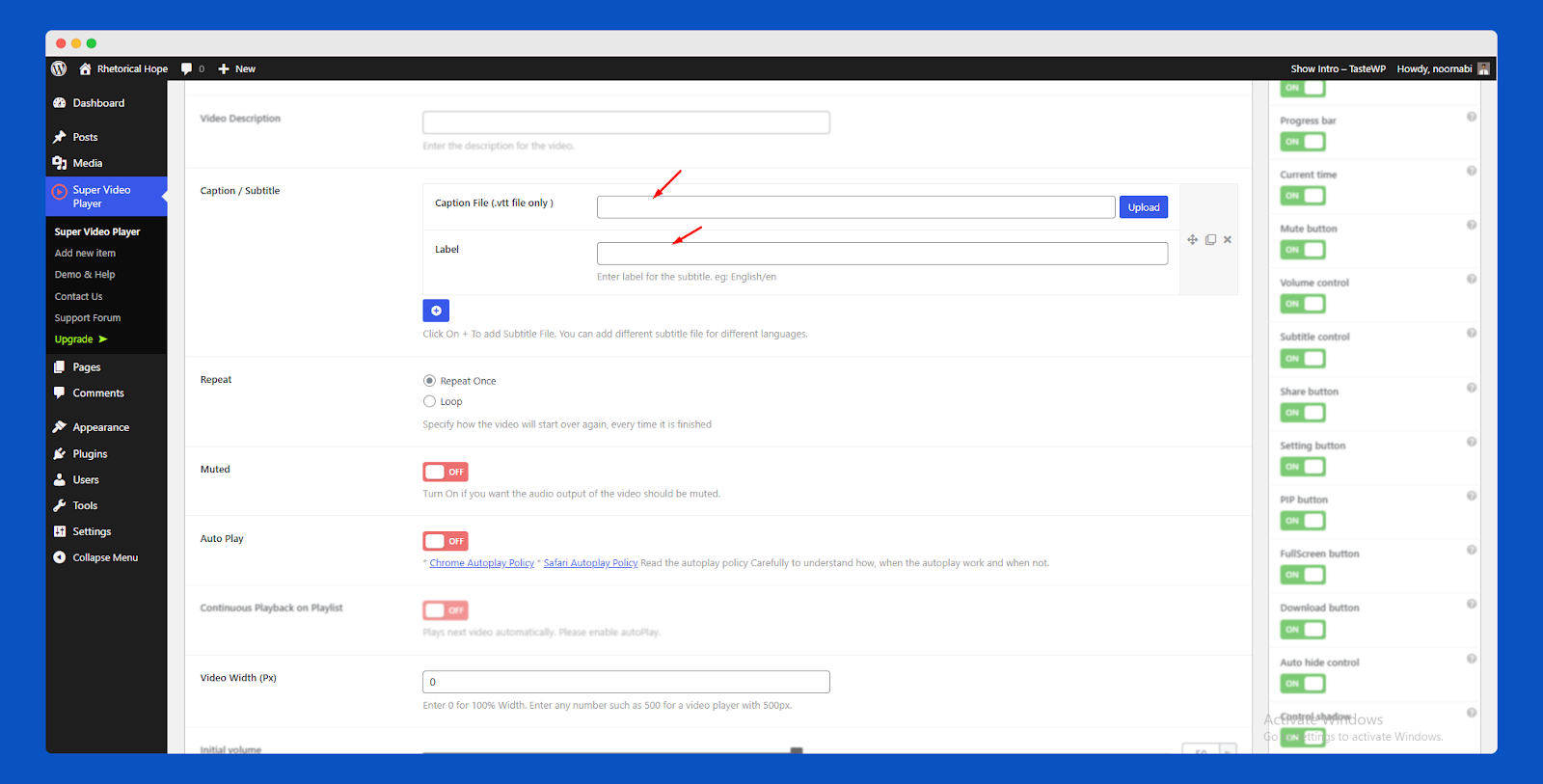
If you want, you can set a caption or subtitle on your video. Here, only receive vtt file.
Here are some features available to see below:
- Repeat: Plays the video again automatically after it ends.
- Muted: Starts the video with the sound turned off.
- AutoPlay: Starts playing the video as soon as the page loads.
- Video Width: Lets you set the player width to match your layout.
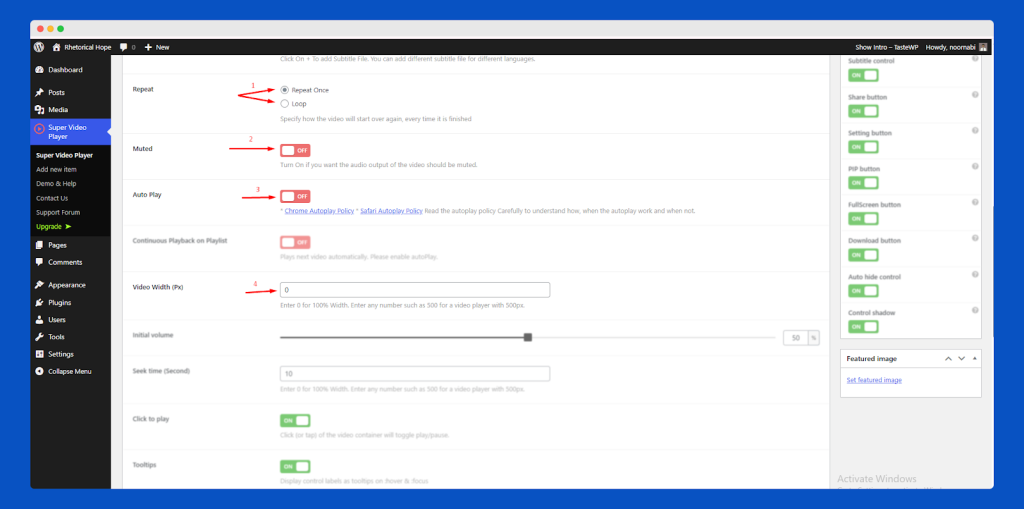
That’s it!
Premium Features
This section highlights the advanced tools and enhancements available in the Pro version. These features are designed to give you more flexibility, control, and customization options. You’ll learn how each premium feature works and how it can upgrade your overall player experience.
- Video Playlist Management
- Adaptive Video Quality
- Controls Visibility
- Initial Video Volume
- Initial Video Seek Time
- Video Controls Tooltip
- Custom Video Layout
- Playlist Video Title & Description
- Continue Playback On Playlist
- Social Share Button On Playlist
- All Features Available On Gutenberg
Video Playlist Management
Easily add and organize multiple videos into a playlist.
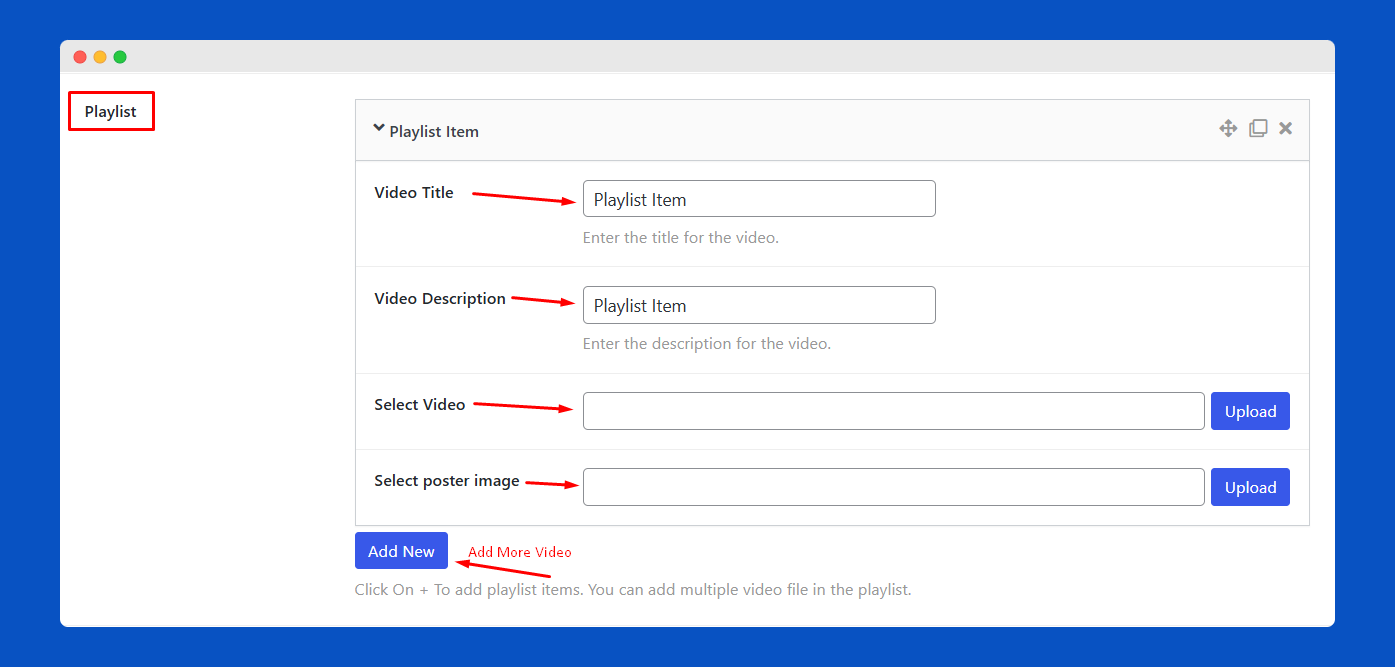
You see the Playlist option and have a button to Add New. Click it and see the info options below:
- Video Title
- Video Description
- Video Source or Upload video
- Insert video poster image
If you want more and more video, just click the Add New button click
Adaptive Video Quality
Choose and switch between different video resolutions.
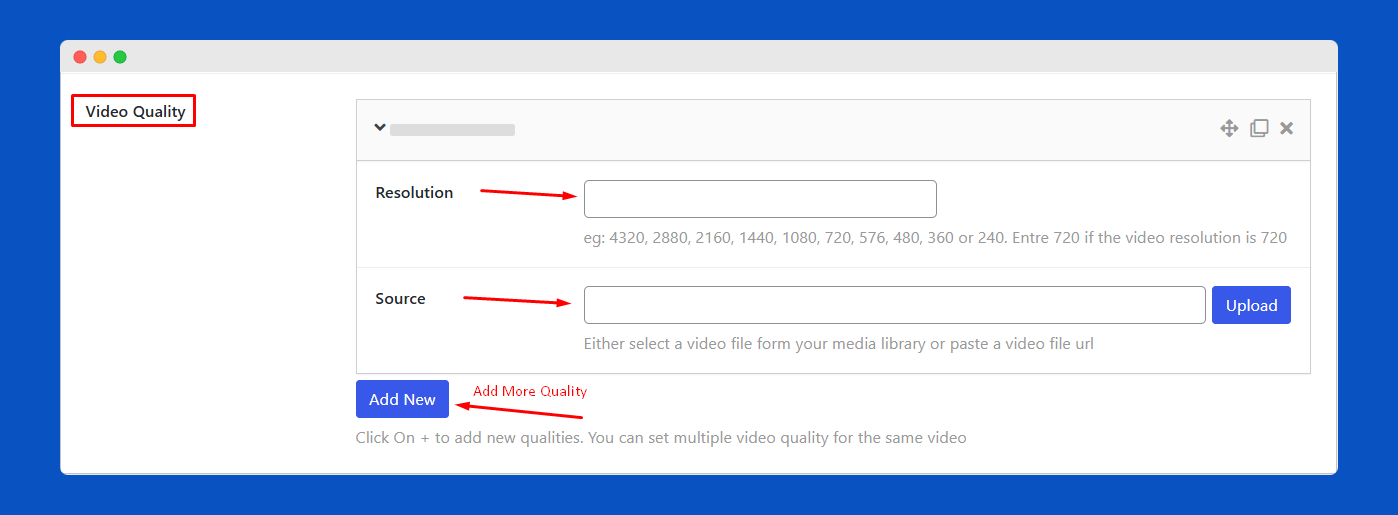
You see the Video Quality Option and have a button to Add New. Click it and see the info options below:
- Insert Resolution
- Submit video Source
Controls Visibility
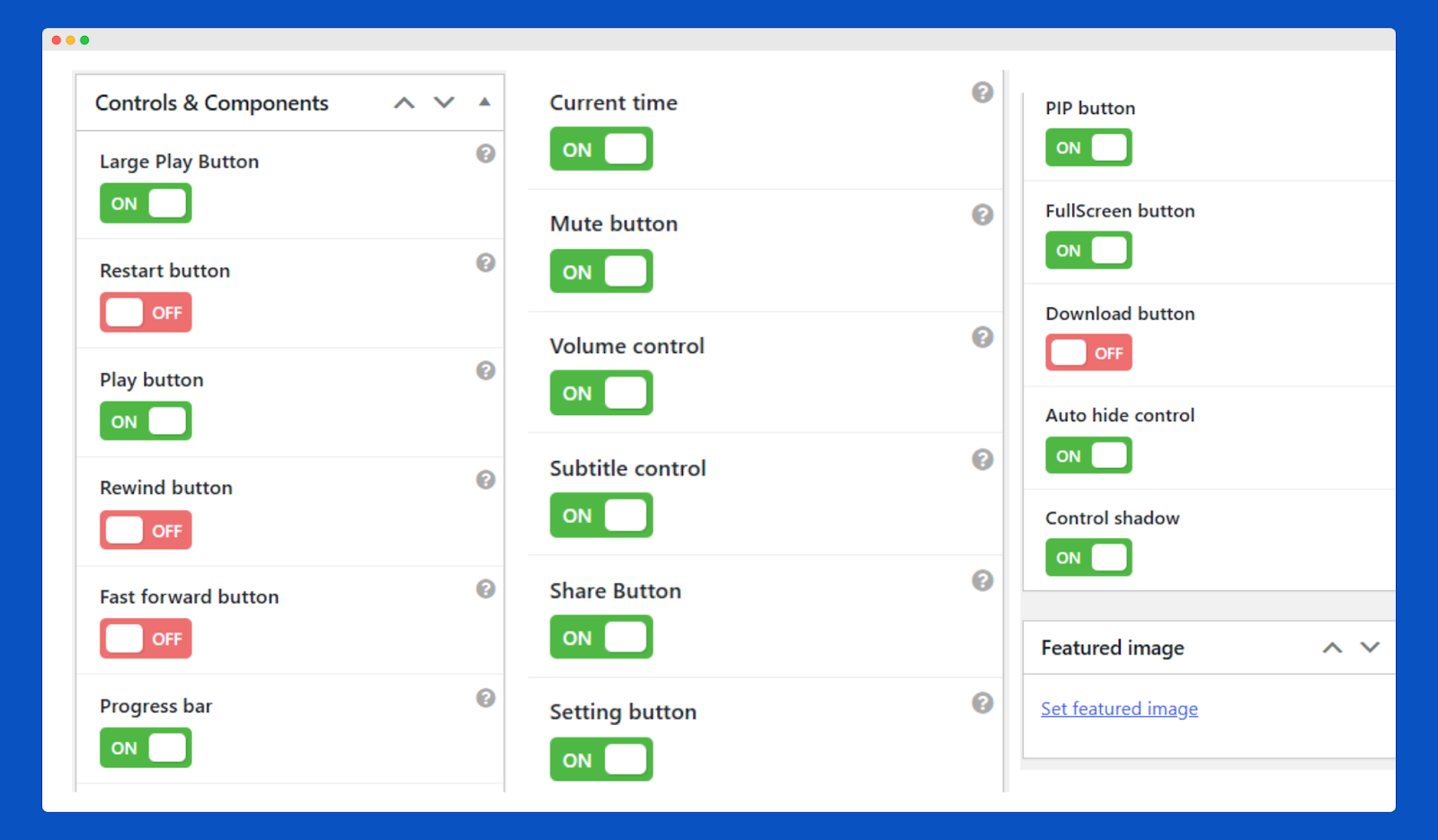
Show or hide any video player controls as needed.
Initial Video Volume
Set the starting volume for your video playback.

Initial Video Seek Time
Set the starting point of the video in seconds.

Video Control Tooltips
Enable or disable tooltips for player controls.

Custom Video Layout
Choose from multiple themes and layout styles.
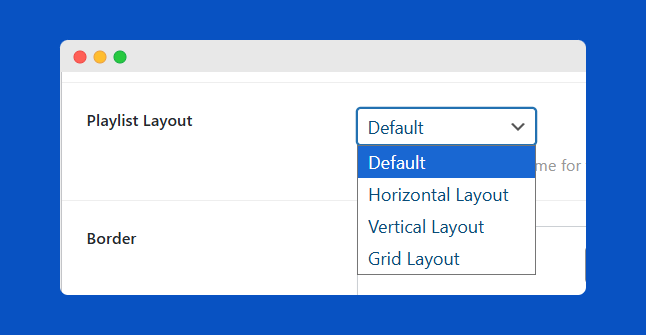
You see here Playlist Layout options, and have here the default layout with more than 3 layouts below:
- Default Layout
- Horizontal Layout
- Vertical Layout
- Grid Layout
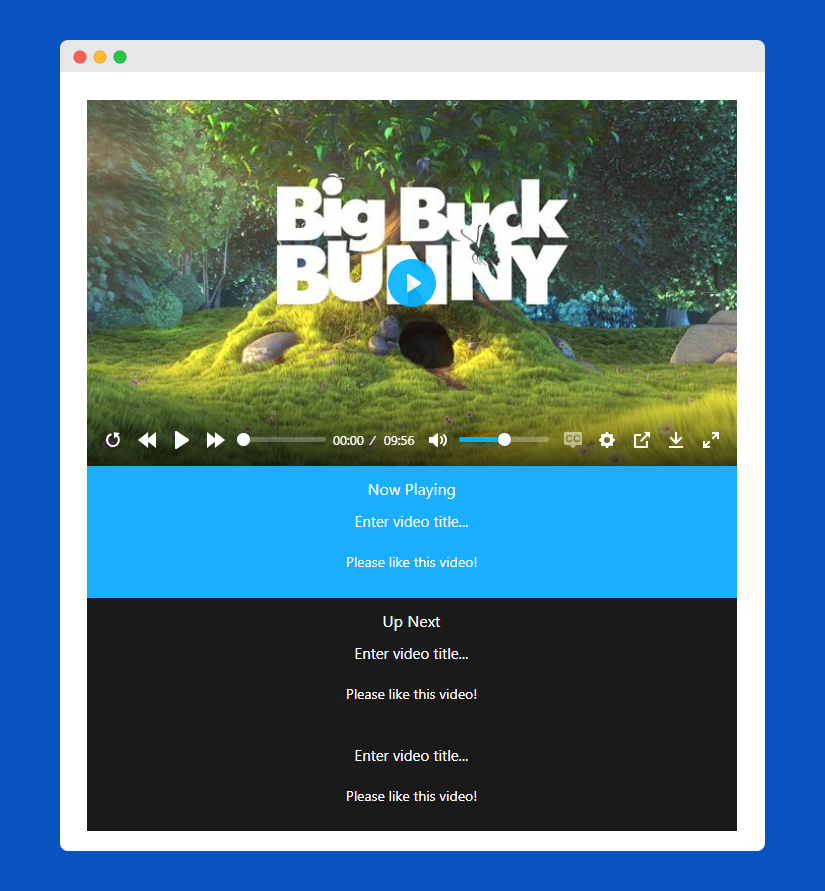
Default Playlist Layout
This option loads a clean, ready-made playlist style that works out of the box. It organizes your videos neatly and keeps the player layout simple, clear, and easy for viewers to navigate.
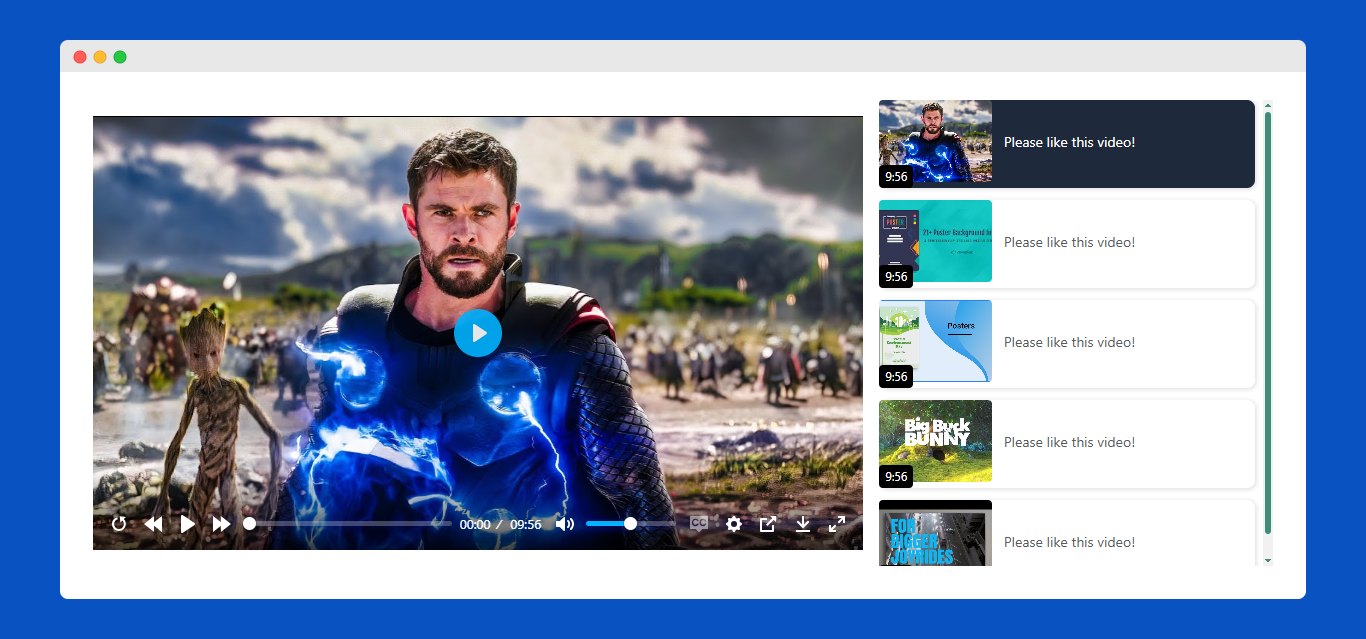
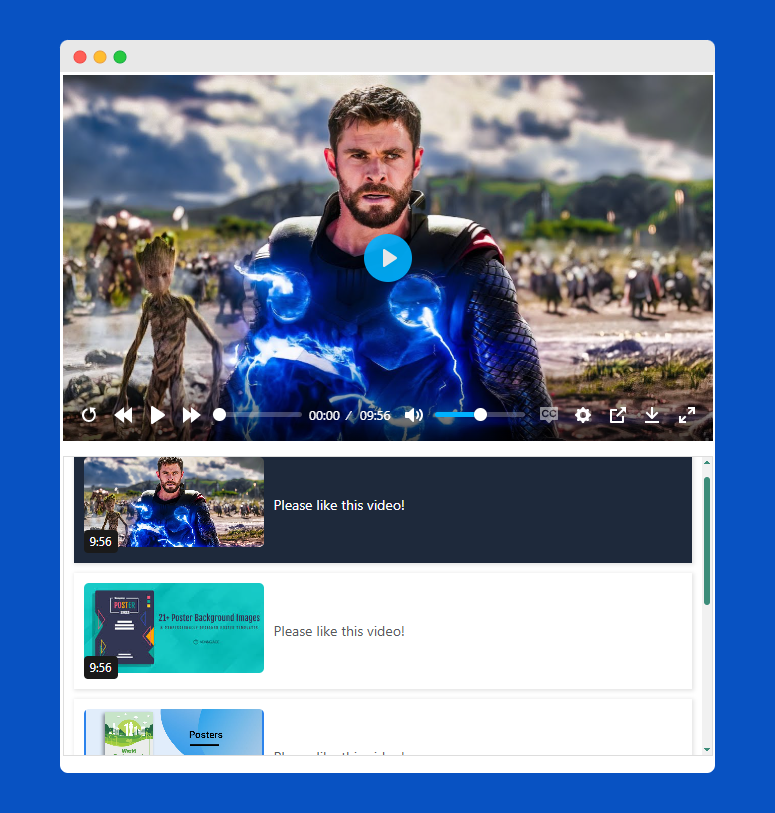
Horizontal Playlist Layout
This layout displays your playlist in a horizontal row under the player, giving it a modern, compact look. It’s perfect for showcasing multiple videos while keeping the design clean and easy to browse.
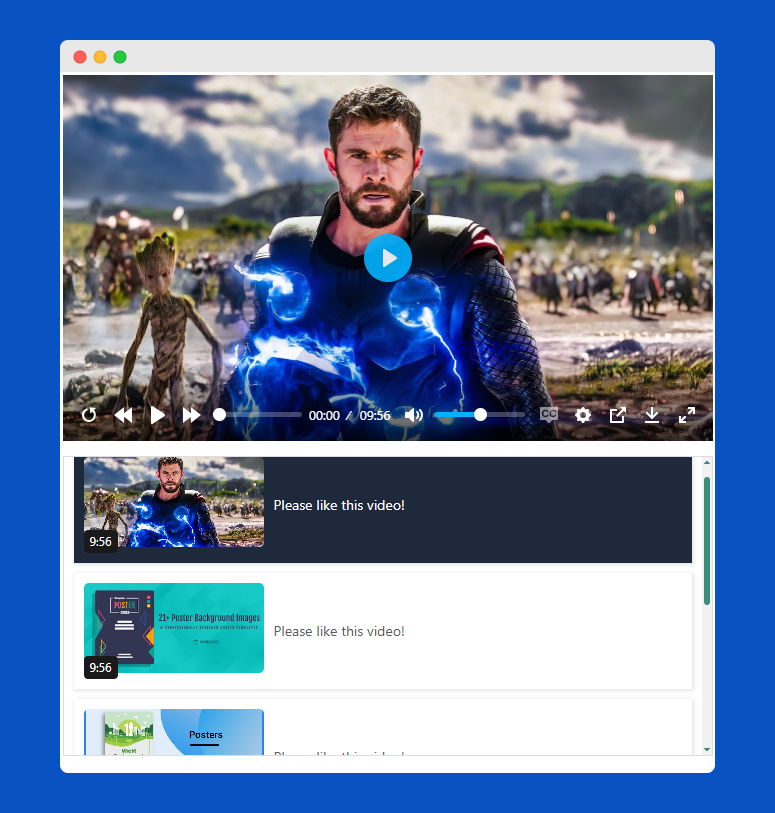
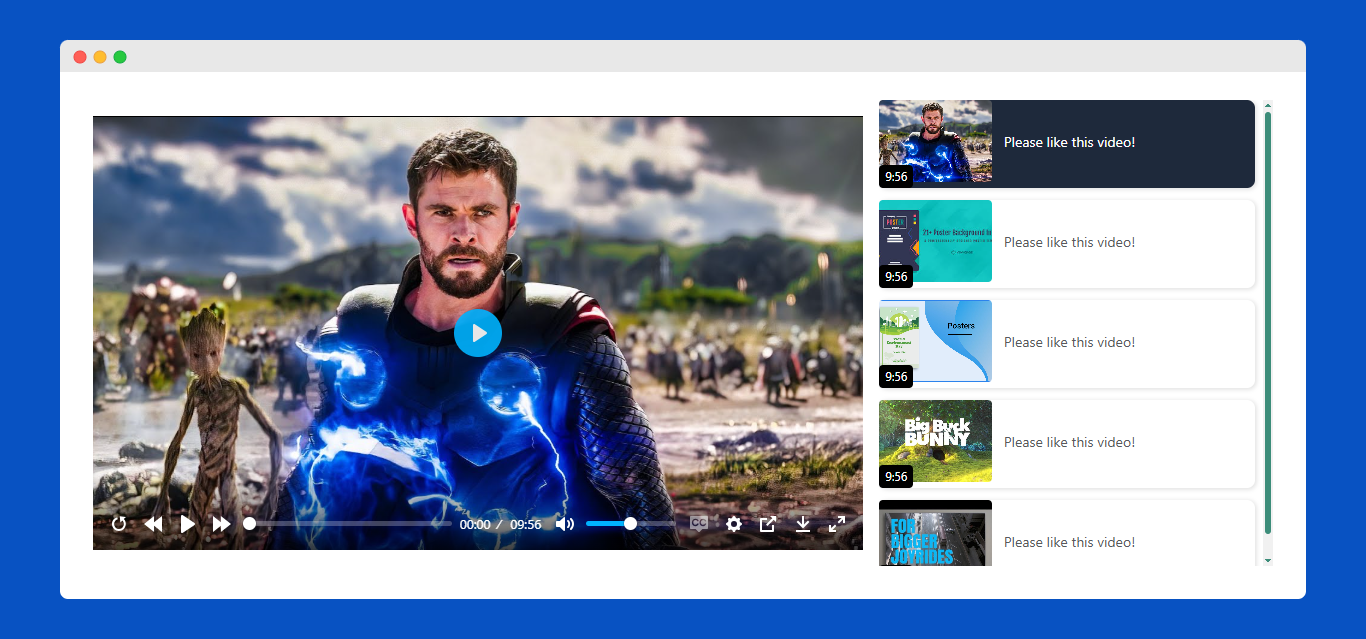
Vertical Playlist Layout
This layout shows your playlist in a vertical list beside the player. It’s ideal for longer playlists, offering a clear, scrollable structure that makes it easy for viewers to browse and switch between videos.
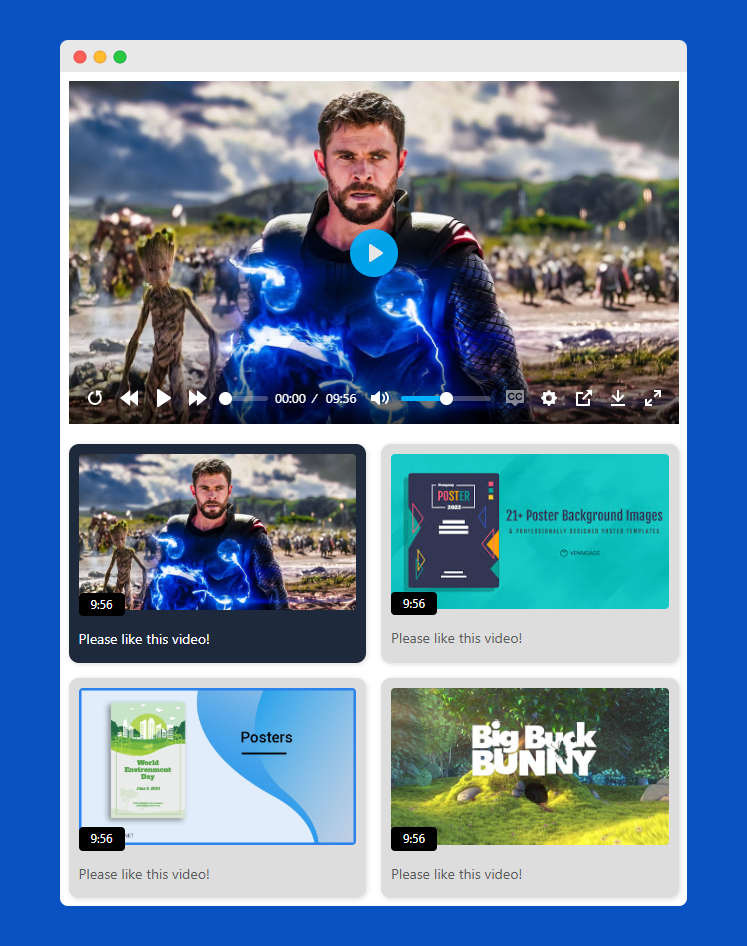
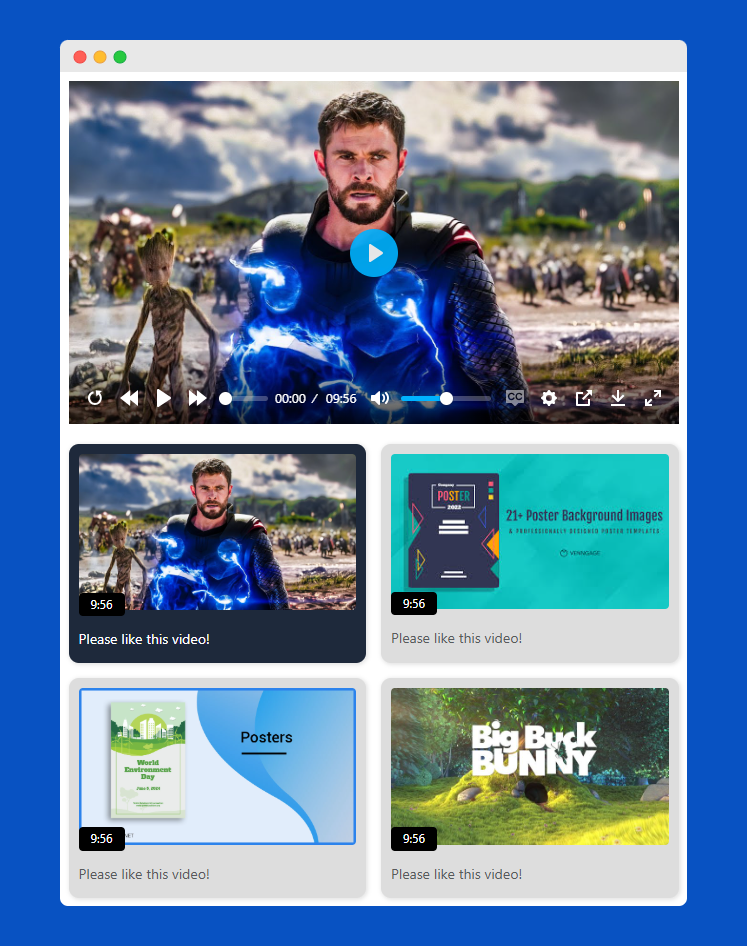
Grid Layout
This layout displays your videos in a clean, multi-column grid. It’s great for showcasing many videos at once with equal focus, giving your playlist a modern and visually organized appearance.
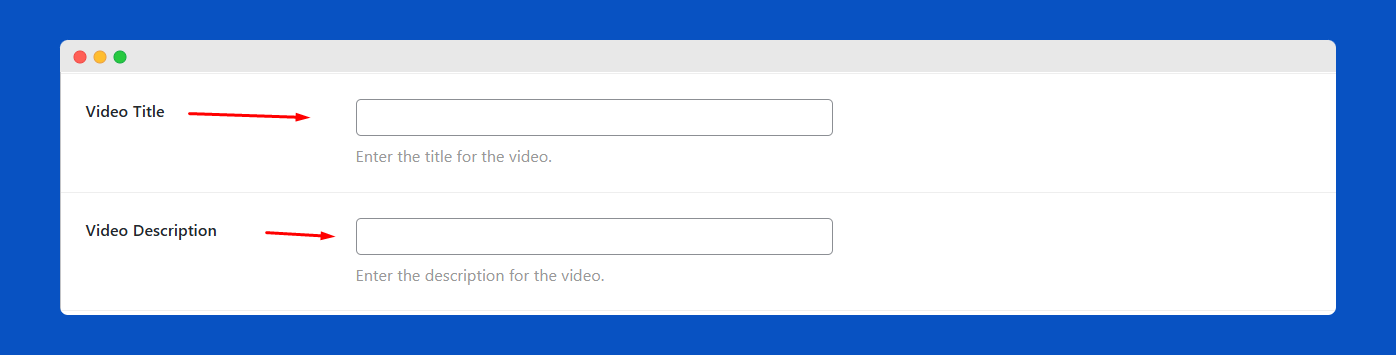
Video Title & Description
Add a title and description to display with your video.
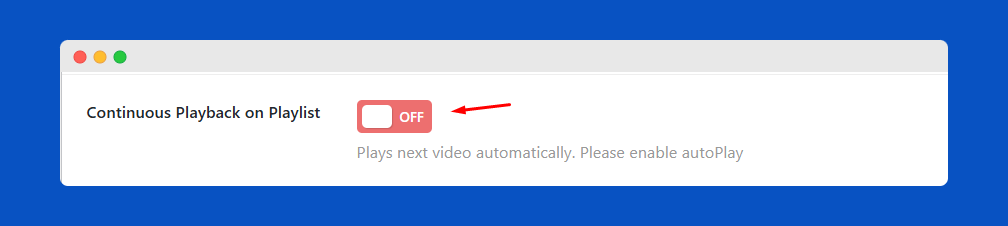
Continuous Playback on Playlist
Play all videos in a playlist automatically without interruptions.
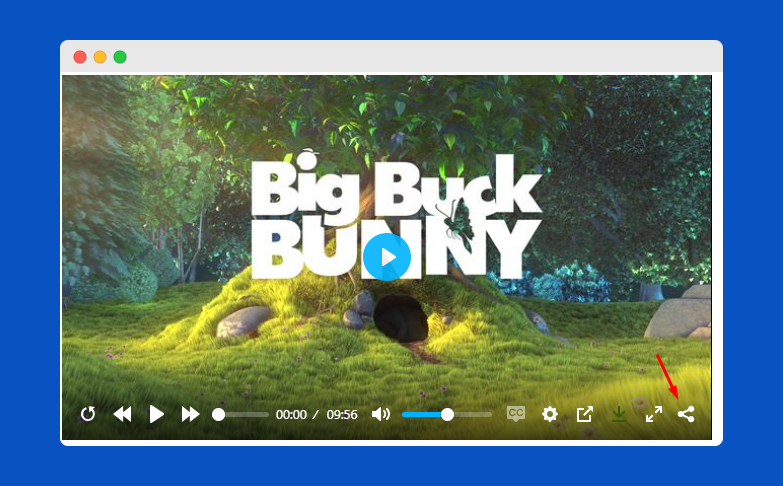
Social Share Button On Player Block Setting
Let viewers easily share your video on social media directly from the player.
Click the share icon
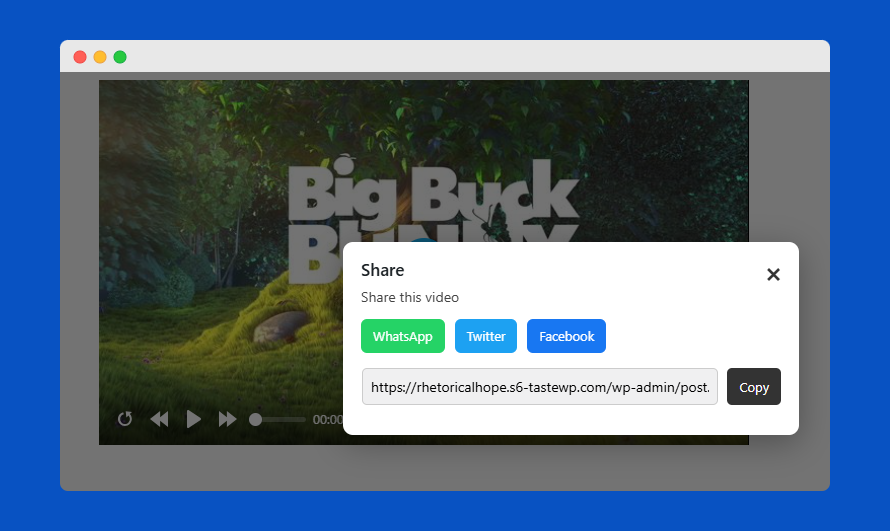
And after that, you see the modal share option
All Features Available On Block Setting
Access and customise every feature directly within the Gutenberg editor.
Easily manage your videos without leaving your post or page.
ShortCode Usage
Use the provided shortcode to easily embed the video player on any post or page.
Simply copy and paste it where you want the player to appear.
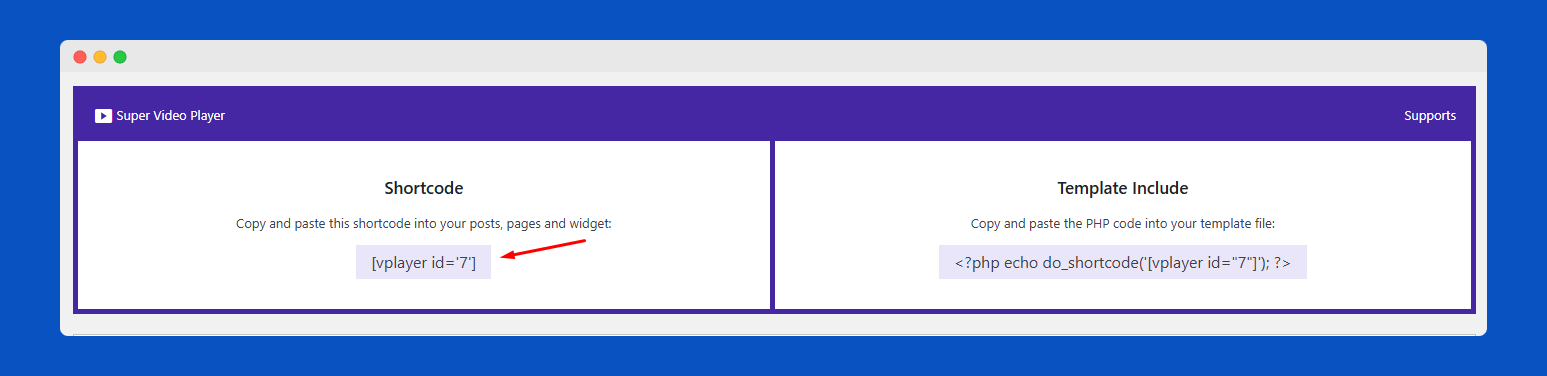
You see there on top of the page on the CodeStar framework. You can easily find the short code with the Gutenberg block and framework page.
Display Video Player
Single Video Player Display shows here.
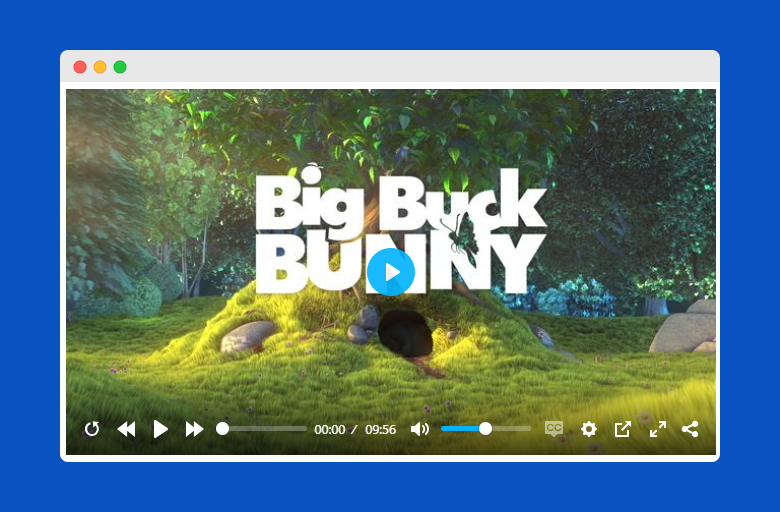
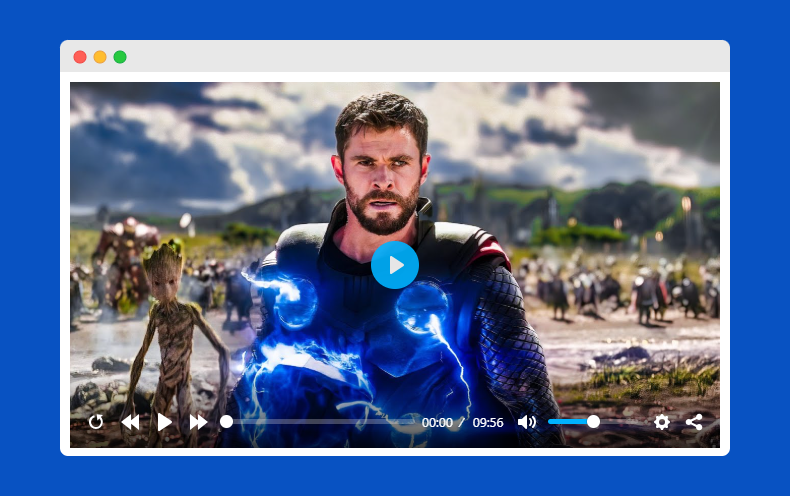
And Another Display Here
You see here Playlist:
Playlist: 1
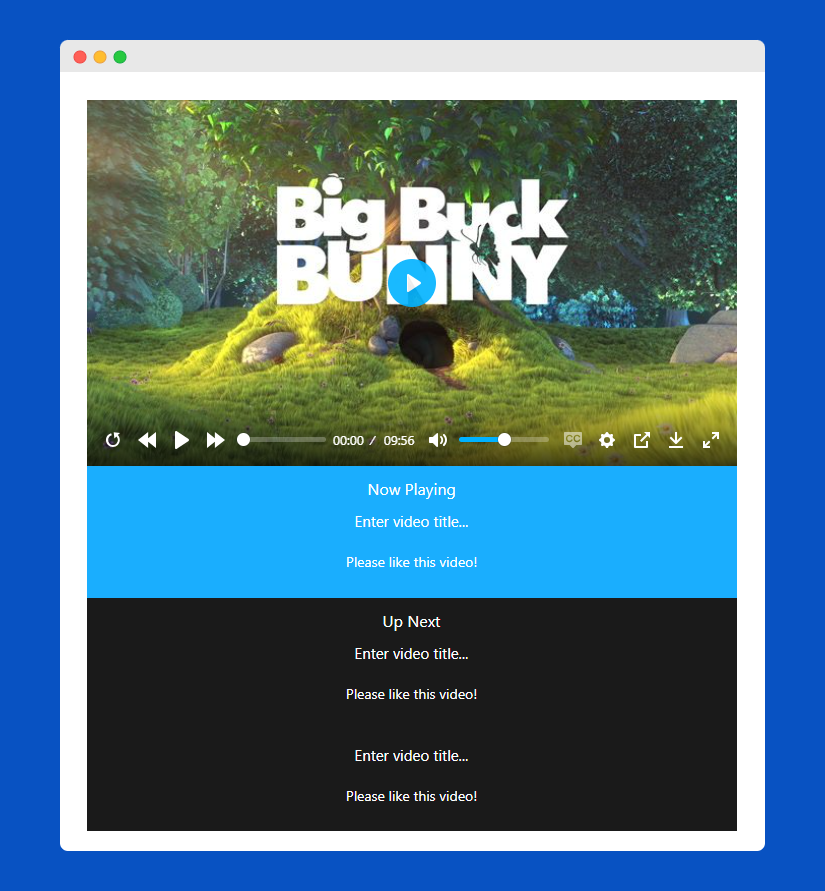
Playlist: 2
Playlist: 3
Playlist: 4
That’s it.
 Save 90%