
 All Embed Addons for Elementor
 Table of Contents
- YouTube Embed Widget
- Add to the Page:
- Insert YouTube URL:
- Customization:
- Publish & Go:
- Vimeo Embed Widget
- Add to the Page:
- Insert Vimeo URL:
- Customization:
- Publish & Go:
- Google Map Embed Widget
- Add to the Page:
- Insert Google Map Embed URL:
- Customization:
- Publish & Go:
- Facebook Embed Widget
- Add to the Page:
- Insert Facebook URL:
- Customization:
- Publish & Go:
- LinkedIn Embed Widget
- Add to the Page:
- Insert LinkedIn URL:
- Publish & Go:
- Pinterest Embed Widget
- Add to the Page:
- Insert Pinterest URL:
- Publish & Go:
- Reddit Embed Widget
- Add to the Page:
- Insert Reddit URL:
- Publish & Go:
- Twitframe Embed Widget
- Add to the Page:
- Insert Twitframe URL:
- Publish & Go:
- Kuula Embed Widget
- Add to the Page:
- Insert Kuula URL:
- Publish & Go:
- Sirv Embed Widget
- Add to the Page:
- Insert Sirv URL:
- Publish & Go:
- Slideshare Embed Widget
- Add to the Page:
- Insert Slideshare URL:
- Publish & Go:
- Genially Embed Widget
- Add to the Page:
- Insert Genially URL:
- Publish & Go:
- Invision Embed Widget
- Add to the Page:
- Insert Invision URL:
- Publish & Go:
- Codepen Embed Widget
- Add to the Page:
- Insert Codepen URL:
- Publish & Go:
- Appointly Embed Widget
- Add to the Page:
- Insert Appointly URL:
- Publish & Go:
- Giphy Embed Widget
- Add to the Page:
- Insert Giphy URL:
- Publish & Go:
- Imgur Embed Widget
- Add to the Page:
- Insert Imgur ID/URL:
- Publish & Go:
- Dailymotion Embed Widget
- Add to the Page:
- Insert Dailymotion URL:
- Publish & Go:
- Dartfish Embed Widget
- Add to the Page:
- Insert Dartfish Video URL:
- Publish & Go:
- Spotify Embed Widget
- Add to the Page:
- Insert Spotify URL:
- Publish & Go:
- Bandcamp Embed Widget
- Add to the Page:
- Insert Bandcamp URL:
- Publish & Go:
- Mixcloud Embed Widget
- Add to the Page:
- Insert Mixcloud URL:
- Publish & Go:
- Soundcloud Embed Widget
- Add to the Page:
- Insert Soundcloud URL:
- Publish & Go:
- JotForm Embed Widget
- Add to the Page:
- Insert JotForm URL:
- Publish & Go:
Welcome to the Widget Guides for All Embed Addons for Elementor—your one-stop walkthrough for adding rich, interactive embeds to any Elementor page. In this documentation, you’ll learn how to insert and customize each embed widget (like YouTube and Vimeo, plus many more) by simply dragging the widget into place, pasting your content URL, adjusting display settings such as width and height, and publishing. Follow the step-by-step instructions under each widget to quickly showcase videos, forms, social posts, maps, and other embedded content in a clean, responsive layout—without needing any code.
YouTube Embed Widget
With the YouTube Embed widget of All Embed for Elementor, you can easily add YouTube videos to your website. This widget allows you to showcase video content seamlessly, giving your site a more dynamic and engaging appearance.
You can follow the steps below to use the YouTube Embed.
Add to the Page:
Find and select the YouTube Embed widget from the left widget panel, then drag and drop it into your desired section on the page.
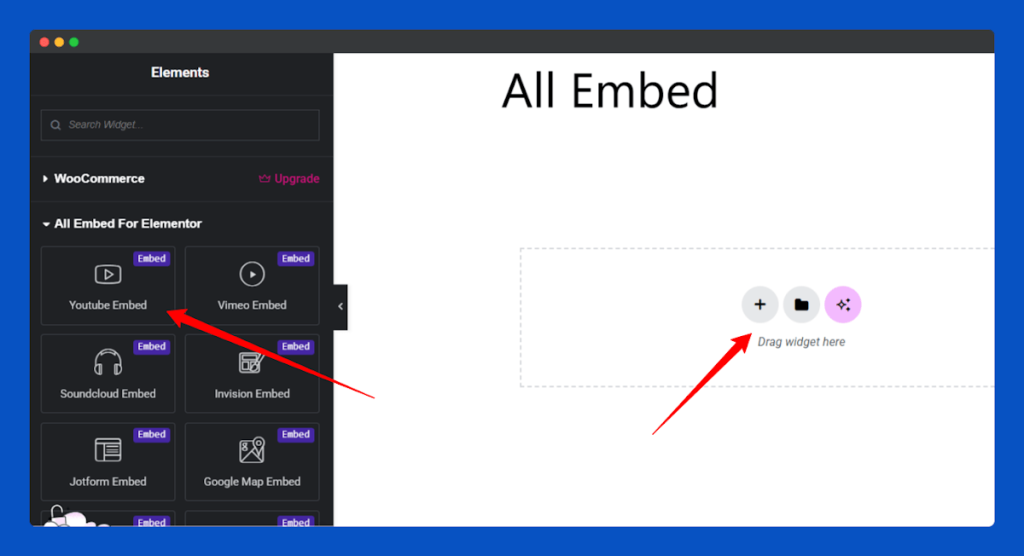
Insert YouTube URL:
In the Content section, you can add your video embed link in the video link input field.
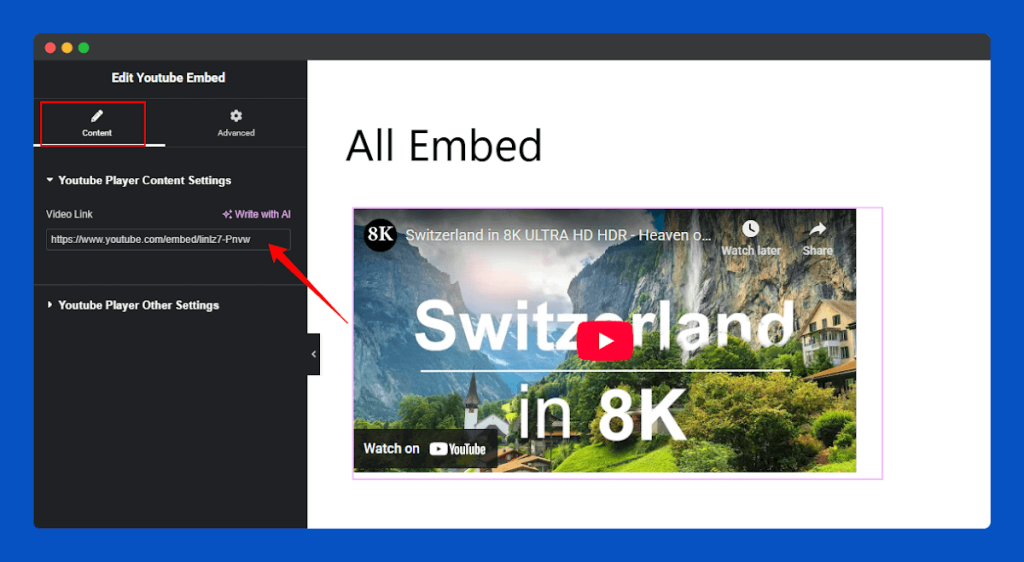
Customization:
You can also customize the video height and width from the YouTube Player Other Settings section.
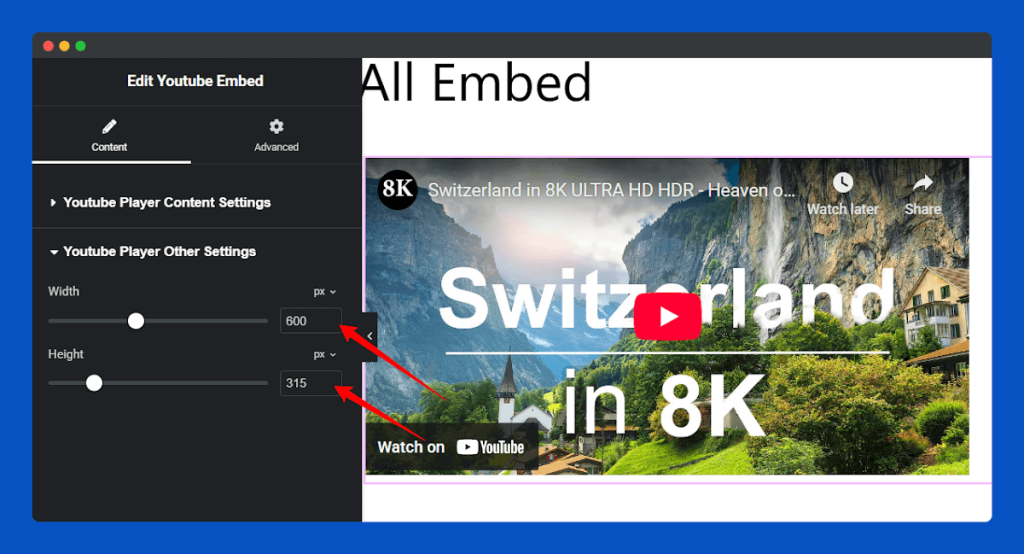
Publish & Go:
Finally, click on the Publish button to save the changes.
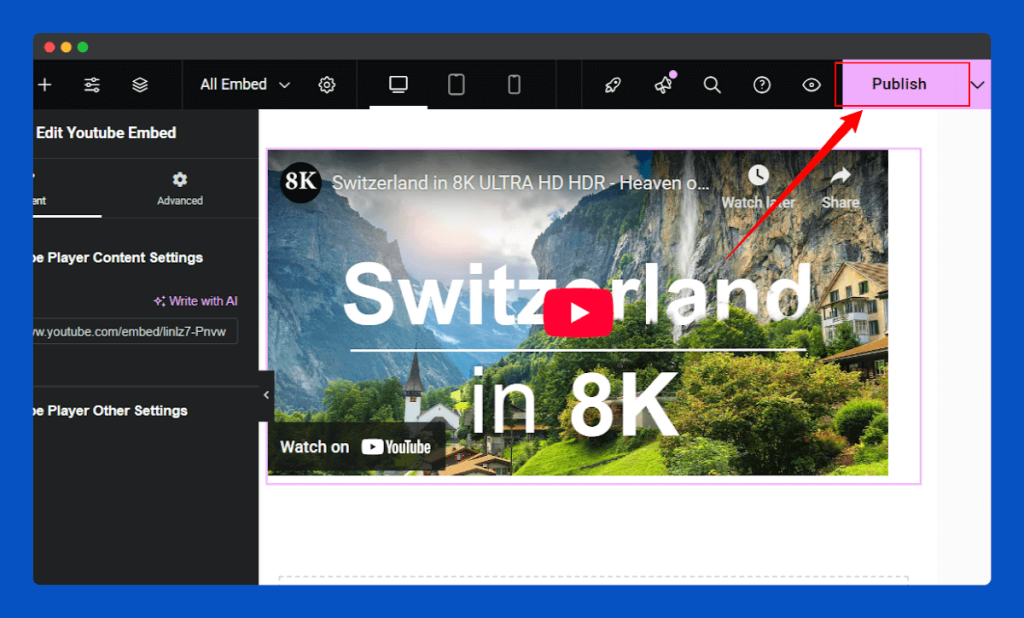
Now check the YouTube Video Section on your page.
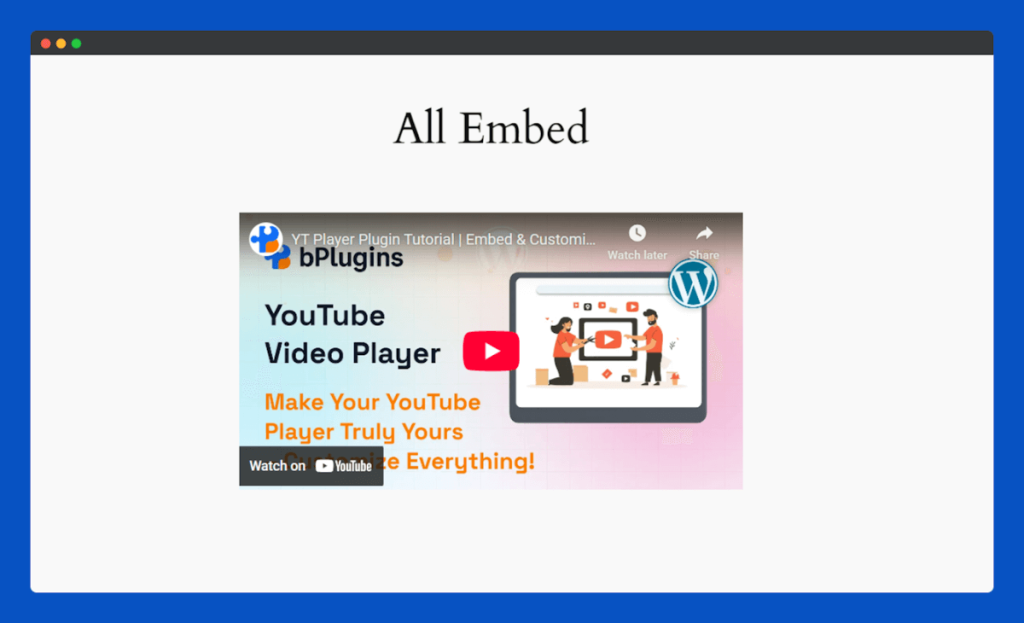
That’s it for the YouTube Embed widget for Elementor.
Vimeo Embed Widget
The Vimeo Embed widget enables you to display Vimeo videos seamlessly on your website. Share tutorials, promotional videos, portfolios, or creative projects in a sleek, responsive frame that blends perfectly with your site’s layout, delivering a smooth and professional viewing experience.
You can follow the steps below to use the Vimeo Embed.
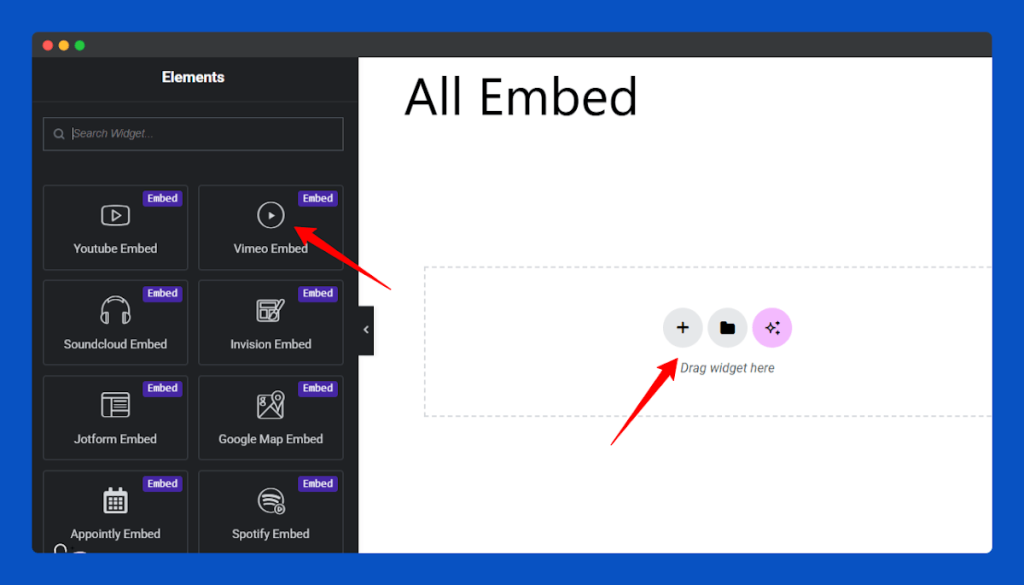
Add to the Page:
From the Elementor editor, find and select the Vimeo Embed widget and drop it into the section where the video should appear.
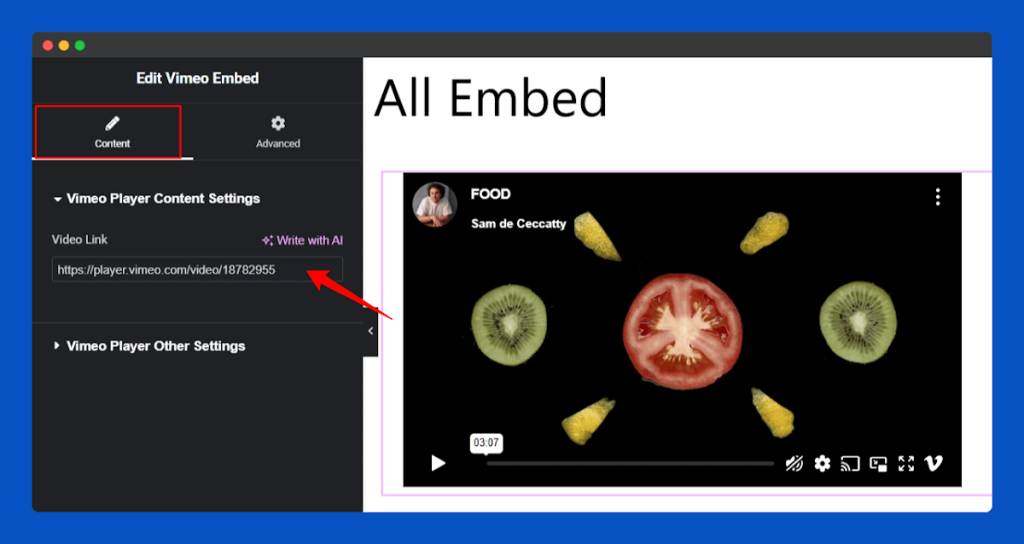
Insert Vimeo URL:
Go to the Content, section and insert your video URL in the video Link input field.
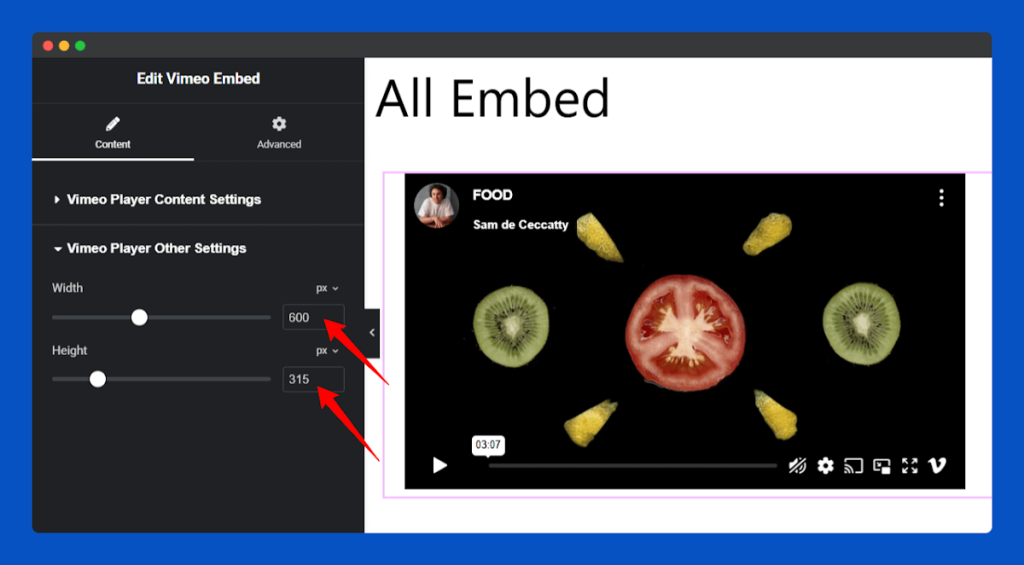
Customization:
Use the Vimeo Other Settings Section, in the Vimeo Player to modify the video’s width and height to suit your page layout.
Publish & Go:
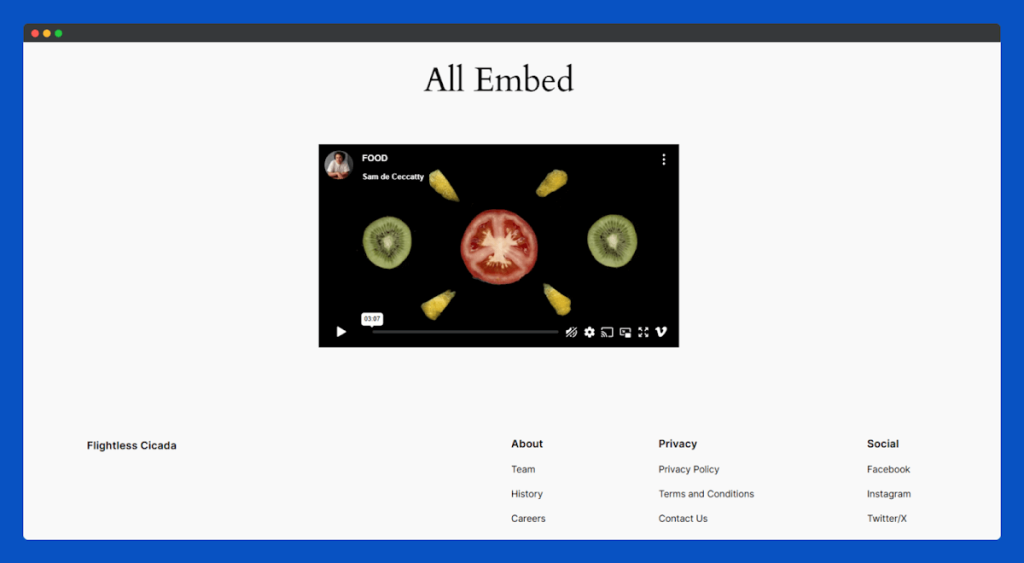
Finally, click on the Publish, and you will get a Vimeo Video Section for your page.
Check your page to see the embedded Vimeo video section.
That’s it for the Vimeo Embed widget for Elementor.
Google Map Embed Widget
The Google Map Embed widget in All Embed for Elementor helps you integrate interactive maps directly into your website. Whether you’re highlighting your business location, showcasing multiple branches, or guiding visitors to an event, this widget provides a seamless way to make your site more informative and user-friendly.
You can easily integrate Google Map following the steps of documentation of Google Map Embed.
Add to the Page:
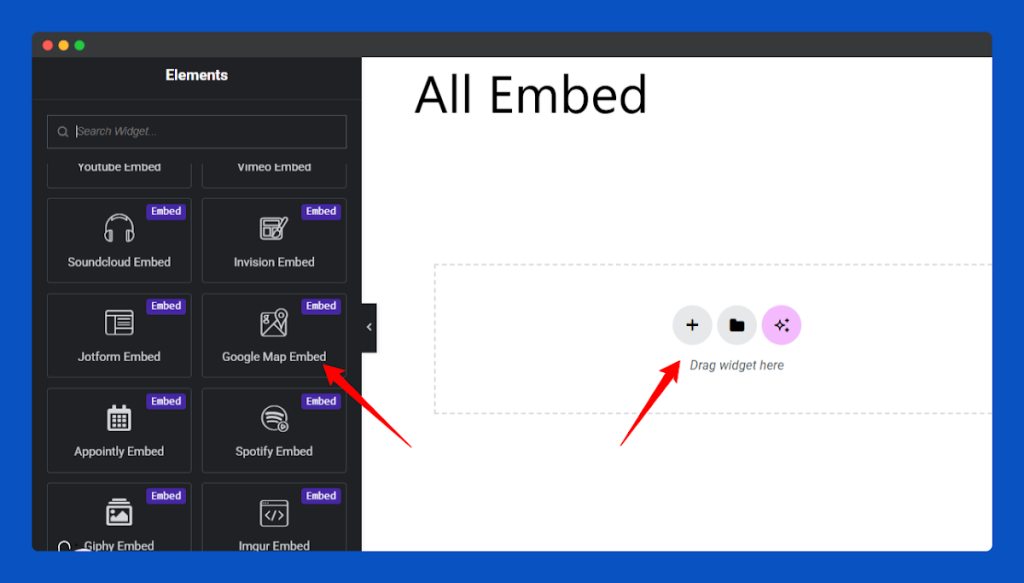
In the Elementor editor, find the Google Map Embed widget in the left panel. Drag and drop it into the section where you want your map to appear.
Insert Google Map Embed URL:
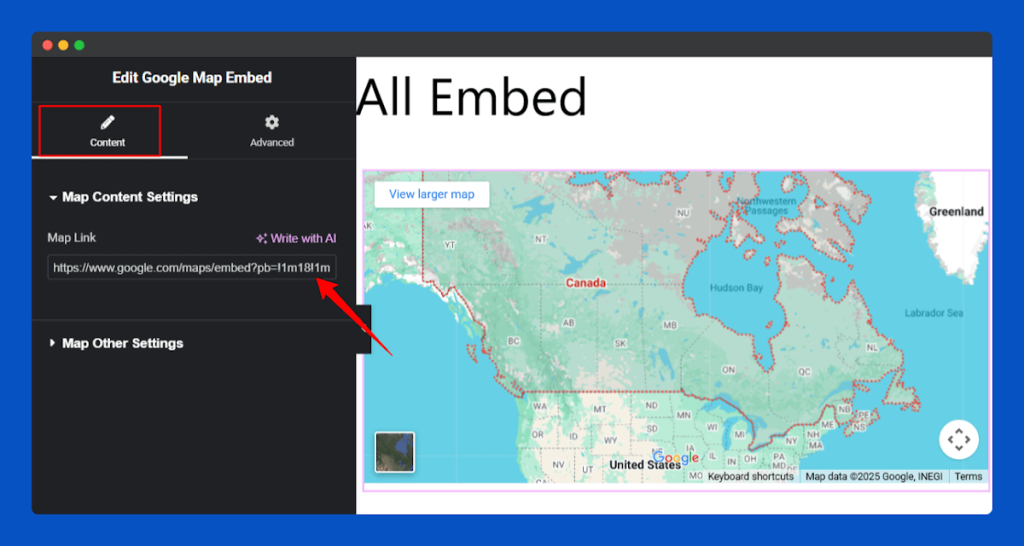
Enter your Google Maps embed link or location URL in the Map Link field under the Content section.
Customization:
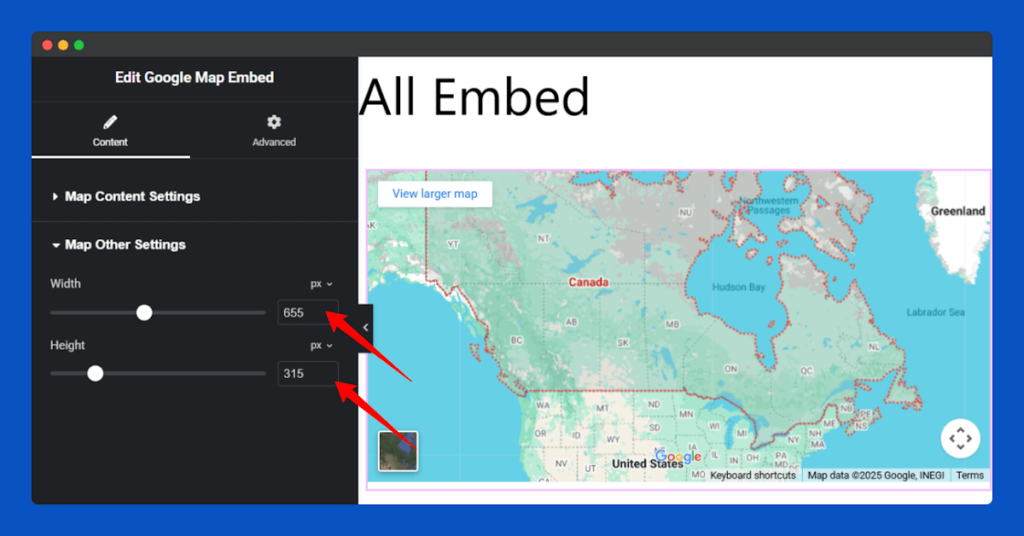
Customize the map height and width from the Map Other Settings section to match your website’s layout and design.
Publish & Go:
Finally, click on the Publish, and you will get a Map Section for your page.
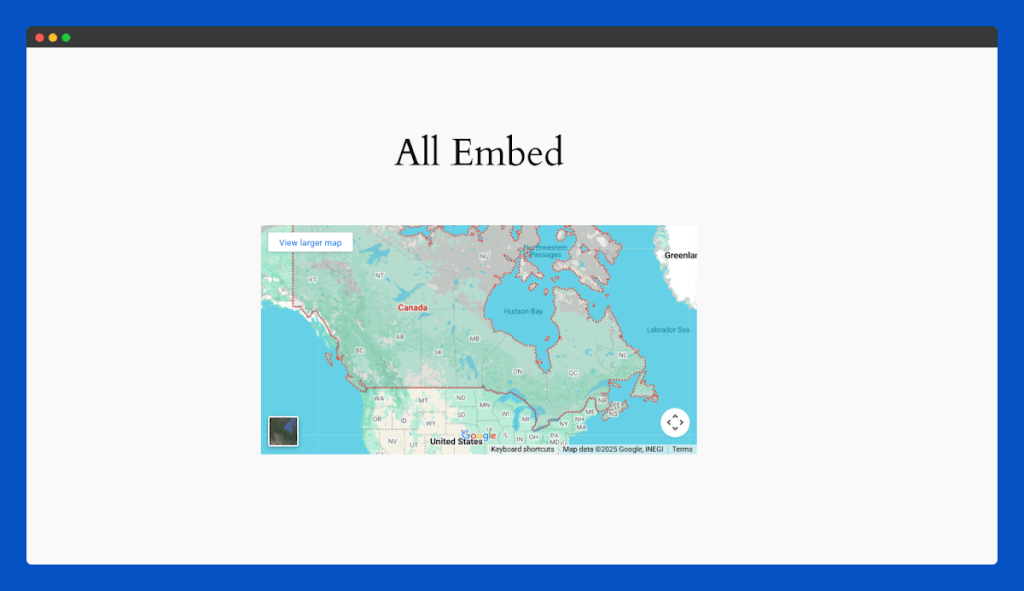
That’s it for the Google Map Embed widget for Elementor.
Facebook Embed Widget
The Facebook Embed widget of All Embed for Elementor helps you showcase authentic social interactions right on your website. Easily integrate public Facebook posts, videos, or updates to highlight what’s happening across your community or brand page.
Follow the guide in the steps of documentation to set up the Facebook Embed widget.
Add to the Page:
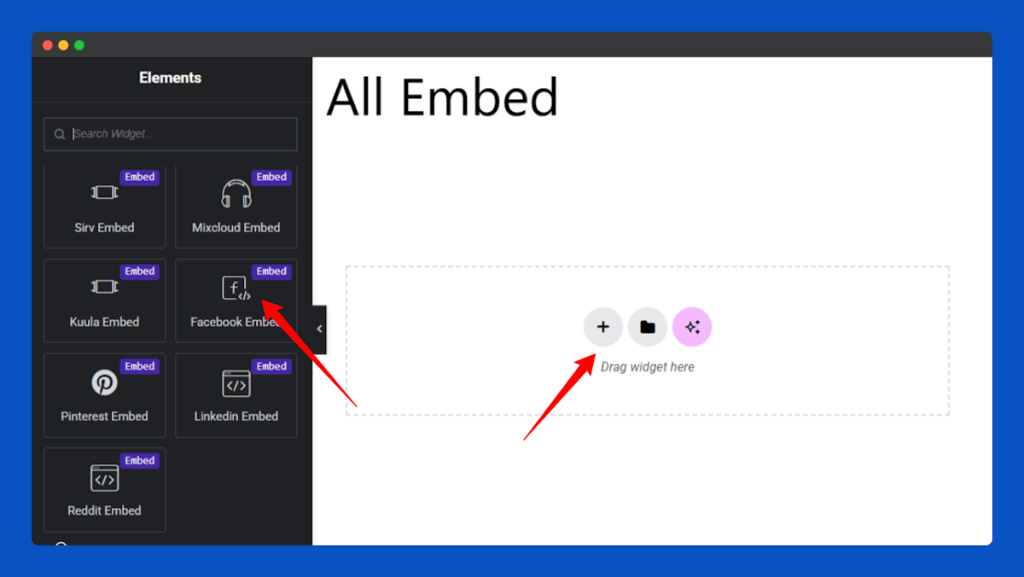
Open the Elementor editor and search for the Facebook Embed widget in the widget panel.
Drag it into the section where you want your Facebook content to appear.
Insert Facebook URL:
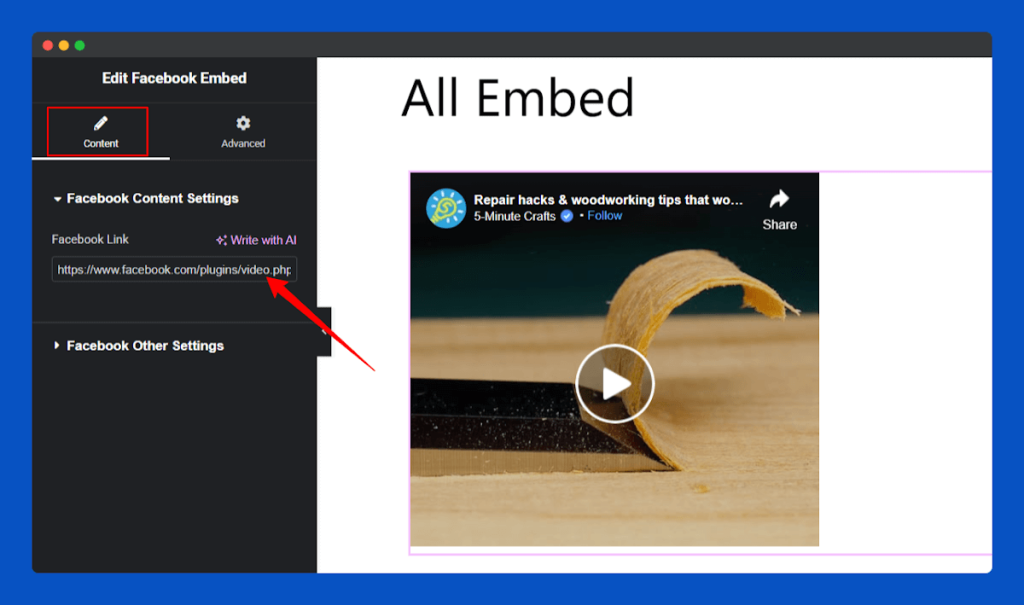
In the Content section, you can add your Facebook posts or videos embed link in the Facebook link input field.
Customization:
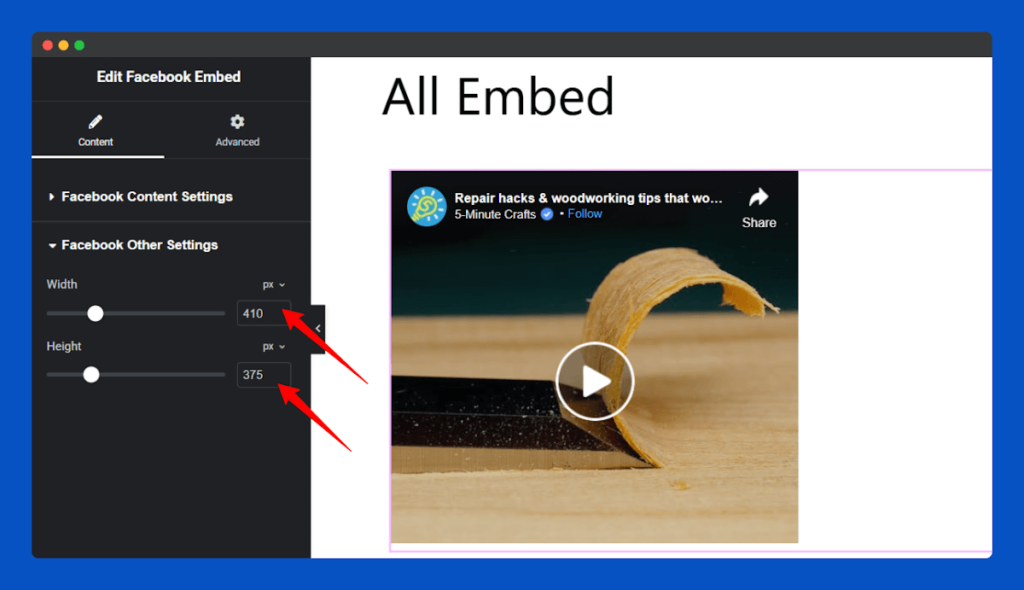
Adjust your Facebook post’s size by configuring the height and width in the Facebook Other Settings section.
Publish & Go:
After publishing, your page will display the integrated Facebook posts and videos section.
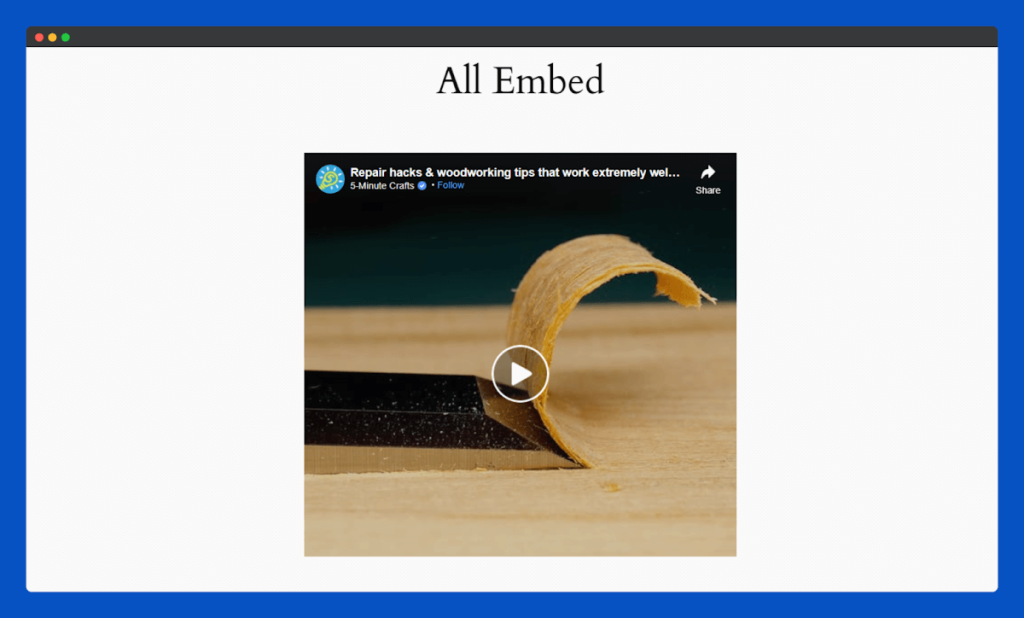
That’s it for the Facebook Embed widget for Elementor.
LinkedIn Embed Widget
The LinkedIn Embed widget in All Embed for Elementor lets you share professional updates, company news, or thought leadership posts directly on your website. By embedding LinkedIn content, you can showcase achievements, promote job opportunities, or share industry insights—all without leaving your site.
Read the documentation for an easy guide on how to set up the LinkedIn Embed widget.
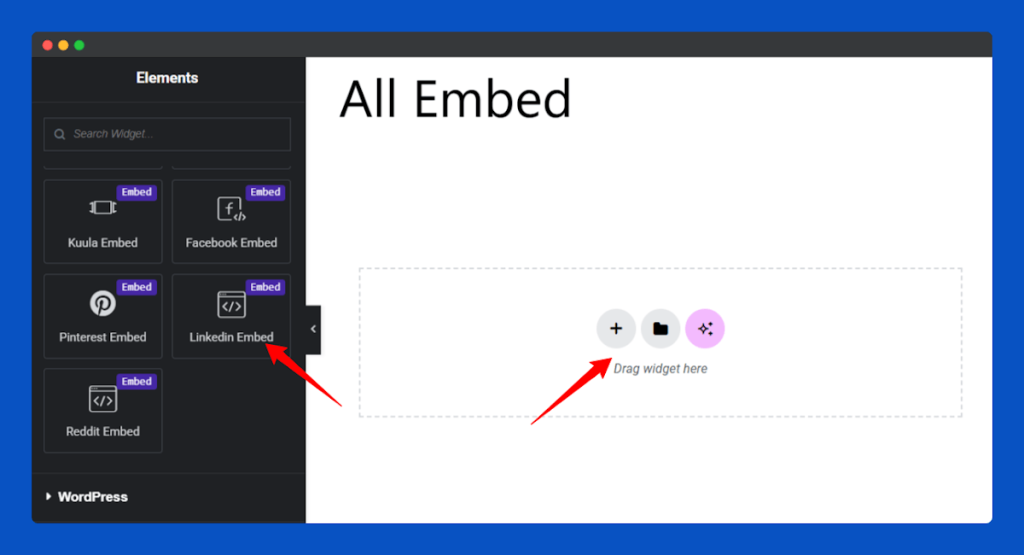
Add to the Page:
In the Elementor editor, find the LinkedIn Embed widget in the left widget panel. Drag and drop it into the section where you want the LinkedIn post to appear.
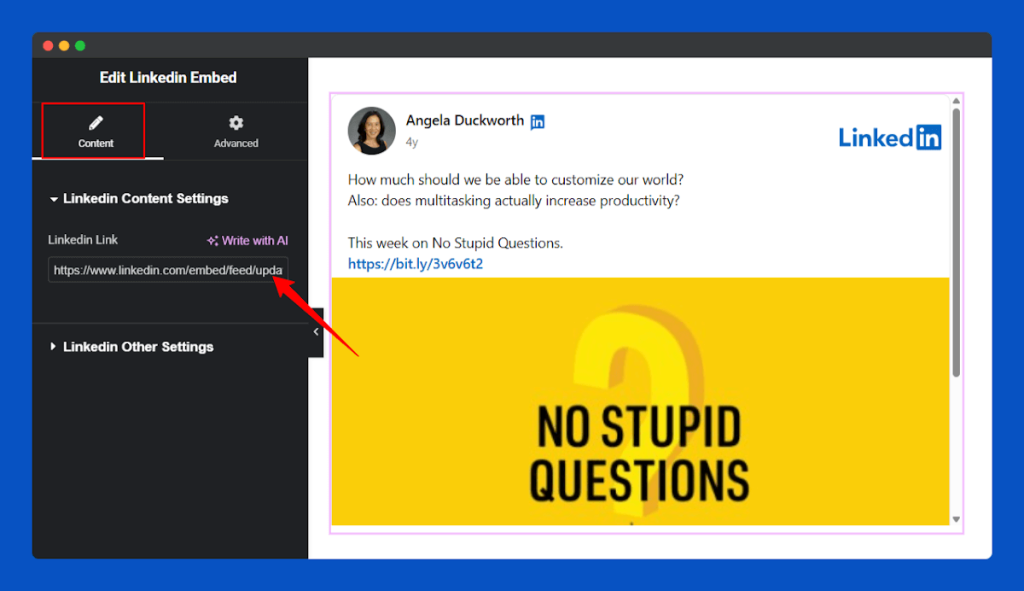
Insert LinkedIn URL:
Paste the link to your LinkedIn post in the Content Link field under the Content tab.
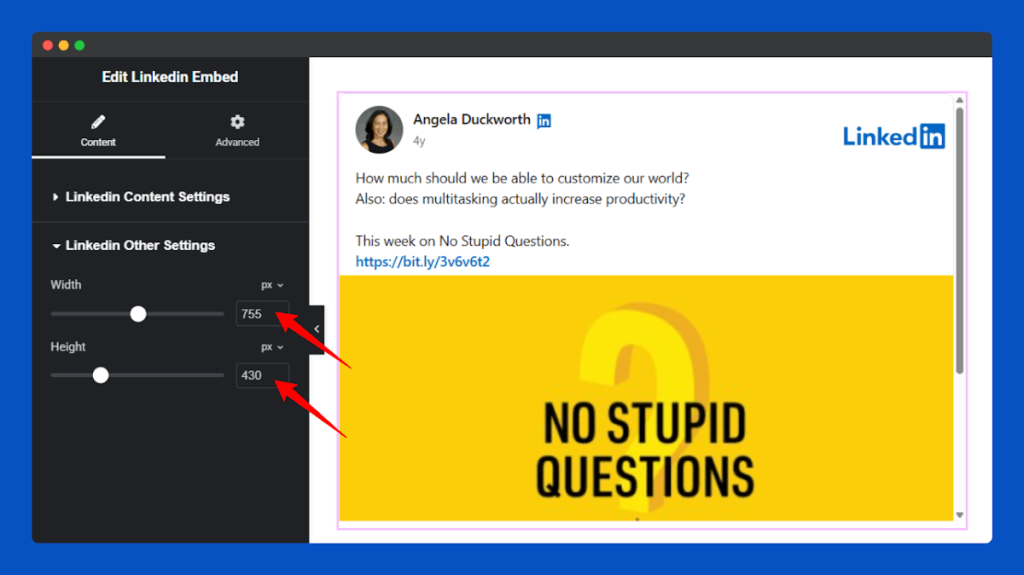
You can change the post height and width in the LinkedIn Other Settings section to adjust your layout.
Publish & Go:
Finally, click Publish, and the LinkedIn post will appear on your page.
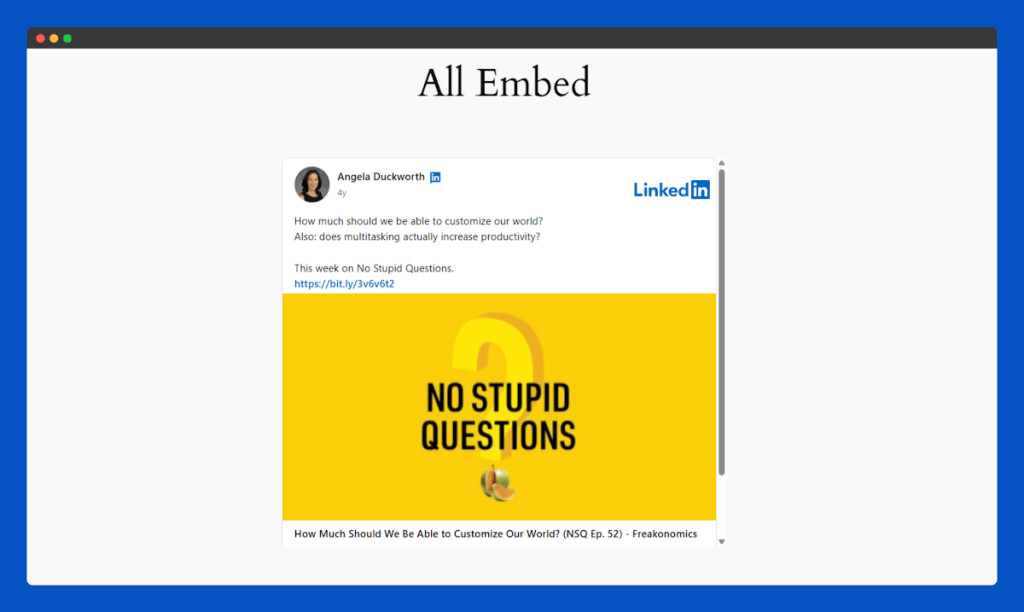
That’s it for the LinkedIn Embed widget for Elementor.
Pinterest Embed Widget
With the Pinterest Embed widget of All Embed for Elementor, you can display eye-catching pins and boards on your website with ease. Highlight creative ideas, trending designs, or curated collections to inspire your visitors. Perfect for blogs, portfolios, or eCommerce sites, this widget helps your content stand out with a visually rich and engaging layout.
Check the documentation for a simple guide on setting up and customizing your Pinterest Embed widget.
Add to the Page:
Open the widget panel in Elementor, find and select Pinterest Embed, and drag and drop it to the desired part of your page.
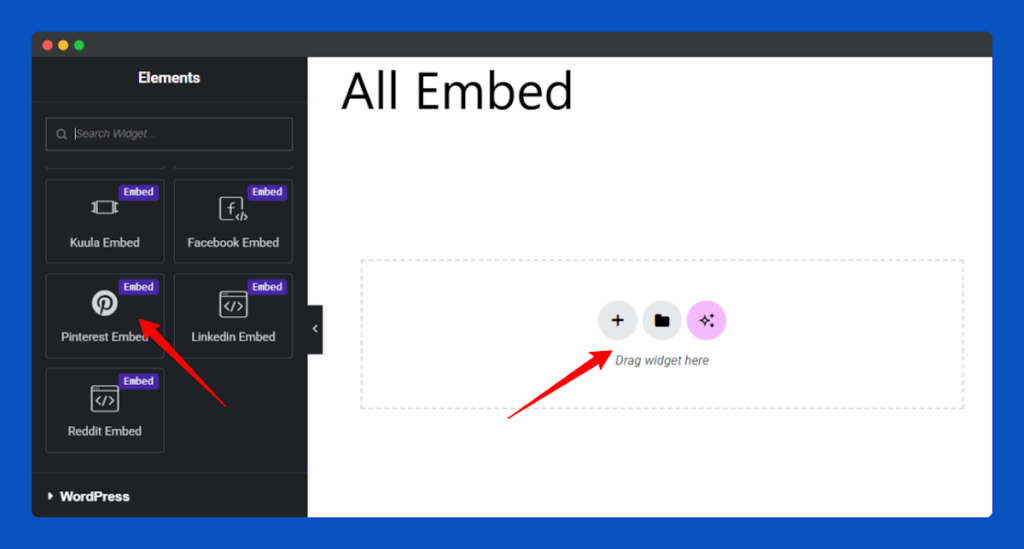
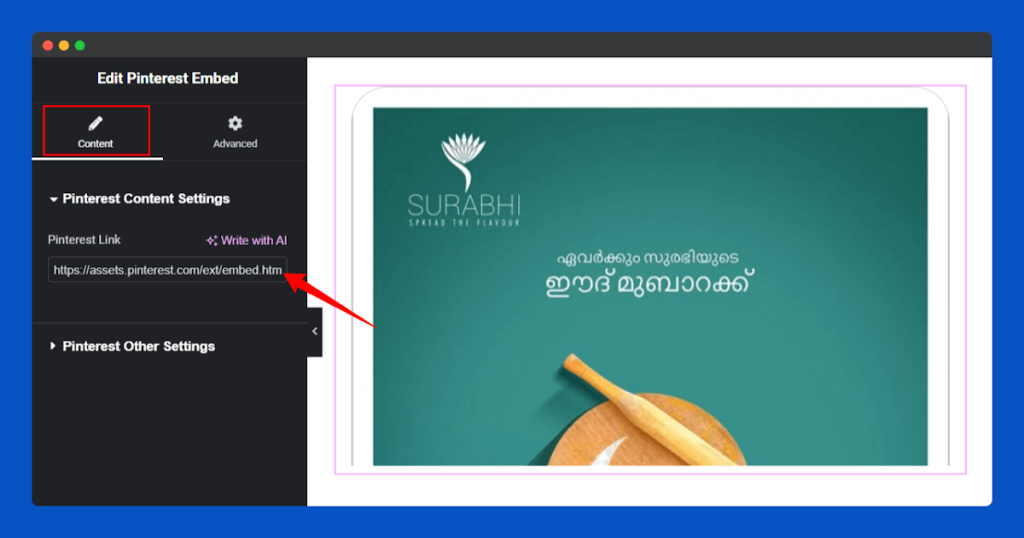
Insert Pinterest URL:
Insert the Pinterest post link under the Content section to show it on your site.
Adjust the layout, width and height from the Pinterest Other Settings section to make it blend perfectly with your site design.
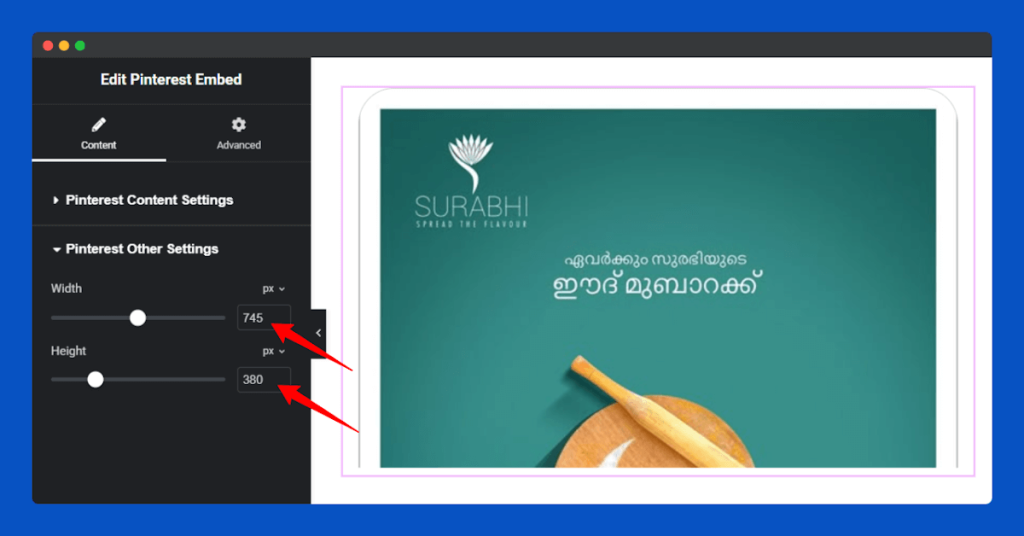
Publish & Go:
Finally, Publish your page to showcase the Pinterest posts section in action.
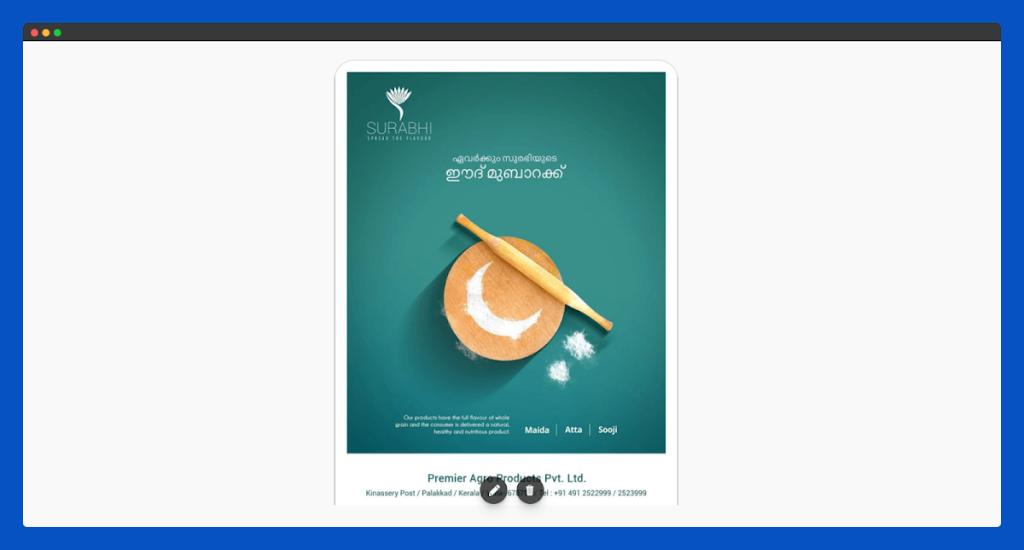
That’s it for the Pinterest Embed widget for Elementor.
Reddit Embed Widget
The Reddit Embed widget allows you to embed live Reddit posts into your website effortlessly. Share trending discussions, user stories, or popular content from Reddit and make your site feel more interactive. This widget helps your visitors explore conversations and topics that matter, creating a lively, community-focused experience.
Check the full documentation for settings and customization options to make your Reddit embeds stand out even more.
Add to the Page:
In the Elementor editor, find the Reddit Embed widget in the left panel. Drag and drop it into the section where you want the Reddit post to appear.
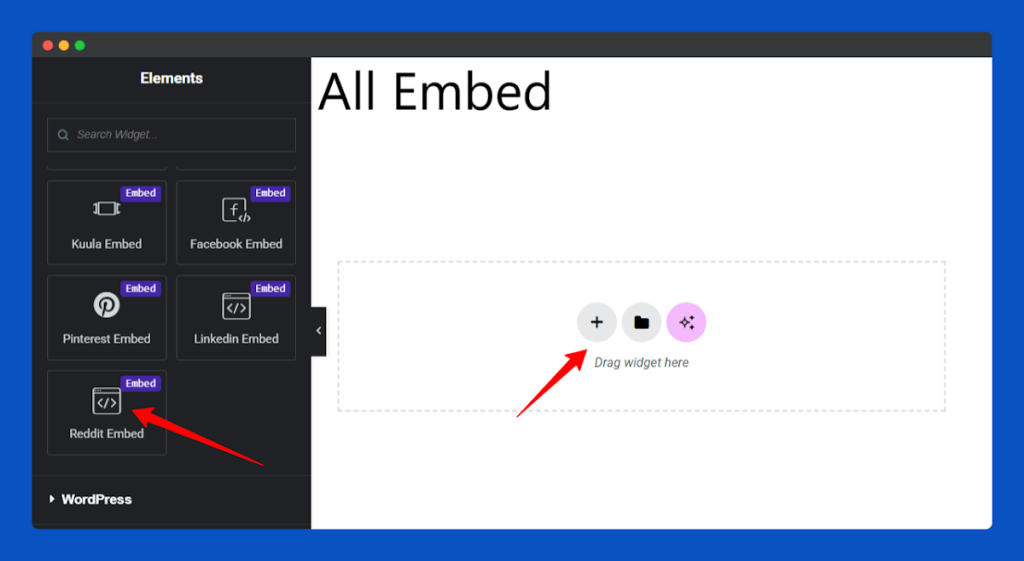
Insert Reddit URL:
Paste the link to the Reddit post or thread in the Content Link field under the Content tab.

Adjust the size of your Reddit post by modifying the height and width in the Reddit Other Settings section.

Publish & Go:
After publishing, your Reddit post section will be fully integrated into your page layout.
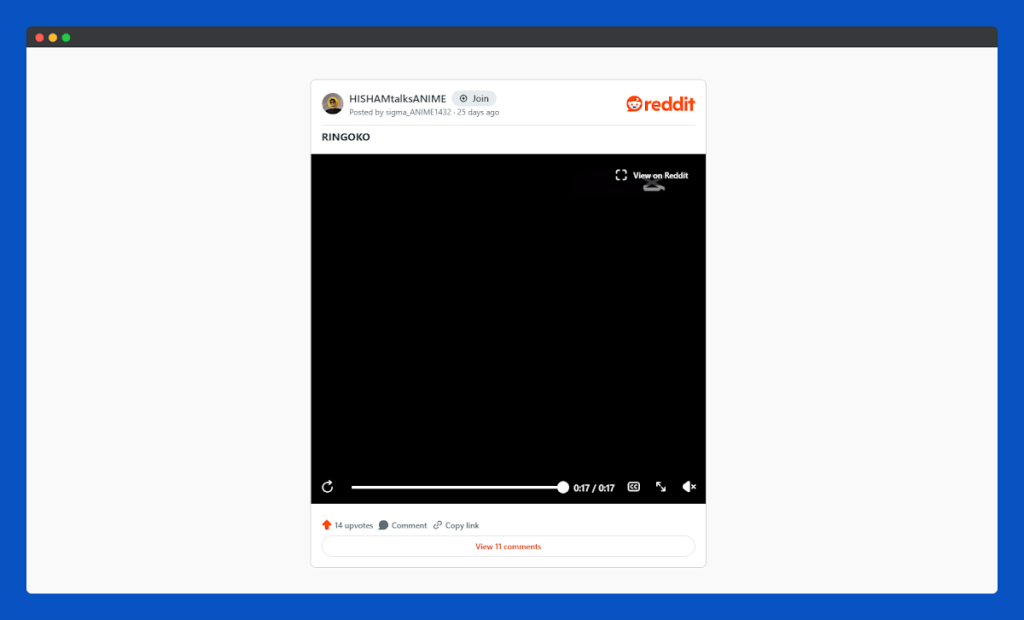
That’s it for the Reddit Embed widget for Elementor.
Twitframe Embed Widget
The Twitframe Embed widget lets you display Twitter content directly on your website with ease. Bring trending tweets, important updates, or engaging threads to your visitors in a visually appealing way. This widget is perfect for blogs, news sites, or communities that want to showcase live social media interactions and keep their pages lively.
See the full documentation to explore settings and make your Reddit embeds look even better.
Add to the Page:
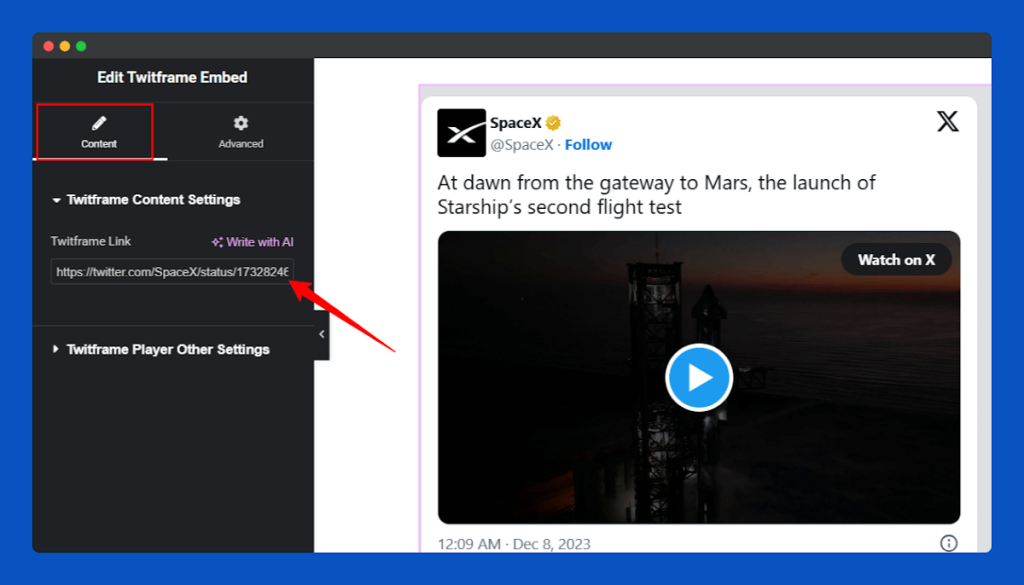
In the Elementor editor, find the Twitframe Embed widget in the left panel. Drag and drop it into the section where you want the tweet to appear.
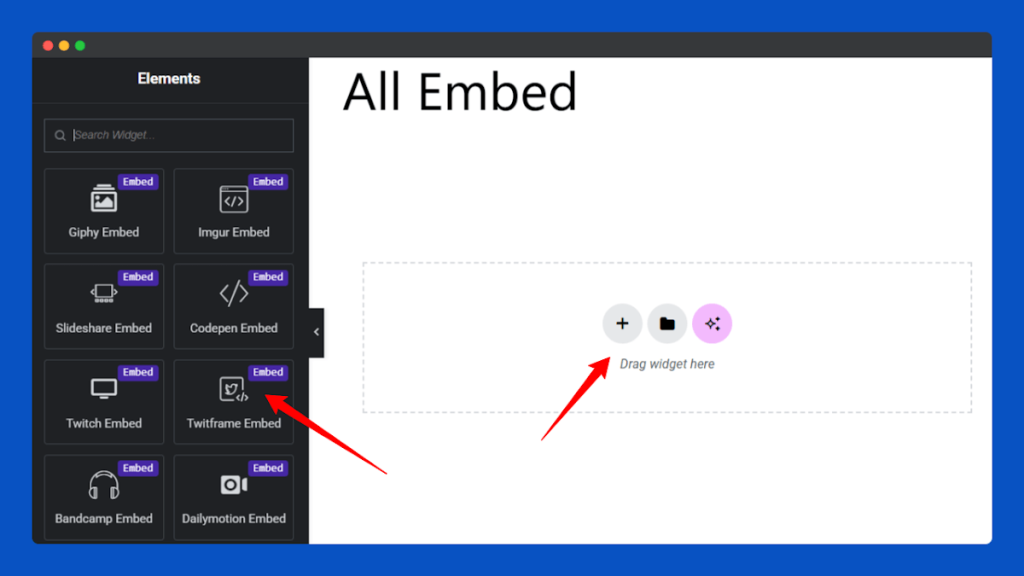
Insert Twitframe URL:
Paste the link to the tweet or thread into the Content Link field under the Content tab.
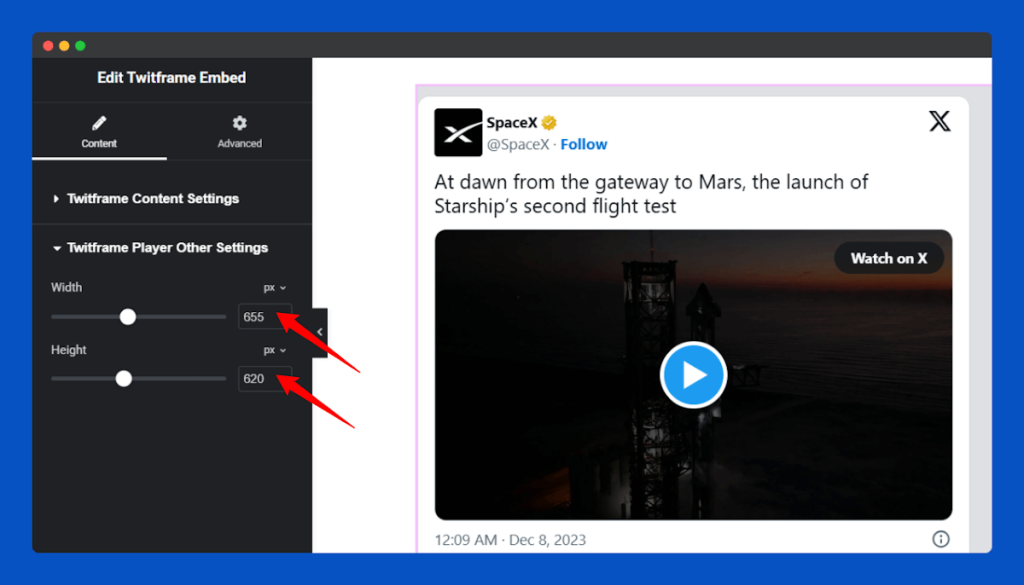
You can set custom height and width for your tweet in the Twitframe Other Settings section.
Publish & Go:
Click on the Publish, and your Twitter content will be added to the chosen section of your page.
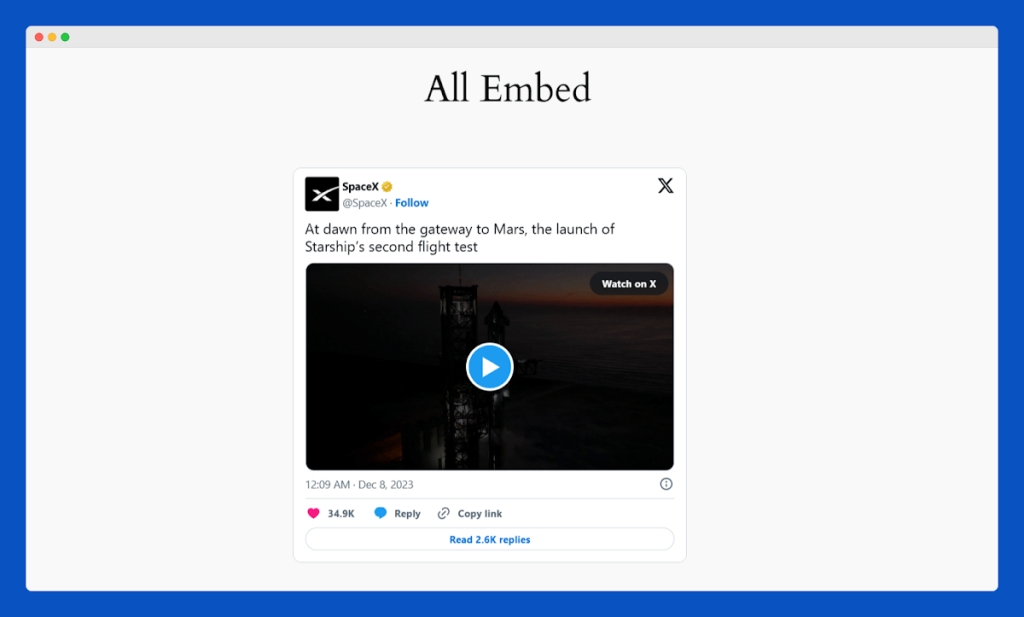
That’s it for the Twitframe Embed widget for Elementor.
Kuula Embed Widget
The Kuula Embed widget allows you to bring interactive 360° photos and virtual tours directly to your website. With this widget, you can showcase immersive experiences, such as real estate tours, travel destinations, or product demonstrations, making your site more engaging and visually dynamic.
Check the documentation for detailed instructions on using the Kuula Embed widget.
Add to the Page:
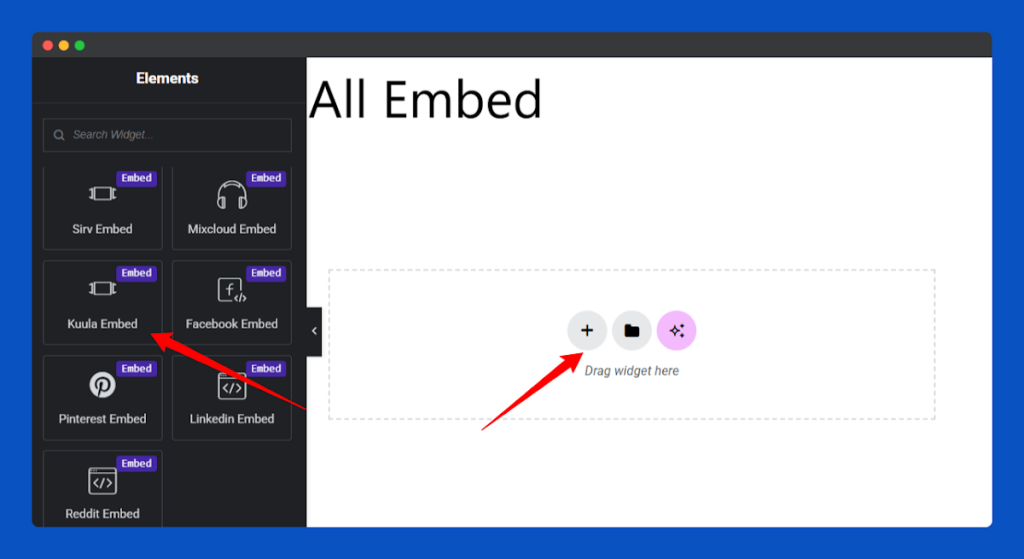
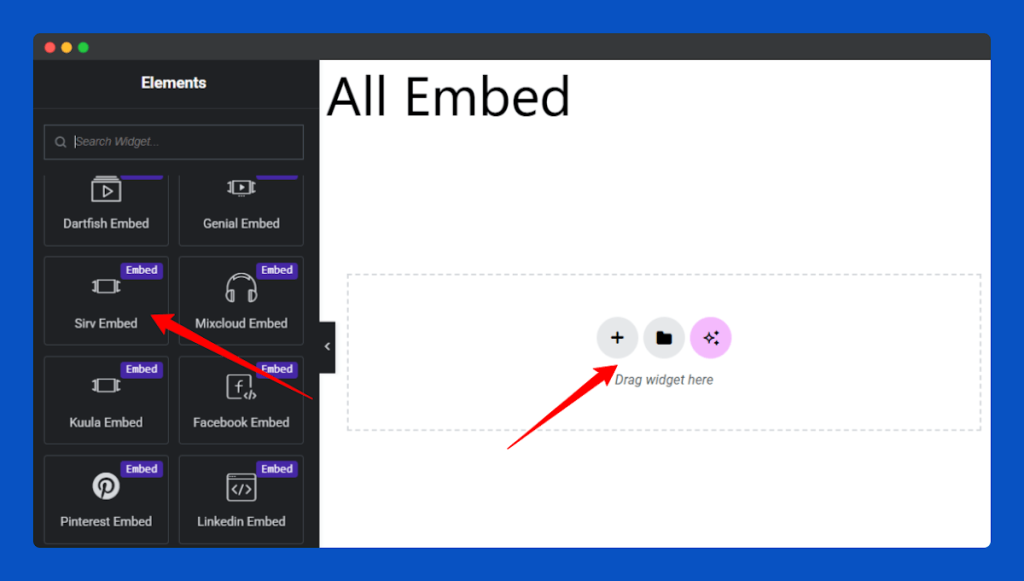
In the Elementor editor, find the Kuula Embed widget in the left panel. Drag it into the section where you want the 360° content to appear.
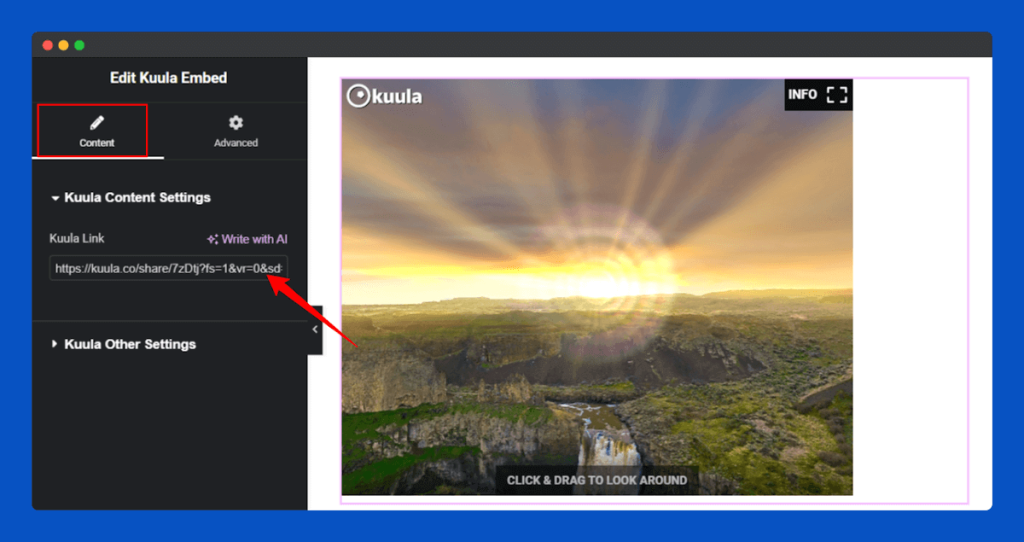
Insert Kuula URL:
Use the Content tab to insert your Kuula link so the 360° content appears on your page.
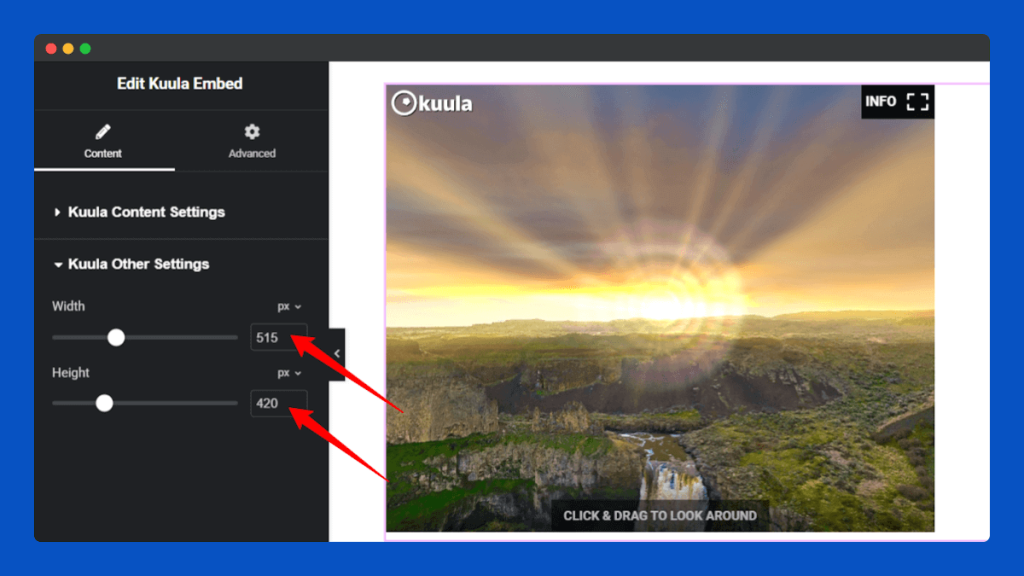
Customize how your Kuula content appears by setting its height and width in the Kuula Other Settings tab.
Publish & Go:
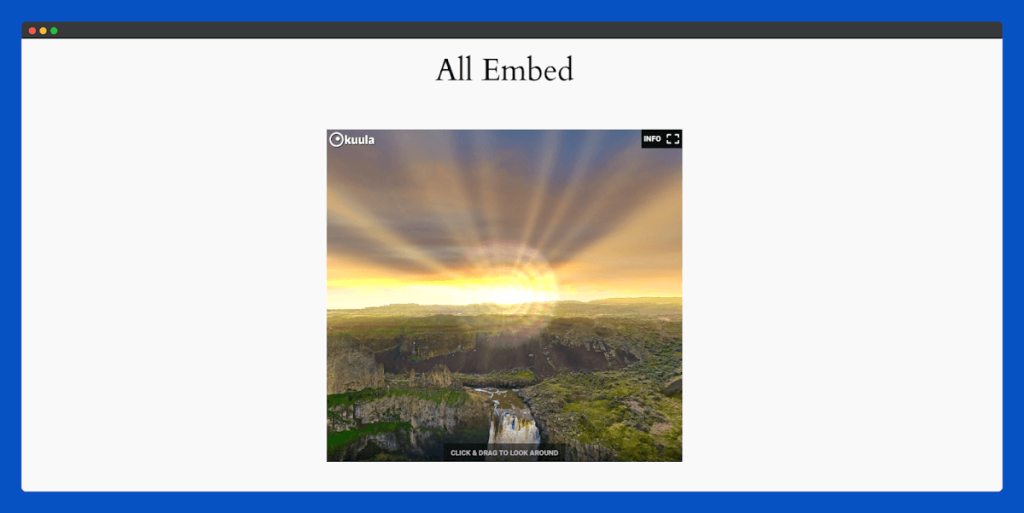
Click on Publish, your Kuula embeds will appear seamlessly for visitors to explore. No check the Kuula section on your page.
That’s it for the Kuula Embed widget for Elementor.
Sirv Embed Widget
The Sirv Embed widget allows you to display high-resolution images, 360° spins, and interactive media from Sirv directly on your website. With this widget, you can showcase product visuals, galleries, or interactive demos to make your site more engaging and visually appealing.
Follow the instructions in the documentation to add and configure Sirv content.
Add to the Page:
In the Elementor editor, find and select the Sirv Embed widget in the left panel. Drag and drop it into the section of your page where you want the content to appear.
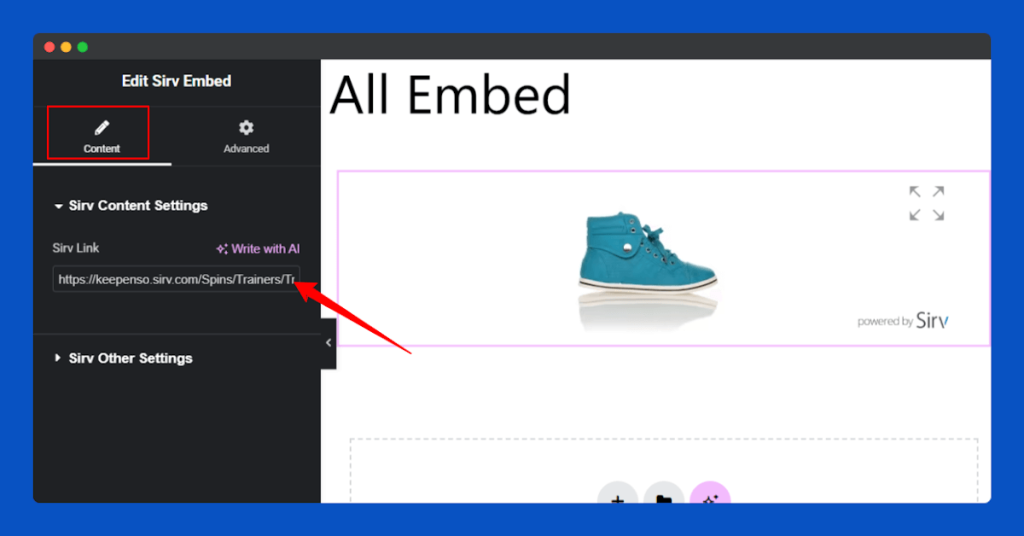
Insert Sirv URL:
Add the Sirv link in the Content section’s Content Link field to display your media.
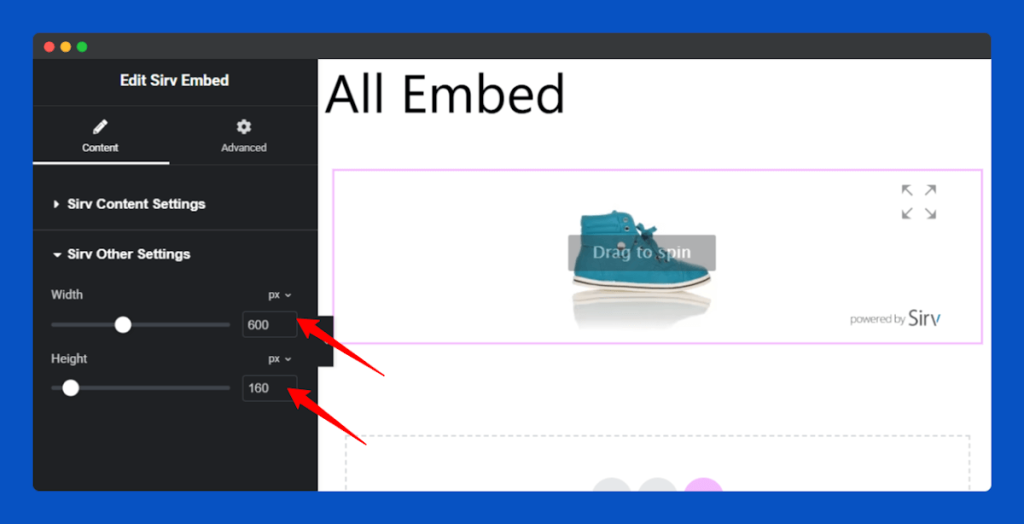
Adjust your Sirv embed dimensions by modifying the height and width options in the Sirv Other Settings section.
Publish & Go:
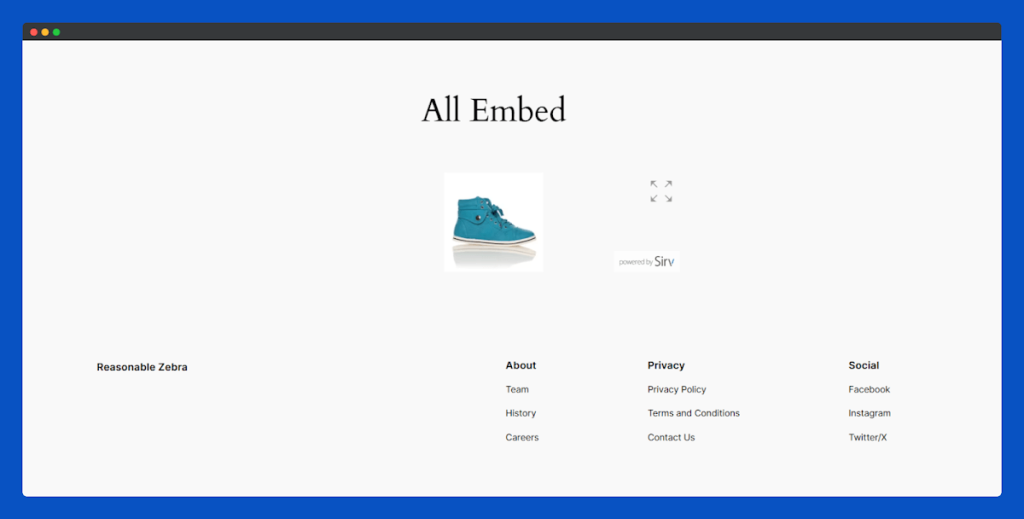
Finally, click on the Publish, and you will get a Sirv content Section for your page. Now navigate to your page and find the Sirv section on the page.
That’s it for the Sirv Embed widget for Elementor.
Slideshare Embed Widget
The Slideshare Embed widget allows you to display professional presentations, infographics, or slide decks from Slideshare directly on your website. Share business presentations, educational content, or creative slides to make your site more informative and interactive.
Follow the instructions in the documentation to showcase Slideshare slides on your site.
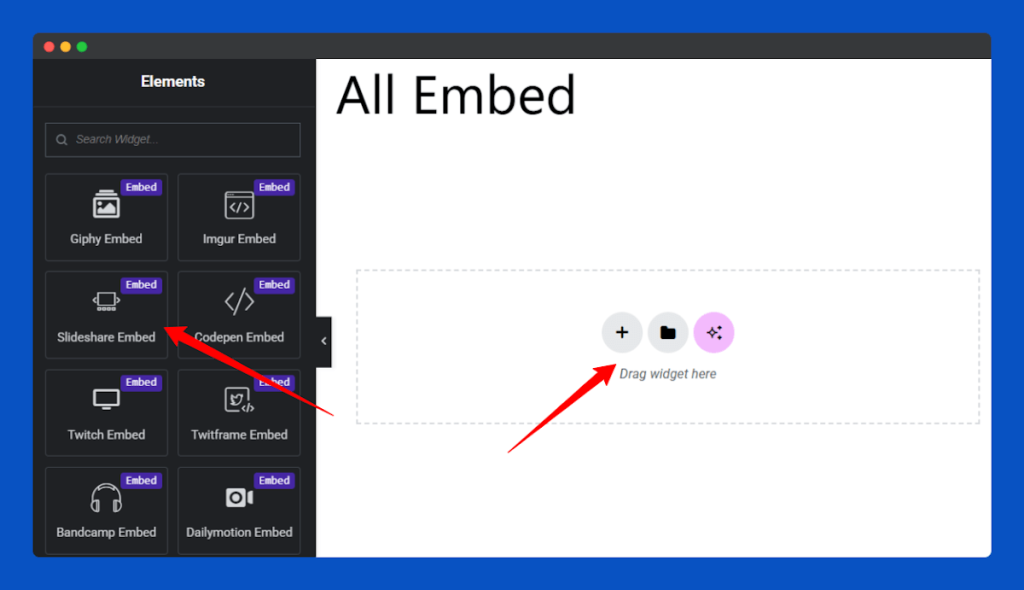
Add to the Page:
In the Elementor editor, find the Slideshare Embed widget in the left panel. Drag and drop it into the section where you want the Slideshare slide to appear.
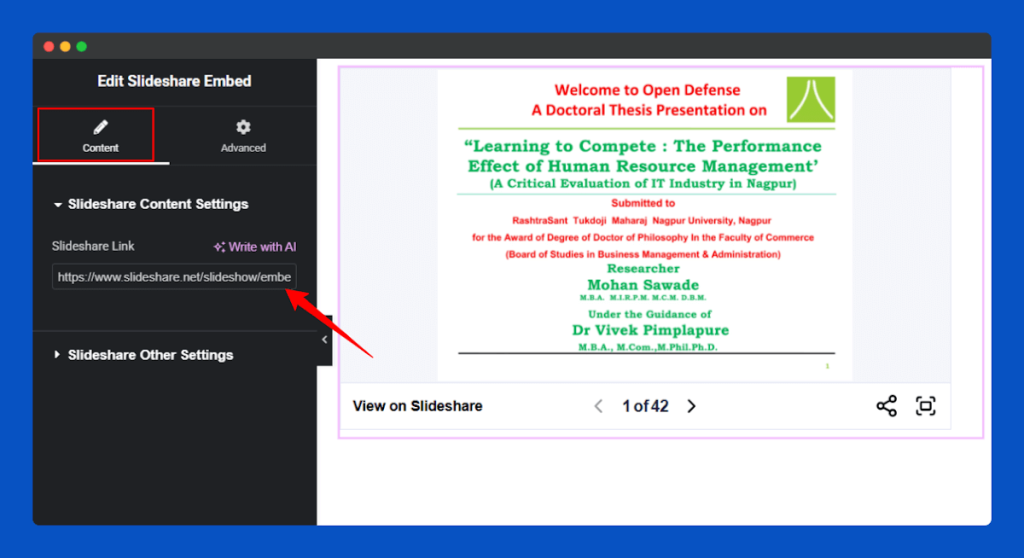
Insert Slideshare URL:
Paste the Slideshare link or embed code into the Content Link field under the Content tab.
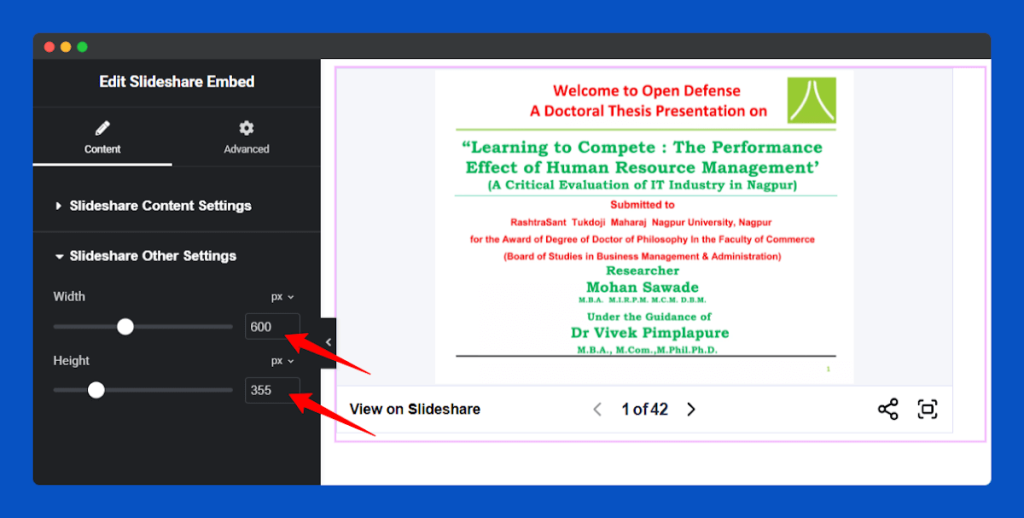
In the Slideshare Other Settings section, you can set your preferred height and width for a perfectly tailored display.
Publish & Go:
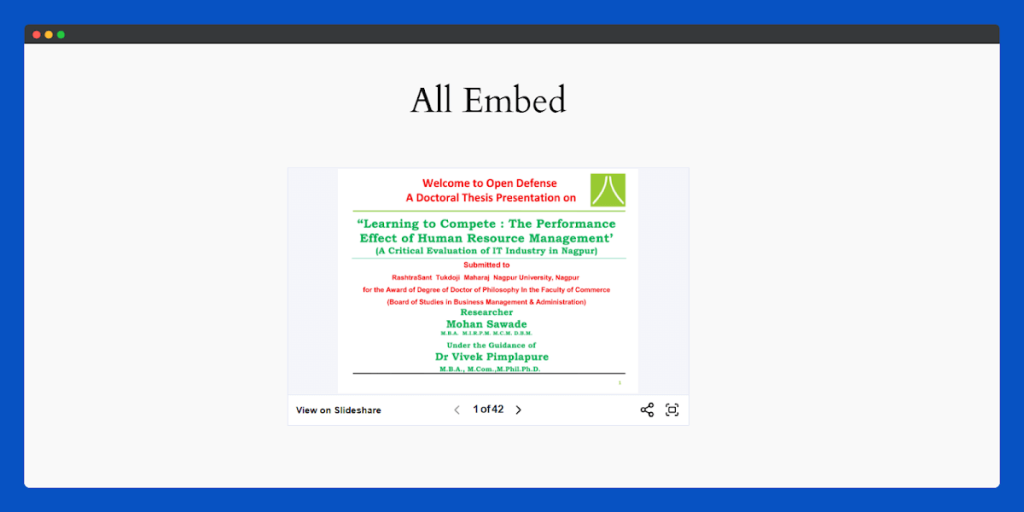
Click on the Publish to finalize, and your Slideshare embed will be visible on your site instantly.
That’s it for the Slideshare Embed widget for Elementor.
Genially Embed Widget
The Genially Embed widget lets you display interactive slides, infographics, and visual content from Genially right on your website. Share engaging presentations, creative visuals, or educational materials to make your pages more dynamic and visually captivating.
Follow the documentation for settings and customization options to make your Genially embeds stand out.
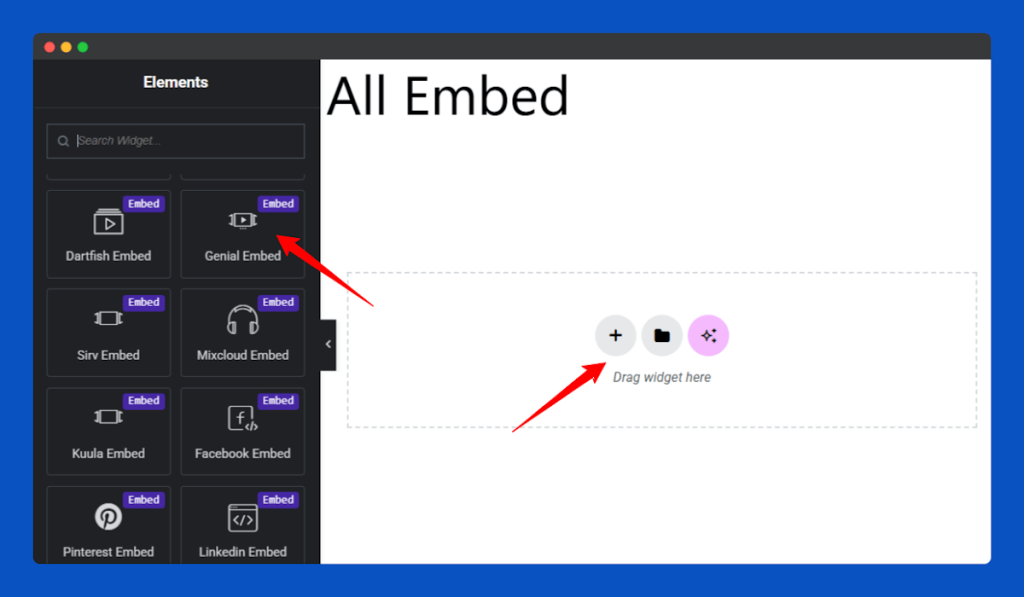
Add to the Page:
In Elementor’s left panel, choose the Genially Embed widget and drag it to the part of the page where you want the embedded slide.
Insert Genially URL:
Paste your Genially slide or embed link into the Content Link field under the Content tab.
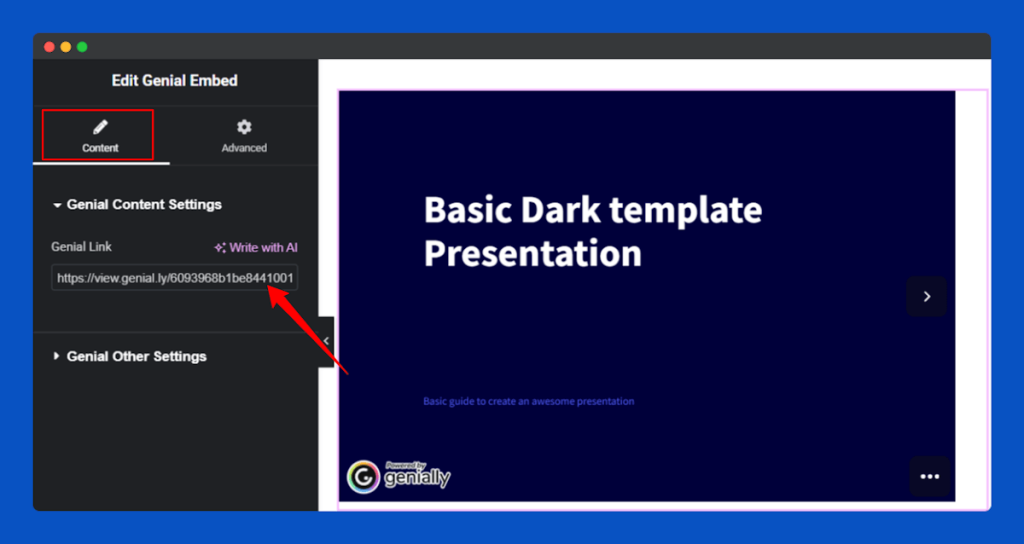
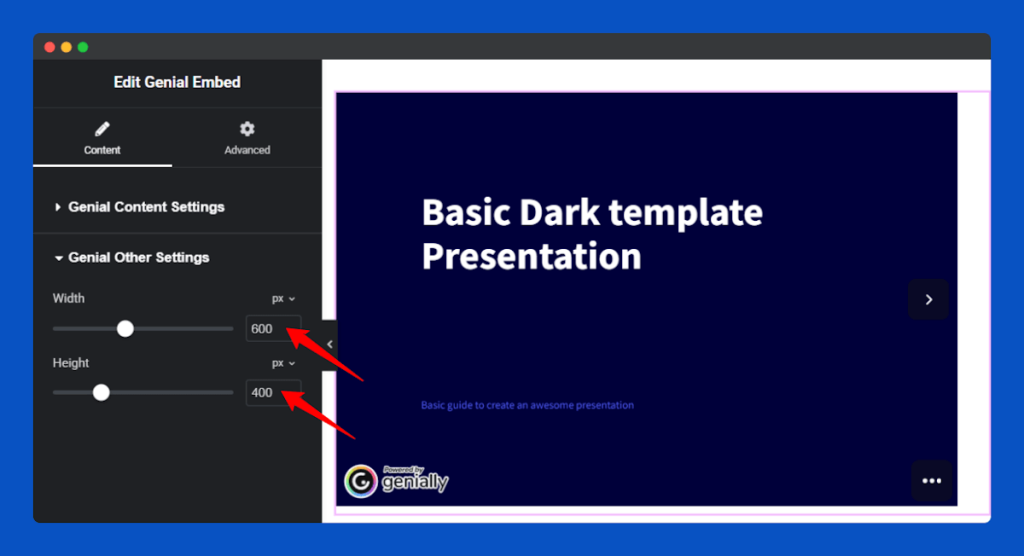
From the Genially Other Settings section, customize your slides’ dimensions to fit your page perfectly.
Publish & Go:
Finally, click on the Publish, and you will get a Genially slide Section for your page.
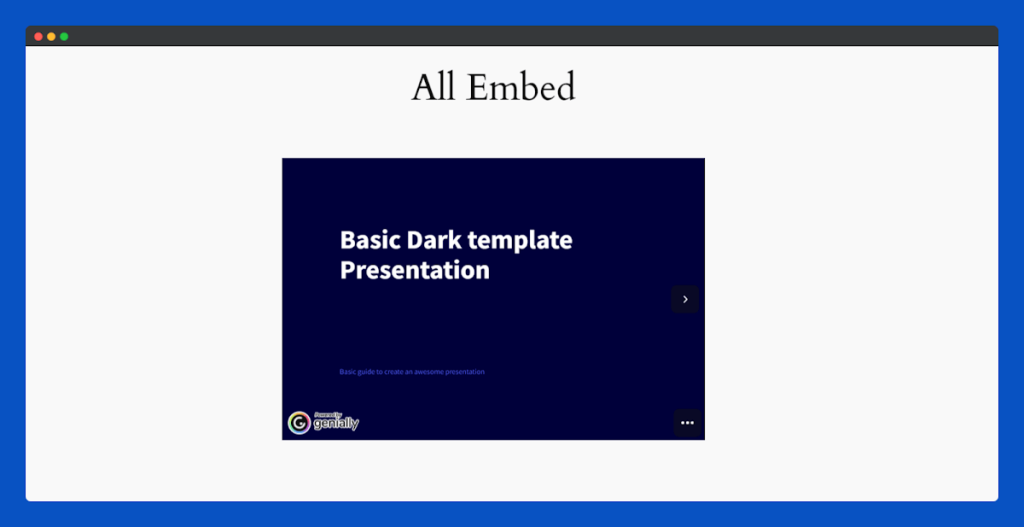
That’s it for the Genially Embed widget for Elementor.
Invision Embed Widget
The Invision Embed widget allows you to display interactive prototypes, design mockups, and collaborative projects from Invision directly on your website. Share your design workflows, clickable prototypes, or visual presentations to make your site more engaging and interactive.
Check the documentation to ensure your Invision embeds are displayed with a clean and professional look.
Add to the Page:
Select the Invision Embed widget from the left widget panel, then drag and drop it into your desired section on the page.
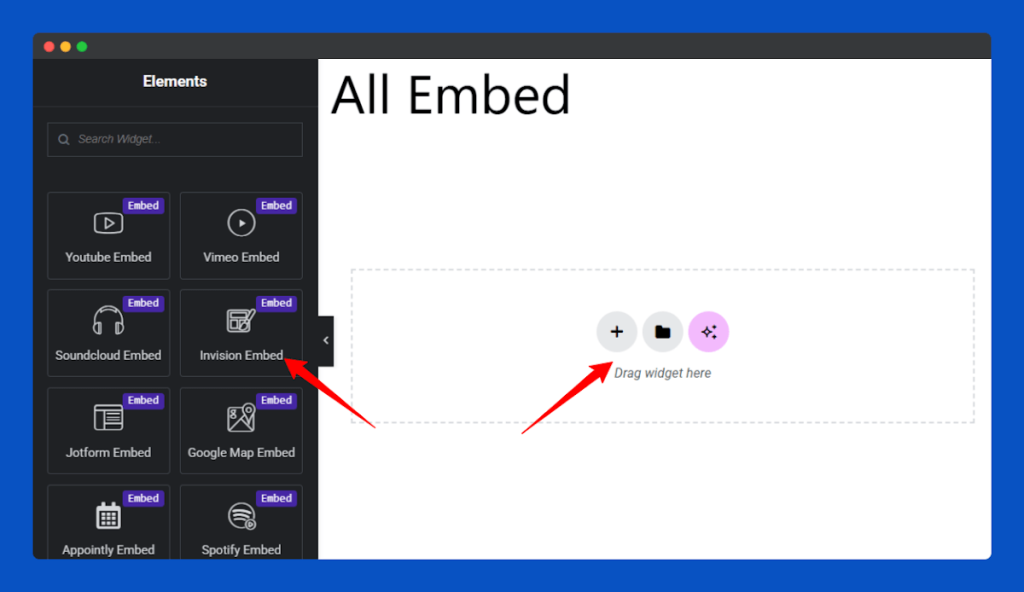
Insert Invision URL:
Paste the Invision embed link or project URL into the Content Link field under the Content tab.
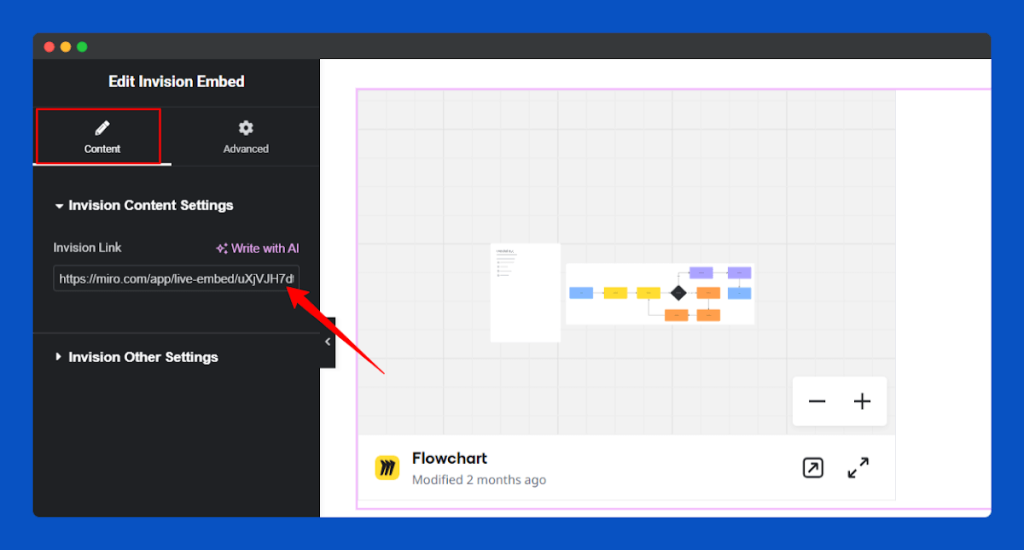
Customize the display size of your Invision content by adjusting height and width in the Invision Other Settings section.
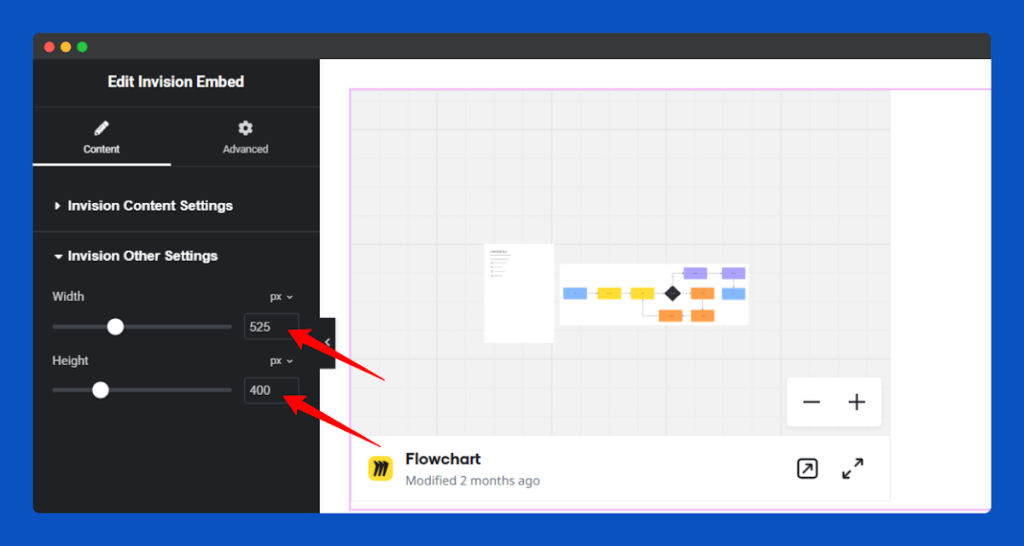
Publish & Go:
Click on the Publish, your Invision section will now be active and accessible on your page.
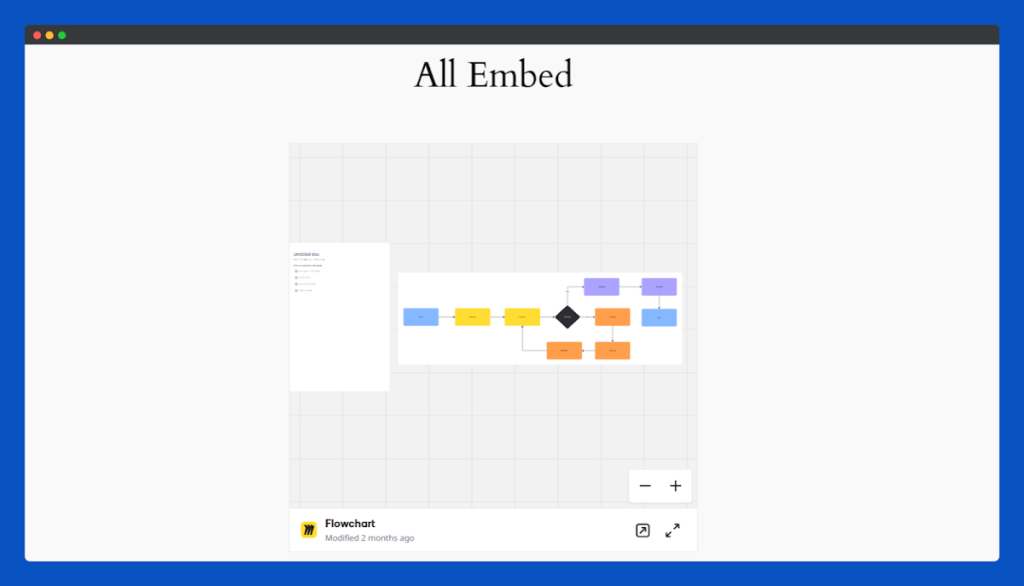
That’s it for the Invision Embed widget for Elementor.
Codepen Embed Widget
The Codepen Embed widget lets you showcase live HTML, CSS, and JavaScript code directly on your website. Share interactive code snippets, demos, or experiments with your visitors, making your pages more engaging and dynamic.
Follow the instructions in the documentation to showcase Codepen code professionally.
Add to the Page:
In the Elementor editor, find the Codepen Embed widget in the left panel. Drag and drop it into the section where you want the code to appear.
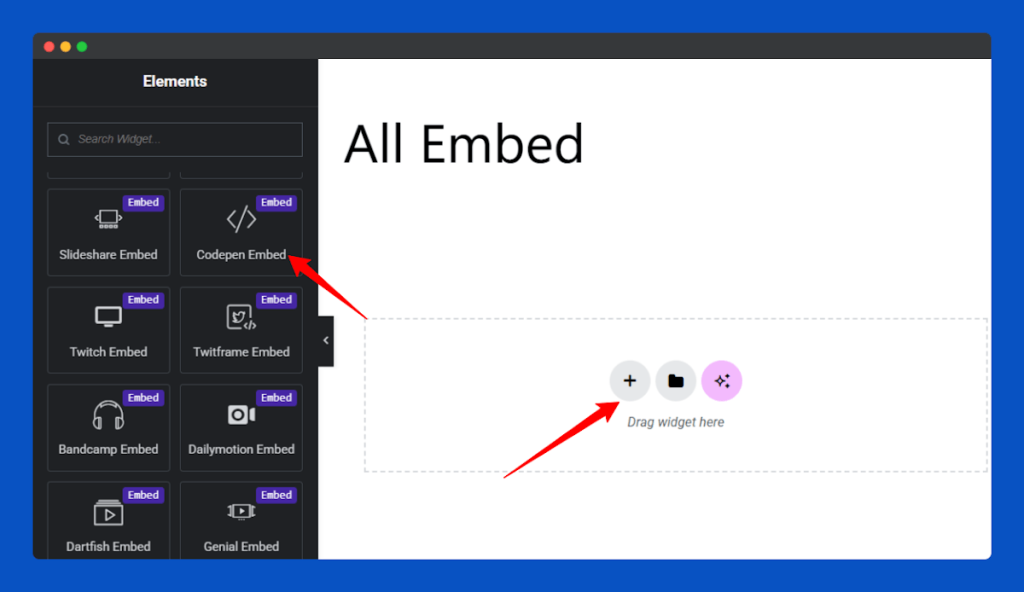
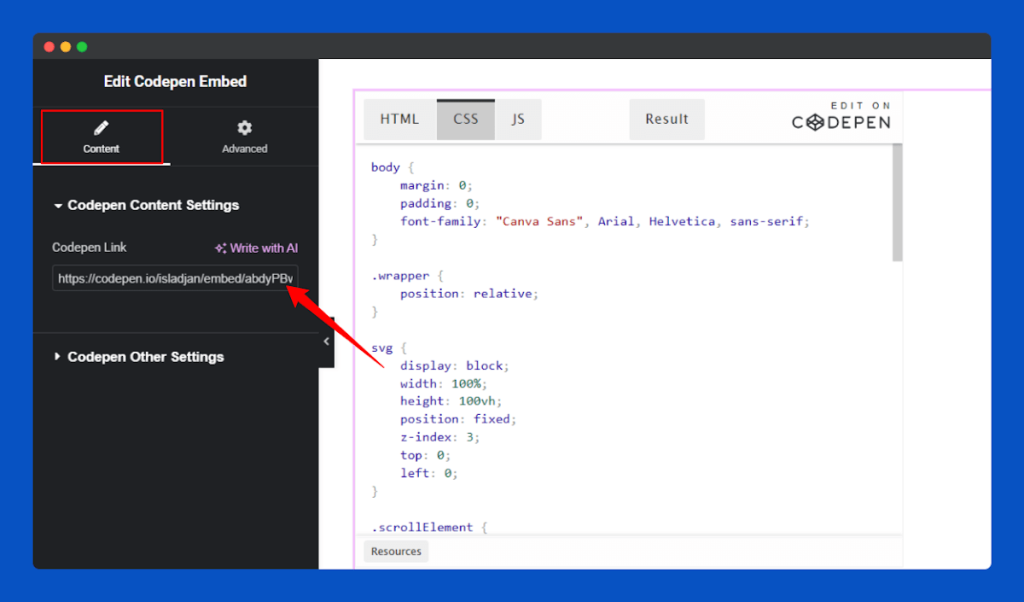
Insert Codepen URL:
Under the Content section, enter your Codepen link to display the code on your page.
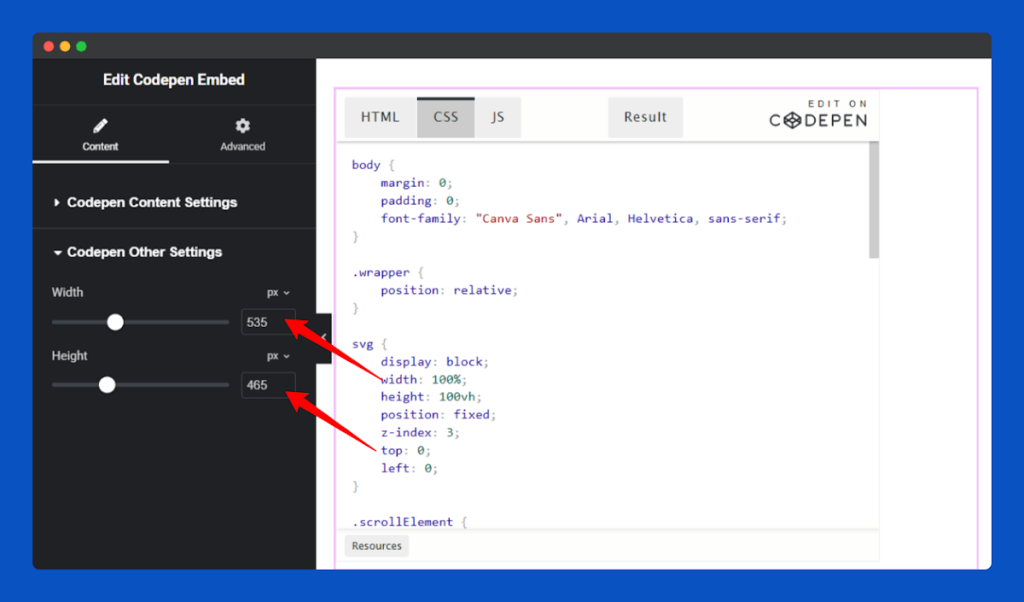
Control the size of your Codepen embed by modifying the height and width from the Codepen Other Settings section.
Publish & Go:
Click on the Publish, and your Codepen embed will be added to the selected section of your page
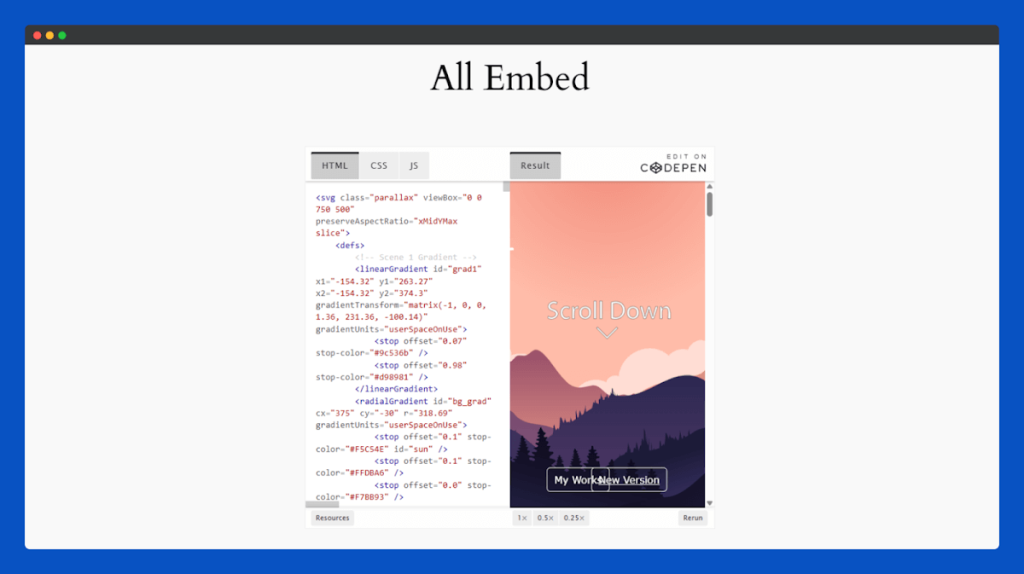
That’s it for the Codepen Embed widget for Elementor.
Appointly Embed Widget
The Appointly Embed widget lets you display appointment forms from Appointly directly on your website. Allow visitors to book appointments or schedule meetings seamlessly without leaving your site.
Follow the steps of the documentation to configure and enhance your Appointly embed on your site.
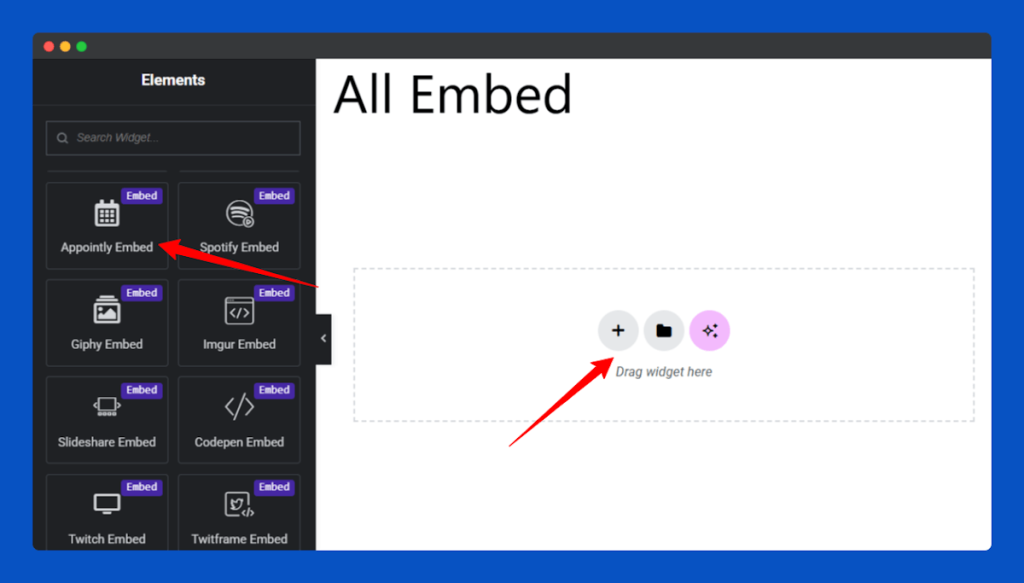
Add to the Page:
From the Elementor editor, select the Appointly Embed widget and place it in the area of the page where you want the form to appear
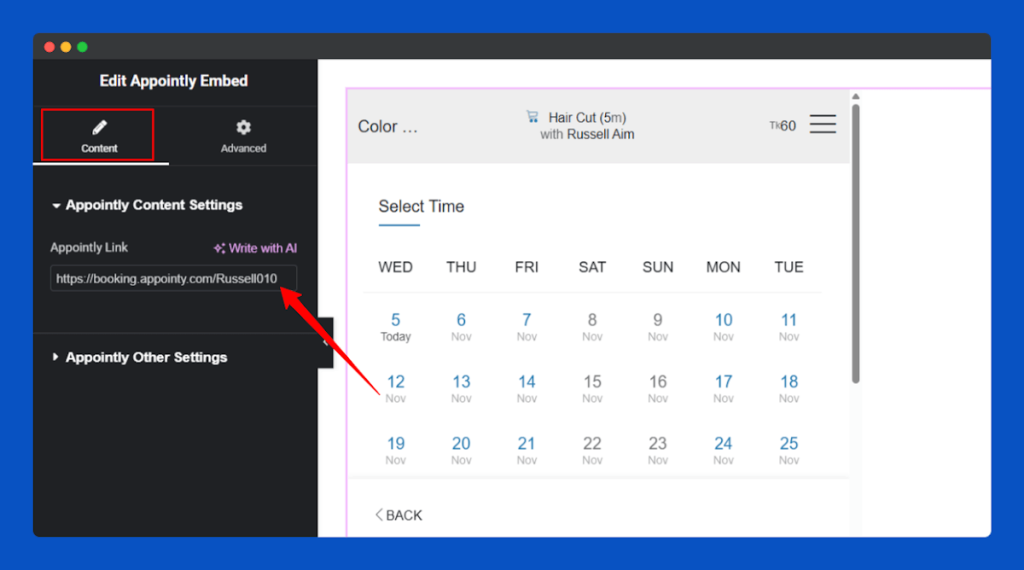
Insert Appointly URL:
Paste the Appointly form link or embed code into the Content Link field under the Content tab.
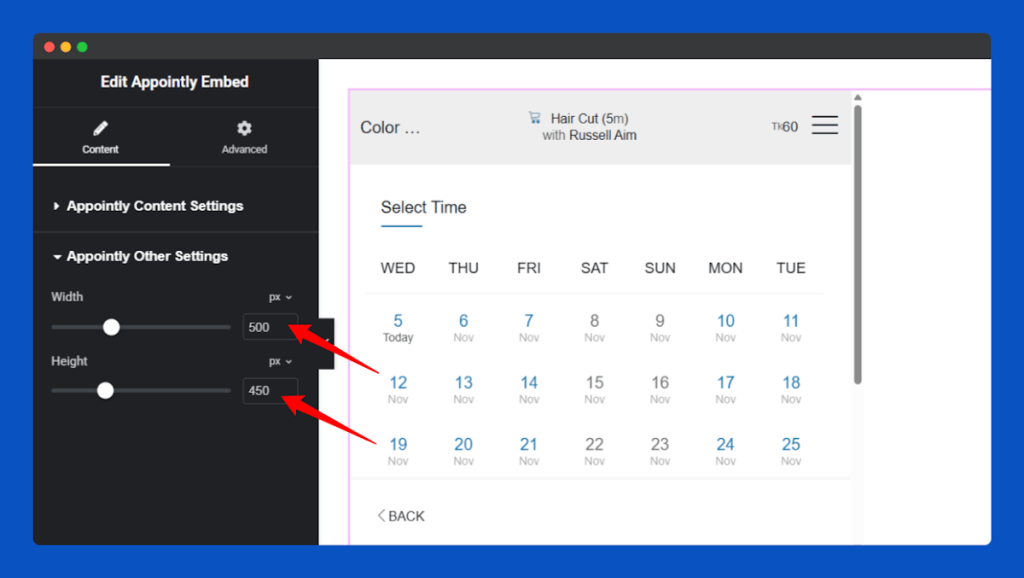
Easily modify the size of your Appointly form by adjusting the height and width in Appointly Other Settings Section.
Publish & Go:
Click on the Publish, and your page will now feature the Appointly form section for interaction.
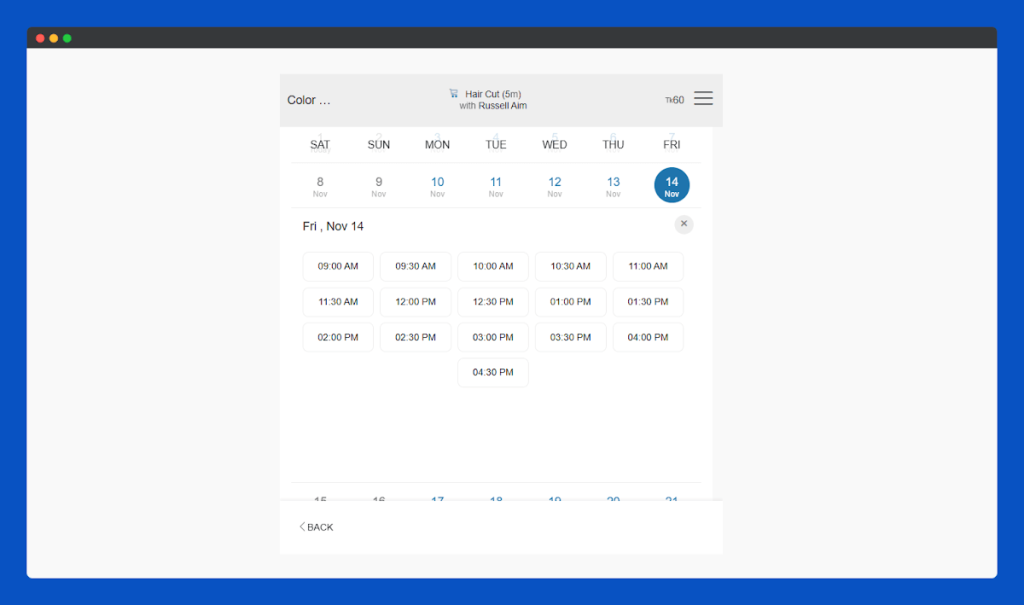
That’s it for the Appointly Embed widget for Elementor.
Giphy Embed Widget
Use the Giphy Embed widget to display lively GIFs from Giphy on your site, making your content more engaging, fun, and visually expressive. Ideal for any site wanting to entertain or connect with visitors.
Check the guide to learn how to set up and display Giphy GIFs seamlessly on your site.
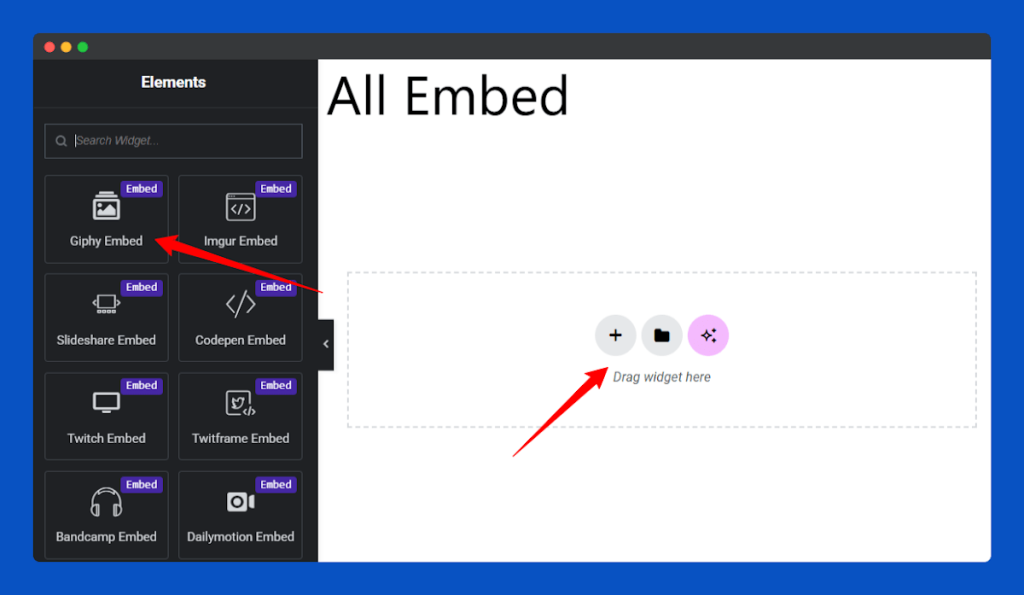
Add to the Page:
Select the Giphy Embed widget from the left widget panel, then drag and drop it into your desired section on the page.
Insert Giphy URL:
Add your Giphy GIF by entering the embed link in the Giphy Link input under the Content tab.
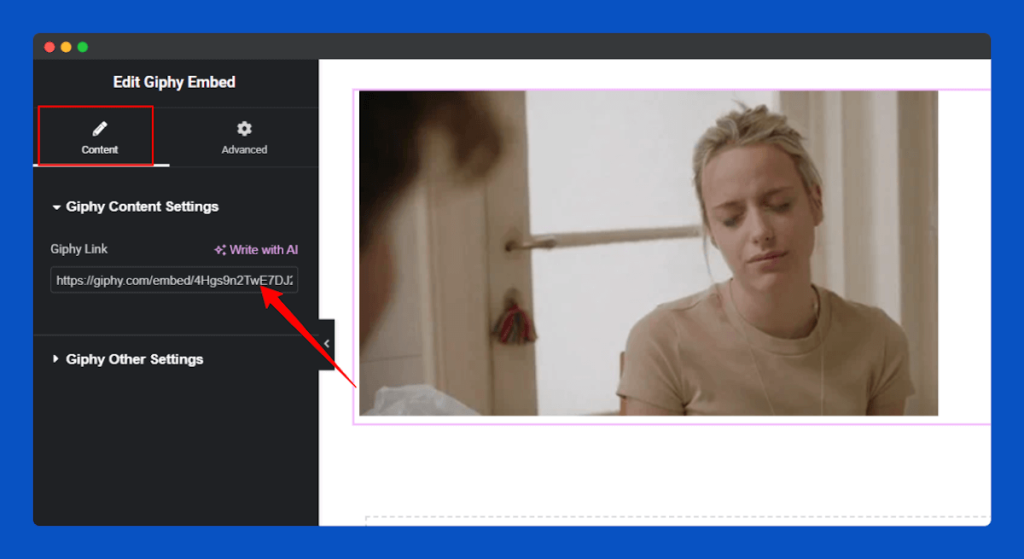
Customize how your Giphy content appears by modifying its height and width in the Giphy Other Settings section.
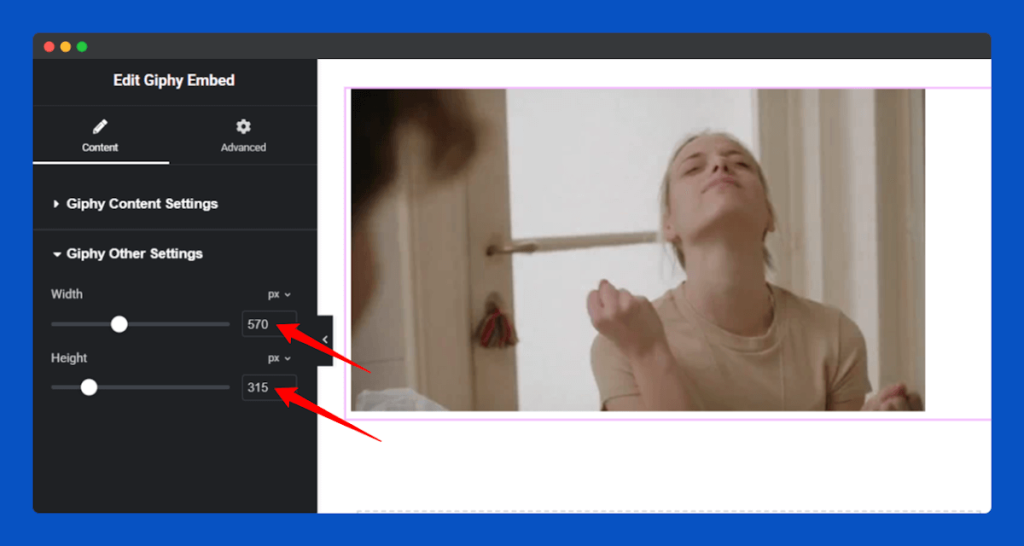
Publish & Go:
Click on the Publish to make your Giphy content section live and ready for interaction.
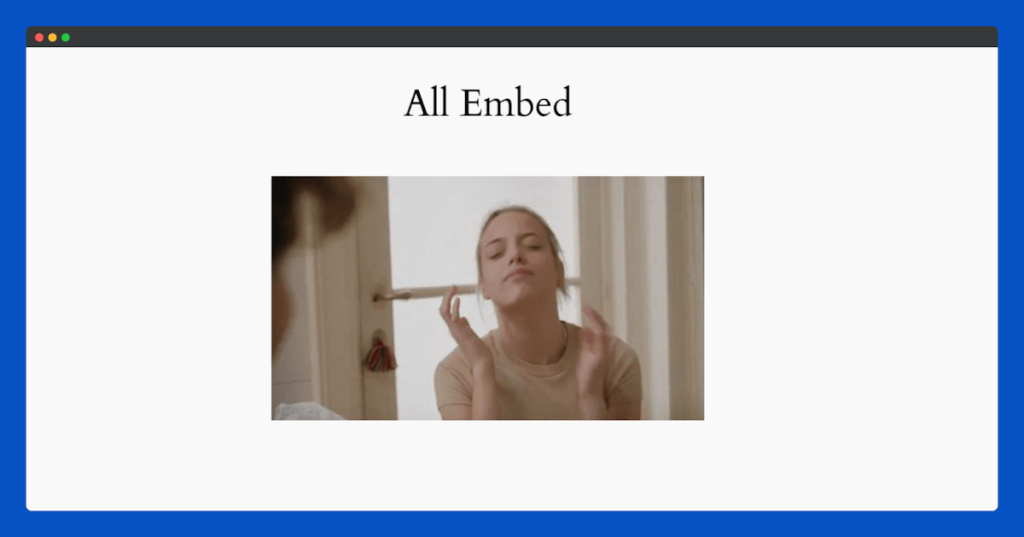
That’s it for the Giphy Embed widget for Elementor.
Imgur Embed Widget
The Imgur Embed widget lets you display images, GIFs, and visual content from Imgur directly on your website. Share trending images, memes, or creative visuals to make your pages more engaging and entertaining.
Follow the instructions in the documentation to showcase Imgur content effectively.
Add to the Page:
Select the Imgur Embed widget from the left widget panel, then drag and drop it into your desired section on the page.
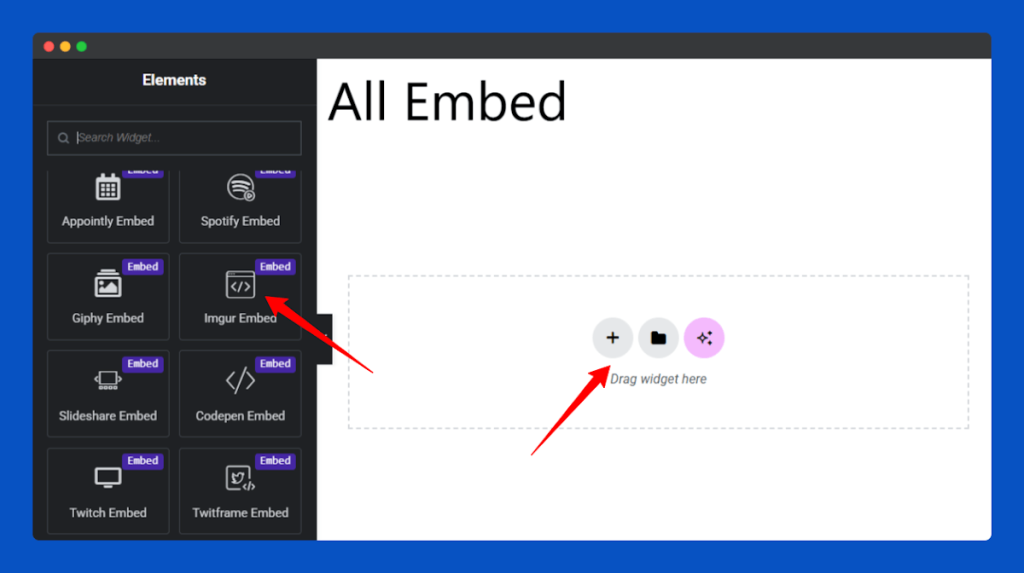
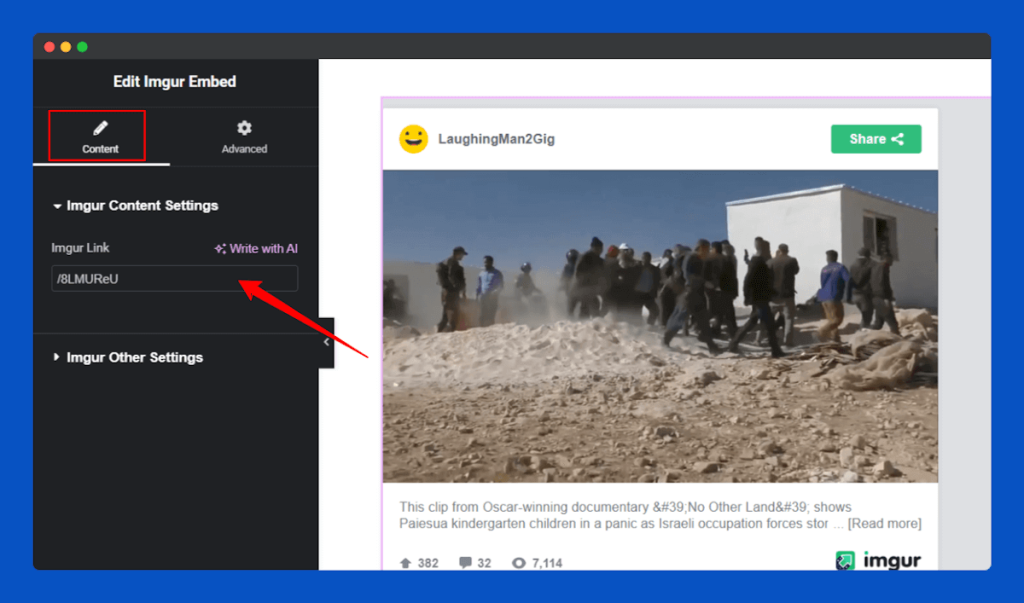
Insert Imgur ID/URL:
Use the Content tab to insert your Imgur embed ID so the image or album appears on your page.
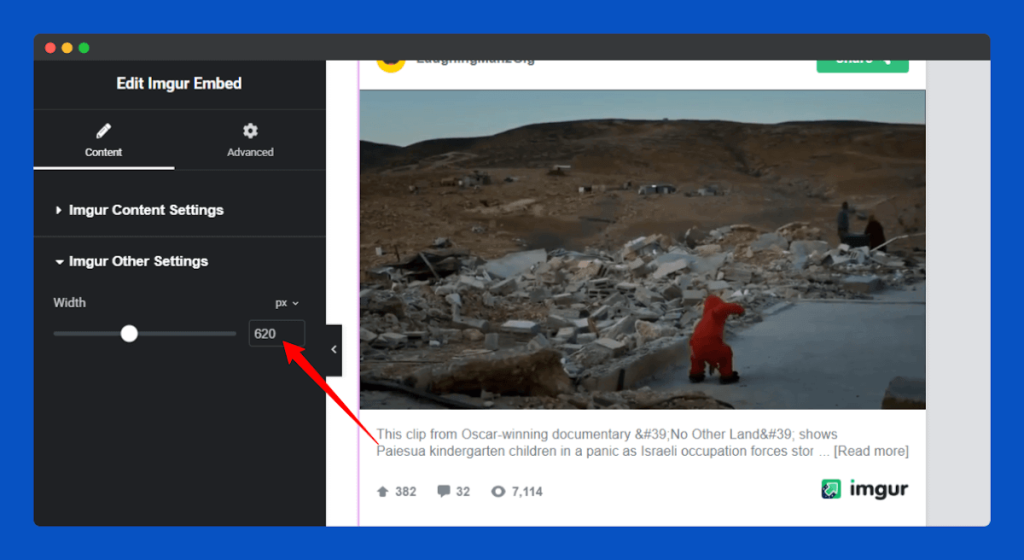
Use the Imgur Other Settings section to adjust width, height so the embedded content fits perfectly within your page layout.
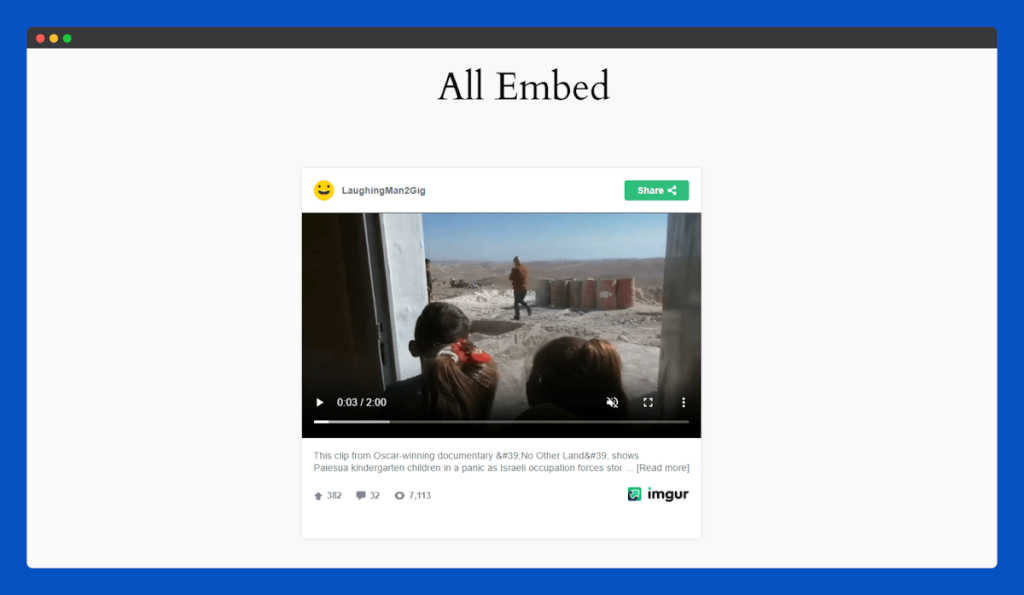
Publish & Go:
Click on the Publish to make your Imgur content section live on your page.
That’s it for the Imgur Embed widget for Elementor.
Dailymotion Embed Widget
With the Dailymotion Embed widget, you can display Dailymotion videos directly on your pages. Highlight tutorials, trending videos, or creative content to captivate your audience and enrich your website’s visual appeal.
You can follow the steps of the documentation to use the Dailymotion Embed.
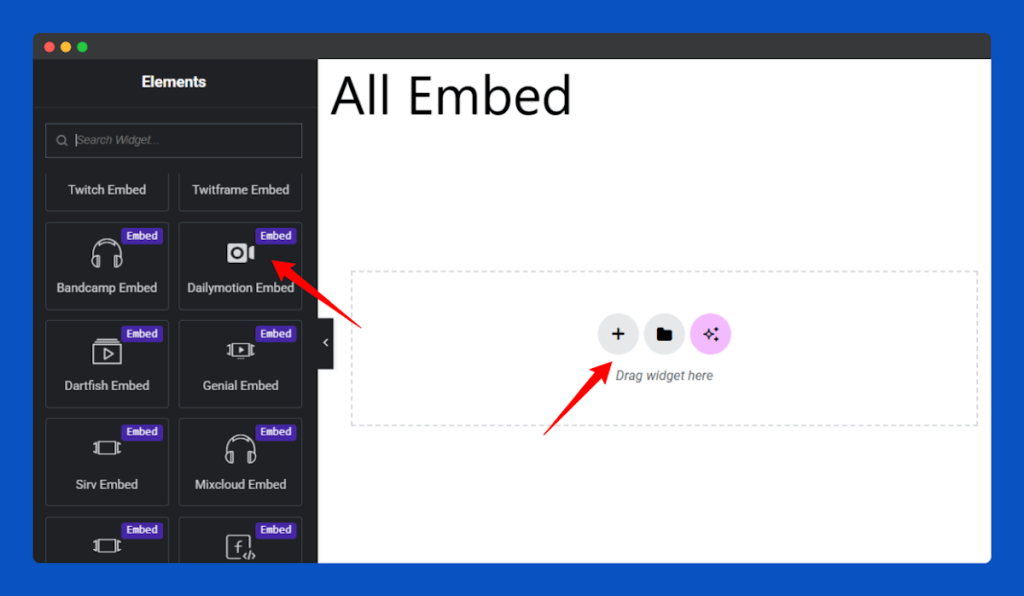
Add to the Page:
Find and select the Dailymotion Embed widget from the left widget panel, then drag and drop it into your desired section on the page.
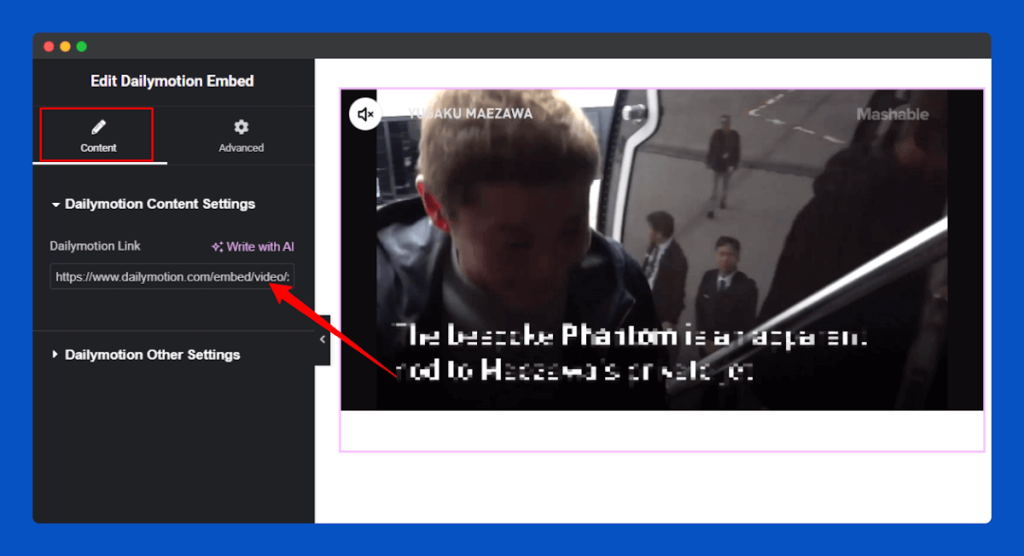
Insert Dailymotion URL:
Paste the Dailymotion video URL into the Content Link field under the Content tab.
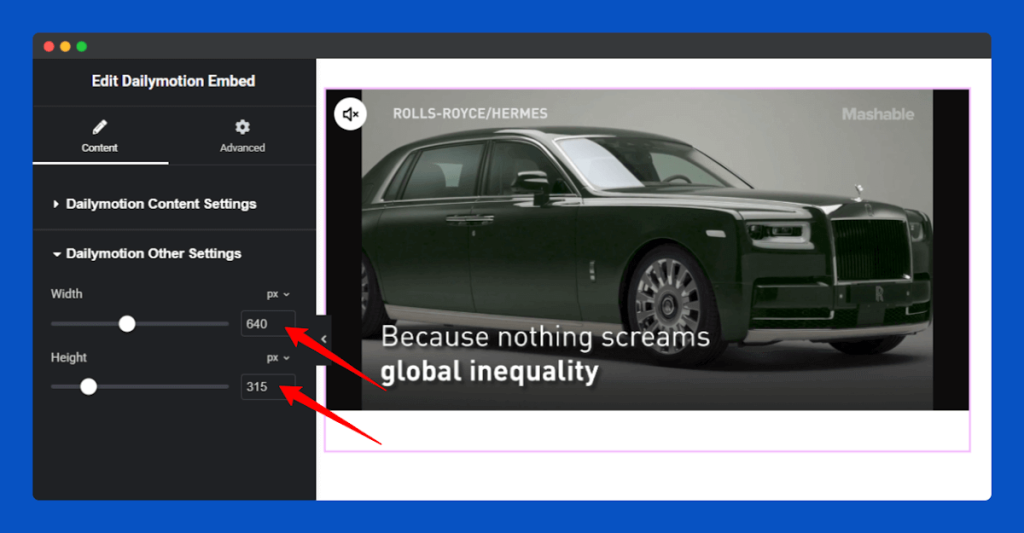
Set your preferred Dailymotion video size using the height and width options in b Dailymotion Other Settings.
Publish & Go:
Finally, click on Publish, and you will get a Dailymotion Video Section for your page.
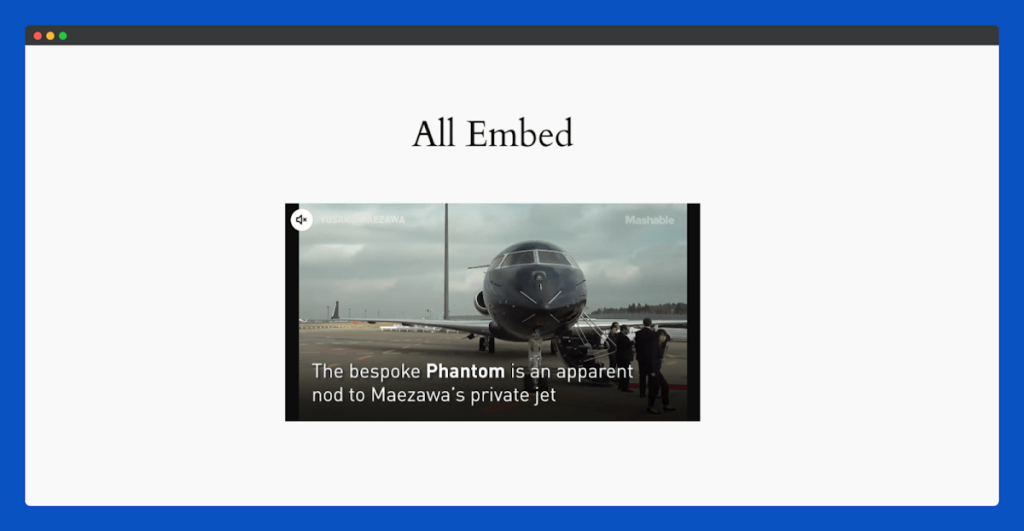
That’s it for the Dailymotion Embed widget for Elementor.
Dartfish Embed Widget
Easily embed Dartfish videos on your site with the Dartfish Embed widget. Highlight training clips, sports reviews, or performance breakdowns to captivate your audience and showcase professional content.
Follow the instructions in the documentation to maximize the effectiveness of your Dartfish embeds.
Add to the Page:
Find and select the Dartfish Embed widget from the left widget panel, then drag and drop it into your desired section on the page.
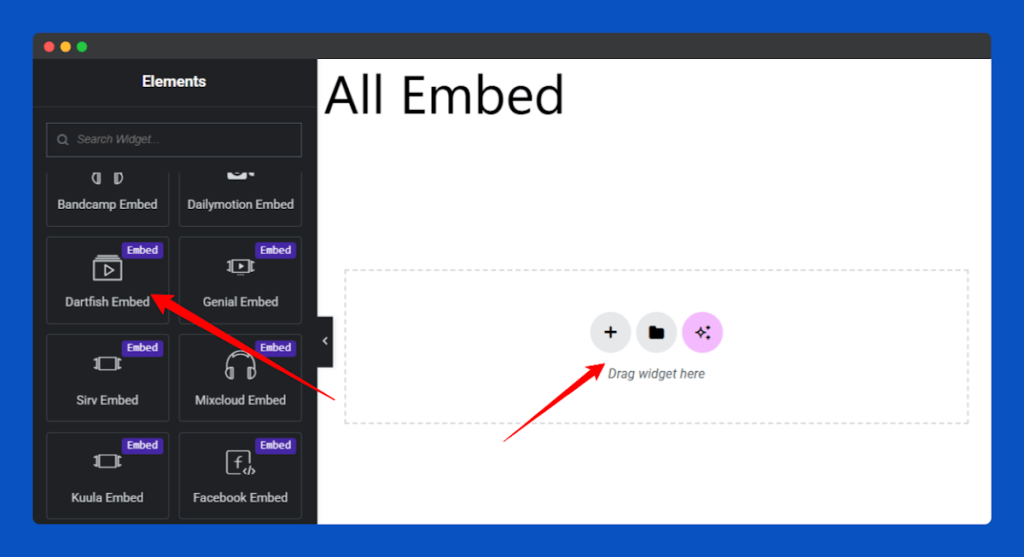
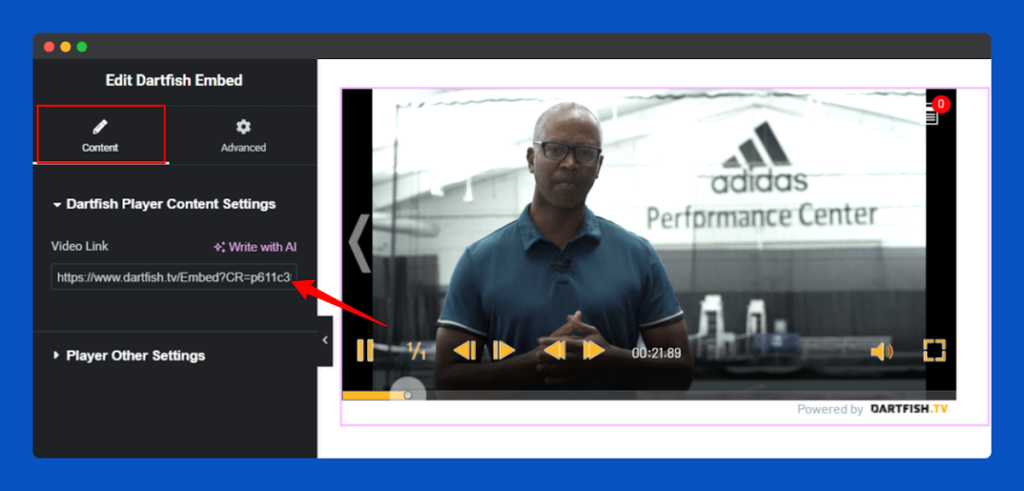
Insert Dartfish Video URL:
Insert your Dartfish video URL in the Content Link field found under the Content section.
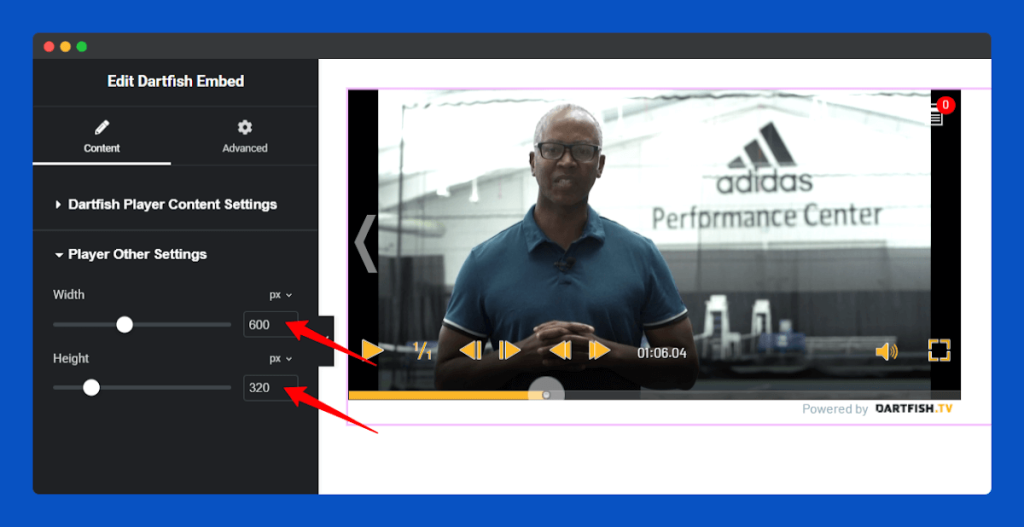
Use Other Settings to control how much the height and width of your Dartfish video appears.
Publish & Go:
Click on the Publish, and your embedded Dartfish video will now be live on the page.
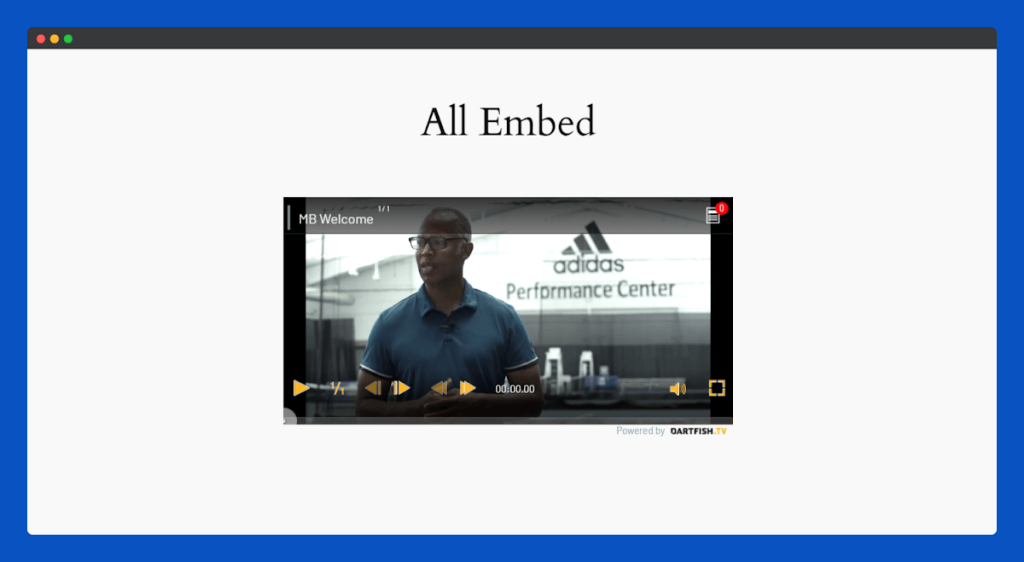
That’s it for the Dartfish Embed widget for Elementor.
Spotify Embed Widget
The Spotify Embed widget allows you to showcase music, podcasts, and playlists from Spotify directly on your website. Add audio content to engage your visitors, enhance your pages with sound, and create a dynamic multimedia experience.
See the guide for tips and best practices when embedding Spotify tracks and playlists.
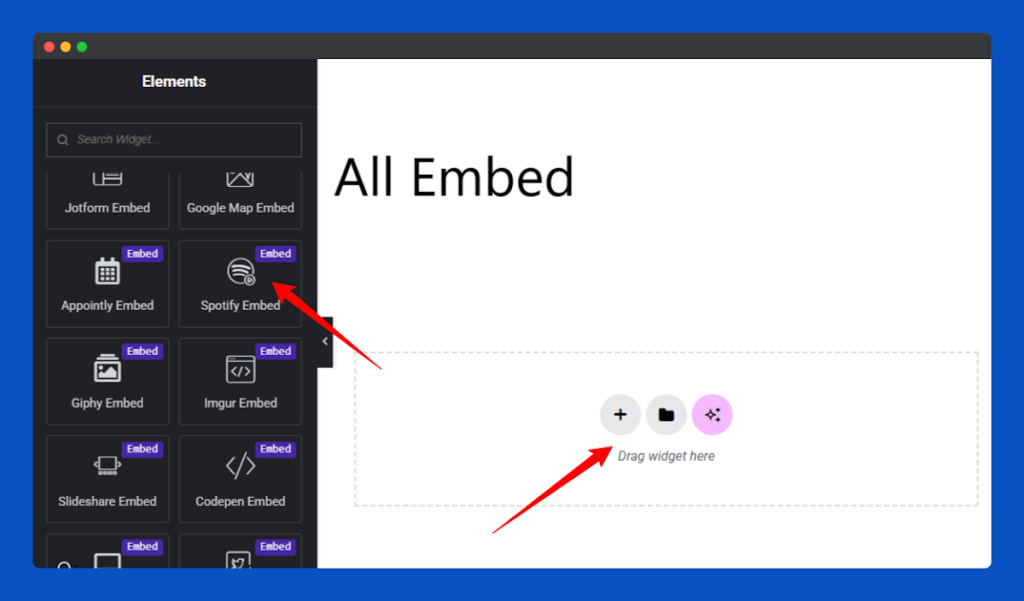
Add to the Page:
In the Elementor editor, find the Spotify Embed widget in the left panel. Drag and drop it into the section where you want the audio player to appear.
Insert Spotify URL:
Paste the Spotify playlist or track link into the Content Link field under the Content tab.
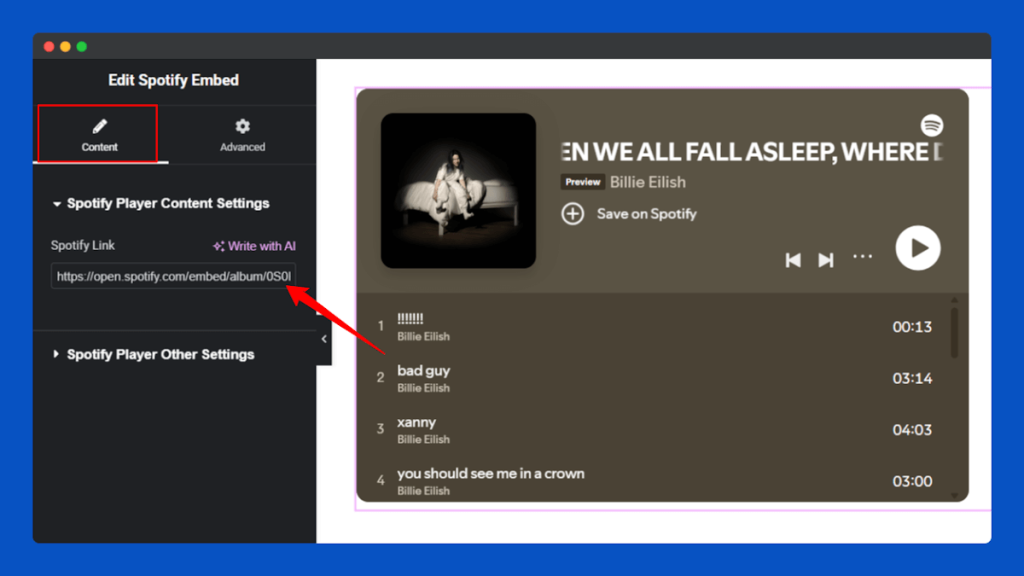
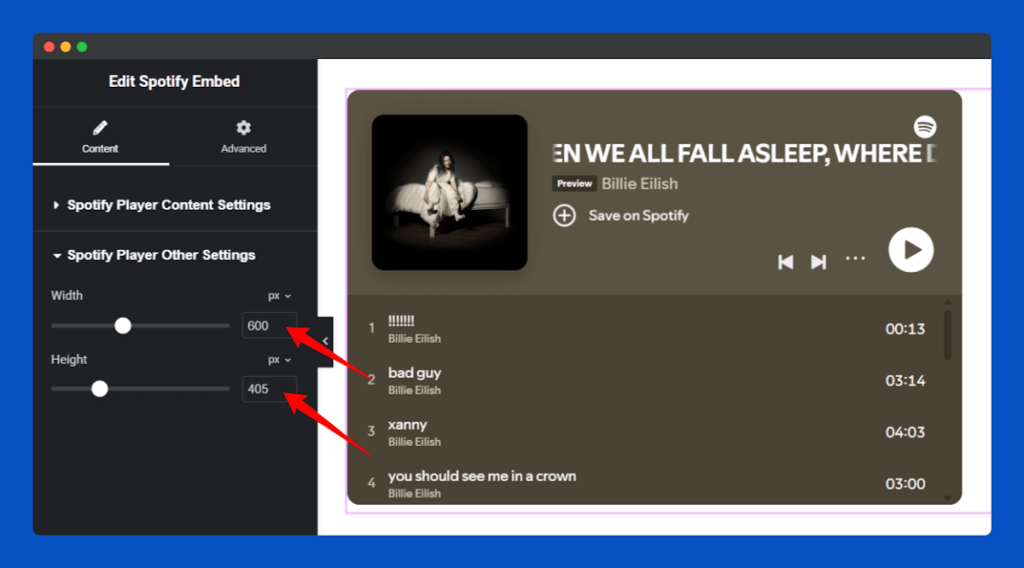
You can also customize the player height and width from the Spotify Player Other Settings section.
Publish & Go:
Click on the Publish, and your Spotify content will be added to the selected section of your page.
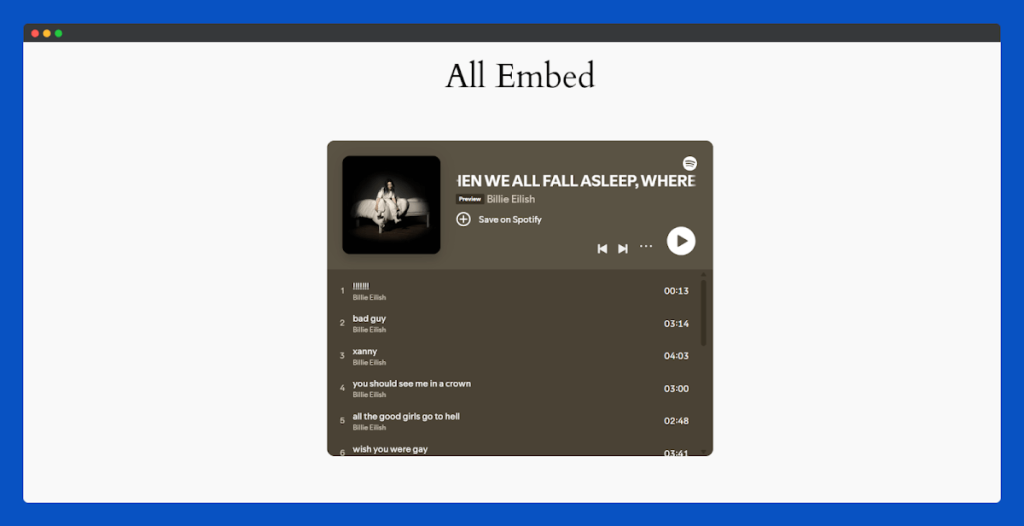
That’s it for the Spotify Embed widget for Elementor.
Bandcamp Embed Widget
The Bandcamp Embed widget lets you showcase tracks, albums, and playlists from Bandcamp directly on your website. Share your music, curated playlists, or full albums to make your pages more engaging and provide an immersive audio experience.
Follow the instructions in the documentation to showcase Bandcamp audio effectively.
Add to the Page:
Find and select the Bandcamp Embed widget from the left widget panel, then drag and drop it into your desired section on the page.
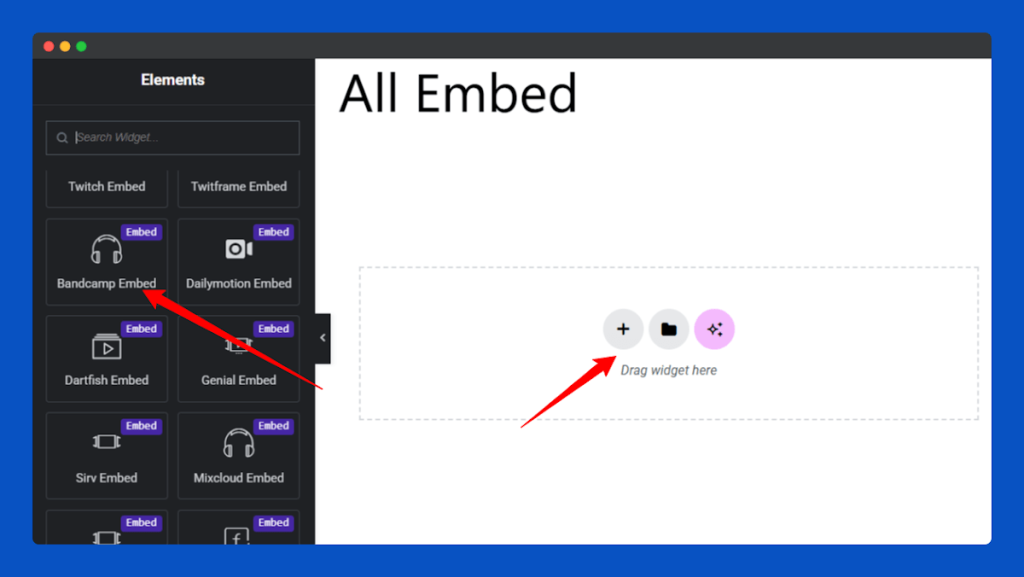
Insert Bandcamp URL:
Paste the Bandcamp track, album, or playlist link into the Content Link field under the Content tab.
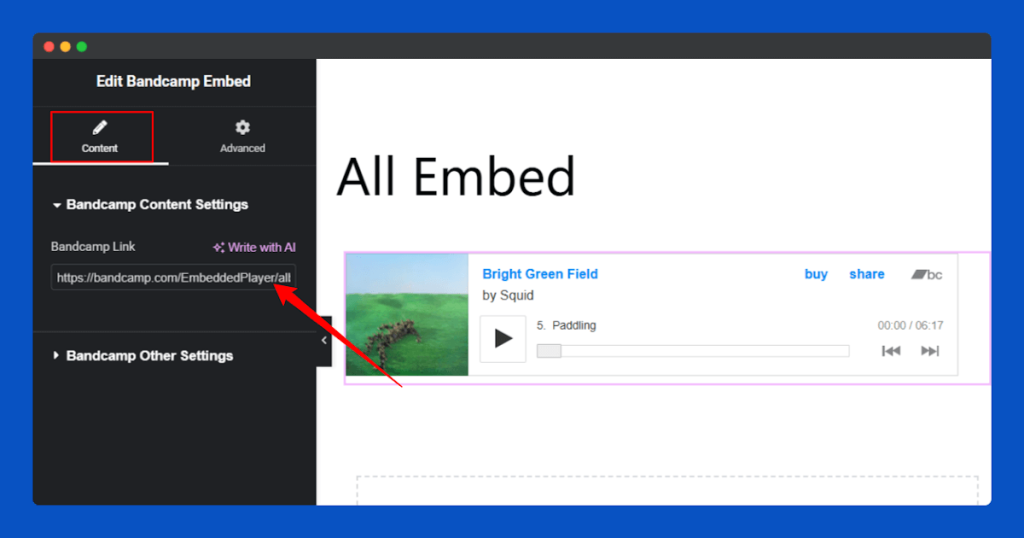
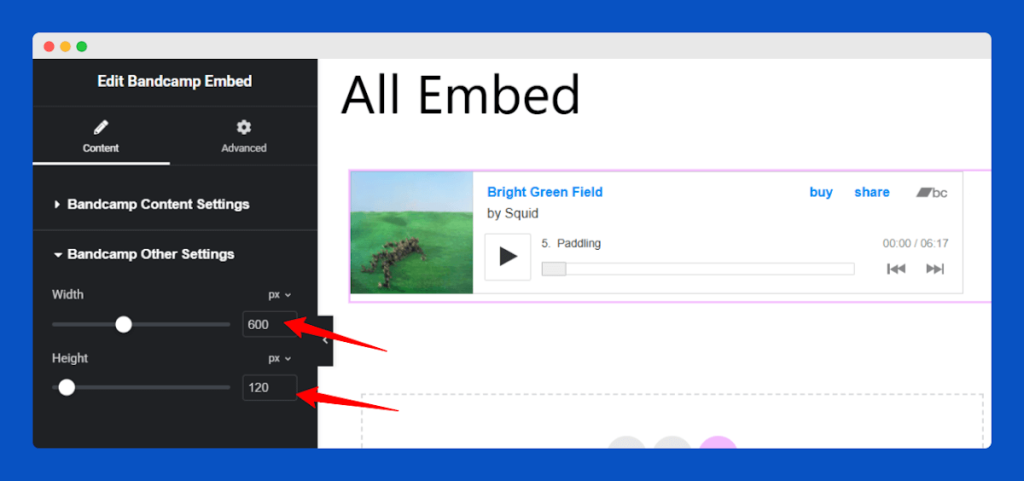
Go to the Bandcamp Other Settings section and set the height and width to fit your page perfectly.
Publish & Go:
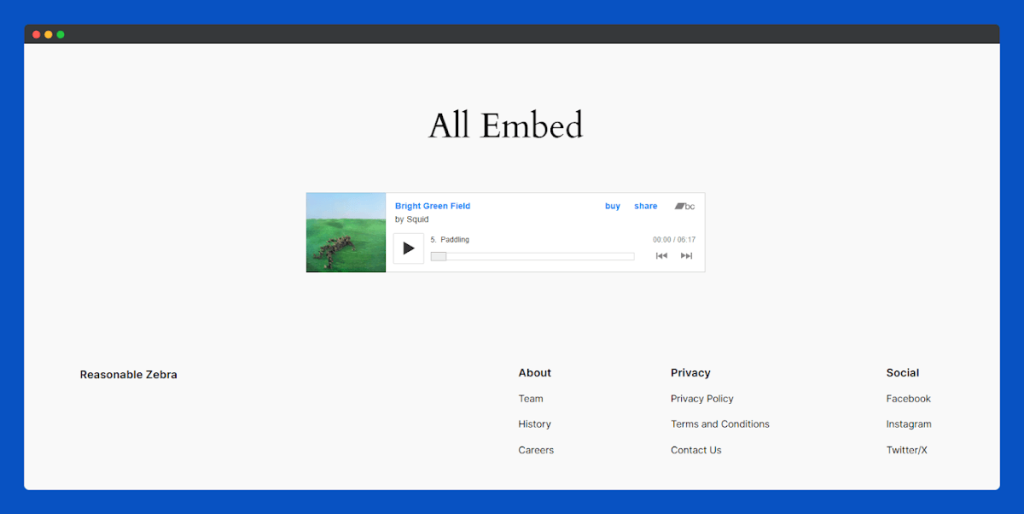
Click on the Publish to make the Bandcamp audio embed visible on your site. Now navigate your page and you can see the player is embedded on your page.
That’s it for the Bandcamp Embed widget for Elementor.
Mixcloud Embed Widget
Use the Mixcloud Embed widget to bring Mixcloud content to your website. Share curated music, podcasts, and DJ sets to create a dynamic and interactive listening experience for your visitors.
You can follow the documentation to use the Mixcloud Embed.
Add to the Page:
Select the Mixcloud Embed widget from the left widget panel, then drag and drop it into your desired section on the page.
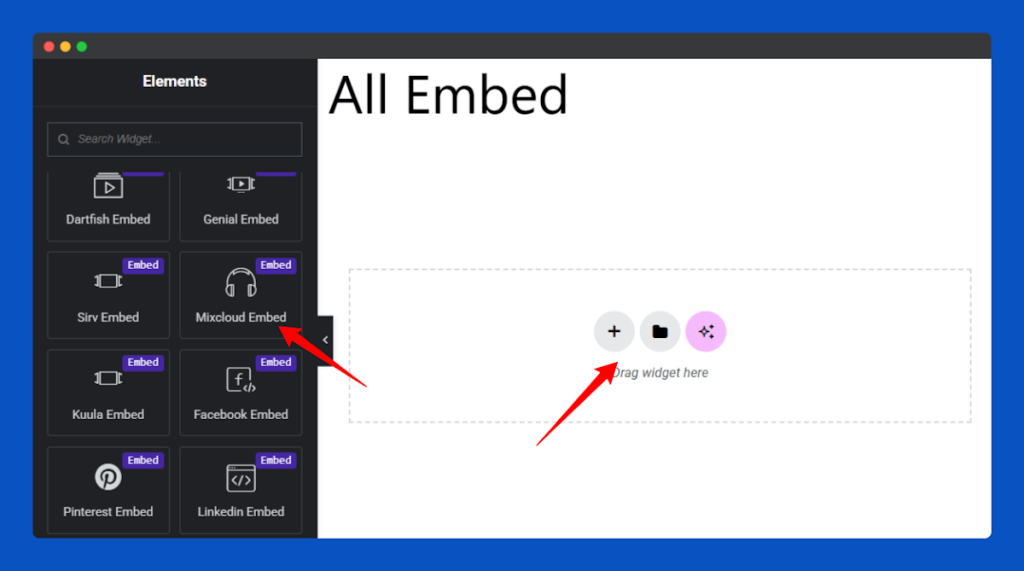
Insert Mixcloud URL:
Paste the Mixcloud track, show, or playlist embed link into the Mixcloud Link input field under the Content tab.
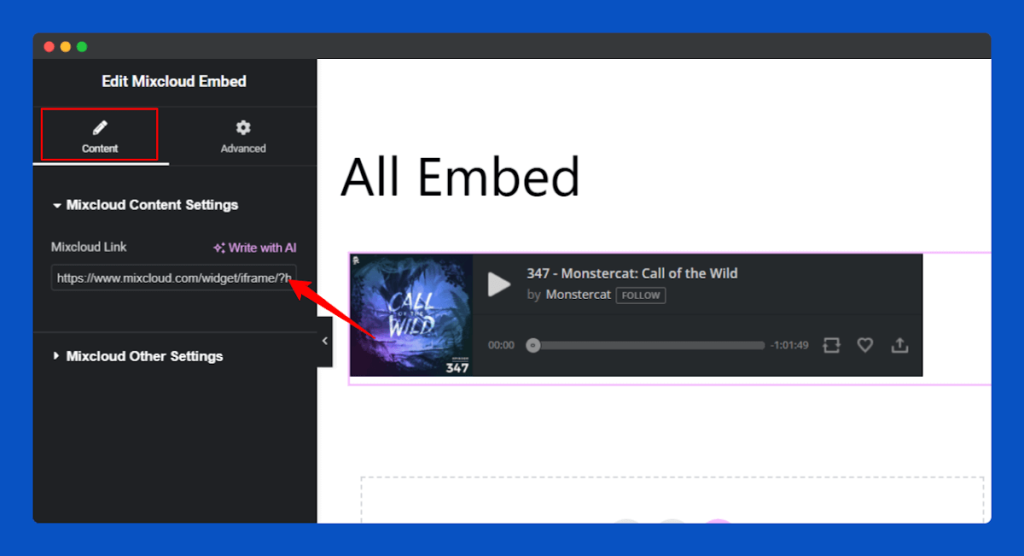
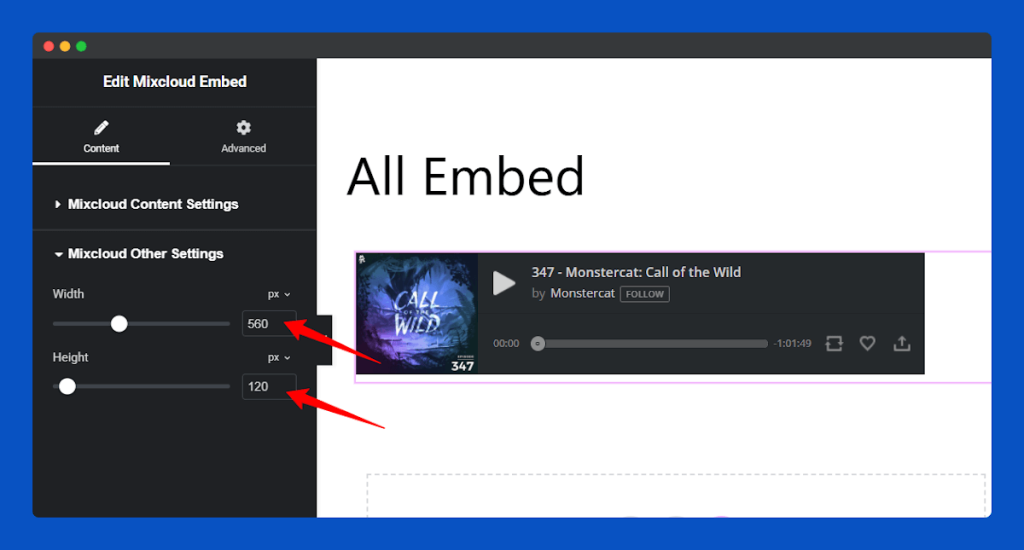
Navigate to the Mixcloud Other Settings section to change your Mixcloud player’s dimensions to match your page layout.
Publish & Go:
Click on the Publish to launch your Mixcloud audio section for public access.
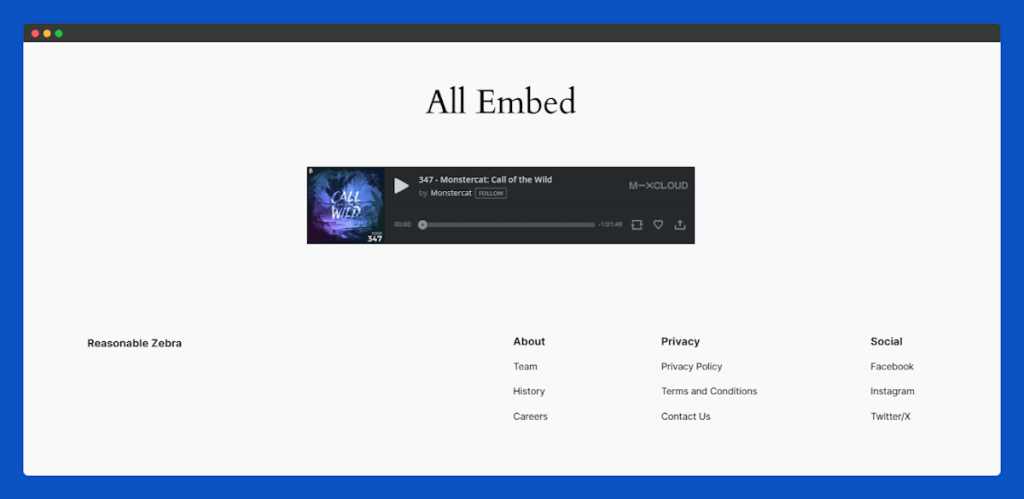
That’s it for the Mixcloud Embed widget for Elementor.
Soundcloud Embed Widget
The Soundcloud Embed widget allows you to bring music, playlists, and podcasts from Soundcloud straight to your website. Engage your visitors by sharing tracks, audio shows, or curated playlists, making your pages more interactive and lively.
Follow the documentation for instructions on embedding Soundcloud Widget.
Add to the Page:
Select the Soundcloud Embed widget from the left widget panel, then drag and drop it into your desired section on the page.
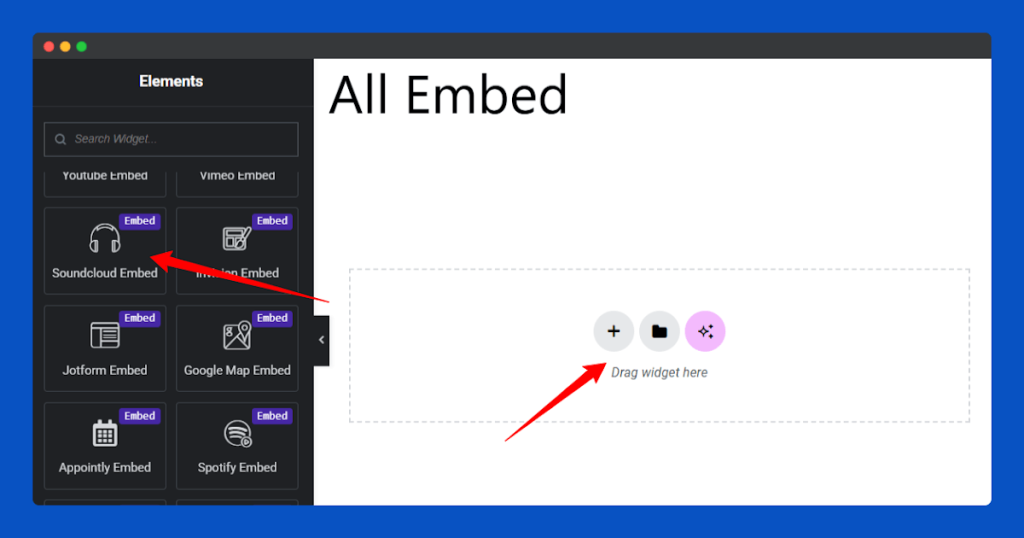
Insert Soundcloud URL:
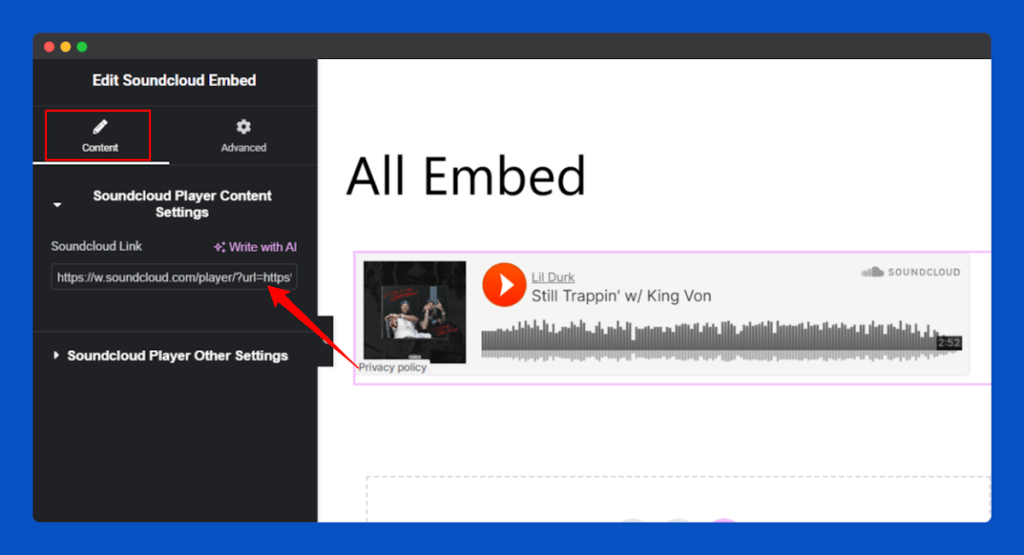
Enter your Soundcloud track, playlist, or podcast URL in the Soundcloud Link field within the Content tab.
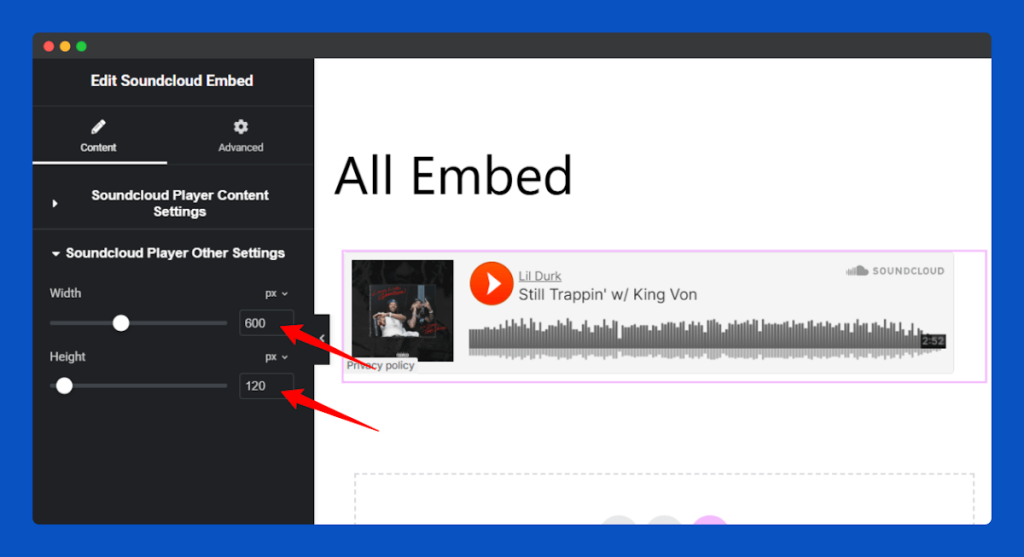
Change your SoundCloud player’s height and width directly from the Soundcloud Other Settings panel.
Publish & Go:
Click on the Publish to showcase your SoundCloud audio section to your audience.
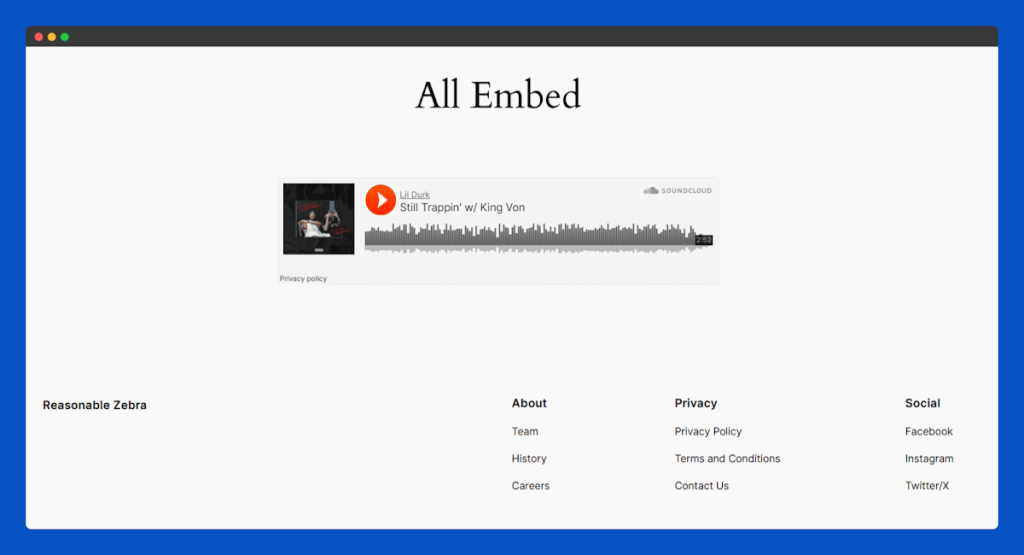
That’s it for the Soundcloud Embed widget for Elementor.
JotForm Embed Widget
The JotForm Embed widget allows you to integrate fully functional JotForm forms directly into your website, providing a seamless and professional way to collect user data, feedback, registrations, or survey responses without redirecting visitors to another page.
Follow the steps of the documentation for instructions on adding JotForm to your page.
Add to the Page:
Find and select the JotForm Embed widget from the left widget panel, then drag and drop it into your desired section on the page.
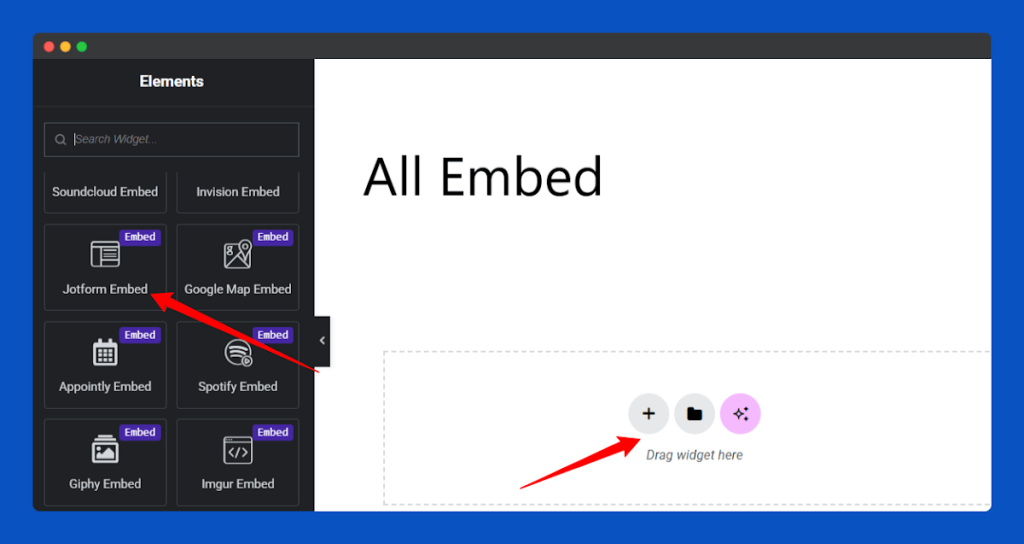
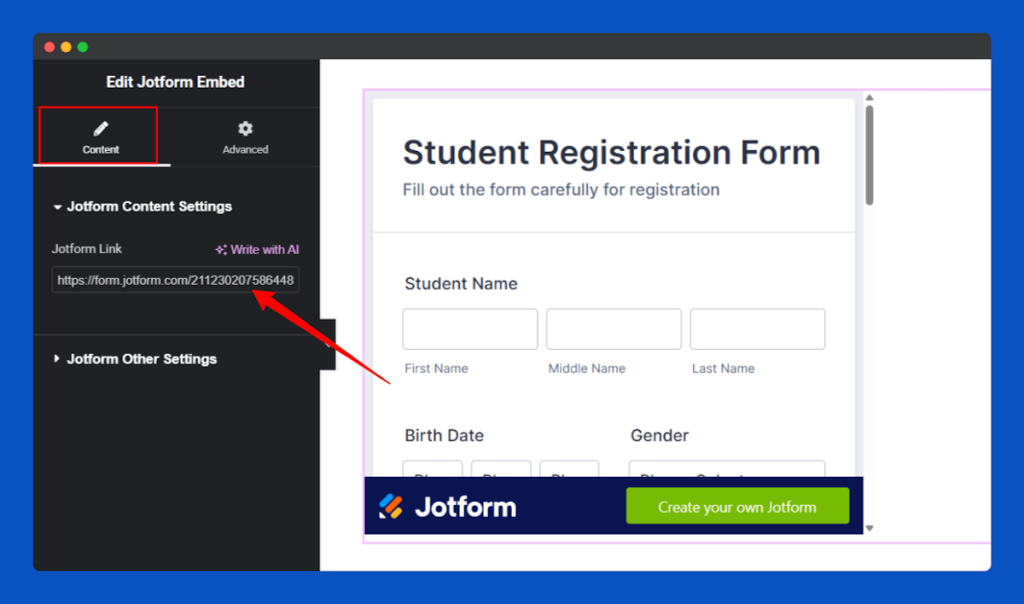
Insert JotForm URL:
In the Content section, you can add your form embed link in the JotForm link input field.
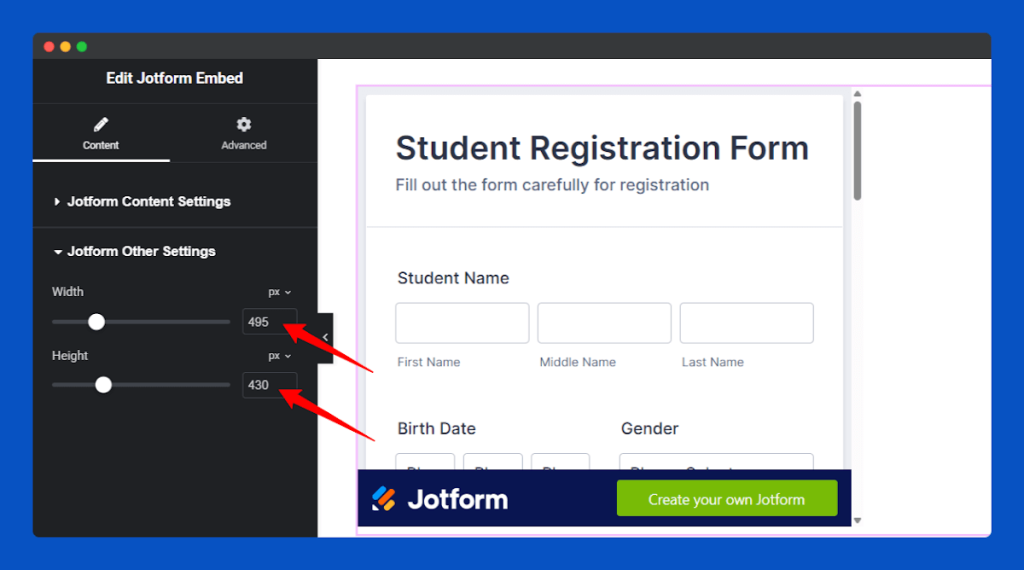
Use the JotForm Other Settings to set the desired height and width for your embedded form.
Publish & Go:
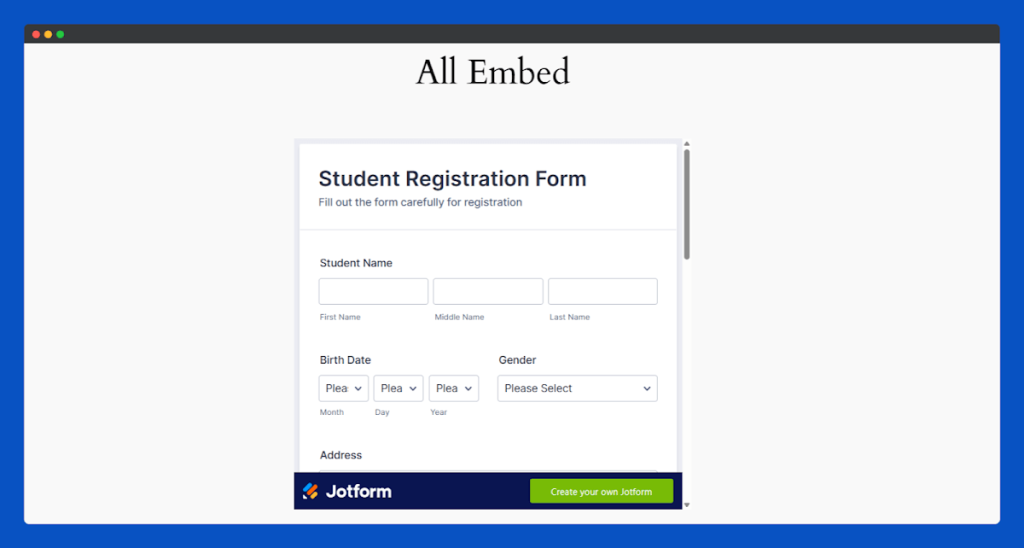
Finally, Click on the Publish to make your JotForm form live on the page. The form has been embedded, you can review it on your page.
That’s it for the JotForm Embed widget for Elementor.
 Save 90%