
Videos can supercharge your WordPress site by boosting engagement, increasing time on page, and improving search visibility. But without proper optimization, they can slow pages, hurt Core Web Vitals, and drive users away.
Unoptimized videos often delay Largest Contentful Paint (LCP), cause layout shifts (CLS), and load inefficiently—damaging both UX and SEO.
Whether you’re self-hosting, embedding from YouTube, or using plugins, video player performance optimization in WordPress is essential. Compression, lazy loading, and the right plugin setup make all the difference.
In this post, you’ll learn how to speed up video performance with hosting strategies (YouTube, Jetpack VideoPress, CDNs), smart embedding, compression tools, and plugins like HTML5 Video Player. You’ll also find SEO techniques, CDN best practices, and overlooked tips for better playback.
Let’s start with the performance metrics that matter most.
Performance Metrics That Matter
When it comes to video player performance optimization in WordPress, it’s not just about fast hosting. You also need to understand how videos affect your site’s key performance metrics.
PageSpeed Score
Large, uncompressed videos can lower your PageSpeed Insights score, especially if they load before they’re needed. Google also flags videos that aren’t lazy-loaded, compressed, or served efficiently.
Core Web Vitals
- Largest Contentful Paint (LCP): Videos placed above the fold can delay LCP, especially if they autoplay or load before text and images.
- Cumulative Layout Shift (CLS): Embedded players, like YouTube iframes, often shift page layout as they load, which hurts visual stability.
- Total Blocking Time (TBT): Scripts from video players can block rendering, particularly when using heavy third-party embeds.
Time to First Byte (TTFB)
If you self-host videos without caching or a CDN, your TTFB increases. Requests that lack byte-range support or proper caching headers put more load on your server.
Real-World Impact
Poor video performance isn’t just a technical issue. It frustrates users, reduces watch time, and increases bounce rates. Whether you’re sharing tutorials, testimonials, or product walkthroughs, slow playback directly impacts conversions.
Choosing the Right Hosting Strategy
One of the most important steps in WordPress video optimization is deciding where and how to host your videos. The wrong choice can lead to buffering, slow page loads, and poor SEO.
The right choice ensures your videos stream smoothly while keeping your site fast and lightweight. Let’s break down the main hosting strategies, their pros and cons, and when to use each one.
1. External Platforms (YouTube, Vimeo, Dailymotion)
External video platforms remain the most popular choice for beginners and content creators. They take care of bandwidth, encoding, and adaptive streaming for you.
Pros
- Free or low-cost hosting
- Global delivery through their own CDNs
- Adaptive bitrate streaming built in (automatically adjusts quality for user’s device & internet speed)
- Easy to share and embed outside your website (social reach)
Cons
- Third-party branding, ads, and recommendations can distract viewers
- Heavy iframe embeds increase TTFB (Time to First Byte) and CLS (Cumulative Layout Shift)
- Limited customization for appearance, controls, and privacy
Optimization Tip: If you rely on YouTube embeds, never load the full player upfront. Use a lazy load plugin like ELEX Optimize YouTube Embed or WP YouTube Lyte to replace embeds with lightweight thumbnails until clicked. This reduces page weight and improves Core Web Vitals.
Best for: Bloggers, educators, or marketers who want free hosting, maximum reach, and don’t mind platform branding.
2. WordPress-Native Hosting (Jetpack VideoPress)
Jetpack VideoPress is a dedicated video hosting service built specifically for WordPress. Unlike YouTube or Vimeo, it’s ad-free and fully under your control.
Pros
- Integrated directly into WordPress (no external dashboard)
- Clean, ad-free player with consistent branding
- Videos served via Jetpack CDN with adaptive bitrate streaming
- Better LCP (Largest Contentful Paint) compared to external embeds
Cons
- Requires a paid Jetpack plan
- Limited customization for advanced developers (compared to self-hosting or CDNs)
Best for: Businesses, membership sites, or educators who want a privacy-first, ad-free experience without worrying about CDN setup.
3. Video CDNs (Swarmify SmartVideo, Cloudflare Stream, Bunny.net)
A video CDN (Content Delivery Network) is designed for speed and scalability. These services handle video encoding, caching, and streaming across a global server network.
Pros
- Low-latency playback across different regions
- Built-in encoding to WebM, MP4, and adaptive formats
- Supports byte-range requests and chunked delivery (faster buffering & seeking)
- Handles large video libraries efficiently
Cons
- Monthly subscription fees
- Some require technical setup or integration with plugins
Optimization Tip: If you run a site with lots of training videos, courses, or high-traffic tutorials, using a video CDN ensures smooth playback without overloading your WordPress server.
Best for: Large-scale video publishers, e-learning platforms, and membership sites where performance at scale is critical.
4. Self-Hosting with Performance Plugins
Self-hosting means storing your video files directly on your WordPress server or web host. On its own, this can be risky (bandwidth-heavy, slow playback). But when combined with the right performance plugins and CDN, it can be highly effective.
Pros
- Full control over styling, playback options, captions, and autoplay
- Supports multiple formats: MP4, WebM, OGG
- Plugins like HTML5 Video Player add Gutenberg block support, poster images, and lazy loading
- No third-party branding or ads
Cons
- Requires manual compression and optimization for best results
- Hosting costs may rise if your videos generate a lot of traffic
- Not ideal for massive video libraries without CDN support
Optimization Tip: Always compress files using HandBrake or VEED.io before upload. Then pair your videos with a performance plugin + CDN (e.g., Bunny.net) for caching and delivery.
Best for: Website owners who want full control and branding (e.g., portfolio sites, product demos, training portals) and are willing to manage optimization.
Video Compression & Formats

Large video files are the biggest cause of poor performance. Compressing your videos and choosing the right format are essential for speeding up WordPress video playback.
Format Matters: MP4 vs WebM vs AV1
- MP4 (H.264): Best for compatibility. Works across all browsers and devices.
- WebM (VP9): Smaller file sizes with better compression. Supported by modern browsers.
- AV1: New format with excellent compression. Limited but growing browser support.
Tip: Provide multiple formats when possible. This ensures fallbacks and wider compatibility.
Compression Tools
To reduce file size without losing too much quality, try:
- HandBrake (free desktop tool for MP4/WebM)
- QuickTime Pro (Mac users)
- VEED.io (online compression and editing)
Always test your output to balance quality and performance.
Adaptive Bitrate Streaming (HLS/DASH)
Delivering multiple resolutions (1080p, 720p, 480p) with HLS or DASH lets users stream the right quality based on their connection. This is especially important for mobile users on slower networks.
Note: Self-hosted adaptive streaming usually requires advanced setup or CDN support.
Organizing for Caching/CDN
Store videos in a dedicated folder (for example: /wp-content/uploads/videos/) and use clear file names. This helps with:
- Easier caching rules
- Faster CDN purging
- Cleaner performance reporting
Read Video Formats for WordPress Explained: MP4, WebM, OGV Compatibility Guide.
Smart Embedding Techniques
Even if your video is compressed and hosted on a fast server, how you embed it can make or break performance.
Avoid Heavy Iframes
YouTube and Vimeo embeds add extra scripts and trackers that hurt TTFB and CLS. Use native HTML5 video elements whenever possible. They load faster, give you more control, and work better with lazy loading.
Use Thumbnail Previews or Click-to-Load
Instead of loading the full player on page load, show a thumbnail preview. The player only loads when clicked. This “click-to-load” method reduces initial page weight and improves LCP.
Enable Native Lazy Loading
Modern browsers support the loading=”lazy” attribute for videos and iframes. You can add it manually or use a plugin:
- Lazy Load for Videos – replaces embedded videos with a clickable preview
- ELEX Optimize YouTube Embed – loads YouTube only when a user interacts
Use Case: HTML5 Video Player
The HTML5 Video Player plugin uses native HTML5 elements and gives you control over:
- Poster images
- Autoplay settings
- Script-free embedding
This ensures videos only load when needed, cutting down page load time and improving user experience.
Plugin Solutions for Performance
Optimizing video performance in WordPress doesn’t mean reinventing the wheel. The right plugins can handle compression, lazy loading, and efficient delivery for you. Here are some of the best options:
Jetpack VideoPress
Tightly integrated with WordPress.com, Jetpack VideoPress includes adaptive bitrate streaming and a built-in CDN.
- Best for: WordPress.com or Jetpack users
- Highlight: Clean interface with no third-party branding
Presto Player
Focused on engagement and marketing features such as chapters, email capture, and call-to-action overlays.
- Best for: Course creators, marketers, and coaches
- Highlight: Modern interface that works seamlessly with LMS plugins
HTML5 Video Player
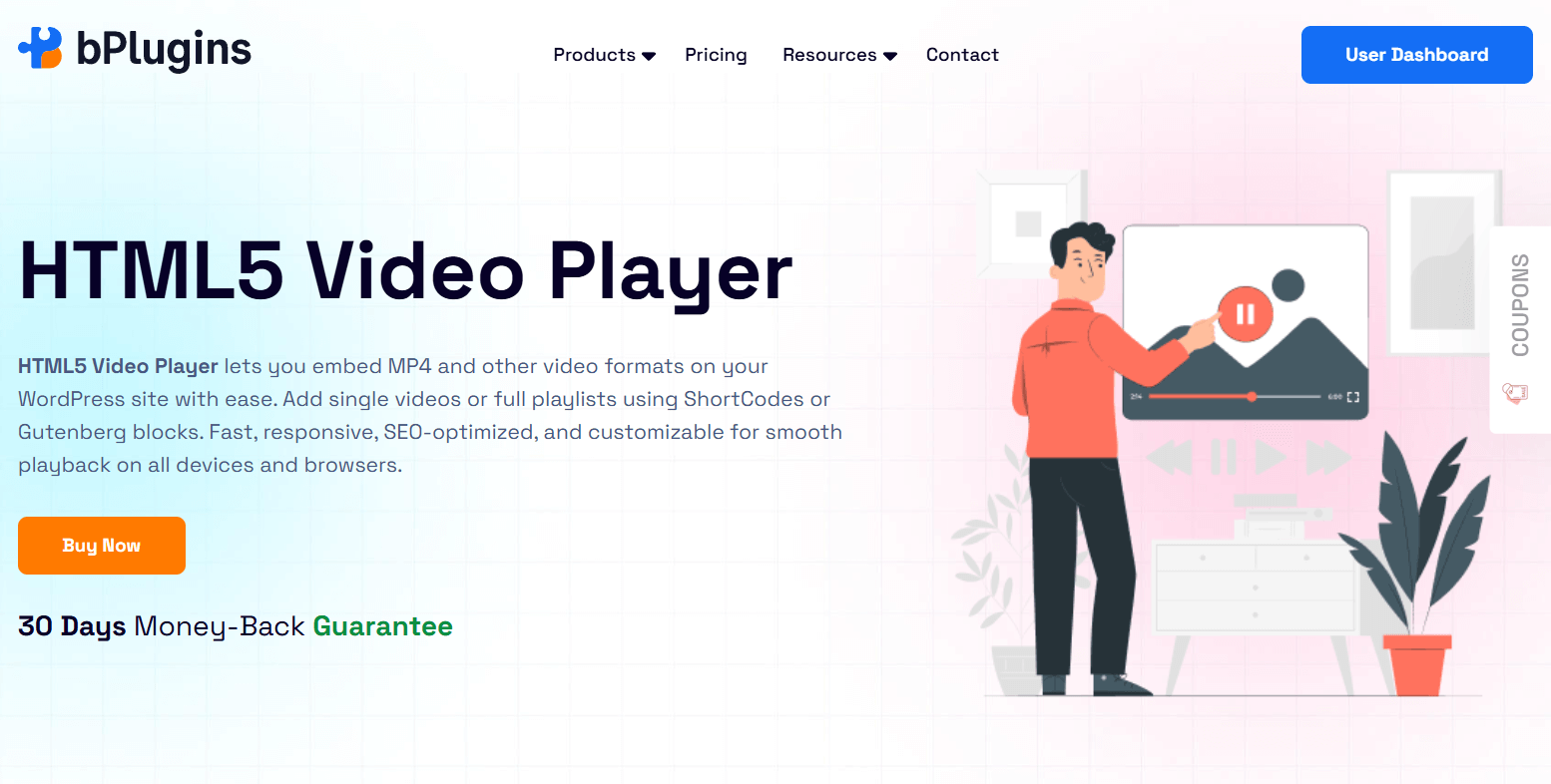
HTML5 Video Player is a lightweight, self-hosted video player designed for speed and full control. Unlike third-party embeds, it doesn’t load external scripts that can slow down your site.
Key Features:
- Gutenberg block support for easy embedding in the editor
- Playback compatibility with MP4, WebM, and OGG formats
- Caption and subtitle support for accessibility and SEO
- Poster images to improve perceived load time
- Autoplay toggle to control when videos start
Use Case Highlight: HTML5 Video Player
This plugin is ideal if you want complete control over your video delivery without relying on external platforms like YouTube or Vimeo. By combining it with video compression, lazy loading, and a CDN such as Bunny.net, you can create a self-hosted setup that is both fast and reliable.
It’s especially useful for portfolios, product demos, or membership sites where branding and playback control matter.
Technical Optimization Deep Dive
If you’re a developer or a performance-focused site owner, going deeper into server and CDN settings can make videos load even faster.
Caching Headers & Chunked Delivery
- Ensure your server supports byte-range requests (HTTP 206) so videos stream in smaller chunks
- Apply proper caching headers so browsers and CDNs can cache video files efficiently
Preload, Prefetch & Bandwidth Hints
- Use <link rel=”preload”> for poster images or the first few seconds of key videos
- Add <link rel=”dns-prefetch”> and <link rel=”preconnect”> to connect early to CDNs or external domains
Web Server Tweaks (Apache/Nginx)
- Serve video MIME types correctly
- Enable range requests
- Use Gzip or Brotli to compress smaller assets (like scripts and styles, not the video itself)
Lazy Loading with IntersectionObserver
For advanced setups, the IntersectionObserver API lets you load videos only when they are close to the viewport. This is handy for themes or custom players that don’t support lazy loading by default.
CDN Headers & Byte-Range Support
Check that your video CDN (such as Bunny.net or Cloudflare Stream) supports:
- Range requests for smoother playback
- GZIP headers for thumbnails and poster images
- Custom cache-control rules for long-term caching
Read also CDN for WordPress: Optimizing Media Player Performance.
Accessibility, SEO & UX Considerations
Optimizing videos isn’t just about speed. You also need to make sure they’re accessible, searchable, and user-friendly.
Video Schema Markup & XML Sitemaps
Add JSON-LD video schema to help search engines understand your video content. This can unlock rich snippets with thumbnails, duration, and upload date in search results. If you publish a lot of videos, generate a video XML sitemap. Plugins like Rank Math or Yoast SEO can handle this automatically.
Subtitles, Captions & Keyboard Controls
Accessibility makes your videos usable for everyone. Adding:
- Closed captions and subtitles improves understanding
- Keyboard navigation lets users control playback without a mouse
- ARIA labels help screen readers interpret video content
The HTML5 Video Player plugin supports captions and text tracks out of the box, making it easier to meet WCAG standards.
Mobile Responsiveness & Smooth Playback
Your videos should adapt to different screen sizes. A good player ensures:
- The aspect ratio scales smoothly
- Playback controls are touch-friendly
- File sizes and resolutions match the device
Plugins like HTML5 Video Player even add chapter markers and CTAs, which boost navigation and engagement, especially on mobile.
Lean also Video Player Security in WordPress: Protecting Your Content from Theft
Step-by-Step Optimization Workflow
Need a simple plan to put everything into action? Here’s a streamlined workflow for optimizing video performance in WordPress:
- Choose Your Hosting Strategy: Decide between external platforms, Jetpack VideoPress, CDN-based solutions like Swarmify, or self-hosting with a plugin such as HTML5 Video Player.
- Compress & Convert Formats: Use tools like HandBrake or VEED.io to export in MP4 and WebM. Add AV1 for modern browsers if needed.
- Embed with Performance-Optimized Plugins: Avoid heavy iframes. Use native HTML5 embeds and plugins that support lazy loading and poster images.
- Enable Lazy Loading & CDN Support: Add loading=”lazy” to video elements and offload delivery to a CDN that supports byte-range streaming and smart caching.
- Add Schema & Sitemap: Use schema.org markup and generate a video sitemap for better indexing. SEO plugins like Rank Math or Yoast can handle this automatically.
- Test with PageSpeed Insights or Lighthouse: Look for long LCP, layout shifts from embeds, or unused JavaScript from video players.
- Monitor with Web Vitals Tools: Track performance using Chrome DevTools, WebPageTest, or CDN analytics to spot issues across devices and locations.
Common Pitfalls & Troubleshooting
Even with a solid setup, issues can sneak in. Here’s what to watch out for:
Embedded YouTube Slowing Down TTFB: YouTube iframes load multiple scripts and trackers, which delay the first render. Fix this with click-to-load or lazy embed plugins.
Plugin Conflicts: Some themes or plugins load their own video players, which may clash with yours. This often happens when multiple players or lazy loaders are active.
Caching Plugins Ignoring Lazy-Load: Not all caching plugins respect loading=”lazy” on custom video blocks. Test with popular options like WP Rocket or LiteSpeed Cache to confirm compatibility.
Missing Fallback Formats: Only serving WebM or AV1 can break playback on older browsers or iOS Safari. Always include MP4 as a fallback.
💡 Tip: The HTML5 Video Player plugin lets you include multiple video formats in one shortcode or block, ensuring full cross-browser support.
Check also HTML5 Video Player Troubleshooting: Common Issues & Quick Solutions.
FAQ on WordPress Video Player Performance Optimization
How do I optimize videos in WordPress without slowing down my site?
Compress your files with tools like HandBrake or VEED.io, use efficient formats like MP4 or WebM, and avoid autoplay for large files. Embed with lightweight plugins such as HTML5 Video Player, enable lazy loading, and use a CDN whenever possible.
Is it better to self-host videos or use YouTube/Vimeo?
It depends on your goals. YouTube and Vimeo offer wide reach and strong infrastructure but come with performance and branding trade-offs. Self-hosting gives you more control over design, performance, and UX—especially when combined with a video CDN and a plugin like HTML5 Video Player.
What is the best video format for WordPress performance?
MP4 is the most universally supported format. WebM offers smaller file sizes for modern browsers, while AV1 is cutting-edge but not fully supported yet. The best approach is to serve MP4 and WebM together for compatibility and speed.
How can I lazy load videos in WordPress?
Add the loading=”lazy” attribute to native HTML5 video elements, or use plugins such as:
- Lazy Load for Videos
- ELEX Optimize YouTube Embed
- HTML5 Video Player (for self-hosted lazy-load-ready embedding)
These methods delay loading until the user scrolls near the video, improving LCP and overall site speed.
Does the HTML5 Video Player plugin support mobile and subtitles?
Yes. It’s responsive by default, supports captions and subtitles, and works across mobile devices. You can also set poster images, disable autoplay, and provide multiple formats for fallback support.
Should I use WebM or MP4 for better speed?
WebM files are usually smaller and load faster on Chrome and Firefox. MP4, however, is essential for Safari and iOS. The safest strategy is to use both, letting the browser pick the best option.
Conclusion: Optimize Once, Reap Ongoing Performance Wins
Videos can transform a WordPress site into a more engaging, user-friendly experience—but only if they’re optimized for performance.
Key takeaways:
- Select the right hosting method (CDN, Jetpack VideoPress, or self-hosted with plugins like HTML5 Video Player).
- Compress and serve videos in efficient formats (MP4 + WebM, and optionally AV1).
- Use smart embedding—avoid heavy iframes, enable lazy loading, and set poster images.
- Add video schema markup and sitemaps to improve search visibility.
- Continuously test with Lighthouse, PageSpeed Insights, and real-user monitoring tools.
Optimizing video isn’t a one-time task—it’s an ongoing process of testing, tweaking, and adapting to new formats and browser capabilities.
👉 Better video performance means faster load times, improved SEO, and a smoother viewing experience for your visitors.

 Save 90%