
 Voice Feedback
 This section allows you to learn how voice feedback block work. So let’s learn.
At first you need to add the voice feedback by search “voice feeback” after click “+” on your Editor.
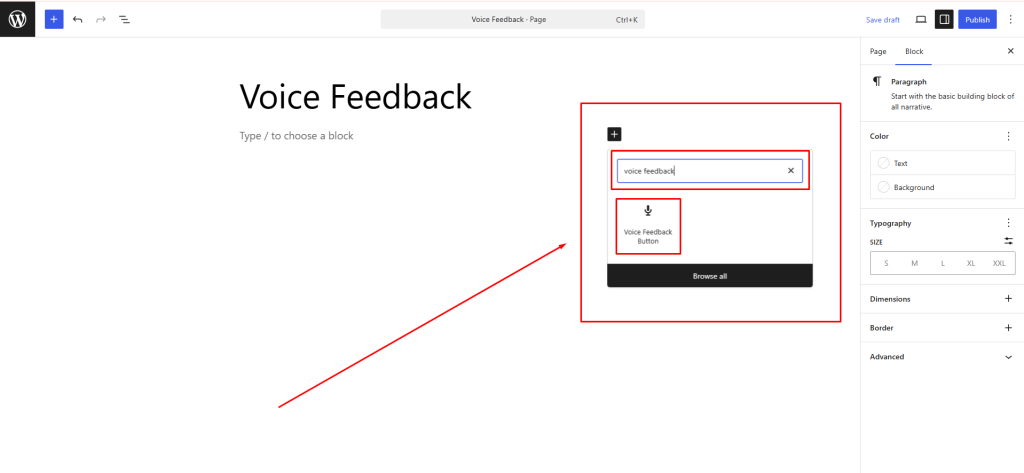
Let’s learn about block settings and styles.
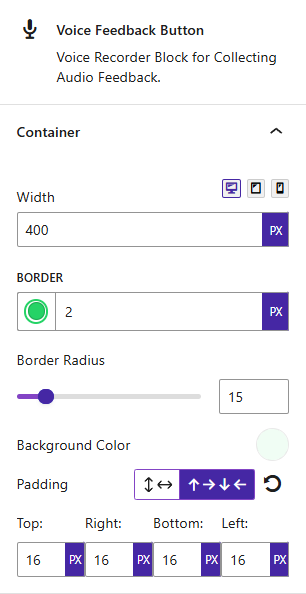
Let’s explore Container settings and styles
- Container Width: Set button container width.
- Border: Modify Border of the container.
- Border Radius: Give a rounded shape for your container.
- Background Color: Background Color of the container.
- Padding: Set spacing for your container to buttons.
Now Let’s explore Buttons styles and settings
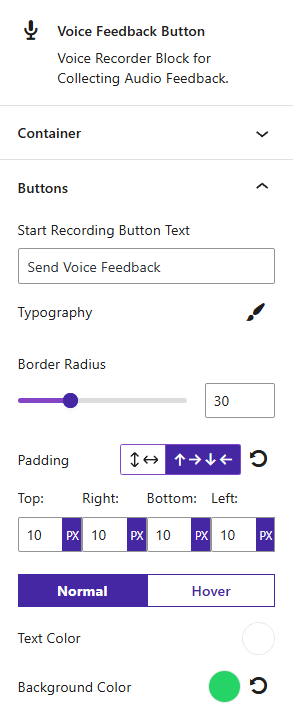
- Start Recording Button Text: Edit start recording button text on your own.
- Padding: Modify button’s padding.
- Button Text Typography: This typography will all of the button of like Start Record, Play Record, Send, Clear, Re-record buttons.
- Button Colors: Set button text color, background color for normal and hover.
- Button Border Radius: Give radius of Start Record, Play Record, Send, Clear, Re-record buttons.
 Save 90%