
If you’ve ever uploaded a video to your WordPress site and it didn’t play, looked blurry, or loaded slowly, especially on mobile, it was likely due to the video format. Not all video files work the same way, and different browsers and devices support different formats.
That’s why choosing the right video formats for WordPress is so important. Whether you’re embedding tutorials, product demos, background videos, or marketing clips, the format you choose affects how quickly the video loads, how it looks, and whether it works at all.
Using the wrong format can lead to playback errors, oversized files, or videos that just won’t load on some browsers. But with the right setup, your content can look sharp, load fast, and play smoothly across all devices.
In this guide, we’ll explain the three main HTML5 video formats used on the web: MP4, WebM, and OGV. We’ll compare them in terms of quality, compression, and browser support, and show you how to use them effectively on your WordPress site.
You’ll also learn how to embed video in WordPress, improve video performance, and use multiple formats for better compatibility.
Let’s dive into the basics.
Understanding Popular Video Formats: MP4, WebM, OGV
What Are Video File Formats?
When we talk about video formats, we’re usually referring to two things: containers and codecs.
A container is the file format itself—like .mp4, .webm, or .ogv. It holds the video, audio, subtitles, and other metadata together in one file.
A codec (short for coder-decoder) is the technology that compresses and decompresses the video and audio inside that container.
Think of the container as a suitcase and the codecs as the clothes inside. You can pack the same clothes into different suitcases, depending on where you’re going and what kind of travel is supported.
The three most common HTML5 video formats used on the web are MP4, WebM, and OGV. Each supports specific codecs:
- MP4 typically uses H.264 for video and AAC for audio.
- WebM uses VP8 or VP9 for video and Vorbis or Opus for audio.
- OGV (Ogg Theora) uses Theora for video and Vorbis for audio.
Let’s take a closer look at how these formats compare.
MP4 Format
MP4 (MPEG-4 Part 14) is the most widely used format for online video—and for good reason. It strikes a strong balance between quality, compatibility, and file size.
Most MP4 files use the H.264 codec for video and AAC for audio, making them highly efficient and compatible with nearly every device and browser.
MP4 is the safest choice when you want your video to work across all browsers and devices. Whether someone’s using an iPhone, Android, Mac, or PC, an MP4 video is almost guaranteed to play without issues.
Pros
- Works in all major browsers: Chrome, Firefox, Safari, Edge, and Opera
- Plays smoothly on phones, tablets, laptops, and TVs
- Delivers good quality at manageable file sizes
- Compatible with most WordPress video players and media tools
Cons
- Not fully open-source (H.264 and AAC are proprietary)
- May require a license for commercial distribution at scale
Best Use Cases
MP4 is ideal for most scenarios, tutorials, marketing videos, product demos, webinars, and more. If you’re uploading videos to WordPress, YouTube, or social media, MP4 is your go-to format.
WebM Format
WebM is a free, open-source video format developed by Google. It’s built specifically for the web and focuses on fast loading, small file sizes, and good visual quality.
WebM uses VP8 or VP9 for video and Vorbis or Opus for audio. These codecs offer efficient compression—VP9 in particular can deliver smaller file sizes without noticeable quality loss compared to H.264.
WebM is optimized for performance. It’s great for users on slower networks or when you’re aiming to reduce video load times in WordPress.
Pros
- 100% free and open-source (no licensing issues)
- Smaller file sizes for the same visual quality
- Great for streaming video, background loops, and animations
- Supported in modern browsers: Chrome, Firefox, Edge, and Opera
Cons
- Limited support in older browsers like Internet Explorer and legacy Safari
- Often requires a fallback MP4 file for full compatibility
Best Use Cases
Use WebM for autoplay background videos, large media libraries, or motion-heavy content where performance is critical. Pair it with MP4 to ensure coverage across all browsers and devices.
OGV Format
OGV, part of the Ogg multimedia family, was one of the first open alternatives to proprietary video formats. It uses the Theora codec for video and Vorbis for audio.
While OGV helped push early HTML5 video adoption, it’s largely been replaced by WebM due to better efficiency and wider browser support.
OGV was important for early open-source video projects. Today, its use is rare outside of specific legacy environments or Linux-based systems.
Pros
- Free and fully open-source
- Still works in some older browsers and open-source software
Cons
- Theora is outdated and less efficient than H.264 or VP9
- Limited browser support—won’t play in Safari or Chrome by default
- Larger file sizes for the same quality
Best Use Cases
OGV might still be used in niche setups—like older Linux systems or open-source platforms with specific needs. But for most users and modern WordPress video compatibility, MP4 and WebM are the better options.
Browser Compatibility: MP4 vs. WebM vs. OGV
Choosing the right video format isn’t just about quality or file size—it’s also about whether your audience will be able to play it in their browser.
Here’s a quick look at how MP4, WebM, and OGV perform across popular browsers and devices.
| Browser / Device | MP4 (H.264/AAC) | WebM (VP8/VP9) | OGV (Theora) |
| Chrome | ✅ Full Support | ✅ Full Support | ✅ Partial |
| Firefox | ✅ Full Support | ✅ Full Support | ✅ Full Support |
| Safari (macOS/iOS) | ✅ Full Support | ⚠️ Limited (No VP9) | ❌ Not Supported |
| Edge | ✅ Full Support | ✅ Full Support | ❌ Not Supported |
| Opera | ✅ Full Support | ✅ Full Support | ✅ Partial |
| Android Browsers | ✅ Full Support | ✅ Full Support | ⚠️ Limited |
| iOS Browsers | ✅ Full Support | ❌ Not Supported | ❌ Not Supported |
HTML5 <video> Element
Modern websites typically use the HTML5 <video> tag to embed video content. You can include multiple source files in different formats to ensure the browser picks the one it supports.
Example:
<video controls>

  <source src="video.mp4" type="video/mp4">

  <source src="video.webm" type="video/webm">

  <source src="video.ogv" type="video/ogg">

  Your browser does not support the video tag.

</video>
This approach helps you offer fallback formats so your videos play on as many devices and browsers as possible.
Embedding Videos in WordPress
WordPress makes it easy to embed videos—even if you don’t know how to code. Whether you’re uploading your own files or using videos hosted elsewhere, you can add them directly to posts, pages, or custom layouts.
1. Native WordPress Support
WordPress supports the HTML5 <video> element out of the box, which means you can:
- Upload MP4 or WebM videos directly to the Media Library
- Embed them using the Gutenberg Video block
- Use the <video> shortcode with options like controls, poster, and preload
Supported Formats
- MP4 (H.264 + AAC) – Offers the best compatibility across all browsers and devices
- WebM (VP8/VP9 + Vorbis/Opus) – A modern format with better compression for supported browsers
💡 To ensure the best experience, include both formats in your video embed. The browser will automatically choose the one it supports.
2. Plugins for Better Control and Compatibility
While native embeds work well for simple use cases, using a WordPress video player plugin gives you more design options, better control, and extra features.
HTML5 Video Player
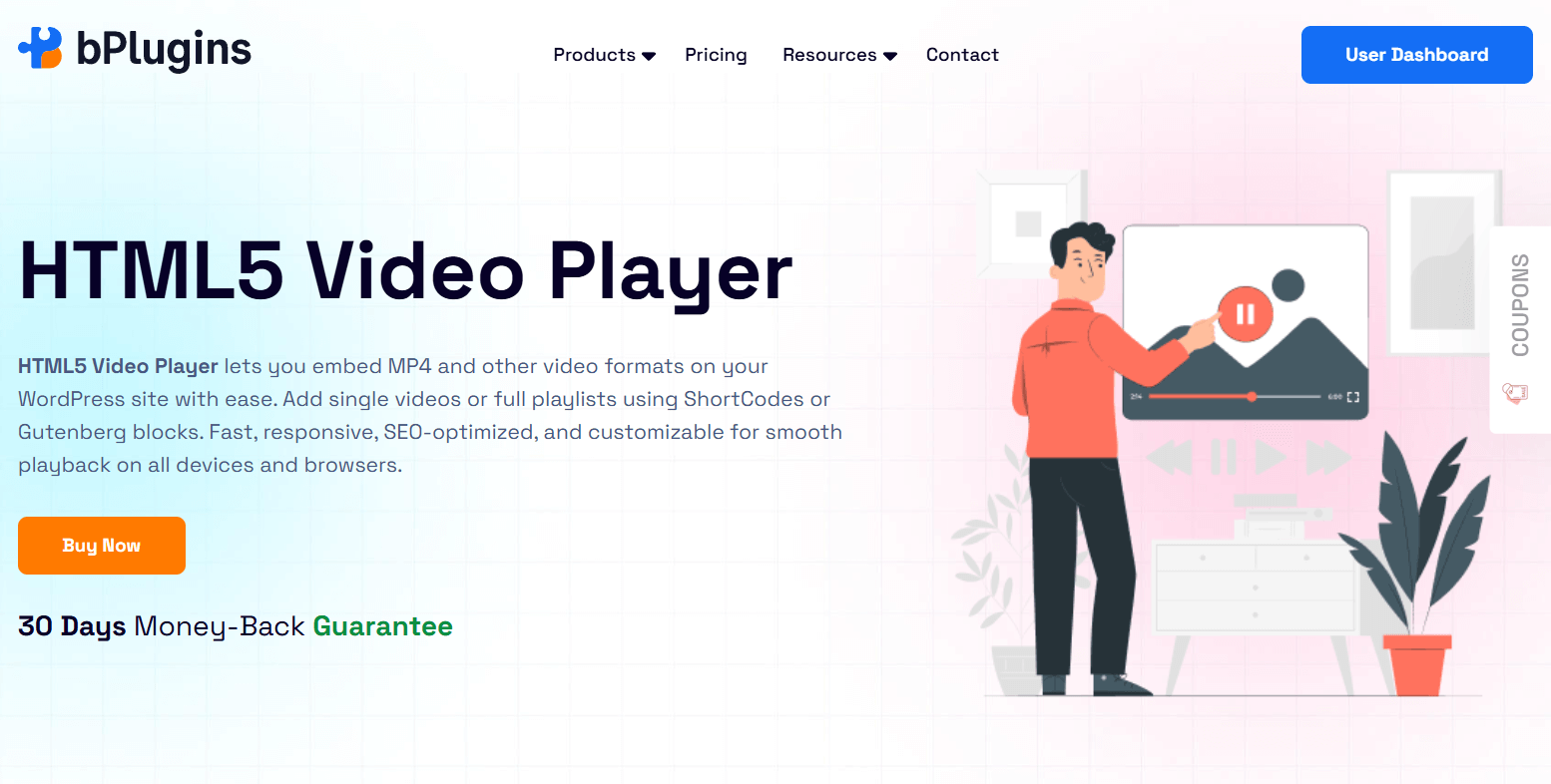
HTML5 Video Player is a lightweight and beginner-friendly WordPress plugin designed to make video embedding simple and reliable. It supports multiple video formats—including MP4, WebM, and OGV—for broad browser compatibility.
With responsive design, customizable playback options, and support for Gutenberg blocks and shortcodes, it ensures your videos look and perform great on any device. Ideal for product demos, tutorials, landing pages, and more.
Key Features:
- Embed videos with a shortcode or Gutenberg block
- Supports MP4, WebM, and OGV formats
- Set custom poster images, player width/height, autoplay, mute
- Mobile-friendly and responsive
- Preload options: auto, metadata, or none
- Sticky/floating video player
- Custom player skins, themes, and branding
- Playlist and chapter support
- Subtitles and adjustable playback speed
- Enhanced responsiveness for mobile devices
If you want a clean, customizable video experience on your WordPress site without writing code, this plugin is a great choice.
Check out the HTML5 Video Player plugin review.
Check the visual walkthrough to learn how to embed videos in WordPress using the HTML5 Video Player plugin.
Other Helpful Plugins
Presto Player – Great for marketing, LMS platforms, and gated content (includes analytics, CTA overlays, and integrations)
Fallbacks and Accessibility Best Practices
To ensure your videos play well for everyone:
- Use both MP4 and WebM formats for full WordPress video compatibility
- Add captions or transcripts to improve accessibility and SEO
- Include a poster image so the video doesn’t appear blank before loading
- Choose a player that supports keyboard navigation and screen readers
Best Practices for Video Performance in WordPress
Uploading a video to WordPress is easy—but making sure it plays smoothly, loads quickly, and doesn’t slow down your site takes a few extra steps. Poorly optimized videos can hurt the user experience, increase bounce rates, and negatively impact SEO.
Here’s how to handle video performance optimization in WordPress the right way:
1. Compress Your Videos Before Uploading
Large video files can slow down your pages and eat up bandwidth. Before adding videos to your WordPress Media Library, compress them using tools like HandBrake or FFmpeg. These tools reduce file size without a noticeable drop in quality.
You don’t need a 100MB video if a 10MB version looks just as good.
2. Choose the Right Resolution
If your site only displays video in a small area, like 720p or smaller, there’s no need to upload 1080p or 4K files. Use the smallest resolution that still looks sharp in your layout. This helps reduce load time and saves server space.
3. Use a CDN for Faster Delivery
Hosting videos directly from your WordPress server can strain resources—especially if your site gets a lot of traffic. A Content Delivery Network (CDN) spreads your video files across multiple servers worldwide, reducing load times.
Many managed WordPress hosts offer built-in CDN support. You can also use services like Cloudflare, Bunny.net, or KeyCDN.
4. Enable Lazy Loading for Videos
Lazy loading delays video loading until the visitor is about to scroll to it. This improves overall page speed, especially on longer pages.
While WordPress lazy-loads images by default, videos may require extra help. Use plugins like:
- a3 Lazy Load
- WP Rocket
- Perfmatters
Or choose a page builder or block plugin that includes lazy loading for videos.
5. Avoid Autoplay with Sound
Autoplaying videos with sound can be distracting—and are often blocked by browsers. If you use autoplay (especially for background videos), make sure the video is muted, set to loop, and doesn’t rely on sound to communicate key messages.
6. Offload Large Videos to External Platforms
If you’re hosting long videos like webinars or course content, it’s better to offload them to third-party platforms to reduce load on your site.
Consider:
- YouTube or Vimeo – Easy embeds and no bandwidth worries
- Amazon S3 or Bunny Stream – For private or self-hosted video delivery
Once uploaded, embed the video using a WordPress block, shortcode, or plugin.
FAQs on Video Formats for WordPress
Can I use only WebM for my videos?
You can, but it’s not recommended. WebM isn’t supported in Safari, including iPhones and iPads. If you only use WebM, your video won’t play for a large portion of users. Always include MP4 as a fallback.
Why doesn’t Safari play my WebM video?
Safari (especially on iOS) doesn’t support WebM natively. It relies on MP4 with H.264 for playback. That’s why you should include both MP4 and WebM in your embeds for full WordPress video compatibility.
What’s the difference between a codec and a container?
- A container (like MP4, WebM, or OGV) is the file format that holds everything—video, audio, subtitles, and metadata.
- A codec (like H.264, VP9, or Theora) compresses and decompresses the actual video and audio data.
Think of the container as a suitcase and the codec as the items inside it.
Is OGV still relevant in 2025?
Not really. OGV (Theora codec) is outdated and no longer widely supported. WebM has taken its place as the preferred open-source alternative. Unless you have a very specific technical reason, there’s no need to include OGV.
Which video format is best for WordPress?
MP4 is the best all-around format. It works with all browsers and devices, delivers high quality, and is compatible with the WordPress video block and most plugins. Start with MP4, then add WebM to boost performance for modern browsers.
Should I upload both MP4 and WebM?
Yes. Uploading both formats ensures responsive video playback in WordPress across all browsers. WebM loads faster in modern browsers, while MP4 acts as a fallback for older ones—especially Safari and iOS devices.
What happens if my browser doesn’t support WebM?
If your <video> tag includes both WebM and MP4, the browser will automatically use the one it supports. If no compatible format is included, the video simply won’t play—so always include at least one widely supported format.
Final Thoughts
Choosing the right video formats for WordPress is key to making sure your videos play smoothly across all browsers and devices. MP4 is still the most reliable option, offering broad compatibility and solid playback on nearly every platform.
For the best results, use both MP4 and WebM when embedding videos. MP4 ensures wide browser support, while WebM improves loading speed and performance in modern browsers. OGV is outdated and rarely needed today.
Test your videos across different devices to catch issues early. To simplify embedding and format handling, the HTML5 Video Player plugin is a solid choice. It supports multiple formats, responsive layouts, and advanced features like playlists and subtitles.
With the right formats and tools, you can deliver a fast, reliable, and smooth video experience for every visitor.

 Save 90%