
WordPress makes it easy to embed different types of content, not just videos. While most users start with YouTube or Vimeo, the platform supports much more than that. You can embed PDFs, Google Docs, maps, forms, even 3D models, all without writing a line of code.
Adding this kind of content helps you create a richer, more engaging experience. It improves usability, makes information easier to access, and encourages visitors to spend more time on your site. Whether you’re sharing brochures, showing live data, or collecting feedback, smart embeds can make your site more useful and interactive.
In this post, you’ll discover 10 unique types of content you can embed in WordPress, along with practical tips and recommended tools to help you get started.
10 Unique Contents You Can Embed in WordPress
Most WordPress users know how to embed videos, but that’s just scratching the surface. WordPress lets you embed all kinds of content to make your site more interactive, informative, and engaging. Here are ten unique types of media you can add, starting with PDFs, Google Docs, and audio files.
1. PDF Documents
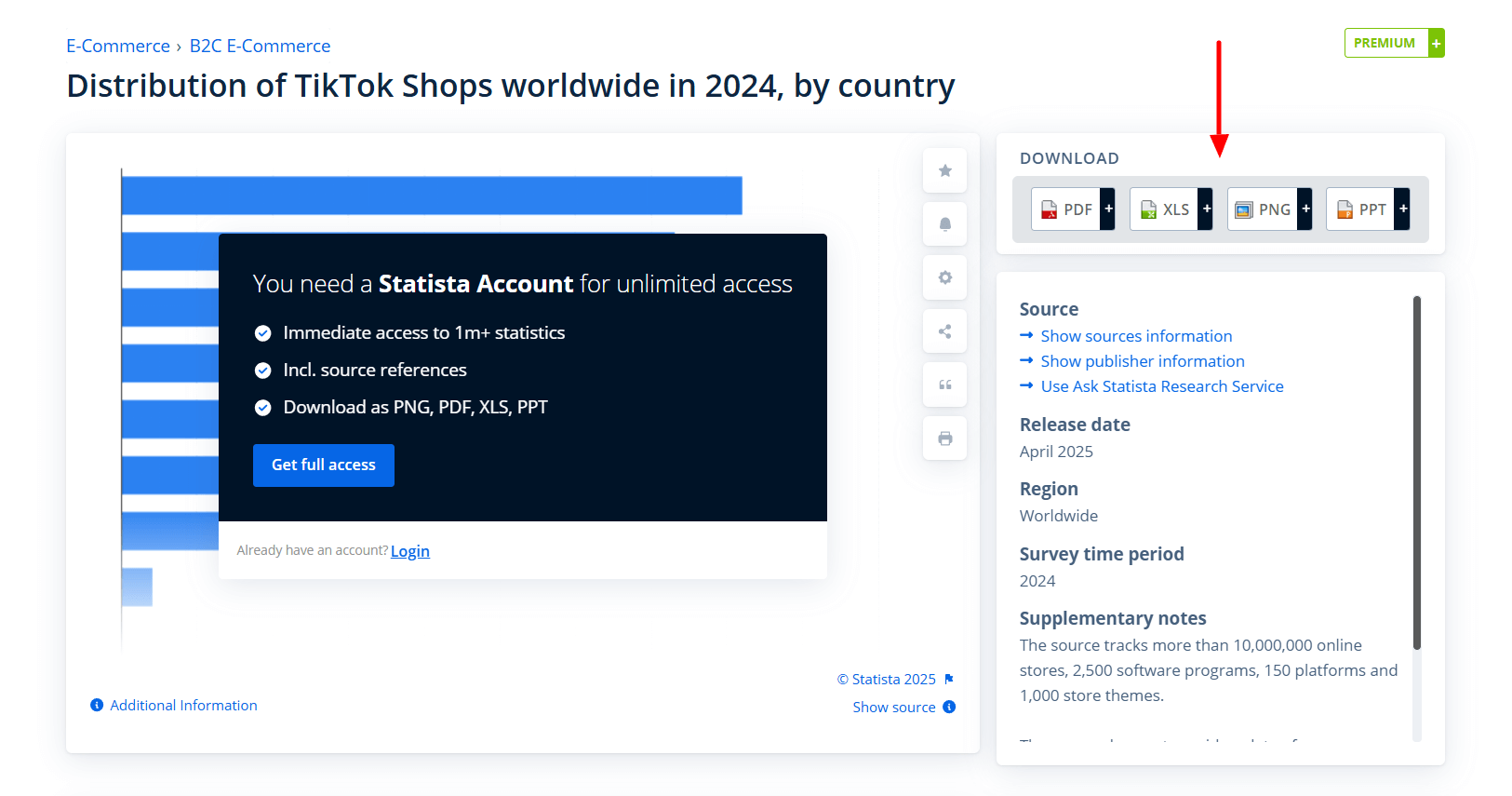
PDFs are great for sharing structured, downloadable content in a consistent format. Instead of linking to a file, you can embed PDFs directly into your posts or pages so visitors can read them without leaving your site.
Use Cases:
- Business brochures or reports
- Whitepapers or eBooks
- Product manuals or documentation
- Portfolios or resumes
How to Embed PDFs in WordPress:
- Gutenberg File Block: Uploads the file and adds a download link, but doesn’t support inline viewing.
- Iframe Embed: Upload the PDF to Google Drive or your server and embed it using a <iframe> in a Custom HTML block.
- Plugin Method (Recommended): Use a plugin that displays PDFs in a scrollable, mobile-friendly viewer.
Recommended Plugin: PDF Poster
PDF Poster lets you embed PDFs anywhere using shortcodes or Gutenberg blocks. It shows documents in an inline viewer with zoom, scroll, and mobile support—no need for third-party services. Ideal for sites that regularly publish documents.
2. Google Docs & Google Sheets
Google Docs and Sheets are perfect for sharing live content like collaborative documents or real-time data. Embedding them in WordPress ensures your readers always see the most up-to-date version—no need to upload files again and again.
Use Cases:
- Project outlines or shared documentation
- Editorial calendars or planning tools
- Live dashboards or data reports
- Writing samples, proposals, or contracts
How to Embed Google Docs or Sheets:
- Google’s Embed Code: In Docs or Sheets, go to File → Share → Publish to Web, then paste the embed code into a Custom HTML block.
- Iframe Method: Embed the published document using a standard <iframe> in a block.
- Plugin Method: Use a plugin to simplify embedding and ensure the document is mobile-responsive.
Recommended Plugin: Document Embedder
Document Embedder supports Google Docs, Sheets, Slides, and even Microsoft Office files. It provides both blocks and shortcodes, and displays files in a responsive, scrollable viewer. It’s ideal for bloggers, educators, and teams sharing cloud-based content.
3. Audio Files / Podcasts
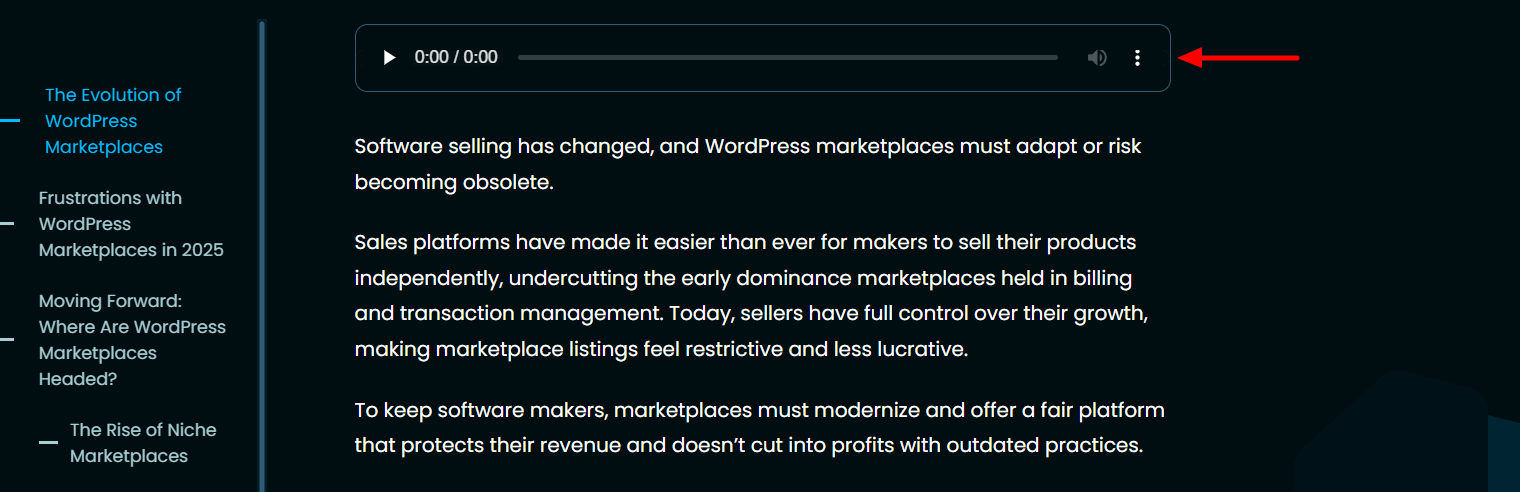
Audio is a powerful but often overlooked content type in WordPress. Whether you’re a podcaster, musician, or educator, embedding audio allows you to connect with visitors who prefer listening over reading or watching.
Use Cases:
- Podcast episodes or interviews
- Sermons, lectures, or spoken word
- Music tracks or full albums
- Meditation guides or ambient soundscapes
How to Embed Audio in WordPress:
- Audio Block: WordPress includes a built-in Audio block that supports MP3, WAV, and OGG files. It provides basic playback controls.
- Third-Party Platforms: You can embed audio from SoundCloud, Spotify, or Anchor using iframe embed codes.
- Advanced Plugins: For playlists, styling, and mobile-friendly features, use a dedicated audio plugin.
Recommended Plugin: HTML5 Audio Player
HTML5 Audio Player adds a clean, responsive audio player to your site. It supports playlists, custom skins, and works with both Gutenberg blocks and shortcodes. Ideal for creators who want more flexibility than the default player offers.
Lean Embed Podcasts in WordPress Using HTML5 Audio Player
4. 3D Models & Viewers (GLTF, STL, etc.)
Want to go beyond images? Embedding interactive 3D models lets users explore objects from every angle. It’s a great fit for product showcases, architecture, education, and digital portfolios.
Use Cases:
- Product previews in eCommerce
- Interactive floor plans or architectural blueprints
- Educational models for science or engineering
- 3D portfolios for artists and developers
How to Embed 3D Models:
- Sketchfab: Upload your models (GLB, GLTF, OBJ, etc.) to Sketchfab, then embed them using a Custom HTML block.
- Self-Hosted Plugin: Use a plugin to embed your own files and maintain full control.
Recommended Plugin: 3D Viewer
3D Viewer lets you upload and display GLB, GLTF, or STL models with interactive zoom and rotation. It supports Gutenberg, Elementor, and shortcodes, and adapts seamlessly to mobile screens. Great for product demos, virtual prototypes, or educational tools.
Also read: 360° Product View Plugins for WordPress: Features, Comparisons, and Guide
5. Calendars (Google Calendar, Event Plugins)
Adding a live calendar to your WordPress site makes it easy to share schedules, events, or availability in real time. Whether you’re managing a class schedule, promoting events, or offering appointments, embedded calendars add clarity and professionalism.
Use Cases:
- Event calendars for schools or communities
- Appointment booking availability
- Class or training schedules
- Church or nonprofit events
How to Embed Calendars:
- Google Calendar: In your calendar settings, go to Share → Get Embed Code, then paste it into a Custom HTML block.
- WordPress Plugins: Use a dedicated event plugin to manage and display calendars directly from your dashboard.
Recommended Plugin: The Events Calendar
This plugin offers a full-featured calendar with multiple views (month, list, day) and integrates with Google Calendar and iCal. Great for event-driven websites, schools, churches, or community hubs.
6. Social Media Posts (Tweets, Instagram, Facebook)
Embedding social media posts adds dynamic, real-world content to your site. It’s a simple way to show social proof, highlight conversations, or share timely updates without manual copying.
Use Cases:
- Feature a tweet or post from a brand or influencer
- Highlight user-generated content from Instagram
- Embed Facebook posts with video previews or comments
How to Embed Social Media Posts:
- Native Support: Just paste the URL of a public tweet, Instagram post, or Facebook video into the WordPress editor—it embeds automatically.
- Plugins for More Control: Use social feed plugins for custom layouts, filtering, or responsive styling.
Recommended Plugin: Easy Twitter Feed
It lets you display tweets from a profile or hashtag in a customizable, responsive feed. Choose how many tweets to show, adjust themes, and control styling—perfect for blogs, brands, or news sites that want live Twitter content.
Bonus Option: Smash Balloon (Social Post Feed)
A powerful plugin suite that supports Facebook, Instagram, Twitter (X), and YouTube. Offers layout options, responsive design, and unified feeds. Ideal if you want to embed content from multiple platforms in one place.
Easy guide on: How to Embed Twitter Feed in WordPress Without Heavy Scripts
7. Interactive Maps (Google Maps, Leaflet)
Interactive maps make your content more helpful, especially on contact pages, event listings, or local guides. Whether you’re showing a store location or mapping out a festival route, maps offer clear, visual direction for your visitors.
Use Cases:
- Store locator or office directions
- Travel blogs with map-based storytelling
- Local events, routes, or community guides
How to Embed Maps:
- Google Maps Embed: Search a location, click Share → Embed a map, then paste the iframe into a Custom HTML block.
- Plugins: Use a map plugin to add custom markers, directions, or styling—no code required.
Recommended Plugin: WP Go Maps
It lets you build interactive maps with drag-and-drop markers, custom labels, and route overlays. It works with both Google Maps and OpenStreetMap, making it perfect for contact pages, directories, or visual guides.
8. Presentations (Google Slides, PowerPoint Online)
Presentations are a great way to share visual content without sending users away from your site. Whether you’re giving a pitch, sharing course materials, or posting lecture slides, embedded presentations keep everything in one place.
Use Cases:
- Client or business proposals
- Educational slide decks
- Course and workshop materials
- Sales or product overviews
How to Embed Presentations:
- Google Slides: Go to File → Share → Publish to Web → Embed, then paste the iframe into a Custom HTML block.
- PowerPoint Online: Upload to OneDrive → open in PowerPoint Web → choose Share → Embed.
- Plugin Method: Use a document plugin to embed presentations without code easily.
Recommended Plugin: Document Embedder
Document Embedder supports Google Slides, PowerPoint, Word, Excel, and PDFs. It includes responsive viewers and Gutenberg block support, so you can embed slide decks with just a few clicks—ideal for educators, businesses, and speakers who regularly share presentation content.
9. Forms & Surveys

Need to collect feedback, run a poll, or accept user submissions? Embedding forms directly into your pages make it easy for users to respond without leaving your site—great for boosting engagement and conversions.
Use Cases:
- Contact or inquiry forms
- Newsletter sign-ups
- Product surveys or feedback forms
- Quizzes, polls, and contests
How to Embed Forms in WordPress:
- Google Forms: Open the form, click Send → <> (Embed), then paste the iframe into a Custom HTML block.
- Typeform: Offers a modern design and responsive embed options.
- Forms Plugin: Build and manage forms directly inside WordPress using shortcodes or blocks.
Recommended Plugin: Fluent Forms
It’s a beginner-friendly, drag-and-drop form builder with built-in spam protection and mobile responsiveness. It supports contact forms, surveys, payments, and more—ideal for websites that need custom forms without complex setup.
10. Code Snippets
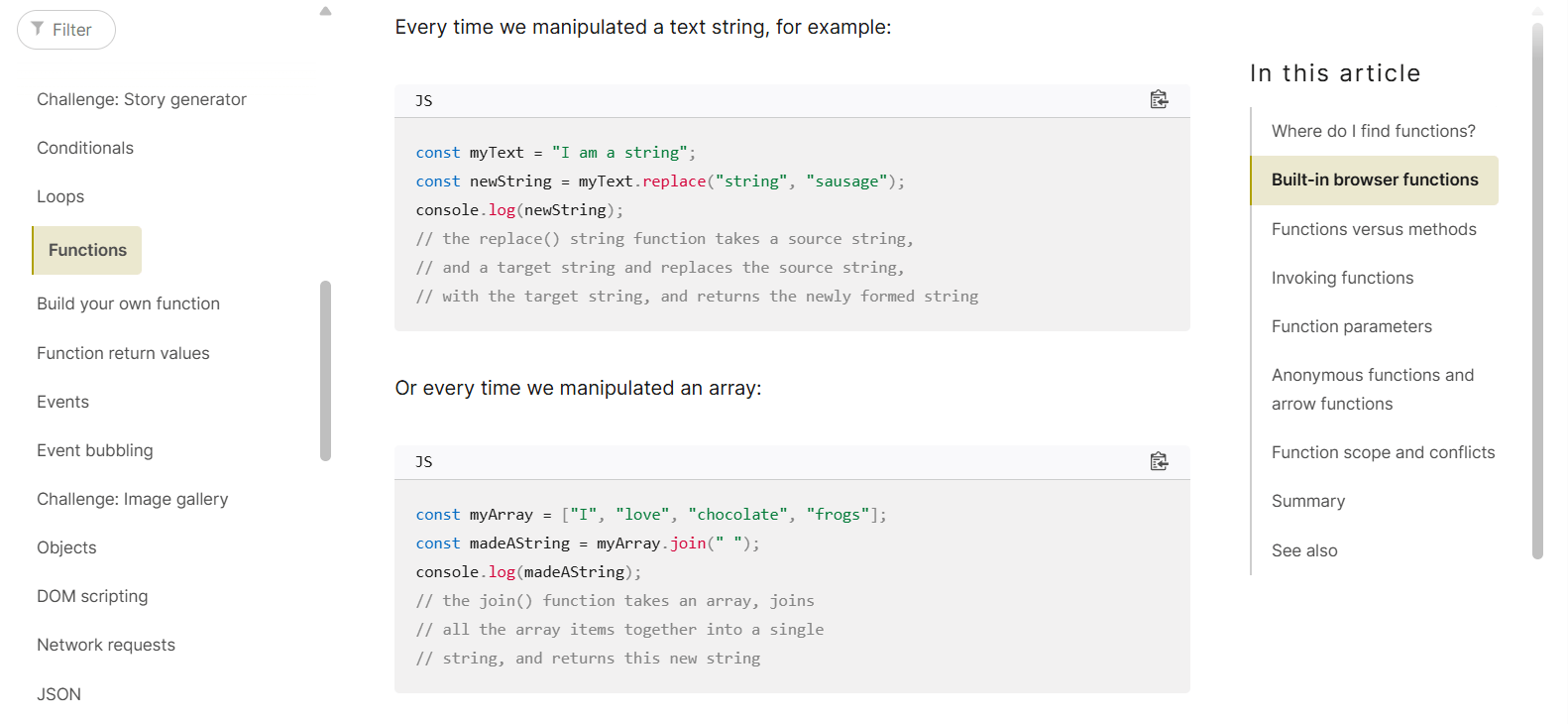
For developer-focused sites, embedding clean, readable code is a must. Instead of pasting plain text or screenshots, you can use syntax-highlighting plugins to present code professionally and interactively.
Use Cases:
- Programming tutorials
- Technical documentation
- Code libraries or reusable snippets
- Open-source project showcases
How to Embed Code:
- Syntax Highlighter Plugins: Use a plugin for color-coding, line numbers, and support for multiple languages.
Recommended Plugins: Advance Custom HTML
It’s built for displaying styled HTML/CSS/JS snippets on the frontend. Especially useful for demos and frontend-focused content.
Also check out: Top Code Editor Plugins for WordPress Developers
Bonus Tips for Embedding Content in WordPress
Embedding content can boost engagement and improve your site’s user experience—but only when done right. Use these practical tips to keep your embeds responsive, accessible, and well-integrated across all devices.
Use Responsive Embeds for Mobile Compatibility
Not all embeds adjust to different screen sizes. To avoid broken layouts or cut-off content on mobile, make sure your embeds are responsive.
- Use plugins with built-in responsiveness (like PDF Poster)
- Wrap iframe code in a container with CSS like max-width: 100% and height: auto
- Test embeds on desktop, tablet, and mobile before publishing
Structure Layouts with Gutenberg Blocks
Use Gutenberg’s layout tools (like Group, Columns, and Spacer blocks) to organize your embeds and keep your design clean.
- Group embeds with related text or headings for better flow
- Use columns to align media alongside written content
- Add padding or background colors to make embeds stand out
Preview on Multiple Devices
Before going live, preview your page on different screen sizes to make sure everything works as expected, especially for PDFs, 3D models, and slides.
- Use browser dev tools or services like BrowserStack
- Check for scrollbars, zoom behavior, and cut-off areas
- Avoid outdated embed types like Flash or deprecated scripts
Optimize File Sizes for Performance
Large media files can slow down your site. Optimize files before embedding, and consider lazy loading non-critical content.
- Compress documents, audio, and video before upload
- Enable lazy load for embeds if supported by your theme or plugin
- Use performance tools like Seraphinite Accelerator to defer embed loading
Always Use HTTPS for Embeds
Make sure all embed links use secure https:// URLs. Using http:// on a secure site can trigger browser warnings or cause content to fail to load.
- Check embed URLs and update any insecure links
- Confirm sharing settings for Google Docs, Slides, and Sheets
- Avoid embedding content with sensitive data unless it’s access-controlled
Use Plugin Shortcodes for Easier Management
Most embedding plugins offer shortcodes, which are easier to use and update than raw HTML or iframe code.
- Example: [pdf-poster id=”123″] is cleaner than manually embedding iframe code
- Use built-in shortcode generators to reduce errors and maintain consistency
Keep Plugins Updated and Trusted
Outdated or poorly maintained plugins can break your embeds or cause conflicts. Stick to reliable tools and keep everything up to date.
- Use plugins with regular updates and good reviews
- Test your embeds after major WordPress or theme updates
- Avoid plugins that rely on unsupported third-party services
Frequently Asked Questions About Embedding Content in WordPress
Want to embed PDFs, Google Docs, forms, or other content in WordPress? Here are answers to some of the most common questions site owners and creators ask.
1. How do I embed a PDF file in WordPress without a plugin?
You can upload the PDF to your Media Library and use the File block in Gutenberg. However, this only shows a download link. To display the PDF inline, use an <iframe> or a plugin like PDF Poster for a better viewing experience.
2. What’s the difference between embedding a PDF and using a File block?
- File block: Shows a download button but doesn’t display the document.
- Embedded PDF: Displays the PDF directly on the page, allowing users to scroll, zoom, and read without downloading.
3. Can I embed a Google Doc and let users edit it?
Yes—but only if you change the sharing settings. Publish the Doc to the web and set sharing to “Anyone with the link can edit.” Be cautious, though, especially on public pages where anyone could make changes.
4. Why doesn’t my embedded PDF work on mobile?
Common issues include:
- Non-responsive iframe code
- A plugin that doesn’t support mobile
- PDF viewers not optimized for touch devices
Use a mobile-friendly plugin like PDF Poster and wrap iframes in responsive containers. Always test on different screen sizes.
5. How can I embed Google Sheets privately?
To keep it private:
- Don’t publish it publicly—use the shared link’s iframe instead
- Limit visibility using a membership plugin or content restriction tools
- Some plugins allow conditional display based on user roles
6. What plugin lets me embed Google Docs, Sheets, and more?
Document Embedder supports:
- Google Docs, Sheets, and Slides
- Microsoft Word, Excel, and PowerPoint
- PDF files
It includes responsive viewers and Gutenberg block support for easy embedding.
7. What are the best size settings for embedding Google Slides?
Start with:
- Width: 100%
- Height: 480–600px
Always wrap the iframe in a responsive container or use a plugin that auto-adjusts for different devices.
8. Can I embed forms or surveys only for logged-in users?
Yes. Use a form tool (like WPForms, Typeform, or Google Forms) with a membership plugin like Restrict Content or MemberPress to limit access. You can hide the embed block based on user role or login status.
9. How do I embed PowerPoint or other Office files in WordPress?
Upload the file to OneDrive, open it in PowerPoint for the Web, and choose Share → Embed. Paste the iframe into a Custom HTML block.
For easier file handling, use Document Embedder, which supports Word, Excel, and PowerPoint files.
10. Are embedded PDFs and Docs SEO-friendly?
Not directly. Search engines don’t index embedded content like iframes. To help with SEO:
- Use descriptive anchor links to the file
- Optimize the surrounding page content
- Include relevant headings and keywords
11. Can I customize the look of embedded documents?
Yes. Plugins like PDF Poster and Document Embedder allow you to:
- Show/hide toolbars
- Adjust height, width, or background color
- Enable or disable scroll and zoom features
You can also tweak some embeds using URL parameters (especially in Google Docs).
Conclusion
WordPress lets you embed much more than just videos—it gives you the tools to add dynamic, interactive content that brings your pages to life. From PDFs and Google Docs to audio, maps, and 3D models, embedding different types of media can boost engagement and improve the overall user experience.
Don’t be afraid to try out new embed types. Even adding just one or two to an existing post or landing page can make your site feel more modern and interactive.
Start experimenting today and see how embedding content can help you better connect with your audience and unlock the full potential of your WordPress site.

 Save 90%