
Layout matters. A clean, well-structured grid makes it easier for visitors to browse and find content. Blogs, portfolios, and news sites all benefit from grid layouts that are easy to scan and visually appealing.
Post grid plugins give you more control than the default WordPress blog layout. You can show posts in multiple columns, add category filters, use AJAX loading, and customize the design to match your site.
These plugins help improve user experience and keep people on your site longer. With options like card layouts and masonry grids, you can organize content in a way that looks good and works well.
In this post, we’ll review the best post grid plugins for WordPress. You’ll learn about their features, strengths, and which one fits your site best, based on your editor, design goals, and budget.
Let’s get started.
Top WordPress Post Grid Plugins to Enhance Your Content Layouts
A good post grid plugin can make your content easier to browse and more enjoyable to read. Whether you run a blog, portfolio, magazine, or business site, these tools help you organize posts in clean, engaging layouts that go far beyond WordPress’s default settings.
The plugins below support a range of layout options—grids, lists, sliders, carousels, and advanced features like filters and AJAX loading. Most work with popular editors like Gutenberg and Elementor, allowing you to build your layout visually without needing code.
Let’s look at the top WordPress post grid plugins, along with their standout features and ideal use cases.
1. Advanced Post Block
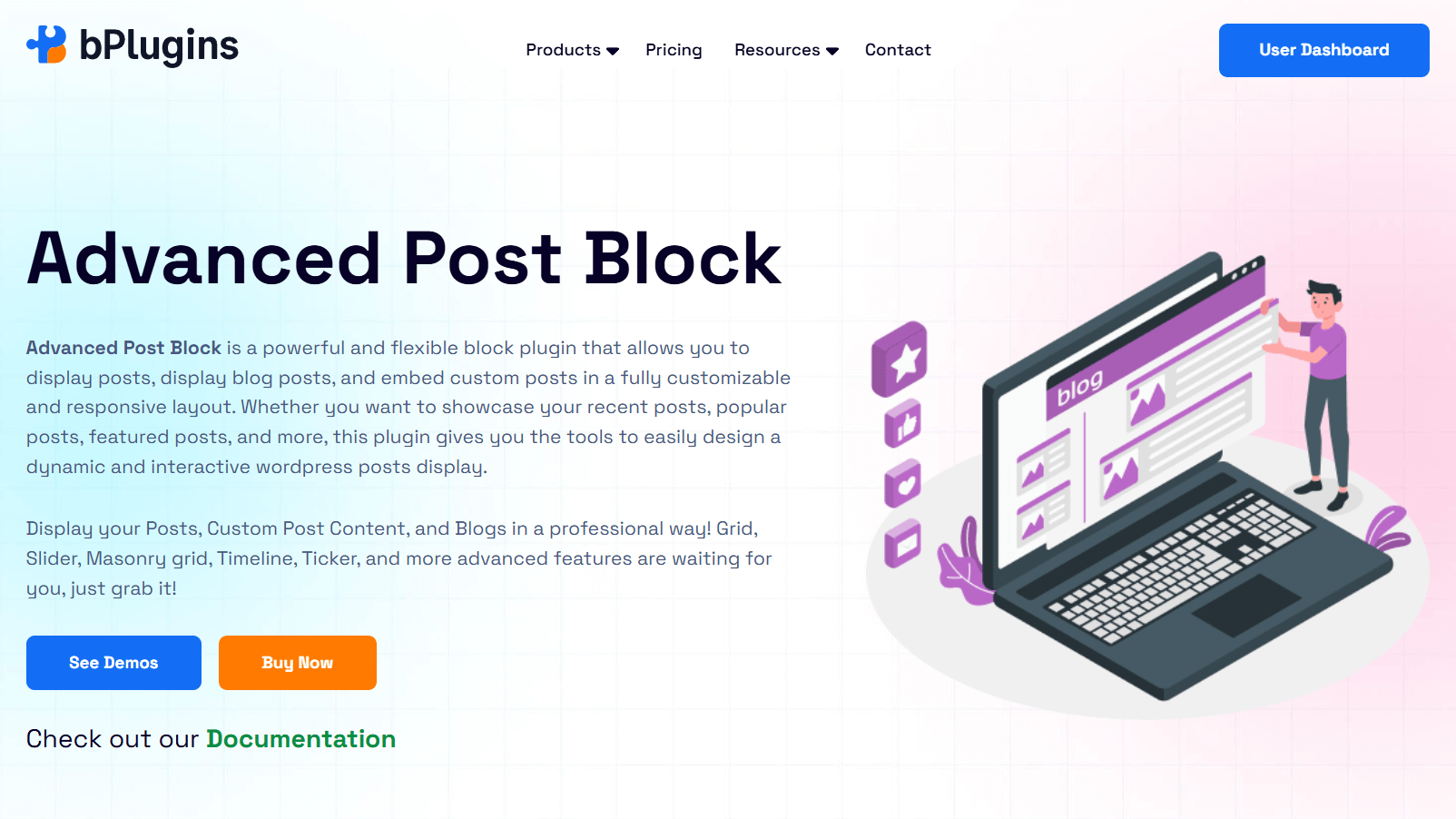
Advanced Post Block is built specifically for the WordPress block editor (Gutenberg). It lets you display posts, pages, or custom post types in fully customizable layouts, no coding needed. Whether you’re building a blog homepage, a portfolio, or a resource hub, this plugin gives you full control over layout, design, and filtering.
You can choose from various layout styles, adjust what content shows, and customize how each grid item looks—from titles and images to metadata and buttons. It’s responsive, lightweight, and designed to work fast without bloating your site.
Key Features
- Multiple Layouts: Supports Grid, Masonry, Slider, and Ticker layouts. Includes style variations like Left/Right Image, Overlay, and Title Meta view.
- Advanced Query Controls: Display posts, pages, or custom post types. Filter by categories, tags, taxonomies, authors, or post IDs. Control order, offset, and exclude the current post for use in single templates.
- AJAX and Pagination: Add numbered pagination or use AJAX “Load More” for seamless browsing.
- Metadata Controls: Choose which metadata to display (author, date, categories, etc.), and customize icons or links.
- Performance-Focused: Loads minimal assets and uses optimized queries to keep pages fast.
- Shortcode Support: Use shortcodes to insert grids anywhere—even in widget areas or templates.
- Developer-Friendly: Offers a custom query hook (apb_query) for advanced filtering or ACF integration.
- Ticker Layout: Show posts in a scrolling ticker with control over direction, speed, and appearance.
Best For
Bloggers, content marketers, portfolio creators, and magazine sites using the Gutenberg editor who want design flexibility, advanced filtering, and fast performance.
Also Read: How to use Advanced Post Block.
2. The Post Grid
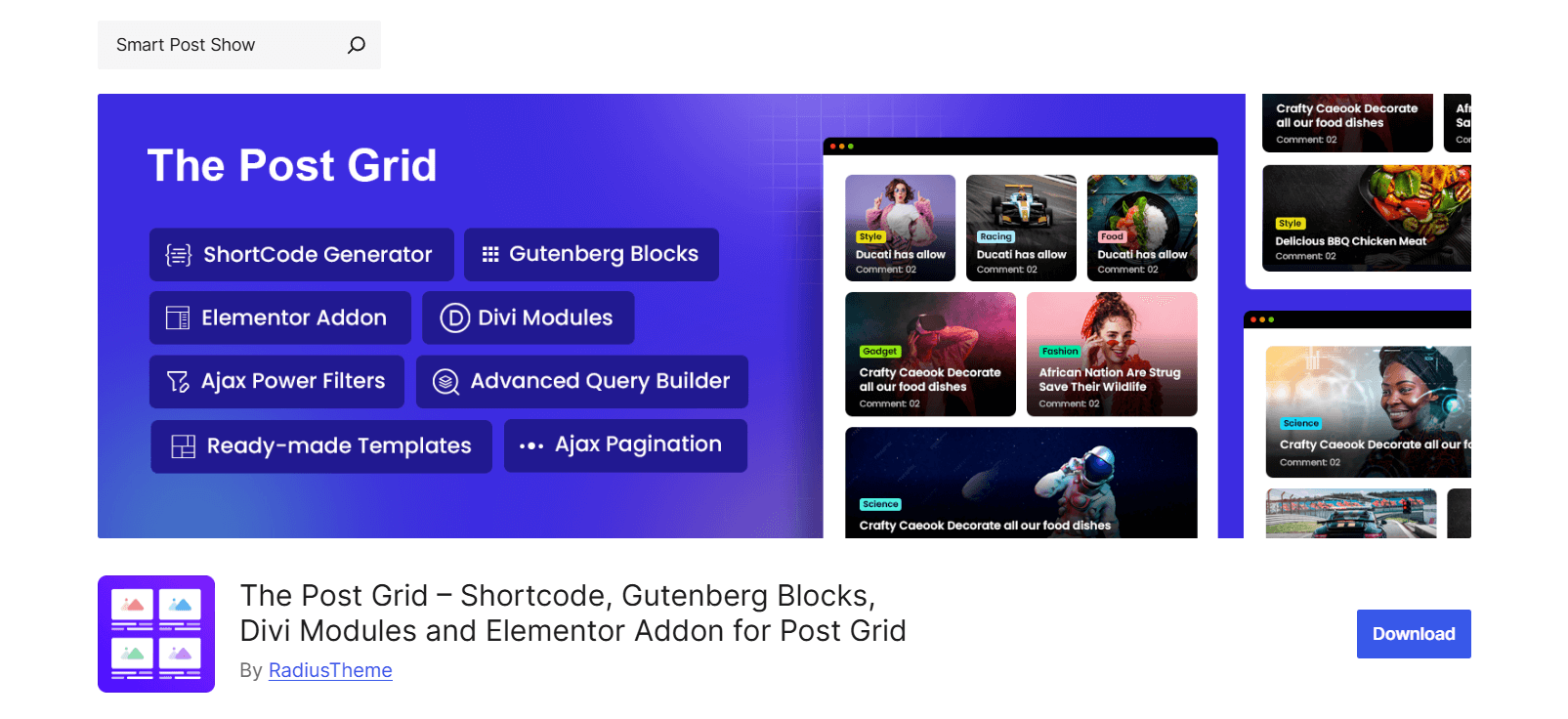
The Post Grid is a flexible and beginner-friendly plugin for building custom post displays. It works well for blogs, magazines, portfolios, or eCommerce sites. With support for Gutenberg, Elementor, and the Classic Editor, it lets you create grids, lists, sliders, or isotope views—all without writing code.
It offers powerful filtering, layout templates, and even archive builders. Everything is fully responsive and easy to customize.
Key Features
- Flexible Layout Options: Choose from Grid, List, Slider, Isotope, and Hover layouts, with over 45 layout variations (Pro). Works well for posts, portfolios, or WooCommerce products.
- Gutenberg Block and Elementor Support: Includes four Gutenberg blocks with drag-and-drop layout controls and comes with four dedicated Elementor widgets.
- Advanced Query Builder: Filter by post types, categories, tags, authors, or dates. Set post order, offset, and use taxonomy filters.
- Archive & Single Builders: Create custom archive and single post layouts using Gutenberg or Elementor.
- Ready-Made Layouts: Import over 90 design sections and 10+ full-page templates to speed up your site build.
- Frontend Post Submission: Let users register, log in, and submit posts from the frontend. Useful for multi-author or user-generated sites.
- Style Customization: Change title styles, excerpt length, button design, hover effects, and image behavior. Control borders, colors, overlays, and meta display.
- ChatGPT Integration: Use AI tools inside the Gutenberg editor to help generate or format content.
Best For
Site owners seeking greater control over layouts, simplified filtering, and shortcode support will find this particularly beneficial for magazine-style blogs, news websites, or Elementor users requiring archive and submission tools.
3. Content Views
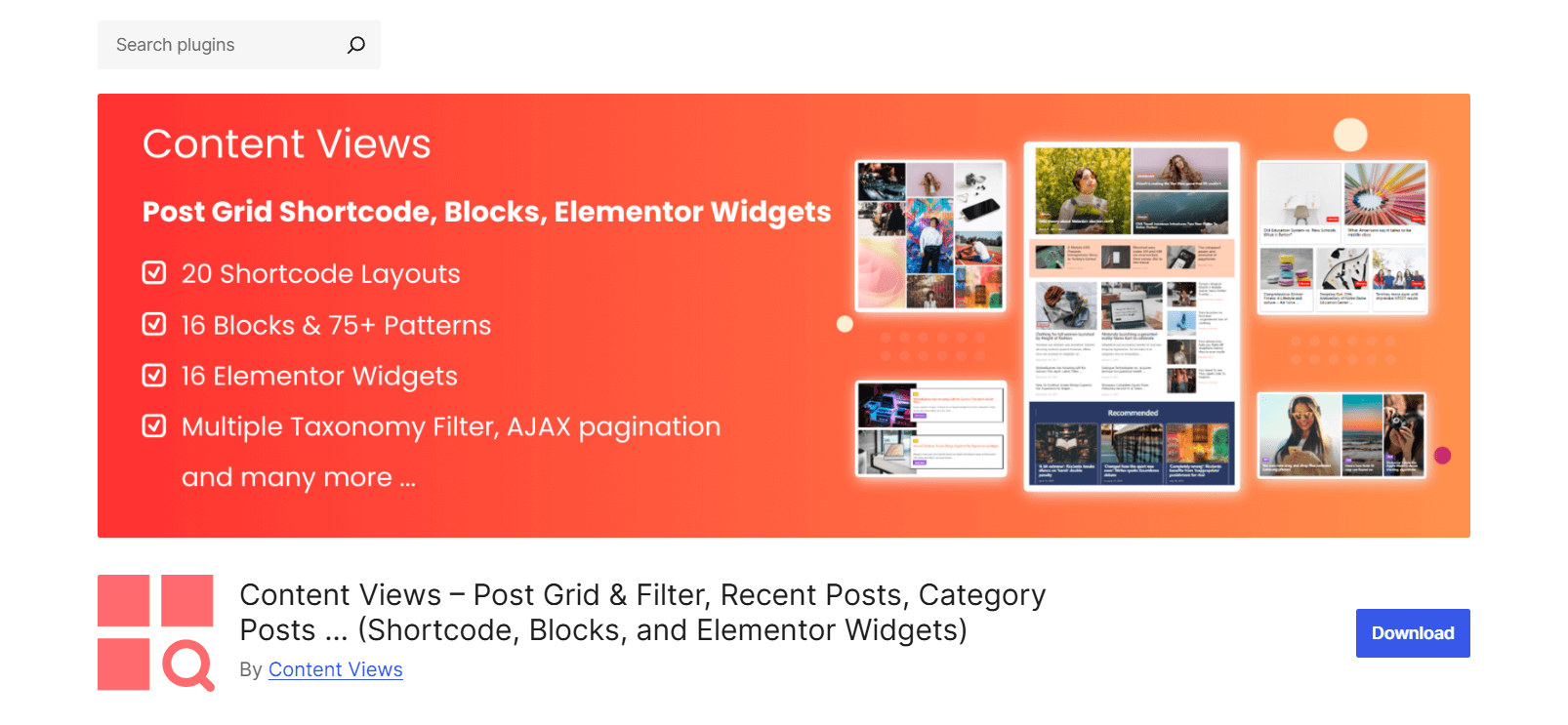
Content Views is one of the most widely used post grid plugins for WordPress. It’s trusted by bloggers, agencies, schools, and even government sites. This plugin lets you display posts, pages, and custom post types in a variety of layouts—grids, lists, sliders, timelines, accordions, and more.
It works well with Gutenberg, the Classic Editor, and Elementor. You can build layouts using blocks, shortcodes, or widgets.
Key Features
- Multiple Layout Options: Choose from grid, list, masonry, slider, accordion, timeline, glossary, Pinterest-style, and overlay layouts—all responsive and customizable.
- Gutenberg Support: Includes 16 powerful post blocks and over 75 Gutenberg block templates for drag-and-drop layout building.
- Editor & Builder Support: Fully compatible with the Classic Editor, Elementor (16 widgets), Divi, and other page builders via shortcodes.
- Front-End Filtering: Let visitors filter posts by category, tag, taxonomy, custom field, or date using dropdowns, sliders, checkboxes, and buttons.
- Replace Theme Layouts: Override default archive, blog, or search pages with custom post grids—no template editing needed.
- Custom Meta Display: Show or hide authors, avatars, categories, tags, comments, and publish dates. Choose where and how they appear.
- Custom Content Display: Set title and excerpt length, image size, and style. Add features like social sharing, view counters, or ad placements between posts.
- Conditional Content: Display content based on user roles or membership plugins like MemberPress or Paid Memberships Pro.
Best For
Bloggers, businesses, agencies, schools, and developers want full control over content layout, advanced filtering, and design flexibility.
4. PostX
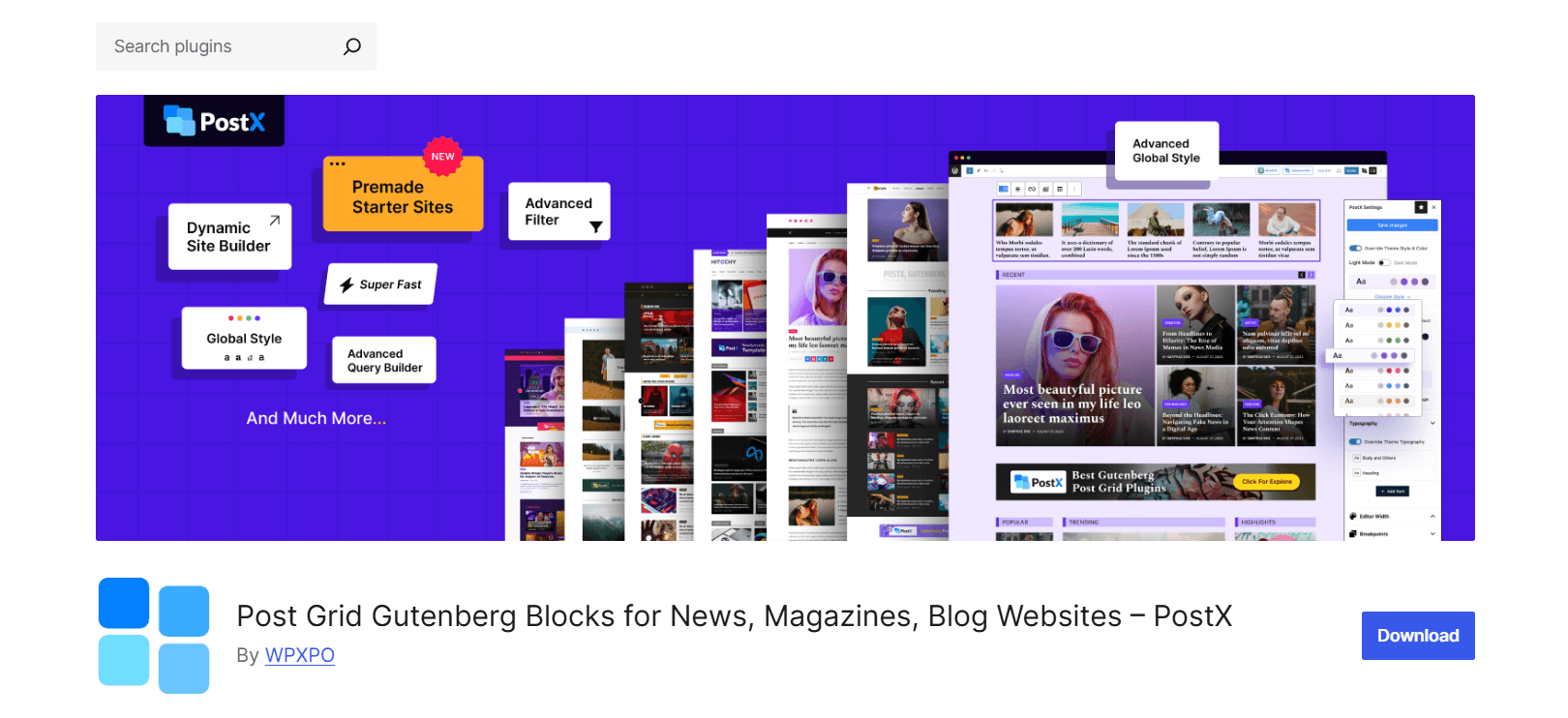
PostX is a powerful post grid plugin built for Gutenberg. It helps you display blog posts, articles, or custom content in modern, dynamic layouts—perfect for news, magazine, and tech websites.
It offers everything from AJAX filtering and pagination to starter templates and custom query builders. With PostX, you can easily turn your site into a content-rich, professional platform without writing code.
Key Features
- Pre-Built Starter Sites: Import full templates for news, food blogs, tech, travel, crypto, and more. Customize and launch in minutes.
- Advanced Query Builder: Show posts based on category, tag, author, popularity, date, or specific IDs. Works with posts, pages, and custom post types.
- Gutenberg Site Builder: Customize templates like homepages, archives, categories, and author pages using PostX’s drag-and-drop tools inside Gutenberg.
- Dynamic Content Support: Display custom fields (like ACF data) in post grids—great for structured or CPT content.
- Front-End Post Submission: Allow guest authors to submit posts from the frontend. Includes built-in tools for editing and feedback.
- Global Styling Controls: Apply consistent fonts, colors, and spacing across all PostX blocks, overriding your theme’s default styles.
- SEO Integration: Replace default excerpts with SEO meta descriptions from plugins like Yoast, Rank Math, or SEOPress.
- Reading Progress Bar: Add a visual progress indicator to encourage users to read longer posts.
Best For
News publishers, bloggers, and content-heavy sites that want deep Gutenberg integration, fast filtering, and scalable layout options with modern design control.
5. Smart Post Show
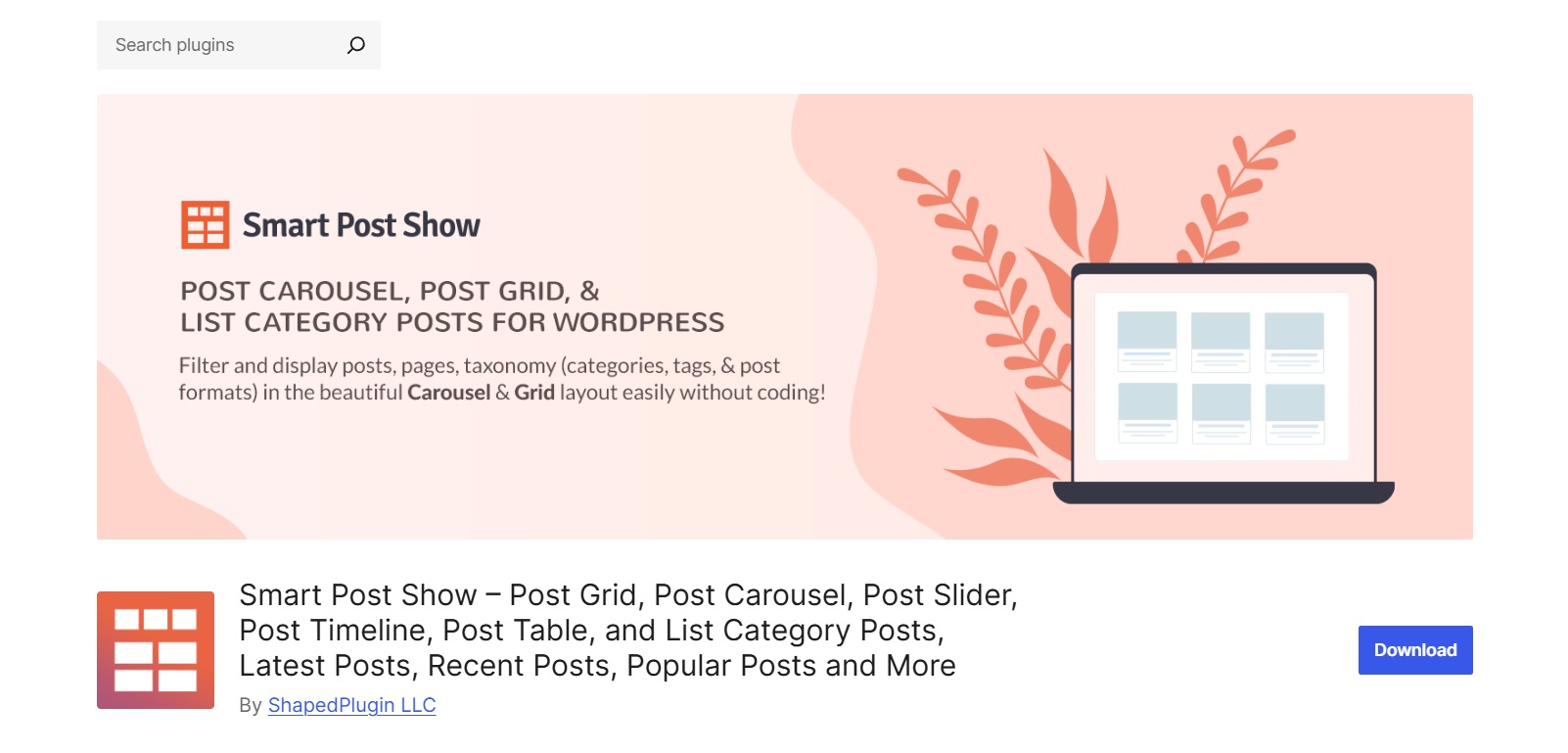
Smart Post Show (formerly known as Post Carousel) is a user-friendly plugin for creating responsive post carousels and grids. It’s great for displaying blog posts, WooCommerce products, team members, testimonials, or any custom post type in a clean, dynamic layout.
It works with shortcodes and major page builders like Elementor and Divi, making it a simple way to add engaging post displays across your site.
Key Features
- Grid and Carousel Layouts: Choose between grid and slider views to showcase posts, products, or other content types in an eye-catching way.
- Beginner-Friendly Setup: Configure everything using dropdowns and toggles in a clean, easy-to-use interface, no coding needed.
- Works with All Major Builders: Use with Elementor, Divi, WPBakery, Beaver Builder, and more via shortcodes or side-by-side integration.
- Flexible Query Filters: Show specific posts based on post ID, taxonomy, keyword, author, publish date, or last update.
- Lightweight & Fast: Optimized for performance with minimal assets, ideal for high-traffic sites.
- Multilingual & RTL Support: Fully translatable and compatible with multilingual plugins. RTL support included.
- Developer-Friendly: Includes hooks and filters to modify layout output and query behavior.
- Theme Compatible: Works smoothly with any well-coded theme, including Astra, Divi, Avada, and Genesis.
Best For
Anyone looking for a simple, flexible way to create post carousels or grids, especially useful for product showcases, testimonials, and featured blog content. A solid choice for both beginners and developers.
How to Choose the Right Post Grid Plugin for Your Site
With so many WordPress post grid plugins available, it can be hard to choose the right one. Instead of picking the most popular option, focus on what your site needs—your editor, content type, design goals, and how comfortable you are with customization.
Here are the key things to look for:
Editor Compatibility: Choose a Plugin That Fits Your Workflow
Not every plugin works well with all editors. Choose one that supports how you build your site:
- Gutenberg Block Editor: Use plugins that offer full block support with drag-and-drop layouts and live previews, like Advanced Post Block or PostX.
- Elementor: Look for plugins with dedicated Elementor widgets or flexible shortcode support, such as The Post Grid or Smart Post Show.
- Classic Editor: Pick plugins that rely on shortcodes and simple settings panels.
- Full Site Editing (FSE): Choose plugins that support block templates and global style tools.
Tip: Matching your plugin to your editor prevents layout issues and makes design easier.
Grid Layout Options: Find the Right Look
Your layout should match your content style. Different plugins offer different layout types:
- Masonry Grid: Great for photography, art, or portfolios.
- List View: Ideal for news or editorial content with post excerpts.
- Carousel or Slider: Best for featured content, testimonials, or products.
- Card/Grid Box: A balanced layout that fits most blogs and business sites.
Some plugins let you switch between layouts or create your own templates.
Tip: If you run multiple content types, choose a plugin with layout presets or reusable templates.
Filtering and Pagination: Help Visitors Find Content Fast
If your site has a lot of content, filtering and pagination are a must:
- Category & Tag Filters: Let users narrow down posts using tabs, dropdowns, or checkboxes.
- AJAX Load More: Adds new posts without reloading the page.
- Infinite Scroll: Loads posts as users scroll, great for keeping them engaged.
Plugins like Advanced Post Block and Smart Post Show offer smooth, user-friendly filters.
Tip: AJAX filtering creates a faster, more interactive experience—especially for large sites.
Performance and Speed: Keep It Fast
A slow grid can hurt user experience and SEO. Look for:
- Lazy Loading: Loads images only when needed to reduce initial load time.
- Lightweight Code: Avoids unnecessary scripts that slow down your site.
- Optimization Plugin Support: Make sure your plugin plays nicely with tools like WP Rocket, Autoptimize, or LiteSpeed Cache.
Tip: Test performance on mobile and desktop using tools like PageSpeed Insights or GTmetrix.
Responsive & Mobile-Ready: Make It Work on Every Device
Most visitors browse from mobile devices, so your grids must adapt:
- Responsive Breakpoints: Set how many columns appear on different screen sizes.
- Touch-Friendly Controls: Sliders, filters, and buttons should be easy to tap or swipe.
- Device Previews: Some plugins let you test layouts for mobile, tablet, and desktop in real-time.
Tip: Don’t rely only on the editor preview—test your grids on real devices too.
Post Type Support: Go Beyond Blog Posts
If you use custom content like events or products, your plugin needs to support more than posts:
- Custom Post Types (CPTs): Check support for CPTs created with tools like CPT UI or Toolset.
- WooCommerce Products: Some plugins can show product price, ratings, and “Add to Cart” buttons.
- Taxonomy Filters: Filter by custom terms like event types or skills.
Tip: Use ACF (Advanced Custom Fields) for extra post data, and pick a plugin that can display it.
Customization Options: Match Your Brand Style
Even with great layouts, you’ll likely want to tweak the design. Look for:
- Visual Template Builder: Drag-and-drop control over post title, images, meta, and more.
- Custom CSS Support: Easily match your grid styles to your theme.
- Conditional Logic: Show or hide elements based on post type, categories, or fields.
Tip: Choose a flexible plugin so you’re not locked into one design.
Integration with Other Tools: Extend Functionality
The best grid plugins work well with other tools you already use:
- ACF: Show extra content fields in your grids.
- SEO Plugins: Make sure markup is SEO-friendly and works with Rank Math, Yoast, or SEOPress.
- Popular Themes: Look for compatibility with Astra, GeneratePress, Kadence, and block themes.
Tip: Check the plugin’s documentation or forums to confirm compatibility.
Pricing & Licensing: Know What You’re Paying For
Most post grid plugins offer a free version with basic features and a paid upgrade for advanced tools:
- Free: Good for basic blogs or simple layouts.
- Pro: Unlocks filters, sliders, templates, and WooCommerce support.
- Licensing: Some offer lifetime access, while others require annual renewal.
Tip: Try the free version on a test site before investing in Pro features.
| Plugin | Editor Support | Layout Options | Filters / Pagination | Custom Post Type | ACF / SEO Integration | Performance | Free / Pro |
| Advanced Post Block | Gutenberg, Shortcode | Grid, List, Masonry, and Slider | Category Filter, AJAX Load More | ✅ | ✅ | ✅ Fast | ✅ / ✅ |
| PostX | Gutenberg, Shortcode | Grid, List, Card, Slider | AJAX Filter, Load More | ✅ | ✅ (Pro) | ✅ Fast | ✅ / ✅ |
| Content Views | Shortcode, Classic | Grid, List | Basic (Free), Advanced (Pro) | ✅ | ⚠️ Limited | ✅ Fast | ✅ / ✅ |
| The Post Grid | Shortcode, Elementor | Grid, Masonry, List | Pagination, Filter (Pro) | ✅ | ✅ | ⚠️ Moderate | ✅ / ✅ |
| Smart Post Show | Shortcode, Widget | Slider, Grid | Category Filter, Pagination | ✅ | ⚠️ Limited | ✅ Fast | ✅ / ✅ |
FAQs About WordPress Post Grid Plugins
1. What is the best free post grid plugin for WordPress?
It depends on your needs and the editor you use:
- For Gutenberg: PostX and Advanced Post Block offer strong free features like custom layouts, AJAX filtering, and responsive grids.
- For the Classic Editor or shortcode users: Content Views is beginner-friendly and works well for basic blog grids.
- For Elementor: Smart Post Show includes an intuitive interface and slider-style layouts.
2. Can I use post grids with custom post types in WordPress?
Yes, most post grid plugins support custom post types (CPTs) like portfolios, testimonials, events, or products. Popular options like Advanced Post Block, PostX, and Smart Post Show allow you to:
- Choose the post type you want to display
- Apply filters based on custom taxonomies
- Customize how each item appears
3. How do I add a post grid in Gutenberg?
To add a post grid in Gutenberg:
- Install a compatible plugin like PostX or Advanced Post Block.
- Open a post or page in the Block Editor.
- Click the “+” icon and search for a block like Advanced Post Block or Post List.
- Add the block, then use the sidebar settings to customize the layout (choose post type, filters, number of columns, etc.).
- Save and preview your changes.
4. Do post grid plugins support pagination and filters?
Yes—most do, including both free and Pro plugins. Common features include:
- Standard Pagination: Numbered navigation at the bottom of the grid
- AJAX Load More: Loads posts without reloading the page
- Category & Tag Filters: Helps visitors filter content dynamically
- Keyword or Custom Field Filters: Available in some Pro versions
5. Are post grid plugins mobile-friendly?
Yes. Quality post grid plugins are fully responsive, adapting layouts across desktop, tablet, and mobile. Look for features like:
- Custom column settings per device
- Touch/swipe support for carousels
- Mobile previews inside the editor
6. Can I display WooCommerce products in a post grid?
Absolutely. Many plugins support product grids. You can:
- Show items by category, tag, or status (sale/featured)
- Add prices, ratings, and Add to Cart buttons
- Customize layouts for product listings
7. What’s the difference between a post grid and a blog layout?
A blog layout is usually the default post list provided by your WordPress theme, often a single column with featured images and excerpts.
A post grid is more visual and customizable. It lets you:
- Arrange posts in rows and columns
- Add filters, hover effects, and pagination
- Choose different layout styles (masonry, slider, card, etc.)
8. Is the Query Loop block enough, or should I use a plugin?
The Query Loop block in Gutenberg is useful for displaying posts without extra plugins. But it has limits:
- No AJAX loading or advanced filtering
- Few layout styles
- Limited mobile and styling options
If your needs are simple, the Query Loop block may work. But if you want more control, visual layouts, or interactive features, a plugin like Advanced Post Block offers a better experience.
Final Thoughts: Which Post Grid Plugin is Right for You?
A well-crafted post grid doesn’t just make your site look good. It improves navigation, keeps users engaged, and helps your best content get seen.
Choosing the best post grid plugin depends on how you build your site and what kind of content you want to showcase.
If you use the Gutenberg block editor and want full control over layout, Advanced Post Block is a solid choice. It’s fast, flexible, and easy to use with built-in support for multiple layouts, filters, pagination, and responsive design.

 Save 90%