
Embedding Google Docs in your WordPress site is a smart way to keep content organized, collaborative, and up to date. It’s perfect for sharing templates, publishing guides, or managing team workflows — all while keeping your content dynamic and accessible.
But doing it manually can be tricky. Many users run into formatting issues, permission errors, or clunky display options that don’t look great across all devices.
That’s where the Document Embedder plugin comes in. It removes the hassle of embedding Google Docs (and many other file types) with a clean, responsive design — no technical steps required.
In this guide, we’ll walk you through the easiest way to embed Google Docs in WordPress, compare the top plugin options, and show why Document Embedder is the most flexible and user-friendly choice for your site.
Let’s get started.
Why Embed Google Docs in WordPress?
Adding Google Docs to your WordPress site isn’t just about convenience; it’s a strategic move to enhance collaboration, maintain consistency, and streamline your content management process.
Here’s why:
1. Real-Time Collaboration and Seamless Updates
Google Docs excels in facilitating real-time collaboration. Multiple team members can simultaneously edit a document, with changes reflecting instantly.
When embedded in WordPress, these updates are automatically synchronized, ensuring your website always displays the most current version without manual intervention.
2. Consistent Formatting Across Platforms
Transferring content from Google Docs to WordPress often leads to formatting issues.
By embedding directly, you preserve the original structure, including headings, bullet points, and hyperlinks, ensuring a polished and professional appearance on your site.
3. Efficient Content Management Workflow
Embedding Google Docs streamlines your content workflow. It eliminates the need for repetitive copy-pasting and reduces the risk of version control issues.
This approach is particularly beneficial for teams managing dynamic content, such as schedules, meeting notes, or collaborative documents, enhancing overall productivity.
Best WordPress Plugins for Embedding Google Docs
When it comes to embedding Google Docs into WordPress, choosing the right plugin can make all the difference.
Let’s take a look at some of the best options available — and why one stands out above the rest.
Document Embedder
Document Embedder is a powerful and easy-to-use plugin designed specifically for embedding Google Docs, along with 16+ different file types, directly into your WordPress site.
Powered by the Google Drive file viewer API, it ensures secure, smooth, and responsive document display.
It works smoothly with the Gutenberg block editor, letting you easily adjust the document’s width, height, filename display, and download button to match your site’s needs.
Why It’s the Best Choice
- Ease of Use: Embedding a document is quick and straightforward with no complex setup needed.
- Customization Options: Easily adjust layout settings like width, height, filename visibility, and download button placement.
- Security and Performance: Google Drive API integration ensures secure access, while Pro features like lightbox viewing, disabling popouts, and loading indicators enhance performance and UX.
- Extensive File Support: Beyond Google Docs, you can embed PDFs, images, spreadsheets, presentations, and even code files.
- Gutenberg Ready: Fully integrated with the block editor for a seamless workflow.
EmbedPress
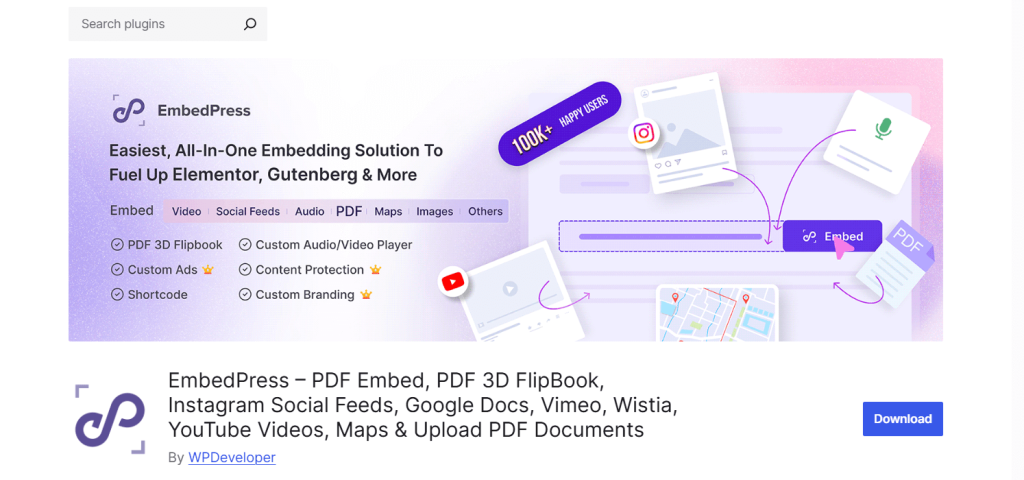
EmbedPress is a powerful and flexible WordPress plugin that lets you embed over 100 types of media content.
You can add Google Docs, Google Sheets, videos, maps, and more directly into your posts and pages without writing a single line of code.
It integrates seamlessly with Gutenberg, Elementor, and other popular page builders, making it beginner-friendly.
Why It’s a Good Choice
- Ease of Use: Embedding is simple, even for non-technical users, thanks to easy options like URL input and shortcodes.
- Wide Embed Support: In addition to documents, it also supports other platforms like YouTube, Vimeo, and Spotify.
- Page Builder Compatibility: Works well with Elementor, Gutenberg, Beaver Builder, and more.
Things to Consider
- Feature Limitations: Some advanced features (like custom branding or extra embed options) require a premium upgrade.
- Potential Bloat: If you mainly want to embed documents, it might feel heavier than necessary.
Embed Any Document
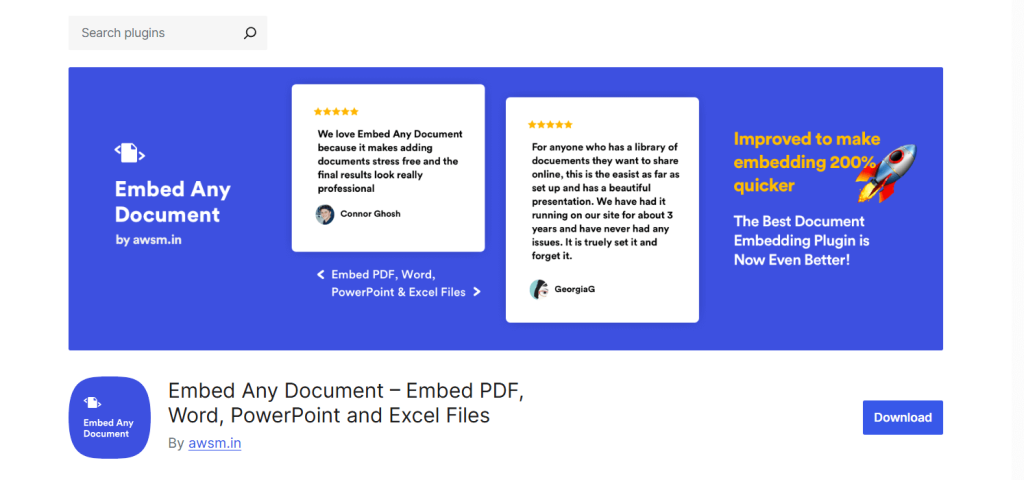
Embed Any Document offers a simple, straightforward way to embed files like PDFs, Word documents, and PowerPoint presentations into WordPress posts and pages.
It uses trusted third-party viewers like Google Docs Viewer and Microsoft Office Online to render the documents without requiring extra browser plugins.
Why It’s a Good Choice
- Lightweight and Simple: Designed specifically for document embedding without any extra frills.
- Supports Major File Types: Easily handles PDFs, DOCX, PPTX, and more.
- Beginner-Friendly Setup: Embed documents in just a few clicks without touching code.
Things to Consider
- Limited Customization: Less flexibility over how the embedded documents appear on your site.
- External Dependency: Relies on third-party services, which can sometimes cause loading delays.
- Restricted Integrations: Google Drive and Dropbox integrations are only available in the Pro version.
Here’s a quick comparison of the top WordPress plugins for embedding Google Docs.
| Features | Document Embedder | EmbedPress | Embed Any Document |
|---|---|---|---|
| Ease of Use | Extremely easy, focused on document embedding | Easy, but mainly for media content | Simple for basic document types |
| Supported File Types | 16+ document and media types (PDF, DOCX, PPTX, images, code files, and more) | 100+ media types (not document focused) | Limited to PDF, DOCX, PPTX |
| Customization Options | Full control (width, height, filename display, download button placement) | Basic customization unless using Pro | Very limited |
| Gutenberg Block Integration | Full Gutenberg Block integration | Yes | No native block, uses shortcodes |
| Performance Optimization | Optimized for fast, smooth document display | Good, but may feel heavy for document use | Lightweight |
| Third-Party Dependency | Powered by Google Drive Viewer API — secure and reliable | No (direct embed) | Relies on external viewers (Google, Microsoft) |
| Google Drive & Dropbox Integration | Built-in (Pro version) | Limited | Pro version only |
| Pro Features | Smart enhancements (lightbox, loading indicator, disable popout, Google Drive/Dropbox API integration) | Extensive (but can be overkill) | Basic enhancements |
| Best For | Anyone serious about embedding Google Docs and documents with full control | Media-rich sites embedding various content types | Simple document display needs |
👉 If you need a lightweight, flexible, and reliable way to embed Google Docs in WordPress, Document Embedder is your best choice.
How to Embed Google Docs in WordPress
Embedding a Google Doc in WordPress using the Document Embedder plugin is easy.
Here’s how you can do it:
Installation and Activation
Navigate to your WordPress dashboard. Go to Plugins → Add New and search for Document Embedder. Now, install and activate the plugin.
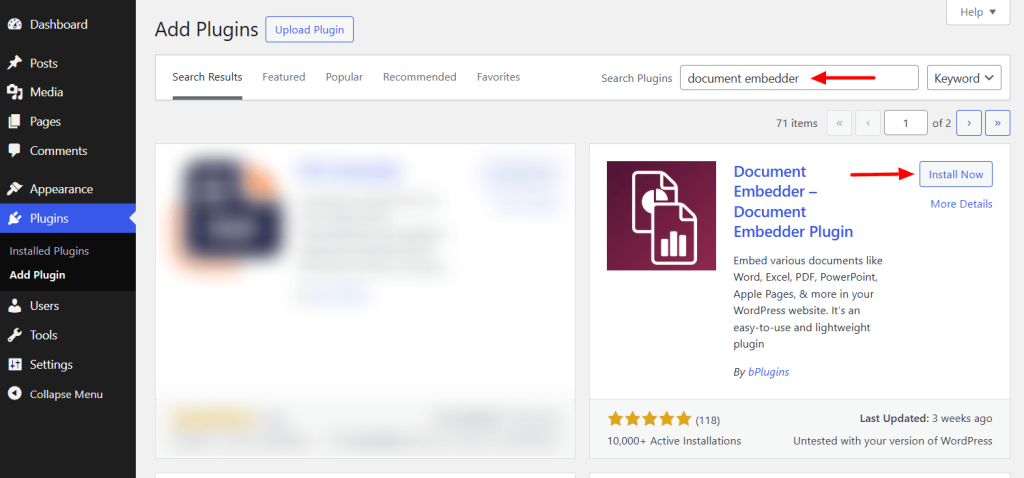
Note: If you’ve installed the pro version, you need the license key to activate the plugin.
Add a New Doc
Navigate to Document Embedder → Add New Doc area to add your first doc.
Add a suitable title for your document. Hit the upload button to add the Google Doc and any other document. You can change its Width and Height as you prefer.
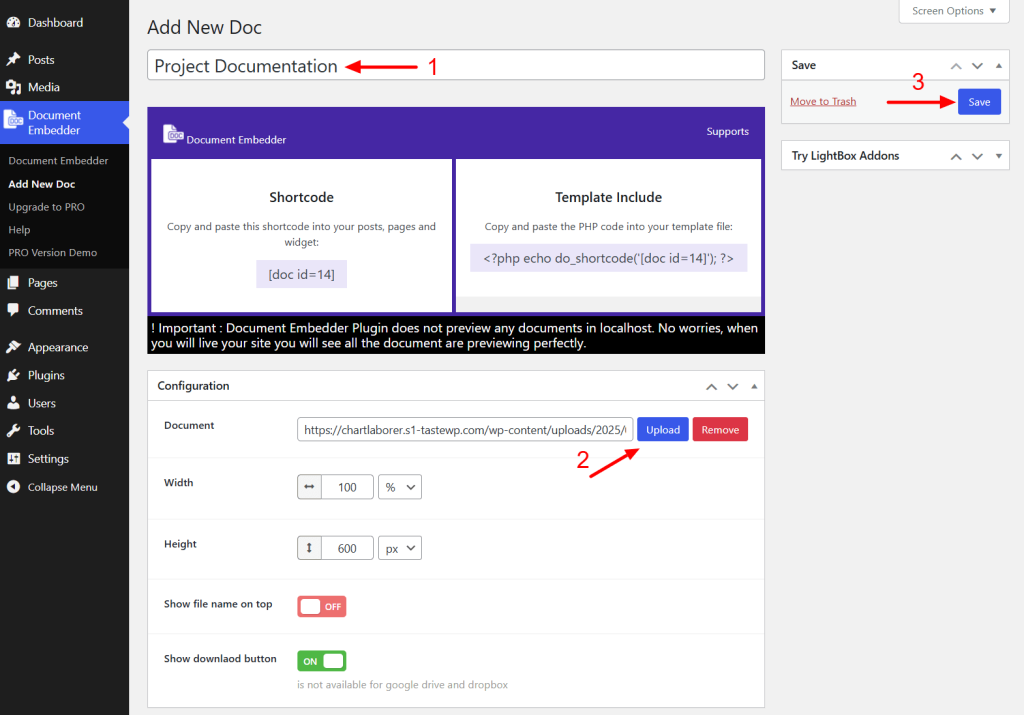
You can also choose to display the file name at the top along with a download button, making it easier for users to identify the document and download it quickly.
Once you’ve made the necessary customization, click the save button to complete the process.
Embedding the Document
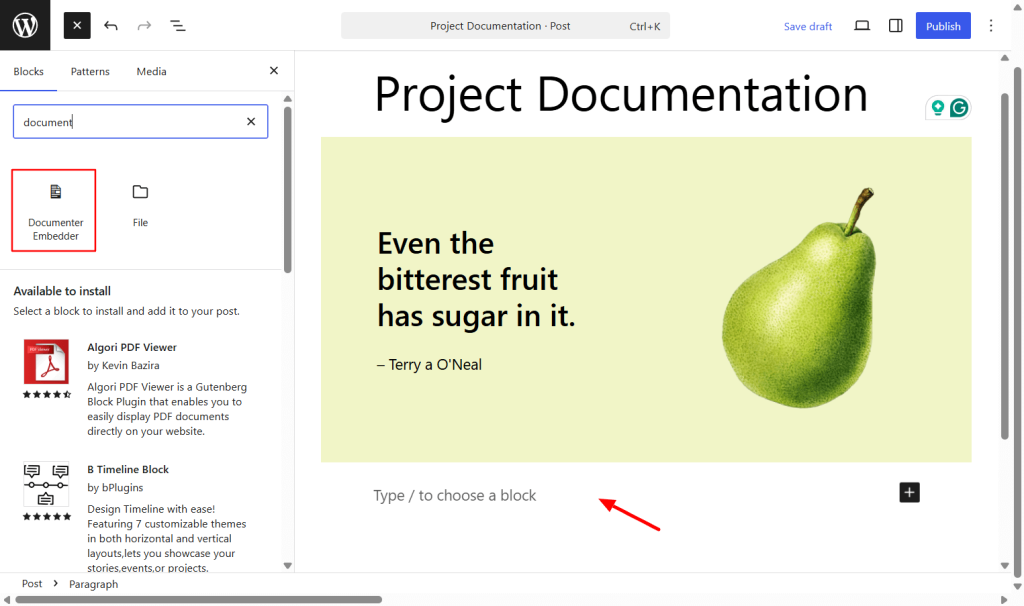
You can use the dedicated Gutenberg Block named Document Embedder or insert the provided shortcode.
Let’s try both.
Open the page or post in the WordPress editor panel. Click the “+” icon to open the block library and look for the Document Embedder block.
Add the block to the suitable area.
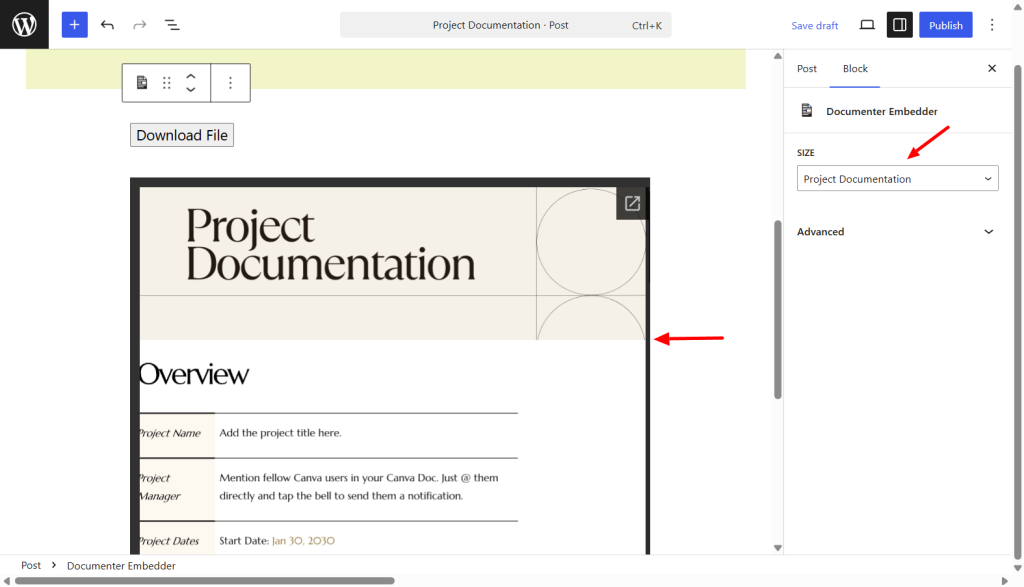
Now, you can select the document from the right sidebar panel. Once you’ve done, press the publish button. That’s it.
Let’s see how you can use the shortcode to embed your documents.
Go to the Document Embedder section from your dashboard. Here you can find all your listed documents. Copy the shortcode of your document.
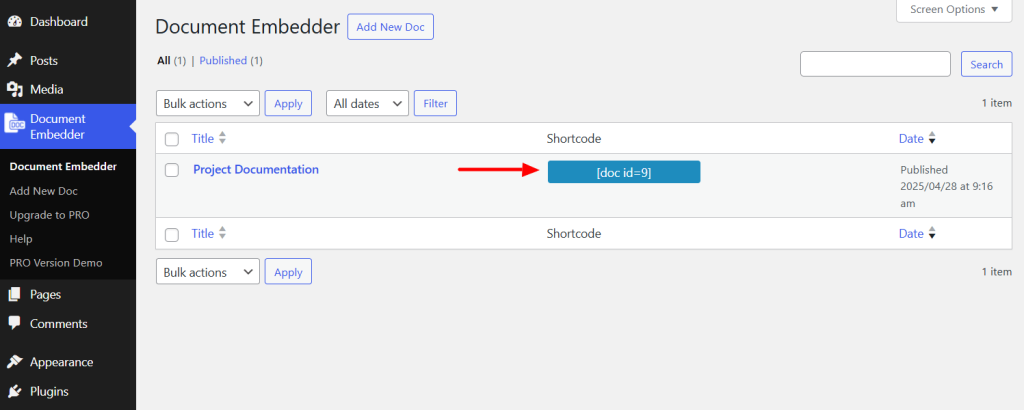
Open the page or post to the editor panel where you would like to embed the document.
Add the default Shortcode block. Now, paste the shortcode and hit the save button.
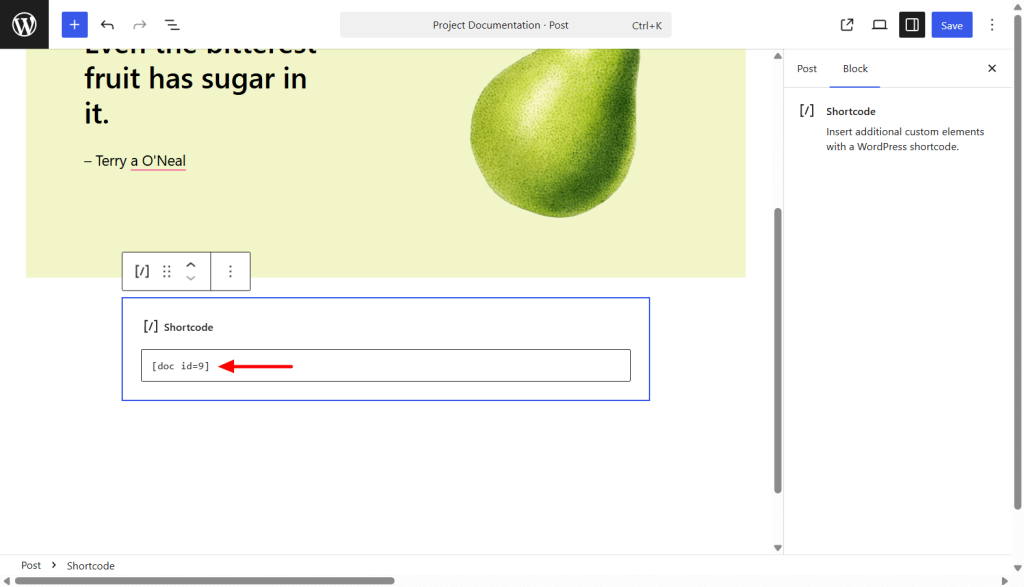
That’s all.
Advanced Features and Customization
While the free version of Document Embedder offers everything you need to embed Google Docs seamlessly, upgrading to the Pro version unlocks even more powerful features that give you greater control and an even smoother user experience.
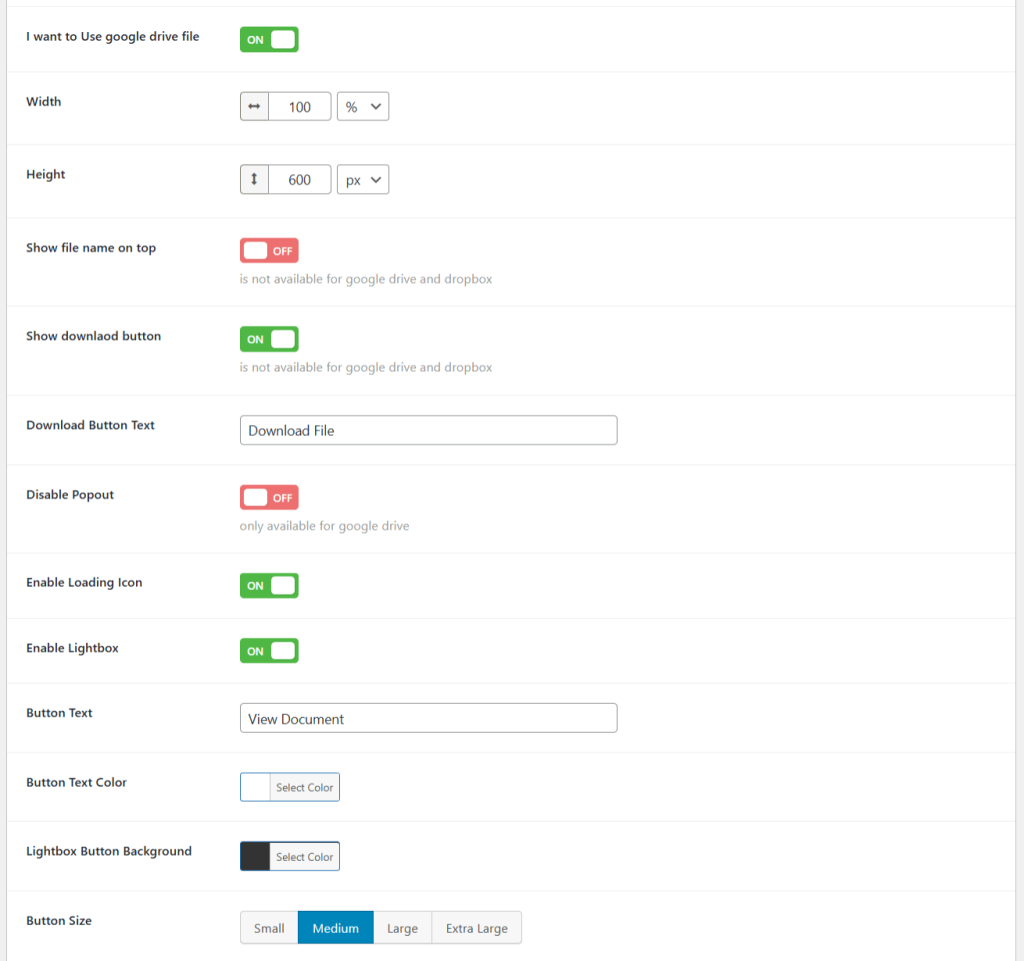
Here’s a closer look at what you can do with Document Embedder Pro:
Disable Popout
By default, some embedded viewers allow users to open the document in a new tab. With Document Embedder Pro, you have the option to disable the popout feature, keeping visitors engaged right on your website.
It’s a simple tweak that helps maintain focus and improves the overall user journey.
Enable Lightbox
Want a more interactive document viewing experience? Enable Lightbox mode to let your embedded documents open in a sleek, focused overlay without redirecting users away from the page.
Even better, you can customize the lightbox button’s label, color, and style to match your site’s branding perfectly. It’s a professional touch that makes your documents look even more polished.
Show Loading Indicator
Nobody likes staring at a blank space while waiting for a document to load. With the Pro version, you can show a loading animation until the document is fully ready.
This small feature creates a smoother, more reassuring experience for visitors, especially when accessing large files or browsing from slower connections.
Google Drive API Integration
Want to pull documents directly from Google Drive? Document Embedder Pro lets you do that securely using the Google Drive API.
It makes document management faster and easier, especially for teams sharing files..
Dropbox API Integration
If you prefer Dropbox, you’re covered too. Pro users can connect the plugin with the Dropbox API, making it easy to embed files stored there without manually uploading or linking them.
It’s a simple way to keep your workflows efficient and your documents always up-to-date.
Frequently Asked Questions: Embedding Google Docs in WordPress
1. Can you embed a Google Doc directly in WordPress?
Yes, you can. The simplest way is by using the “Publish to the web” feature inside Google Docs, which gives you an embed code. You can then paste that code into your WordPress page or post.
However, if you want better control over how your document looks and behaves (and avoid messing with HTML manually), use a plugin like Document Embedder.
2. How do I make a Google Doc responsive on my WordPress site?
Manually embedding a Google Doc often means editing CSS to make it responsive. With Document Embedder, it’s automatic.
You can also set the width and height in the plugin to ensure the document fits your page layout perfectly.
3. Why isn’t my embedded Google Doc showing properly on my WordPress page?
The most common reason is incorrect sharing permissions. If your Google Doc is private or restricted, visitors won’t be able to view it, even if it’s embedded correctly.
Make sure your document’s sharing settings are set to “Anyone with the link can view.” Other causes could be wrong embed codes, plugin conflicts, or browser caching issues.
4. What’s the difference between embedding a Google Doc manually vs using a plugin?
Manual embedding works, but it can be clunky. You need to grab embed codes, adjust iframe settings, and possibly edit some HTML/CSS to get it looking right. Using a plugin makes the whole process smoother.
You get easy customization (no coding), better security handling, more styling options, and better performance management — all from within your WordPress dashboard. Plus, plugins support many other document types, not just Google Docs.
5. Will embedding Google Docs affect my website’s SEO or performance?
Not if you do it right. Manually embedded documents or heavy iframe usage can sometimes slow down page load times. Plugins like Document Embedder help minimize performance impact by handling document loads smartly.
You can even add a loading indicator (Pro feature) so visitors aren’t staring at a blank section while the doc loads, which improves user experience — a key factor for SEO. Keeping document sizes optimized and enabling lazy-loading behavior can further help.
6. Can I restrict access to embedded Google Docs in WordPress?
Yes. Access control is mainly managed through the document’s settings inside Google Docs itself. You can choose whether your doc is public, only available to people with the link, or restricted to certain users/emails.
When embedding sensitive or private documents, double-check that the sharing permissions are set exactly how you want them before inserting them into WordPress.
7. How often does an embedded Google Doc update on my website?
Changes you make to the original Google Doc update automatically wherever it’s embedded. You don’t have to re-embed it every time you make an edit.
This makes Google Docs perfect for embedding things like pricing sheets, event schedules, or regularly updated guides, since your WordPress page will always show the latest version without any extra work.
8. Can I embed Google Sheets, Slides, or Forms similarly in WordPress?
Absolutely. Google Sheets, Slides, and Forms all offer embed options, just like Google Docs. And if you’re using Document Embedder, you can easily embed various file types (even beyond Google Workspace files) and customize how they appear.
It’s a great way to make your site interactive and dynamic, from displaying spreadsheets to showcasing presentations or collecting responses through forms.
Conclusion
Embedding Google Docs in WordPress doesn’t have to be a hassle. With the right plugin, you can keep your formatting clean, boost collaboration, and make sure your documents look great on any device.
Document Embedder gives you everything you need to make that happen. It’s easy to use, fully customizable, and packed with helpful features like lightbox viewing and secure Google Drive integration.
Ready to transform how you showcase documents on your WordPress site?
Need help getting started?
Check out our documentation or live demo to see Document Embedder in action.

 Save 90%